

Microsoft Teams’ new workplace check-in feature can automatically update a user’s work location when a Windows or macOS PC connects to a configured corporate Wi-Fi network or registered desk peripheral—but a broad rollout is not confirmed as live on July 17, 2026. Microsoft’s own June 12 Teams blog says Wi-Fi check-in for Microsoft Places will roll out “later this year,” despite reporting from Windows Latest describing the feature as now rolling out.
That timing distinction matters. The Windows Latest item supplied with this report carries a July 18, 2026 publication date, which is still in the future as of July 17. Microsoft’s current public documentation, last updated July 1, describes how organizations can configure workplace check-in, rather than announcing a completed worldwide deployment.
Microsoft is nevertheless preparing a significant expansion of what Teams presence can tell coworkers. Instead of simply showing Available, Busy, Away, or In a call, Teams can combine availability with planned and actual work location—such as In the office or a named building. Windows Latest reports Microsoft has pushed back on the surveillance label, saying it does not support employee surveillance.
That is a defensible distinction in product design terms, but not necessarily in workplace-policy terms. The system is not a continuous GPS tracker, and it does not publish a user’s movements around an office. Yet it can automate a visible indication that a person arrived at a configured workplace. For organizations enforcing return-to-office policies, that signal may still carry consequences far beyond collaboration.
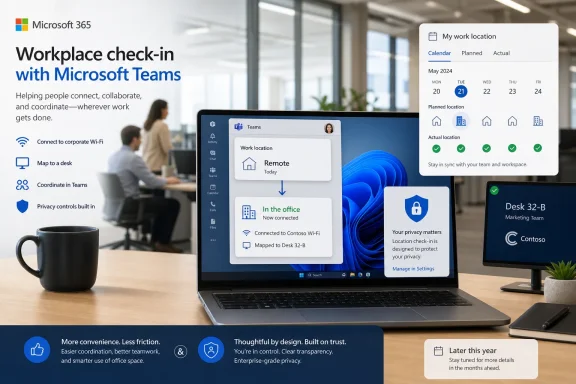
Microsoft frames workplace check-in as an extension of the existing Microsoft 365 presence model. Employees can already set planned work locations in Outlook or Teams calendars, letting colleagues see whether they expect to be remote or in the office. The new mechanism is designed to update an actual location signal when the employee gets to work.
The distinction is important. A planned location is an employee-entered calendar intention. Workplace check-in is a system-detected signal that can change a user’s work location after a laptop connects to an approved wireless network or a mapped desk peripheral such as a monitor or docking station.
Microsoft’s documentation says the feature can identify an office or configured building, not a floor, room, desk, or route through the building. It also says work location is only shared within the organization and is not visible to Microsoft.
That is materially different from a phone-based tracking app. Teams is not using the feature to generate a minute-by-minute map of employees. But it is also a more consequential signal than a manually updated calendar entry, because it provides an automated indication that a managed device encountered workplace infrastructure.
Microsoft’s June Teams blog described the goal as reducing manual status updates and making it easier for colleagues to coordinate in-person work. In a well-run hybrid office, that is a legitimate use case: someone deciding whether to walk over for a short conversation can see whether a teammate is actually at the building instead of relying on an outdated calendar plan.
Actual work location is cleared at the end of an employee’s configured working hours, according to Microsoft Learn. If the user connects to a company Wi-Fi network or desk peripheral after hours, Teams should not automatically update their location. Users can also manually clear or override the location.
The critical caveat is that individual choice varies by configuration. Microsoft gives administrators two Wi-Fi modes:
For IT departments, that means the feature is not a single toggle. The tenant must have Microsoft Places configured, buildings defined in the Places directory, and approved wireless access-point information associated with the workplace. A peripheral-based setup similarly requires the relevant desk hardware to be mapped in the environment.
For employees, however, a setting that can be disabled is not the same thing as a setting that can be declined without pressure. Companies can adopt attendance rules, use the check-in signal as a norm-setting device, or treat opt-outs as exceptions that require explanation. Microsoft can design a privacy-conscious product while employers still use its output in ways workers experience as monitoring.
That event-driven design limits precision. A Teams contact may see that a coworker is at the office or at a specific configured building, but not whether they are at a particular desk, in a meeting room, at lunch, or leaving for the day. The automatic clearing of actual location after work hours also prevents it from becoming a persistent after-hours presence record inside Teams.
Still, the practical objection is not really about floor-level positioning. It is about the difference between a colleague voluntarily declaring, “I’m in today,” and software affirming that a corporate laptop connected to the office network. In an organization where physical attendance is scrutinized, that can become an attendance proxy even if Microsoft does not market it as one.
Administrators should not dismiss that concern as a misunderstanding of the technology. Workers are reacting to the governance layer around the technology: who can see the status, whether managers are trained not to misuse it, whether absence from a Wi-Fi signal is treated as evidence of anything, and whether employees can opt out without adverse treatment.
Organizations should also test ordinary edge cases before presenting workplace check-in as authoritative: laptop sleep and wake behavior, docking at shared desks, switching between Wi-Fi and Ethernet, VPN use, guest networks, multi-building campuses, and employees who work partly in the office and partly elsewhere during the same day.
The clearest policy line is also the safest one: Teams work location should help colleagues coordinate, not serve as the sole record of attendance, hours worked, or employee performance. That boundary will determine whether the feature feels like a useful hybrid-work convenience or a new layer of digital oversight.
Microsoft has built technical limits into Teams workplace check-in, and its documentation makes a credible case that this is not continuous employee tracking. But as the Wi-Fi capability moves toward the “later this year” rollout Microsoft announced in June, the question for IT leaders is no longer whether Teams can detect that a laptop reached the office. It is whether their organization can use that signal without turning workplace presence into a loyalty test.
That timing distinction matters. The Windows Latest item supplied with this report carries a July 18, 2026 publication date, which is still in the future as of July 17. Microsoft’s current public documentation, last updated July 1, describes how organizations can configure workplace check-in, rather than announcing a completed worldwide deployment.
Microsoft is nevertheless preparing a significant expansion of what Teams presence can tell coworkers. Instead of simply showing Available, Busy, Away, or In a call, Teams can combine availability with planned and actual work location—such as In the office or a named building. Windows Latest reports Microsoft has pushed back on the surveillance label, saying it does not support employee surveillance.
That is a defensible distinction in product design terms, but not necessarily in workplace-policy terms. The system is not a continuous GPS tracker, and it does not publish a user’s movements around an office. Yet it can automate a visible indication that a person arrived at a configured workplace. For organizations enforcing return-to-office policies, that signal may still carry consequences far beyond collaboration.
 Teams Is Turning Presence Into Workplace Presence
Microsoft frames workplace check-in as an extension of the existing Microsoft 365 presence model. Employees can already set planned work locations in Outlook or Teams calendars, letting colleagues see whether they expect to be remote or in the office. The new mechanism is designed to update an actual location signal when the employee gets to work.The distinction is important. A planned location is an employee-entered calendar intention. Workplace check-in is a system-detected signal that can change a user’s work location after a laptop connects to an approved wireless network or a mapped desk peripheral such as a monitor or docking station.
Microsoft’s documentation says the feature can identify an office or configured building, not a floor, room, desk, or route through the building. It also says work location is only shared within the organization and is not visible to Microsoft.
That is materially different from a phone-based tracking app. Teams is not using the feature to generate a minute-by-minute map of employees. But it is also a more consequential signal than a manually updated calendar entry, because it provides an automated indication that a managed device encountered workplace infrastructure.
Microsoft’s June Teams blog described the goal as reducing manual status updates and making it easier for colleagues to coordinate in-person work. In a well-run hybrid office, that is a legitimate use case: someone deciding whether to walk over for a short conversation can see whether a teammate is actually at the building instead of relying on an outdated calendar plan.
The Privacy Controls Are Real, but Policy Still Decides the Experience
Microsoft’s implementation includes several controls that limit its scope. Workplace check-in is off by default at the organization level, requires explicit administrative configuration, and currently works only in the Teams desktop app on Windows and macOS. It does not operate through Teams mobile clients.Actual work location is cleared at the end of an employee’s configured working hours, according to Microsoft Learn. If the user connects to a company Wi-Fi network or desk peripheral after hours, Teams should not automatically update their location. Users can also manually clear or override the location.
The critical caveat is that individual choice varies by configuration. Microsoft gives administrators two Wi-Fi modes:
- In Inform mode, the feature is active for selected users and Teams shows a notice explaining that users can opt out.
- In Ask mode, users receive a notice and must choose to opt in before Teams begins updating their workplace location.
For IT departments, that means the feature is not a single toggle. The tenant must have Microsoft Places configured, buildings defined in the Places directory, and approved wireless access-point information associated with the workplace. A peripheral-based setup similarly requires the relevant desk hardware to be mapped in the environment.
For employees, however, a setting that can be disabled is not the same thing as a setting that can be declined without pressure. Companies can adopt attendance rules, use the check-in signal as a norm-setting device, or treat opt-outs as exceptions that require explanation. Microsoft can design a privacy-conscious product while employers still use its output in ways workers experience as monitoring.
It Is Not GPS, but It Can Still Become an Attendance Signal
The strongest case for Microsoft’s defense is technical. Workplace check-in does not continuously watch where an employee goes. Microsoft says updates occur in response to discrete events, including connecting to a configured Wi-Fi network, changing networks, waking a device, or connecting a registered peripheral.That event-driven design limits precision. A Teams contact may see that a coworker is at the office or at a specific configured building, but not whether they are at a particular desk, in a meeting room, at lunch, or leaving for the day. The automatic clearing of actual location after work hours also prevents it from becoming a persistent after-hours presence record inside Teams.
Still, the practical objection is not really about floor-level positioning. It is about the difference between a colleague voluntarily declaring, “I’m in today,” and software affirming that a corporate laptop connected to the office network. In an organization where physical attendance is scrutinized, that can become an attendance proxy even if Microsoft does not market it as one.
Administrators should not dismiss that concern as a misunderstanding of the technology. Workers are reacting to the governance layer around the technology: who can see the status, whether managers are trained not to misuse it, whether absence from a Wi-Fi signal is treated as evidence of anything, and whether employees can opt out without adverse treatment.
The IT Work Starts Before the Feature Is Enabled
For Microsoft 365 administrators, the immediate job is less about deploying a Teams setting and more about setting expectations. The product requires accurate Places data and careful configuration of wireless networks or desk peripherals. A sloppy building directory or overly broad Wi-Fi configuration will turn a collaboration feature into an unreliable presence indicator.Organizations should also test ordinary edge cases before presenting workplace check-in as authoritative: laptop sleep and wake behavior, docking at shared desks, switching between Wi-Fi and Ethernet, VPN use, guest networks, multi-building campuses, and employees who work partly in the office and partly elsewhere during the same day.
The clearest policy line is also the safest one: Teams work location should help colleagues coordinate, not serve as the sole record of attendance, hours worked, or employee performance. That boundary will determine whether the feature feels like a useful hybrid-work convenience or a new layer of digital oversight.
Microsoft has built technical limits into Teams workplace check-in, and its documentation makes a credible case that this is not continuous employee tracking. But as the Wi-Fi capability moves toward the “later this year” rollout Microsoft announced in June, the question for IT leaders is no longer whether Teams can detect that a laptop reached the office. It is whether their organization can use that signal without turning workplace presence into a loyalty test.
References
- Primary source: Windows Latest
Published: 2026-07-17T19:51:05+00:00
"Not employee surveillance," Microsoft defends Teams' new location tracking feature, now rolling out
Until now, Microsoft Teams could answer a question like, “Is Jack available to talk right now?” as part of its built-in “online presence” feature. You have this feature almost everywhere, including Google Meet, and if you dislike it, you’re going to hate the new workplace check-in feature, which... www.windowslatest.com
- Official source: learn.microsoft.com
Configure workplace check-in - Microsoft Places | Microsoft Learn
Configure workplace check-in in a Places environment.learn.microsoft.com - Related coverage: windowscentral.com
Microsoft omits controversial workplace check-in feature from June Teams roundup | Windows Central
Microsoft highlighted several new Teams features released in June, but its recap omitted the workplace check-in via Wi-Fi feature that sparked privacy concerns.www.windowscentral.com - Related coverage: techradar.com
I can't believe Microsoft Teams is still releasing this new feature which might rat you out to your boss | TechRadar
Microsoft Teams will use Wi-Fi connectivity to automatically update your work locationwww.techradar.com - Related coverage: tomsguide.com
Microsoft Teams will start snitching to your boss when you’re not in the office — and this update is coming in December | Tom's Guide
Microsoft Teams is getting a new update in December that will track whether a worker is in the office or not using Wi-Fi networks.www.tomsguide.com