

Discord Game Overlay not working on Windows 10 or Windows 11 is usually fixed by enabling the overlay in the Discord desktop app, using windowed or borderless-windowed game mode, and confirming that the overlay shortcut works. This guide covers Discord’s Windows desktop client only: the in-game overlay does not work on Discord for the web, mobile, macOS, or Linux.
Before changing settings, confirm that you are testing the correct app and environment.
If the overlay appears after this step, the problem was the global Discord setting. Continue with the widget and notification sections only if parts of the overlay are still missing.
This is a fix, not merely a workaround, for many modern games. Do not rely on old instructions that tell you to force a legacy overlay mode unless Discord Support specifically directs you to do so for a particular game.
Avoid single-letter shortcuts and keys commonly used by games, such as
To verify the shortcut, keep the game focused and press it once. If you created Toggle Overlay Lock, the overlay should become available for mouse interaction. Pressing the shortcut again should return control to the game.
Games started with elevated permissions can prevent Discord from receiving global hotkeys unless Discord has equivalent permission or Discord offers its newer Discord System Helper option. Discord describes System Helper as an experimental Windows desktop feature that is only available to some users.
First, check whether Discord displays a System Helper prompt:
If you do not see the prompt, do not download a similarly named utility from another website. The feature is not available to every account or installation.
As a temporary diagnostic, check whether the game is configured to always run as administrator:
If the voice display is too large, too small, or in an inconvenient screen position, return to User Settings > Overlay and adjust the available voice overlay display options. Use the preview shown in Discord’s settings before returning to the game.
Discord asks for its hook log when reporting a game crash involving the overlay. The log is located under the Discord version folder in:
When contacting Discord Support, include:
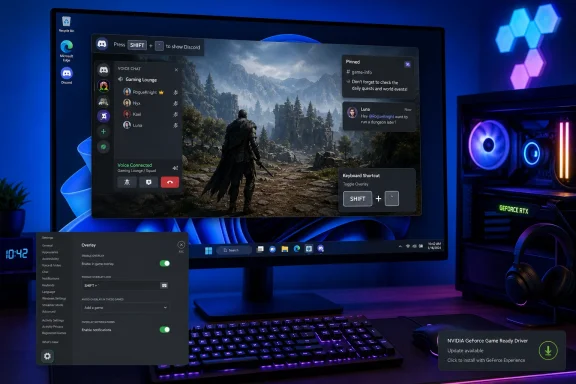 Confirm that your setup supports the Discord overlay
Before changing settings, confirm that you are testing the correct app and environment.- Use the installed Discord desktop app on a Windows 10 or Windows 11 PC.
- Start Discord and sign in before launching the game.
- Do not test from Discord in Chrome, Edge, Firefox, or another browser. Browser keyboard shortcuts may work, but Discord’s game overlay will not.
- Do not expect the feature on macOS or Linux. Discord documents the overlay as a Windows-only feature.
- Keep the game running while testing. The overlay is designed to appear over an active game window, not on the Windows desktop.
Enable Game Overlay in Discord
The master overlay setting must be on before any shortcut or widget can appear.- Open the Discord desktop app.
- Select the gear icon next to your username to open User Settings.
- Select Overlay in the left pane. Some Discord builds may label this area Game Overlay.
- Turn on Enable Overlay.
- A check mark means it is enabled.
- An X means it is disabled.
- Leave User Settings.
- Close the game completely, then start it again.
- Press the overlay shortcut while the game is active.
If the overlay appears after this step, the problem was the global Discord setting. Continue with the widget and notification sections only if parts of the overlay are still missing.
Use a display mode supported by the current overlay
A common symptom is that the shortcut appears to do nothing in one game but works in another. Discord’s current guidance is to use Windowed or Borderless Windowed display mode when the overlay will not show.- Open the game’s Settings, Options, Graphics, Video, or Display menu.
- Find Display Mode, Window Mode, or a similarly named setting.
- Change it from Fullscreen or Exclusive Fullscreen to one of these options:
- Borderless Windowed
- Borderless Fullscreen
- Windowed Fullscreen
- Windowed
- Apply the setting.
- If the game asks to restart, restart it.
- Return to the game and use the Discord overlay shortcut.
This is a fix, not merely a workaround, for many modern games. Do not rely on old instructions that tell you to force a legacy overlay mode unless Discord Support specifically directs you to do so for a particular game.
Check or create an overlay shortcut
Discord’s current Game Overlay documentation lists Shift + ` as the default overlay keybinding. However, a shortcut can be changed, removed, conflict with a game command, or fail to register. Check the keybind stored in your own Discord installation rather than assuming the default is still assigned.- In Discord, select the gear icon next to your username.
- Select Keybinds.
- Look for an existing overlay-related keybind.
- If no suitable shortcut is listed, select Add a Keybind.
- Open the Action list and choose one of the following:
- Toggle Overlay to open or close the overlay.
- Toggle Overlay Lock to interact with the overlay while playing.
- Select the blank shortcut field.
- Press a key combination that is not used by the game or another Discord command.
- Leave the Keybinds page before testing it.
Avoid single-letter shortcuts and keys commonly used by games, such as
W, E, R, F, Tab, Esc, or mouse buttons. A combination such as Ctrl + Shift + O is less likely to collide with gameplay controls, although you should still check the game’s own keyboard settings.To verify the shortcut, keep the game focused and press it once. If you created Toggle Overlay Lock, the overlay should become available for mouse interaction. Pressing the shortcut again should return control to the game.
Fix overlay shortcuts that fail only in one game
If the overlay shortcut works on the desktop or in ordinary games but not in a game launched with administrator permissions, Windows’ security boundary may be the reason.Games started with elevated permissions can prevent Discord from receiving global hotkeys unless Discord has equivalent permission or Discord offers its newer Discord System Helper option. Discord describes System Helper as an experimental Windows desktop feature that is only available to some users.
First, check whether Discord displays a System Helper prompt:
- Open Discord.
- Go to User Settings > Overlay or User Settings > Keybinds.
- Look for a notification offering to install Discord System Helper.
- If it is available, select Install.
- Approve the Windows administrator prompt.
- Restart Discord and the game.
- Test the overlay keybind again.
If you do not see the prompt, do not download a similarly named utility from another website. The feature is not available to every account or installation.
As a temporary diagnostic, check whether the game is configured to always run as administrator:
- Close the game.
- Right-click its shortcut or executable file.
- Select Properties.
- Open the Compatibility tab.
- Check whether Run this program as an administrator is selected.
Pin the widgets that should stay visible
Sometimes the overlay opens normally, but the voice list, chat panel, stream, activity panel, or video disappears when you return to play. That is usually a widget-pinning setting, not an overlay failure.- Start the game.
- Press your overlay shortcut.
- Open the widget you want to remain visible.
- Select its pin icon.
- Confirm that the pin changes to Discord’s highlighted color.
- Close or unlock the overlay and return to the game.
If the voice display is too large, too small, or in an inconvenient screen position, return to User Settings > Overlay and adjust the available voice overlay display options. Use the preview shown in Discord’s settings before returning to the game.
Restore missing message notifications
The overlay may be operational even though message previews never appear. Check notification settings and muting before reinstalling Discord.- Open Discord and go to User Settings > Overlay.
- Enable the text or message notification option, if it is off.
- Check the server, direct message, or group message where you expect notifications.
- Make sure that conversation is not muted.
- Open User Settings > Streamer Mode.
- Turn off Streamer Mode temporarily and test the overlay again.
Update Discord, Windows, and graphics drivers
If the overlay worked previously and then failed after a game, GPU, or Windows update, update the software involved before changing advanced settings.- Exit the game.
- Quit Discord from the notification area near the clock:
- Select the hidden-icons arrow if necessary.
- Right-click Discord.
- Choose Quit Discord.
- Start Discord again and allow it to update if prompted.
- Restart Windows.
- Install available Windows updates.
- Install the current graphics driver from Windows Update or your graphics hardware manufacturer.
- Start Discord first, then launch the game and test the overlay.
- Open Discord.
- Go to User Settings > Advanced.
- Turn off Hardware Acceleration.
- Accept the prompt to restart Discord.
- Test the overlay after Discord reopens.
Reinstall Discord without deleting game files
If the overlay still fails across several games after the settings and display-mode checks, reinstall Discord. This does not remove your games, game saves, Discord servers, or Discord account.- Close Discord completely from the notification area.
- Press Ctrl + Shift + Esc to open Task Manager.
- End any remaining Discord processes.
- Open Windows Settings:
- Windows 11: Start > Settings > Apps > Installed apps
- Windows 10: Start > Settings > Apps > Apps & features
- Find Discord.
- Select More options or select Discord, then choose Uninstall.
- Follow the prompts.
- Restart Windows.
- Download and install Discord from Discord’s official download page.
- Sign in, enable the overlay again, and test one game in Borderless Windowed mode.
%AppData% or %LocalAppData% as a first-line repair. That is a more destructive cleanup step that removes local Discord data and custom settings. Use it only when Discord Support specifically requests it as part of a support case.Collect useful details if the game crashes or the overlay still fails
If enabling the overlay causes one specific game to crash, disable the overlay for testing rather than repeatedly forcing the crash. Confirm whether the game becomes stable with the overlay off. That result helps identify an overlay compatibility issue.Discord asks for its hook log when reporting a game crash involving the overlay. The log is located under the Discord version folder in:
%appdata%\discord\[highest-version-number]\modules\discord_hook\hookWhen contacting Discord Support, include:
- Windows version and edition.
- Discord desktop app version.
- Game name and launcher.
- Whether the game is using fullscreen or Borderless Windowed mode.
- Whether the overlay shortcut works in other games.
- Whether the game runs as administrator.
- Exact expected result and actual result.
- Steps that reproduce the issue.
- A screenshot, short recording, or the requested Discord hook log if the game crashes.
References
- Primary source: Technobezz
Published: 2026-07-17T17:17:11.758000+00:00
Discord Overlay Not Working? How to Fix It (2026) | Technobezz
Discord overlay not working on Windows? Fix Game Overlay settings, keybinds, fullscreen mode, notifications, and reinstall problems.www.technobezz.com - Related coverage: support.discord.com
Game Overlay 101 – Discord
Worried you’ll miss a message from your friend while you’re engaging in an epic battle? Worry no more with the Game Overlay! Discord’s...support.discord.com