

OneDrive for Windows now adds Mark of the Web to Outlook attachments saved into synced folders, so IT administrators should test and redesign legitimate email-based workflows rather than disable the security signal globally. The immediate risk is operational: macro-enabled workbooks, templates, scripts, and installers that previously opened normally may now enter Protected View or have VBA blocked after a user saves them from Outlook.
Microsoft documented the change in OneDrive version 26.002.0105.0001, released to the Windows Production Ring on January 23, 2026. It also appeared in the Windows Deferred Ring release dated June 1, 2026, making this a current deployment concern rather than a distant roadmap item.
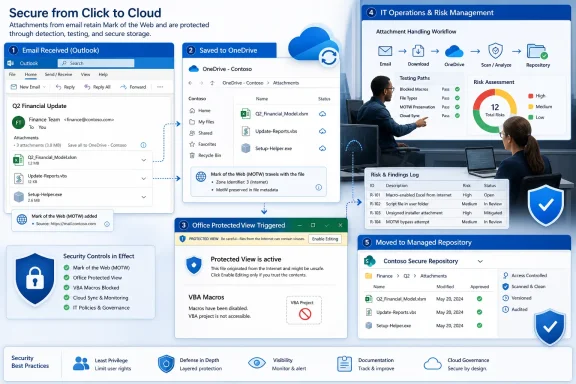
The important variable is not simply whether a file resides in OneDrive. Microsoft says ordinary files downloaded by the OneDrive sync client do not receive Mark of the Web merely because they were synced. The newly significant category is a file that originated as an Outlook attachment and was then saved into a OneDrive sync folder.
Administrators need to reproduce that route exactly. Copying a test workbook into OneDrive, downloading it through another channel, or opening an existing synced file does not validate the Outlook-to-OneDrive path.
Use the following process with representative users and managed device configurations:
Finance teams should identify emailed workbooks used for reconciliations, month-end reporting, forecasting, imports, exports, and approval packages. The critical test is not whether the spreadsheet displays cells; it is whether its complete VBA-driven process executes and produces the expected output.
Operations groups should look beyond
Line-of-business owners should document four details for every candidate:
That is technically capable of avoiding the new marking behavior, but it is a poor default migration strategy. Microsoft explicitly warns that without zone information Windows cannot make proper risk assessments.
The policy does not establish that an attachment is safe. It removes information used by Windows and applications to determine that the file came from an Internet or otherwise untrusted zone. Applying it broadly trades a visible compatibility failure for reduced security context across attachment handling.
Administrators may reasonably use tightly controlled testing to understand the policy’s effect, but the production decision should begin with scope. If only one finance process depends on emailed VBA, changing attachment behavior for every employee and every attachment is disproportionate.
The stronger approach is to preserve MOTW and replace the unsafe distribution pattern. Move approved artifacts into a managed repository, establish a controlled publication process, or redesign the process so users no longer execute active content directly from emailed copies.
Files opened from Trusted Locations bypass Protected View and Application Guard. They also skip file-validation checks, File Block checks, and other protections, while active content is enabled.
That means a synced folder should not become trusted merely because a department uses it frequently. If users, external synchronization paths, or broad groups can place files into that folder, the organization may have created a convenient route around several Office security layers.
Microsoft’s security baseline guidance is to use Trusted Locations rarely, control them centrally, and avoid allowing users to define them themselves. Any approved exception should therefore have restricted write access, an accountable owner, a narrow purpose, and a process for removing obsolete files and permissions.
A Trusted Location is best treated as privileged execution infrastructure, not as a usability setting. If an organization would not permit arbitrary software to be published into a folder, it should not permit arbitrary macro-enabled documents to become trusted there either.
For centrally maintained macro-enabled templates, establish a managed source rather than asking employees to save fresh email copies. Where macros remain necessary, ownership, version control, publisher trust, and controlled deployment should replace sender familiarity as the basis for execution.
Recurring spreadsheets deserve a distinction between data and code. If a process emails a newly generated workbook each day, determine whether the changing data can be delivered separately from a centrally controlled workbook or application. That reduces the number of executable documents crossing the attachment boundary.
Scripts and installers should receive even stricter treatment. Emailing them into personal OneDrive folders produces fragmented copies, uncertain versioning, and weak retirement controls before MOTW is considered. A managed software or script distribution channel gives IT a clearer place to validate, approve, update, and withdraw packages.
The migration decision can be organized into three outcomes:
Support staff should also distinguish Protected View from macro blocking. Those controls are related to trust, but they can produce different symptoms and require different remediation decisions. Telling users to click through whichever banner appears obscures the policy boundary that administrators need to evaluate.
Capture the OneDrive version, Outlook save path, file type, Office behavior, business owner, and required active content in each escalation. Those records will show whether the organization has one isolated compatibility problem or an undocumented attachment-based automation platform.
The January 23 Production Ring appearance and June 1 Deferred Ring listing mean organizations have already crossed the point where postponement is a dependable strategy. The next milestone should be an internal deadline by which every emailed macro, template, script, and installer is either validated, migrated, or explicitly rejected—not a blanket policy that makes Windows forget where attachments came from.
Microsoft documented the change in OneDrive version 26.002.0105.0001, released to the Windows Production Ring on January 23, 2026. It also appeared in the Windows Deferred Ring release dated June 1, 2026, making this a current deployment concern rather than a distant roadmap item.
 Run the Attachment Workflow Test Before Users Find It
The important variable is not simply whether a file resides in OneDrive. Microsoft says ordinary files downloaded by the OneDrive sync client do not receive Mark of the Web merely because they were synced. The newly significant category is a file that originated as an Outlook attachment and was then saved into a OneDrive sync folder.Administrators need to reproduce that route exactly. Copying a test workbook into OneDrive, downloading it through another channel, or opening an existing synced file does not validate the Outlook-to-OneDrive path.
Use the following process with representative users and managed device configurations:
- Inventory recurring Outlook attachments that contain VBA, active content, scripts, or executable code. Include finance workbooks, operations templates, reporting packages, scripts, and internally distributed installers.
- Select nonproduction samples from each workflow and confirm how users currently receive, save, rename, move, and open them. Test both the first opening and subsequent openings rather than assuming the initial result tells the whole story.
- On a device running an affected OneDrive release, receive each sample through Outlook and save it directly into the OneDrive folder normally used by that team.
- Open the saved file using the same Office application, script host, or installer process used in production. Record whether Windows or Office presents Protected View, a security warning, a macro block, or another trust-related interruption.
- Repeat the test using different approved delivery routes already available to the organization. The goal is to establish whether the failure follows the file, its Outlook origin, or a particular storage and opening sequence.
- Test downstream processing. A workbook may open while its VBA remains blocked, or an employee may manually clear one warning only for an automated handoff, scheduled process, or second user to fail later.
- Assign every affected workflow an owner, business impact, replacement route, and migration deadline. Do not leave the result as an undifferentiated help-desk issue.
Finance and Operations Need Workflow-Level Validation
Macro-enabled Excel files are the most obvious concern because Microsoft 365 Apps blocks macros by default in files obtained from the internet when Mark of the Web is present. A previously routine sequence—receive workbook, save under OneDrive, open, run VBA—can therefore stop at the macro boundary even though the attachment came from a familiar colleague or supplier.Finance teams should identify emailed workbooks used for reconciliations, month-end reporting, forecasting, imports, exports, and approval packages. The critical test is not whether the spreadsheet displays cells; it is whether its complete VBA-driven process executes and produces the expected output.
Operations groups should look beyond
.xlsm files. Macro-enabled templates, scripts, and installers are often passed through email because email doubles as an approval record or convenient distribution channel. A file that reaches its destination but cannot execute is still a broken workflow.Line-of-business owners should document four details for every candidate:
- The record should identify who sends the file and whether that sender is internal, external, or automated.
- It should capture which Outlook action saves the attachment and which OneDrive folder receives it.
- It should state what active content must run and what business result depends on it.
- It should name the supported replacement if Windows or Office blocks the original file.
Disabling MOTW Solves the Symptom by Removing Evidence
Windows Attachment Manager includes the policy Do not preserve zone information in file attachments. Microsoft documents it under User Configuration, Windows Components, Attachment Manager, and says enabling it prevents Windows from marking attachments with their zone information.That is technically capable of avoiding the new marking behavior, but it is a poor default migration strategy. Microsoft explicitly warns that without zone information Windows cannot make proper risk assessments.
The policy does not establish that an attachment is safe. It removes information used by Windows and applications to determine that the file came from an Internet or otherwise untrusted zone. Applying it broadly trades a visible compatibility failure for reduced security context across attachment handling.
Administrators may reasonably use tightly controlled testing to understand the policy’s effect, but the production decision should begin with scope. If only one finance process depends on emailed VBA, changing attachment behavior for every employee and every attachment is disproportionate.
The stronger approach is to preserve MOTW and replace the unsafe distribution pattern. Move approved artifacts into a managed repository, establish a controlled publication process, or redesign the process so users no longer execute active content directly from emailed copies.
Trusted Locations Are Not a Casual Escape Hatch
Office Trusted Locations may appear to offer a more targeted workaround because files placed there can run without the normal MOTW response. Microsoft’s own guidance, however, makes the security tradeoff unusually clear.Files opened from Trusted Locations bypass Protected View and Application Guard. They also skip file-validation checks, File Block checks, and other protections, while active content is enabled.
That means a synced folder should not become trusted merely because a department uses it frequently. If users, external synchronization paths, or broad groups can place files into that folder, the organization may have created a convenient route around several Office security layers.
Microsoft’s security baseline guidance is to use Trusted Locations rarely, control them centrally, and avoid allowing users to define them themselves. Any approved exception should therefore have restricted write access, an accountable owner, a narrow purpose, and a process for removing obsolete files and permissions.
A Trusted Location is best treated as privileged execution infrastructure, not as a usability setting. If an organization would not permit arbitrary software to be published into a folder, it should not permit arbitrary macro-enabled documents to become trusted there either.
Redesign the Delivery Path, Not the Warning Banner
A sustainable migration starts by separating communication from software distribution. Outlook can continue carrying notifications, approvals, and links without remaining the transport mechanism for every executable business artifact.For centrally maintained macro-enabled templates, establish a managed source rather than asking employees to save fresh email copies. Where macros remain necessary, ownership, version control, publisher trust, and controlled deployment should replace sender familiarity as the basis for execution.
Recurring spreadsheets deserve a distinction between data and code. If a process emails a newly generated workbook each day, determine whether the changing data can be delivered separately from a centrally controlled workbook or application. That reduces the number of executable documents crossing the attachment boundary.
Scripts and installers should receive even stricter treatment. Emailing them into personal OneDrive folders produces fragmented copies, uncertain versioning, and weak retirement controls before MOTW is considered. A managed software or script distribution channel gives IT a clearer place to validate, approve, update, and withdraw packages.
The migration decision can be organized into three outcomes:
- Retire workflows whose macros or active content are no longer required.
- Repackage legitimate automation so code is centrally maintained and business data travels separately.
- Grant narrowly controlled exceptions only when redesign is not currently feasible and the remaining risk is formally accepted.
Support Teams Need Better Questions Than “Does OneDrive Work?”
Help-desk scripts should ask where the file originated, how it entered the synced folder, and which feature failed. OneDrive can be healthy while Office correctly blocks VBA in a marked attachment.Support staff should also distinguish Protected View from macro blocking. Those controls are related to trust, but they can produce different symptoms and require different remediation decisions. Telling users to click through whichever banner appears obscures the policy boundary that administrators need to evaluate.
Capture the OneDrive version, Outlook save path, file type, Office behavior, business owner, and required active content in each escalation. Those records will show whether the organization has one isolated compatibility problem or an undocumented attachment-based automation platform.
The January 23 Production Ring appearance and June 1 Deferred Ring listing mean organizations have already crossed the point where postponement is a dependable strategy. The next milestone should be an internal deadline by which every emailed macro, template, script, and installer is either validated, migrated, or explicitly rejected—not a blanket policy that makes Windows forget where attachments came from.
References
- Primary source: learn.microsoft.com
Loading…
learn.microsoft.com - Independent coverage: support.microsoft.com
OneDrive Sync release notes - SharePoint in Microsoft 365 | Microsoft Learn
Release notes for OneDrive sync clientsupport.microsoft.com - Independent coverage: microsoft.com
Microsoft 365 Roadmap | Microsoft 365
The Microsoft 365 Roadmap lists updates that are currently planned for applicable subscribers. Check here for more information on the status of new features and updates.www.microsoft.com
- Primary source: WindowsForum
Loading…
windowsforum.com