

SharePoint Online Alerts are now inside Microsoft’s July 2026 retirement window, and administrators should treat every remaining alert as a broken dependency rather than a notification they can rescue. As of July 18, existing alerts can no longer be extended and are not expected to work, so the immediate job is to find the business processes that quietly depended on them before missed emails become help-desk tickets.
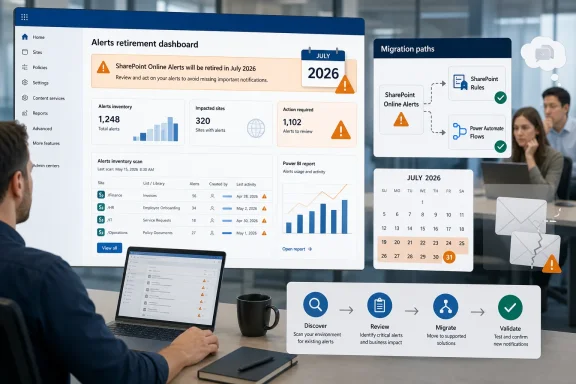
Microsoft’s SharePoint Alerts retirement notice sets the chronology plainly: creation of new alerts was disabled across all tenants beginning in January 2026, while July 2026 removes the ability to use or extend existing alerts. Microsoft recommends SharePoint Rules or Power Automate as replacements, but choosing a replacement is only one part of the response. IT also needs an inventory, a business-impact review, migration testing, and a recognizable support script for users reporting that “SharePoint stopped emailing me.”
The most useful first move is not waiting for users to identify their own alerts. Microsoft specifically recommends running the Microsoft 365 Assessment tool to scan the tenant for SharePoint Alerts usage and begin migration planning.
Administrators should turn that recommendation into a short incident-prevention sequence:
That is why administrators should prioritize by business dependency, not simply alert count. Start with SharePoint sites connected to time-sensitive work, then move to departmental libraries and personal convenience notifications.
A site owner may know that an alert exists without knowing who still relies on it. Conversely, a user may depend on an email without recognizing that SharePoint Alerts generated it. The first visible symptom may therefore be a missed review, an unanswered request, or a complaint that a familiar message stopped arriving.
Microsoft says users have been shown retirement banners in relevant SharePoint Online pages and alert emails. Those warnings reduce surprise, but they do not prove that recipients understood the operational consequence or migrated the notification.
Admin outreach should use concrete language. Instead of announcing that a legacy Microsoft 365 capability has been deprecated, tell users that emails generated by “Alert Me” in SharePoint Online may have stopped as of July 2026 and ask whether they used those emails to start or complete work.
This is another example of why Microsoft 365 retirements require more than a Message Center acknowledgment. WindowsForum has previously examined the broader run of Microsoft 365 feature retirements and the administrative burden created when familiar components disappear, but SharePoint Alerts are particularly exposed because many dependencies were established outside centralized IT.
SharePoint Rules are the more direct replacement when the requirement is a straightforward notification tied to a list or library change. In a supported list or library, the user opens Integrate > Rules, selects the condition that triggers the rule, completes the condition and recipient details, and creates it.
That route fits simple cases such as notifying someone when an item changes or when a new file is created. It also keeps the notification configuration close to the SharePoint content that triggers it, which may be easier for site owners to understand and maintain.
Power Automate is the stronger option when the notification requires multiple conditions, additional actions, or orchestration beyond a basic email. Microsoft’s retirement guidance points to templates covering scenarios such as an updated list item or file, a newly created item, a new file, or changes made by someone else.
The migration should reproduce the business requirement, not necessarily every setting of the old alert. An administrator rebuilding an alert should ask:
The help desk should recognize phrases such as “Alert Me,” “library alert,” “list alert,” “document-change email,” or “SharePoint notification stopped.” The first response should establish whether the user means a retired SharePoint Online Alert, a SharePoint Rule, a Power Automate flow, or a different email-generating process.
A practical triage script should ask for the SharePoint site, list or library, expected recipient, triggering change, last known successful notification, and business consequence. Staff should also ask whether the user previously saw a retirement banner in SharePoint or inside an alert email.
If the missing message came from a legacy SharePoint Alert, repeatedly changing permissions, checking junk mail, or recreating the alert is no longer an adequate fix. Microsoft’s older troubleshooting guidance discusses permissions, mail delivery, and service health for alert failures, but its current notice now states that SharePoint Alerts are being removed in July 2026.
The correct ticket path is migration or replacement, not prolonged repair of the retired capability. Support documentation should say that plainly so first-line staff do not spend hours diagnosing expected retirement behavior as an isolated mailbox problem.
There is still value in checking Microsoft 365 service health when a SharePoint Rule, Power Automate flow, or unrelated mail path fails. The critical distinction is identifying what generated the expected notification before applying a generic SharePoint-email troubleshooting checklist.
Microsoft Support continues to document alert configuration separately for SharePoint Server 2016 and SharePoint Server 2019. Organizations running hybrid environments must therefore establish whether a reported alert belongs to SharePoint Online or an on-premises farm before assigning the retirement as the cause.
That product boundary matters during a busy support window. A SharePoint Online alert that stopped because of retirement and a SharePoint Server alert that stopped because of an environmental problem can produce nearly identical user reports.
It also prevents retirement work from distracting administrators from on-premises maintenance. SharePoint Server security and lifecycle work remains a separate operational track; cloud feature removal is not evidence that an on-premises notification failure should be ignored.
Every discovered alert now needs one of three outcomes: replace it, document that it is no longer required, or record a temporary manual control until migration is complete. Anything left unclassified is a future ticket whose first symptom may be missed work rather than a clean technical error.
The retirement banners were the warning phase. July 2026 is the failure-management phase, and the organizations that avoid a ticket spike will be those that inventory notification paths before users have to discover the broken ones themselves.
Microsoft’s SharePoint Alerts retirement notice sets the chronology plainly: creation of new alerts was disabled across all tenants beginning in January 2026, while July 2026 removes the ability to use or extend existing alerts. Microsoft recommends SharePoint Rules or Power Automate as replacements, but choosing a replacement is only one part of the response. IT also needs an inventory, a business-impact review, migration testing, and a recognizable support script for users reporting that “SharePoint stopped emailing me.”
 Run the Tenant Scan Before Troubleshooting Individuals
The most useful first move is not waiting for users to identify their own alerts. Microsoft specifically recommends running the Microsoft 365 Assessment tool to scan the tenant for SharePoint Alerts usage and begin migration planning.Administrators should turn that recommendation into a short incident-prevention sequence:
- Run the Microsoft 365 Assessment tool against the SharePoint Online tenant and include the scanner for SharePoint Alerts usage.
- Generate the Power BI Alerts Report provided by the assessment process.
- Review the reported alerts by site collection and web rather than treating the tenant as one undifferentiated list.
- Match the affected sites, lists, and libraries to site owners and business functions.
- Ask owners which notifications trigger operational action, approvals, document reviews, compliance work, or customer-facing activity.
- Assign each required notification to SharePoint Rules, Power Automate, or another documented process.
- Test the replacement with a controlled list item or file change and confirm that the intended recipient receives the expected notification.
- Record an owner for the replacement and a support route for failures.
That is why administrators should prioritize by business dependency, not simply alert count. Start with SharePoint sites connected to time-sensitive work, then move to departmental libraries and personal convenience notifications.
The Dangerous Alerts Are the Ones Nobody Documented
SharePoint Alerts were often configured directly by users on a list, library, folder, file, or item. That self-service convenience also made them easy to exclude from formal workflow diagrams, application inventories, and change-management records.A site owner may know that an alert exists without knowing who still relies on it. Conversely, a user may depend on an email without recognizing that SharePoint Alerts generated it. The first visible symptom may therefore be a missed review, an unanswered request, or a complaint that a familiar message stopped arriving.
Microsoft says users have been shown retirement banners in relevant SharePoint Online pages and alert emails. Those warnings reduce surprise, but they do not prove that recipients understood the operational consequence or migrated the notification.
Admin outreach should use concrete language. Instead of announcing that a legacy Microsoft 365 capability has been deprecated, tell users that emails generated by “Alert Me” in SharePoint Online may have stopped as of July 2026 and ask whether they used those emails to start or complete work.
This is another example of why Microsoft 365 retirements require more than a Message Center acknowledgment. WindowsForum has previously examined the broader run of Microsoft 365 feature retirements and the administrative burden created when familiar components disappear, but SharePoint Alerts are particularly exposed because many dependencies were established outside centralized IT.
Choose the Replacement by Notification Complexity
Microsoft recommends two principal destinations: SharePoint Rules and Power Automate. They overlap, but they should not be treated as interchangeable answers for every retired alert.SharePoint Rules are the more direct replacement when the requirement is a straightforward notification tied to a list or library change. In a supported list or library, the user opens Integrate > Rules, selects the condition that triggers the rule, completes the condition and recipient details, and creates it.
That route fits simple cases such as notifying someone when an item changes or when a new file is created. It also keeps the notification configuration close to the SharePoint content that triggers it, which may be easier for site owners to understand and maintain.
Power Automate is the stronger option when the notification requires multiple conditions, additional actions, or orchestration beyond a basic email. Microsoft’s retirement guidance points to templates covering scenarios such as an updated list item or file, a newly created item, a new file, or changes made by someone else.
The migration should reproduce the business requirement, not necessarily every setting of the old alert. An administrator rebuilding an alert should ask:
- What exact event is supposed to start the notification?
- Which people need the message, and are those recipients still correct?
- Is an email sufficient, or does the process require another action?
- Who will own and maintain the replacement?
- How will the organization detect when the replacement fails?
Give the Help Desk a Retirement-Aware Failure Script
Microsoft explicitly advises organizations to update training and prepare help-desk support. On July 18, that guidance should already be reflected in triage documentation.The help desk should recognize phrases such as “Alert Me,” “library alert,” “list alert,” “document-change email,” or “SharePoint notification stopped.” The first response should establish whether the user means a retired SharePoint Online Alert, a SharePoint Rule, a Power Automate flow, or a different email-generating process.
A practical triage script should ask for the SharePoint site, list or library, expected recipient, triggering change, last known successful notification, and business consequence. Staff should also ask whether the user previously saw a retirement banner in SharePoint or inside an alert email.
If the missing message came from a legacy SharePoint Alert, repeatedly changing permissions, checking junk mail, or recreating the alert is no longer an adequate fix. Microsoft’s older troubleshooting guidance discusses permissions, mail delivery, and service health for alert failures, but its current notice now states that SharePoint Alerts are being removed in July 2026.
The correct ticket path is migration or replacement, not prolonged repair of the retired capability. Support documentation should say that plainly so first-line staff do not spend hours diagnosing expected retirement behavior as an isolated mailbox problem.
There is still value in checking Microsoft 365 service health when a SharePoint Rule, Power Automate flow, or unrelated mail path fails. The critical distinction is identifying what generated the expected notification before applying a generic SharePoint-email troubleshooting checklist.
SharePoint Server Is a Separate Case
This retirement applies to SharePoint Online in Microsoft 365. Administrators should not automatically interpret it as a shutdown of alerts in on-premises SharePoint Server deployments.Microsoft Support continues to document alert configuration separately for SharePoint Server 2016 and SharePoint Server 2019. Organizations running hybrid environments must therefore establish whether a reported alert belongs to SharePoint Online or an on-premises farm before assigning the retirement as the cause.
That product boundary matters during a busy support window. A SharePoint Online alert that stopped because of retirement and a SharePoint Server alert that stopped because of an environmental problem can produce nearly identical user reports.
It also prevents retirement work from distracting administrators from on-premises maintenance. SharePoint Server security and lifecycle work remains a separate operational track; cloud feature removal is not evidence that an on-premises notification failure should be ignored.
The Next Ticket Can Still Be Prevented
The remaining uncertainty is not Microsoft’s direction but the exact timing users will experience across every tenant and alert. Microsoft frames the change as beginning “from July 2026,” rather than providing a tenant-specific shutdown timestamp, so administrators should not use a recently received alert as evidence that a dependency is safe.Every discovered alert now needs one of three outcomes: replace it, document that it is no longer required, or record a temporary manual control until migration is complete. Anything left unclassified is a future ticket whose first symptom may be missed work rather than a clean technical error.
The retirement banners were the warning phase. July 2026 is the failure-management phase, and the organizations that avoid a ticket spike will be those that inventory notification paths before users have to discover the broken ones themselves.
References
- Primary source: learn.microsoft.com
Users Don't Receive SharePoint Alert Notifications - SharePoint | Microsoft Learn
This article discusses and resolves an issue that prevents users from receiving SharePoint alert notifications.learn.microsoft.com - Independent coverage: support.microsoft.com
- Independent coverage: techcommunity.microsoft.com
- Independent coverage: devblogs.microsoft.com
Remote Event Receivers are retiring: move to SharePoint webhooks before July 1, 2027 - Microsoft 365 Developer Blog
Remote Event Receivers in SharePoint Online are retiring. Starting July 1, 2027, all remote event receivers will stop firing events, including those registered using Microsoft Entra applications.devblogs.microsoft.com - Independent coverage: mc.merill.net
MC1243549 - Retirement of SharePoint One-Time Passcode (SPO OTP) and transition to Microsoft Entra B2B | Microsoft 365 Message Center Archive
SharePoint One-Time Passcode (SPO OTP) authentication will retire by October 31, 2026, transitioning external sharing and authentication to Microsoft Entra B2B. New sharing uses…mc.merill.net - Primary source: WindowsForum
Windows 7 - Microsoft Planning to Push Out End of Support Notifications | Windows Forum
The thread discusses upcoming notifications for Windows 7 users about support ending in January 2020, with some users expressing frustration about these...windowsforum.com