

Use AI to learn faster in 2026 by making it explain, question, and evaluate your work—not by having it complete the work for you. This guide covers ChatGPT, Microsoft Copilot, and Google NotebookLM on Windows 10, Windows 11, and modern web browsers, with steps suitable for students, certification candidates, language learners, and professionals building job skills.
AI produces better help when you define the result you need. “Teach me Excel” is too broad; “help me use XLOOKUP confidently by Friday” gives the tool a target, a starting point, and a way to measure progress.
Before opening an AI chat, write down:
Try these requests:
Warning: Do not upload confidential employer files, client records, medical information, student records, passwords, API keys, or internal material unless your organization expressly permits that AI service and account type for the data.
Once you have approved material ready, ask the AI to create active practice:
Google NotebookLM is especially useful when you want the AI to work from a selected collection of sources. After creating a notebook and adding approved sources, use its chat to ask source-based questions. Its Studio area can generate flashcards and quizzes, and lets you choose difficulty and customize the focus. Treat these as review aids, not proof that every detail is correct; open the supporting source when a fact matters.
Instead of writing “summarize this,” use:
After a quiz or exercise, ask:
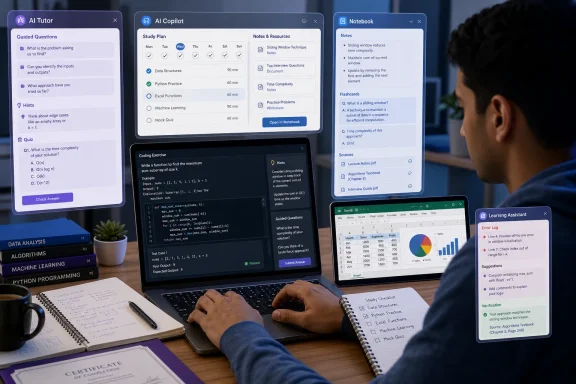 Set one concrete learning outcome first
AI produces better help when you define the result you need. “Teach me Excel” is too broad; “help me use XLOOKUP confidently by Friday” gives the tool a target, a starting point, and a way to measure progress.Before opening an AI chat, write down:
- The topic or skill.
- Your current level.
- The deadline or study time available.
- What successful performance looks like.
- Any permitted source materials, such as course notes, manuals, or practice questions.
This turns the AI into a coach rather than a shortcut.I am new to Excel formulas. I have 30 minutes each weekday for four weeks. I need to use XLOOKUP, IF, and PivotTables for a work reporting task. Create a weekly plan with short practice exercises, but do not give answers until I attempt each one.
Use a repeatable learning cycle
The fastest reliable AI workflow is not “ask once and read the answer.” Use the same cycle for every topic:- Get a short explanation.
- Restate it in your own words.
- Answer questions or complete an exercise without help.
- Ask for feedback on your attempt.
- Review mistakes later.
Then respond without copying from the earlier answer:Explain this topic in plain English using one practical example. Stop after the explanation and ask me two questions to check my understanding.
This is more useful than asking for a polished summary because it exposes what you do not yet understand.Here is my explanation in my own words: [paste your explanation]. Identify anything inaccurate, incomplete, or unclear. Do not rewrite it for me until you explain the problem.
Create a realistic AI-assisted study plan
AI can break a large goal into manageable sessions, but you should check whether the plan fits your real schedule.- Open your preferred AI tool.
- State your starting level, deadline, available study time, materials, and end goal.
- Ask for a plan divided into short sessions.
- Ask for a practice activity and a success check at the end of every session.
- Put the resulting sessions into your calendar, Microsoft To Do, OneNote, or another system you actually use.
Do not follow the plan blindly. If a session takes twice as long as expected, adjust the schedule. Learning plans should respond to your progress, not create unnecessary pressure.Build a six-week beginner study plan for the CompTIA A+ networking objectives. I can study 45 minutes on Tuesday, Thursday, and Saturday. Each session must include: a five-minute review, one concept, one practical exercise, and five self-test questions. Include weekly catch-up time. Do not assume I can buy additional software.
Ask for explanations at the right level
If an explanation is confusing, do not simply ask the same question again. Tell the AI what was unclear and specify the format that would help.Try these requests:
- “Explain virtual memory to a beginner using an everyday analogy, then explain where the analogy breaks down.”
- “Teach me this accounting term as if I know basic budgeting but no accounting vocabulary.”
- “Show the reasoning in small steps, but hide the final answer until I ask.”
- “Compare these two programming concepts in a table: purpose, syntax, common mistake, and example.”
- “Give one correct example and one believable but incorrect example, then ask me to tell them apart.”
That reduces the chance of applying general advice to the wrong Windows version, application edition, programming language release, or workplace process.Before answering, list the assumptions you are making about my version, environment, or requirements.
Use ChatGPT Study Mode for guided practice
ChatGPT’s Study and learn mode is designed to guide learners through a topic with questions, progressive explanations, and understanding checks. It is available through ChatGPT on the web, iOS, and Android for signed-in users, although visible options can vary by account and interface.- Start a new main ChatGPT conversation.
- In the message composer, select Tools.
- Select Study and learn. You may also be able to type
/and select it from the menu. - Describe your level, topic, deadline, and preferred style of help.
- Attach relevant notes, a syllabus, a screenshot, or a PDF if uploads are available in your chat.
- Tell ChatGPT to use questions and hints before direct answers.
If Study and learn does not appear, start a new main chat. It may not be available inside every specialized chat, GPT, or workspace. You can still request the same method manually:I am preparing for a Windows PowerShell basics assessment. I understand folders and files but have never used the command line. Teach me for 25 minutes. Ask one question at a time, give hints before answers, and make me type commands myself. End with a five-question quiz and explain every answer I miss.
Act as a tutor. Ask me questions first, provide only a hint after an incorrect answer, and explain the full solution only after my second attempt.
Turn your own notes into useful practice material
Your notes, course slides, and official documentation are often better learning sources than a general web question. Uploading or pasting them gives the AI a defined reference point.Warning: Do not upload confidential employer files, client records, medical information, student records, passwords, API keys, or internal material unless your organization expressly permits that AI service and account type for the data.
Once you have approved material ready, ask the AI to create active practice:
For stronger recall, do not look at the answers immediately. Paste only the questions into OneNote or a document, answer them later, then compare your answers with the source material.Use only the notes I provided. Create 15 flashcards: 10 definitions, three scenario questions, and two questions that distinguish commonly confused terms. Put the answer after each question.
Google NotebookLM is especially useful when you want the AI to work from a selected collection of sources. After creating a notebook and adding approved sources, use its chat to ask source-based questions. Its Studio area can generate flashcards and quizzes, and lets you choose difficulty and customize the focus. Treat these as review aids, not proof that every detail is correct; open the supporting source when a fact matters.
Practise skills instead of collecting summaries
Summaries feel productive, but performance improves when you do the task. Ask AI to generate exercises with controlled assistance.For coding
Give me a Python exercise involving lists and loops. Provide requirements and sample input/output, but no solution. Review my code only after I paste it. Point out the first bug first, rather than rewriting the program.
For Microsoft Excel
Create a small practice dataset I can enter into Excel. Give me five tasks using SUMIFS, XLOOKUP, and conditional formatting. Do not state which formula belongs to each task unless I ask for a hint.
For writing
Review this draft against clarity, evidence, structure, and grammar. List the three most important revisions and explain why they matter. Preserve my voice; do not rewrite the entire draft.
For language learning
Hold a beginner Spanish conversation about ordering food. Write only in Spanish unless I ask for help. Correct my grammar after every third response, explain one correction briefly, and reuse words I got wrong.
For exams
The key rule is simple: attempt first, request feedback second, and review the error third.Give me one multiple-choice question at a time from these objectives. Wait for my answer. Explain why each option is correct or incorrect, then keep a list of topics I miss.
Use Microsoft Copilot when your learning materials are in Microsoft 365
Microsoft 365 Copilot can be useful when your study material is already in Word, PowerPoint, OneNote, Teams, Excel, or approved work files. Microsoft’s prompt guidance recommends including a clear goal, context, expectations, and source.Instead of writing “summarize this,” use:
For a PowerPoint training deck:Based on this Word document, create a one-page study guide for a beginner. Include five terms I must know, three practical examples, and five questions that test application rather than memorization. Flag any statements that require checking against the original document.
Warning: Copilot access, available features, and what data it can use depend on your Microsoft 365 license, organization settings, and permissions. Do not assume a work Copilot chat is appropriate for personal study files, or that a personal account is approved for work content.Review this presentation and make a practice worksheet. Ask me to identify the right procedure in five workplace scenarios. Use only information present in the presentation.
Verify claims before you rely on them
AI can produce incorrect details, outdated guidance, misread a question, or invent citations. This matters most for:- Health, legal, tax, financial, or safety decisions.
- Exam preparation based on current standards.
- Windows troubleshooting, security settings, and commands.
- Professional reports and academic research.
- Statistics, quotes, product compatibility, and release-specific instructions.
When studying Windows or Microsoft 365, prefer current Microsoft documentation. For certifications, use the exam provider’s current objectives. For academic work, use your institution’s library resources, peer-reviewed research, and the assignment’s required citation rules.List every factual claim in your answer that could change over time. For each one, tell me what type of authoritative source I should check.
Keep an error log so AI can target weak areas
Create a simple table in OneNote, Excel, or a notebook:| Date | Topic | Mistake | Why it happened | Correct rule | Review date |
|---|
Review the error log after one day, then again after several days. Your AI sessions should increasingly focus on missed concepts, not repeatedly explain material you already know.Here are the questions I missed and my answers. Group my mistakes into knowledge gaps, misread questions, calculation errors, and careless mistakes. Give me one targeted drill for each group.
Avoid the shortcuts that slow learning
AI becomes less useful when it removes the productive struggle that builds skill. Avoid these patterns:- Copying an answer before trying the problem.
- Asking for a complete assignment or finished code instead of a hint.
- Reading generated summaries without retrieving the information from memory.
- Using fabricated citations or references without opening and checking them.
- Uploading data you are not authorized to share.
- Switching tools and topics constantly instead of completing a planned study session.
- Treating a confident AI answer as evidence.
Give me the smallest next hint that will help me continue independently.
Check that you are actually learning faster
At the end of each week, test yourself without AI, notes, or search results.- Choose a practical task, quiz, explanation, or sample problem.
- Complete it independently under realistic time limits.
- Compare your result with an approved answer key, source material, instructor feedback, or actual output.
- Record what still takes too long or causes mistakes.
- Use AI only afterward to generate targeted practice for those weak areas.
References
- Primary source: techcityng.com
Published: 2026-07-19T19:47:13+00:00
How to Use AI to Learn Faster in 2026: A Practical Beginner’s Guide - TechCity
Learn how to use AI to learn faster in 2026 with practical tips and tools that can help you study smarter and retain more knowledge.www.techcityng.com
