

AI is turning Excel from a gatekept specialist tool into a practical, learnable application—one where novices can move from confusion to confident analysis in a fraction of the time previously required.
The last two years have seen a rapid infusion of generative and context-aware AI into Excel’s user experience. From formula completion that proposes full formulas as you type, to Copilot and Agent Mode that can run multi-step workflows and extract data from PDFs, AI is reshaping how people learn and use spreadsheets. These changes reduce the need to memorize syntax, shorten repetitive tasks, and let learners focus on reasoning and interpretation rather than technical details. Many new features are rolling out as web-first previews tied to Microsoft 365 Copilot licensing and preview programs.
This feature examines how AI accelerates Excel learning, which capabilities really matter for learners, where the practical limits and risks lie, and a clear playbook for beginners and trainers who want to harness AI without sacrificing accuracy or governance.
However, AI is not a replacement for fundamental practice. The most durable learning happens when AI is used to discover patterns and then learners deliberately recreate and explain those patterns themselves. Governance, verification, and understanding of probabilistic outputs remain non-negotiable in professional settings.
Use AI to learn faster, but design learning programs that insist on human verification and manual reconstruction. That combination gives learners speed without sacrificing judgment—and transforms Excel into a tool where understanding catches up with capability.
Source: The AI Journal How AI Can Help You Learn Excel Faster | The AI Journal
 Overview
The last two years have seen a rapid infusion of generative and context-aware AI into Excel’s user experience. From formula completion that proposes full formulas as you type, to Copilot and Agent Mode that can run multi-step workflows and extract data from PDFs, AI is reshaping how people learn and use spreadsheets. These changes reduce the need to memorize syntax, shorten repetitive tasks, and let learners focus on reasoning and interpretation rather than technical details. Many new features are rolling out as web-first previews tied to Microsoft 365 Copilot licensing and preview programs.This feature examines how AI accelerates Excel learning, which capabilities really matter for learners, where the practical limits and risks lie, and a clear playbook for beginners and trainers who want to harness AI without sacrificing accuracy or governance.
Background: Why Excel learning has changed
For decades, Excel mastery revolved around memorizing function syntax, learning lookup patterns (VLOOKUP, INDEX/MATCH, then XLOOKUP), and mastering PivotTables and Power Query ETL. That workflow favored people who had time to practice and tolerate early, error-prone work. Modern AI changes that by shifting cognitive load from syntax to problem definition.- Context-aware assistance now looks at column headers, table structure, and nearby values to suggest both the correct function and the exact range to use. This reduces off-by-one and range selection errors that historically caused many spreadsheet mistakes.
- Conversational interfaces (Copilot, chat panes) let users describe goals in plain English—“show Q2 sales for Product A” or “create an amortization schedule”—and receive stepwise outputs that are auditable and editable.
- Multi-step agents can plan, execute, and surface intermediate artifacts (sheets, formulas, charts) so learners can review how a result was produced—an important difference from black‑box generators.
How the new AI features work (practical view)
Formula completion and inline explanations
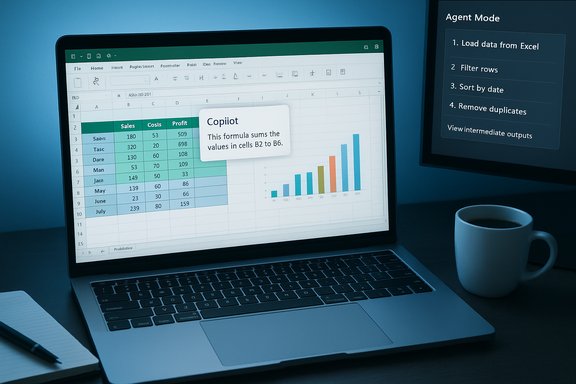
- When you type “=” into a cell, Copilot-enhanced formula completion can propose fully formed formulas with the intended ranges and a short, plain‑English explanation of what the formula does. The suggestion often shows a small preview of results before you insert the formula. That preview-and-explain pattern is intentionally educational—users see both the outcome and the rationale.
- It converts abstract syntax into a concrete, contextual example.
- Seeing the preview reduces blind acceptance: you can confirm results before committing them.
- The explanation (one-liner) helps internalize why a formula applies, not just how it’s written.
Conversational Copilot: ask, refine, apply
- Copilot in Excel accepts natural language queries, analyzes the workbook (and where permitted, external files), and returns structured outputs or creates artifacts directly in the workbook. This can include generating formulas, building PivotTables, or recommending charts. Availability is currently focused on web previews and requires appropriate licensing and cloud-saved workbooks for many features.
- Ask Copilot to summarize the dataset.
- Review the summary and ask targeted follow-ups (e.g., “which product had the highest month-over-month growth?”).
- Ask Copilot to insert a supporting chart or formula, then inspect the step-by-step plan if Agent Mode is used.
Agent Mode and multi-step automation
- Agent Mode takes a brief, then plans and executes multi-step workflows inside the workbook—creating sheets, running formulas, configuring charts, and validating intermediate results. It exposes the plan and intermediate outputs for review so the user can steer or pause the process. This moves the AI from a single-suggestion tool to an apprentice that demonstrates workflow design. Agent Mode is web-first in preview programs and currently limited by language and region gating in some rollouts.
- It shows how full analyses are composed from many small steps.
- It surfaces the process (not only the final output), which is crucial for learning reproducible spreadsheet methods.
Data ingestion, cleaning, and forecasting
- Power Query continues to be Excel’s core ETL tool, but Copilot and agentic features can now guide Power Query tasks or create refreshable queries from natural language prompts—turning manual import/transform steps into conversational actions.
- Forecast Sheet and time-series forecasting features can be initiated or explained by AI assistants, helping learners understand the assumptions behind EDA-driven forecasting without needing deeper statistical training upfront. These tools remain best used with oversight and a basic understanding of model assumptions.
What actually accelerates learning: five mechanisms
- Contextual scaffolding — AI suggests the exact ranges, functions, or transformations that fit the data, so learners see small, correct examples rather than abstract rules.
- Iterative Q&A — conversational interfaces let learners ask follow-up questions until a concept clicks, mirroring the ideal tutor interaction.
- Auditable multi-step workflows — Agent Mode’s plan→execute→surface design teaches process thinking rather than one-off tricks.
- Error prevention and previews — inline preview of computed results cuts trial-and-error cycles and the frustration learners face when formulas silently return wrong results.
- Hands-on pattern exposure — auto-generated formulas and Power Query steps expose learners to idiomatic Excel patterns (dynamic arrays, structured references) in context.
Classroom and personal learning playbook (step-by-step)
Follow this succinct sequence to learn Excel faster using AI features while building foundational skills.- Start with a clean, well-structured workbook. Convert data ranges into Excel Tables (this helps AI pick the right ranges).
- Use formula completion to generate formulas and study the inline explanation. Accept the suggestion into a scratch column, then reverse-engineer it to learn the syntax.
- Ask Copilot or a chat assistant to explain the formula component-by-component (natural-language breakdown). Use the explanation to recreate the formula manually afterwards.
- Practice Power Query guided by AI: ask for an ETL script (step list), then inspect and run each Power Query step to learn the transform logic.
- Use Agent Mode for a multi-step assignment—e.g., “Create a sales dashboard with monthly trends and top 10 customers.” Step through the agent’s plan, validate intermediate outputs, then modify the produced artifacts.
- Reinforce by manual practice: recreate at least 50% of the AI-created logic by hand (formulas, queries, charts). The AI accelerates discovery; manual repetition locks skills into memory.
Key features to focus on (what to learn first)
- Formula completion & Copilot-generated formulas — ideal for learning function intent and structured references quickly.
- Power Query transformations — makes you fluent in data cleaning patterns that scale beyond simple formulas.
- PivotTables and suggested visuals — AI recommends chart types and configures them; learning how those recommendations map to chart choices teaches visualization literacy.
- Agent Mode workflows — study the plan it creates to understand how to build multi-sheet, auditable analysis flows.
- Forecast Sheet and anomaly detection — use AI to get initial models and then inspect assumptions and residuals manually.
Critical analysis: strengths, weaknesses, and governance
Strengths
- Lowered barrier to entry: AI removes syntax friction and helps users reach useful results quickly. This democratizes analysis across teams.
- Faster productivity for routine tasks: formula completion, automated cleaning steps, and conversational imports can dramatically shorten routine workflows.
- Educational value: explanations and exposed intermediate steps accelerate conceptual understanding when used deliberately.
Weaknesses and real risks
- Probabilistic outputs: AI suggestions are generated, not guaranteed. They can be syntactically valid but semantically incorrect for a given business rule. Users must verify results, especially for finance, compliance, or safety-critical decisions. Microsoft explicitly warns that outputs can be incorrect and recommends human verification.
- Cloud and licensing constraints: many advanced AI features are web-first, tied to Microsoft 365 Copilot, and require files stored in OneDrive/SharePoint with AutoSave enabled—this restricts availability for offline or non-subscription users.
- Privacy, compliance, and governance: agentic features often route requests to cloud models and may involve third-party models depending on configuration. Enterprises must review data residency, admin controls, and auditing before broad adoption.
- Overreliance risk: learners might accept AI outputs without understanding them. To prevent this, combine AI use with deliberate practice where users recreate or explain the logic manually.
Governance checklist for businesses
- Enforce storage policies: restrict sensitive files from being processed if the AI requires cloud processing.
- Require review steps for AI-generated edits in high-stakes workbooks.
- Use admin controls and logging to monitor Copilot/Agent usage across the tenant.
- Educate teams about the probabilistic nature of AI and institute mandatory verification for reporting and compliance artifacts.
Myths and unverifiable claims — what to watch for
Several popular claims circulate in blog posts and social feeds, but not all are verifiable from public documentation or product pages:- Claims that AI always fixes duplicates and formatting automatically without configuration should be treated cautiously. AI tools can suggest cleaning steps or auto-detect patterns, but complex datasets still need human review. This behavior varies by feature and preview stage.
- Specific third‑party branded tools (for example, named products in some posts) such as “GPTExcel” or “Formula Bot” may exist, but their capabilities, integrations, and pricing vary and are not consistently documented in Microsoft’s official announcements. Treat these as separate products requiring independent verification before relying on them in production workflows.
- Pricing claims that position Copilot as a pay-per-message $0.01 model or fixed low-cost per message are speculative in many summaries and should be verified with Microsoft’s official pricing pages or enterprise account reps—these models have evolved rapidly and differ between consumer, enterprise, and preview features. Flag such price figures until confirmed by an official pricing announcement.
Practical tips for teachers and trainers
- Build learning modules that alternate AI-guided creation with manual reconstruction. Example lesson: have students ask Copilot to create a sales variance formula, then require them to type it manually and explain each part.
- Use copies of sensitive workbooks when demonstrating Agent Mode—Microsoft recommends running AI edits on copies because the agent writes changes directly into files.
- Teach audit habits: before accepting AI edits, inspect intermediate steps and keep a change log. This habit is transferable to VBA and other automation environments.
- Design assessments that require explanation of results rather than just matching outputs—this ensures the learner has conceptual understanding, not only the ability to run prompts.
Best ways to learn (recommended resources and methods)
- Start with built-in tutorials and vendor walkthroughs to learn the UI affordances (how to invoke Copilot, use Agent Mode, and persist Power Query transformations). Microsoft’s product and community posts provide stepwise instructions and samples for web preview users.
- Use a chat assistant (like a conversational model) to get formula help and component explanations, then validate the formula in a sandboxed workbook. This is a fast way to understand not only the correct formula but also the why behind it.
- Practice with messy, real-world datasets. Give yourself common tasks—clean a CRM export, create a monthly sales dashboard—and use AI to speed discovery, then do the final polishing manually.
- For automation, learn how the agent exposes steps; then try to reproduce the agent’s actions by writing a VBA macro or Power Automate flow—this ties AI outputs back into reproducible scripting and governance.
Final verdict: AI speeds learning—but it’s a pedagogy tool, not a substitute
AI in Excel is a powerful accelerant for learning. It removes repetitive friction, surfaces idiomatic Excel usage, and exposes multi-step processes in a way that traditional tutorials do not. For learners, AI shortens the path from problem to insight; for organizations, it can reduce manual effort and broaden capability across teams.However, AI is not a replacement for fundamental practice. The most durable learning happens when AI is used to discover patterns and then learners deliberately recreate and explain those patterns themselves. Governance, verification, and understanding of probabilistic outputs remain non-negotiable in professional settings.
Use AI to learn faster, but design learning programs that insist on human verification and manual reconstruction. That combination gives learners speed without sacrificing judgment—and transforms Excel into a tool where understanding catches up with capability.
Quick reference: immediate steps you can take today
- Convert a sample dataset to an Excel Table and try formula completion; accept a Copilot suggestion and study the inline explanation.
- Run a small Agent Mode brief in Excel for the web (add Excel Labs if required) on a workbook copy and walk through the agent’s plan.
- Use Power Query guided by natural language prompts to perform a basic ETL (remove duplicates, standardize date formats), then inspect each step.
- Establish a verification checklist: preview outputs, inspect formulas, validate totals against known values, and keep an audit sheet for AI edits.
Source: The AI Journal How AI Can Help You Learn Excel Faster | The AI Journal
