

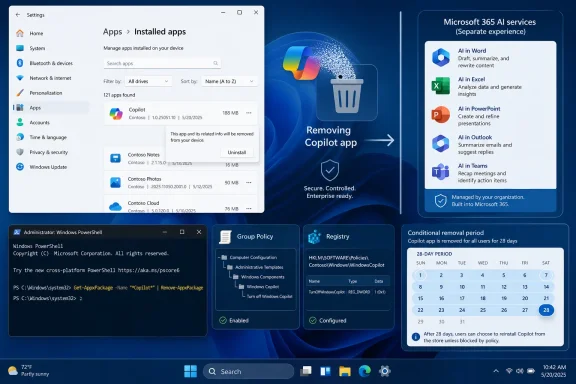
Microsoft has finally given Windows 11 administrators a supported policy for removing the consumer Microsoft Copilot app, but the setting is more conditional than its name suggests. The new Remove Microsoft Copilot app policy can uninstall Copilot on eligible Windows 11 systems through Group Policy, mobile device management, or its corresponding registry value, while PowerShell remains the fastest option for immediate removal. The important caveat is that the policy acts only when specific conditions are met, including a 28-day inactivity period, and it does not necessarily prevent a user or a future deployment process from installing Copilot again.
Microsoft’s approach to Copilot on Windows has changed several times since the assistant first appeared in Windows 11. What began as a web-backed sidebar integrated with the Windows shell gradually shifted toward a separately serviced packaged app, while Microsoft also expanded the Copilot name across Microsoft 365, Edge, commercial subscriptions, and newer Copilot+ PCs.
That history matters because many older guides target a version of Copilot that no longer matches the current Windows experience. A registry value or Group Policy setting designed to disable the original Windows Copilot sidebar may hide an interface without removing today’s Microsoft Copilot package.
The newer Remove Microsoft Copilot app policy is different because it is intended to trigger an actual app uninstall. This gives organizations a cleaner way to remove an unwanted consumer application from managed Windows 11 installations without depending entirely on a custom remediation script.
Windows 11 Home does not include the Local Group Policy Editor as a supported management interface. Registry and PowerShell methods are more appropriate for Home, but administrators should not assume that writing an enterprise policy value automatically makes every related feature supported on that edition.
Microsoft’s policy documentation has also contained inconsistent edition labeling, with compatibility tables and descriptive text not always agreeing about Windows 11 Pro. Test the policy on the exact Windows build and edition deployed in your environment rather than relying solely on the presence of the setting in an editor.
If that returns nothing, use a broader search:
The broader command is useful for discovery, but do not blindly remove every package containing the word “Copilot.” A managed PC may have both the consumer Microsoft Copilot app and Microsoft 365-related components, and those packages may serve different users and business purposes.
On an unmanaged PC, it is also sensible to create a restore point or export the relevant registry branch. A restore point should not be treated as a guaranteed app backup, but it provides another recovery option if a broader configuration change causes an unexpected problem.
To refresh policy manually, open an elevated Terminal and run:
A successful policy refresh does not mean Copilot must disappear immediately. It means Windows has received the instruction and will evaluate whether the installed app satisfies the removal conditions.
Those conditions include the following:
If a user opens Copilot during that interval, removal can be deferred. If the user originally installed the app from Microsoft Store, the policy may leave it in place because Microsoft designed the setting to remove provisioned or administratively delivered instances rather than override a deliberate user installation.
Administrators should update the central ADMX store before deployment. If the management server uses older Windows administrative templates, the new Windows AI option may be absent even though updated endpoints can support the underlying policy.
Use Resultant Set of Policy,
A 32-bit DWORD is correct even on 64-bit Windows. The value
Run the file under the user account to which the setting should apply. Because this example targets
To reverse the setting, either change the DWORD to
Removing the policy does not automatically reinstall Copilot. It merely stops requesting removal, after which the app can return through Microsoft Store, user action, provisioning, or another deployment system.
Creating the value does not directly call the AppX deployment service or run an uninstall command. Users who want the package gone immediately should combine the policy with an explicit PowerShell removal or use the standard uninstall option in Windows Settings.
Then remove the returned package:
This targets the registered package for the current user. It is safer than using an uncontrolled wildcard because it identifies the specific consumer Copilot package by name.
Microsoft’s documented script can also be expressed as:
If the command returns no package name, Copilot may already be absent for that user, may use a different package identity on that build, or may be registered only for another account.
Be cautious with
An administrator may attempt a system-wide command such as:
Removing AppX packages for all users can be more complicated than querying them. Package ownership, active user sessions, provisioning state, and PowerShell version can affect whether
Before using a broad command, inspect the package and user-registration information:
A business deployment should test its removal script under the same privilege context used by Intune, Configuration Manager, a scheduled task, or another endpoint-management service. A command that works interactively under one administrator can behave differently under the local System account.
The provisioned package list can be checked with:
Do not pass the results directly into a removal command without reviewing them. Provisioning changes affect future user profiles and can have broader consequences than uninstalling the app for one person.
Then run:
For a wider inventory:
An empty result for
Open the report and inspect the user configuration results. If the policy is missing, check whether the GPO reached the device, whether the correct user is in scope, and whether a conflicting policy has precedence.
For a registry-based deployment, run:
The expected enabled state is a
Its Group Policy equivalent was found under the older Windows Copilot administrative template area. Depending on the Windows build, it could hide entry points or prevent access to the shell-integrated experience.
Microsoft now recommends using controls appropriate to the packaged Copilot app instead of relying on this legacy policy. The old setting is subject to deprecation and may not govern the current app model consistently.
This is the least disruptive choice because it preserves the app for future use. It is also the weakest administrative control because Copilot remains installed and can still be found through Start, search, a hardware key, a URI handler, or another application entry point.
Organizations should configure or remap the hardware key separately if its behavior conflicts with corporate policy. Keyboard remapping is an access-control convenience, not a substitute for package removal or application blocking.
The relevant package attributes should be collected from an authentic installed copy. Administrators can then create a deny rule for the Microsoft Copilot package, typically using the Microsoft publisher identity and the
AppLocker rules for packaged apps can control both installation and execution. Because publisher rules can survive version changes, they are more durable than blocking a path that Microsoft might alter during an update.
A safe rollout should follow this order:
Removing an unused consumer assistant can simplify standardized builds. It can also reduce the likelihood that employees mistakenly use a personal Copilot experience when they should use an organization-approved service governed by commercial data protections and identity controls.
That restraint makes sense for mixed environments, but it weakens the setting as a hard compliance control. Enterprises with a strict prohibition on consumer AI tools will need application control, network controls, identity policy, browser governance, and user education rather than relying solely on delayed uninstall behavior.
Device and user scope should not be mixed casually. A device-wide prohibition, a user-targeted cleanup, and a shared-device deployment have different requirements, particularly when multiple people use the same computer.
The policy and registry methods become useful when the app is being provisioned automatically, when the uninstall option is unavailable, or when a user wants Windows to remove an eligible unused installation after the policy conditions are met.
PowerShell or Settings provides clearer evidence because the app either disappears from the installed package list or it does not. Registry entries can remain present even when Windows does not enforce the associated policy on a particular edition.
If the objective is to prevent access rather than clean up the Start menu, additional controls are required. Those might include browser policies, account restrictions, network filtering, Microsoft 365 configuration, and application-control rules.
Administrative template updates will also matter. Domain controllers, management workstations, and central stores using older ADMX files may not display new Windows AI settings even after endpoints receive compatible Windows updates.
That broader framework may ultimately prove more suitable than a Copilot-specific inactivity policy for organizations seeking deterministic application baselines. Its applicability, user-profile timing, and edition limitations still require careful testing.
Successful governance will therefore depend on maintaining an inventory of experiences rather than searching only for a single icon or executable. The relevant controls may span Windows configuration, Microsoft 365 administration, Edge management, application control, identity, privacy, and network security.
The Remove Microsoft Copilot app policy is a meaningful step beyond merely hiding an icon, but it should be understood as a conditional cleanup mechanism rather than a permanent Copilot kill switch. WindowsForum users who want immediate removal should uninstall the exact
 Background
Microsoft’s approach to Copilot on Windows has changed several times since the assistant first appeared in Windows 11. What began as a web-backed sidebar integrated with the Windows shell gradually shifted toward a separately serviced packaged app, while Microsoft also expanded the Copilot name across Microsoft 365, Edge, commercial subscriptions, and newer Copilot+ PCs.That history matters because many older guides target a version of Copilot that no longer matches the current Windows experience. A registry value or Group Policy setting designed to disable the original Windows Copilot sidebar may hide an interface without removing today’s Microsoft Copilot package.
Copilot is no longer one single Windows feature
Windows users can encounter several distinct products carrying the Copilot name:- Microsoft Copilot is the consumer-oriented chat app that Windows may install or pin.
- Microsoft 365 Copilot is the work-oriented experience connected to Microsoft 365 applications and organizational data, subject to licensing and administrative controls.
- Copilot Chat can appear through Microsoft 365 and commercial identity experiences even when the consumer app is absent.
- Copilot features inside Word, Excel, PowerPoint, Outlook, Edge, and other applications are controlled separately from the Windows Copilot app.
- Copilot+ PC features such as local AI-assisted Windows capabilities are not removed merely by uninstalling the Microsoft Copilot chat app.
Why the new removal policy matters
Previous administrative controls largely focused on disabling access, hiding taskbar entry points, or blocking the app. Those approaches could be useful, but they left the package installed and sometimes became unreliable as Microsoft redesigned Copilot’s delivery model.The newer Remove Microsoft Copilot app policy is different because it is intended to trigger an actual app uninstall. This gives organizations a cleaner way to remove an unwanted consumer application from managed Windows 11 installations without depending entirely on a custom remediation script.
Before You Remove Copilot
Before editing Group Policy or the registry, determine exactly what is installed and what outcome you need. A personal Windows 11 PC, a business workstation, and an Intune-managed enterprise device can expose different Copilot components and support different management controls.Check the Windows edition and version
Press Windows key + R, enterwinver, and press Enter. The new removal policy applies to supported Windows 11 releases beginning with version 24H2, although policy availability and enforcement can also depend on the installed cumulative updates, edition, and administrative template files.Windows 11 Home does not include the Local Group Policy Editor as a supported management interface. Registry and PowerShell methods are more appropriate for Home, but administrators should not assume that writing an enterprise policy value automatically makes every related feature supported on that edition.
Microsoft’s policy documentation has also contained inconsistent edition labeling, with compatibility tables and descriptive text not always agreeing about Windows 11 Pro. Test the policy on the exact Windows build and edition deployed in your environment rather than relying solely on the presence of the setting in an editor.
Identify the installed package
Open Windows Terminal or PowerShell and run:Get-AppxPackage -AllUsers -Name "Microsoft.Copilot"If that returns nothing, use a broader search:
Code:
Get-AppxPackage -AllUsers |
    Where-Object {
        $_.Name -like "*Copilot*" -or
        $_.PackageFullName -like "*Copilot*"
    } |
Select-Object Name, PackageFullName, PackageUserInformationCreate a rollback point
Registry changes used for this policy are relatively small, but application removal can delete local app data. Save any Copilot conversations or information that exists only locally, close the app, and record the package identity before proceeding.On an unmanaged PC, it is also sensible to create a restore point or export the relevant registry branch. A restore point should not be treated as a guaranteed app backup, but it provides another recovery option if a broader configuration change causes an unexpected problem.
Remove Copilot Through Group Policy
Group Policy is the clearest route for administrators who want Windows to evaluate Copilot removal as an ongoing configuration decision. It is better suited to managed fleets than manually uninstalling the app on every workstation, although its eligibility conditions mean that it is not an instant removal switch.Configure the local policy
On a supported edition of Windows 11:- Press Windows key + R.
- Enter
gpedit.mscand select OK. - Navigate to User Configuration > Administrative Templates > Windows Components > Windows AI.
- Open Remove Microsoft Copilot app.
- Select Enabled.
- Select Apply, followed by OK.
- Sign out and sign back in, restart Windows, or refresh policy.
To refresh policy manually, open an elevated Terminal and run:
gpupdate /forceA successful policy refresh does not mean Copilot must disappear immediately. It means Windows has received the instruction and will evaluate whether the installed app satisfies the removal conditions.
Understand the 28-day rule
The policy is deliberately targeted rather than absolute. Windows removes Microsoft Copilot through this setting only when the relevant eligibility requirements are satisfied.Those conditions include the following:
- Microsoft 365 Copilot and Microsoft Copilot must both be installed in the scenario targeted by the policy.
- The Microsoft Copilot app must not have been installed intentionally by the user.
- The Microsoft Copilot app must not have been launched during the preceding 28 days.
- The device must run a supported Windows release and edition with the applicable policy implementation.
If a user opens Copilot during that interval, removal can be deferred. If the user originally installed the app from Microsoft Store, the policy may leave it in place because Microsoft designed the setting to remove provisioned or administratively delivered instances rather than override a deliberate user installation.
Apply the setting through a domain GPO
For an Active Directory environment, create or edit a Group Policy Object in the Group Policy Management Console, configure the same setting, and link the GPO to the organizational units containing the intended users or devices. Confirm that security filtering, loopback processing, and inheritance do not prevent the policy from reaching its targets.Administrators should update the central ADMX store before deployment. If the management server uses older Windows administrative templates, the new Windows AI option may be absent even though updated endpoints can support the underlying policy.
Use Resultant Set of Policy,
gpresult, event logs, or a configuration-management inventory to verify the result. Seeing the policy in a domain GPO is not proof that every endpoint has consumed or enforced it.Remove Copilot Through the Registry
The registry method writes the policy value directly and can be useful when the Local Group Policy Editor is unavailable. It is particularly relevant to Windows 11 Home users, but the presence of a registry value should not be mistaken for a guarantee that Windows Home implements every enterprise-oriented policy behavior.Create the Windows AI policy value
To configure the current-user policy manually:- Press Windows key + R.
- Enter
regeditand press Enter. - Approve the User Account Control prompt.
- Navigate to:
HKEY_CURRENT_USER\Software\Policies\Microsoft\Windows- Create a key named
WindowsAIif it does not already exist. - Inside
WindowsAI, create a DWORD (32-bit) Value named:
RemoveMicrosoftCopilotApp- Set its value data to:
1- Close Registry Editor and sign out, restart Windows, or refresh policy.
Code:
HKEY_CURRENT_USER\Software\Policies\Microsoft\Windows\WindowsAI
RemoveMicrosoftCopilotApp = 11 enables removal, while 0 disables the removal instruction.Use a Registry Editor file
For a single PC, the same configuration can be saved as a.reg file:
Code:
Windows Registry Editor Version 5.00

[HKEY_CURRENT_USER\Software\Policies\Microsoft\Windows\WindowsAI]
"RemoveMicrosoftCopilotApp"=dword:00000001HKEY_CURRENT_USER, importing it from another administrative account may configure the administrator’s profile rather than the intended everyday user.To reverse the setting, either change the DWORD to
0 or delete the value:
Code:
Windows Registry Editor Version 5.00

[HKEY_CURRENT_USER\Software\Policies\Microsoft\Windows\WindowsAI]
"RemoveMicrosoftCopilotApp"=-Why registry editing is not immediate removal
The registry value represents the same policy intent as the Group Policy setting. It therefore inherits the policy’s qualifying conditions, including the inactivity requirement.Creating the value does not directly call the AppX deployment service or run an uninstall command. Users who want the package gone immediately should combine the policy with an explicit PowerShell removal or use the standard uninstall option in Windows Settings.
Remove Copilot Immediately With PowerShell
PowerShell is the most direct method when waiting for policy evaluation is unacceptable. It can remove the installed package immediately, while Group Policy or registry configuration can remain in place to express the preferred long-term state.Remove Copilot for the signed-in user
Open Windows Terminal and first identify the exact package:
Code:
Get-AppxPackage -Name "Microsoft.Copilot" |
    Select-Object Name, PackageFullName
Code:
$copilot = Get-AppxPackage -Name "Microsoft.Copilot"

if ($copilot) {
    Remove-AppxPackage -Package $copilot.PackageFullName
}Microsoft’s documented script can also be expressed as:
Code:
$packageFullName = Get-AppxPackage -Name "Microsoft.Copilot" |
    Select-Object -ExpandProperty PackageFullName

if ($packageFullName) {
    Remove-AppxPackage -Package $packageFullName
}Be cautious with -AllUsers
An administrator may attempt a system-wide command such as:Get-AppxPackage -AllUsers -Name "Microsoft.Copilot"Removing AppX packages for all users can be more complicated than querying them. Package ownership, active user sessions, provisioning state, and PowerShell version can affect whether
Remove-AppxPackage -AllUsers succeeds.Before using a broad command, inspect the package and user-registration information:
Code:
Get-AppxPackage -AllUsers -Name "Microsoft.Copilot" |
Select-Object Name, PackageFullName, PackageUserInformationRemove provisioning where appropriate
Removing a package registration from an existing profile is not always the same as removing a provisioned app that Windows can register for newly created profiles. Administrators should inventory both installed and provisioned states before declaring the package eradicated.The provisioned package list can be checked with:
Code:
Get-AppxProvisionedPackage -Online |
    Where-Object {
        $_.DisplayName -like "*Copilot*"
    } |
Select-Object DisplayName, PackageNameVerify That Copilot Has Been Removed
A missing taskbar icon is not sufficient proof of removal. The icon can be unpinned while the package remains installed, or the app can be absent for one user but registered for another.Check Settings and PowerShell
Open Settings > Apps > Installed apps and search for Copilot. If Microsoft Copilot appears, open its menu to inspect or uninstall it.Then run:
Get-AppxPackage -AllUsers -Name "Microsoft.Copilot"For a wider inventory:
Code:
Get-AppxPackage -AllUsers |
    Where-Object {
        $_.Name -like "*Copilot*"
    } |
Select-Object Name, PackageFullName, PackageUserInformationMicrosoft.Copilot indicates that the package is not registered in the queried scope. It does not prove that Copilot functionality is absent from Microsoft 365, Edge, the web, or other installed products.Verify the applied policy
For a local or domain Group Policy deployment, generate a policy report:gpresult /h "%USERPROFILE%\Desktop\gp-report.html"Open the report and inspect the user configuration results. If the policy is missing, check whether the GPO reached the device, whether the correct user is in scope, and whether a conflicting policy has precedence.
For a registry-based deployment, run:
reg query "HKCU\Software\Policies\Microsoft\Windows\WindowsAI" /v RemoveMicrosoftCopilotAppThe expected enabled state is a
REG_DWORD value of 0x1. That confirms the value exists; it does not confirm that Copilot has met the inactivity and installation-origin requirements.Hiding Copilot Is Not the Same as Removing It
Older instructions often recommend the Turn off Windows Copilot policy or aTurnOffWindowsCopilot registry value. That setting targeted the earlier Windows-integrated Copilot experience and is now considered a legacy control.The legacy policy
The older user-level registry configuration commonly appears as:
Code:
HKEY_CURRENT_USER\Software\Policies\Microsoft\Windows\WindowsCopilot
TurnOffWindowsCopilot = 1Microsoft now recommends using controls appropriate to the packaged Copilot app instead of relying on this legacy policy. The old setting is subject to deprecation and may not govern the current app model consistently.
Taskbar removal only changes visibility
Users who merely dislike the Copilot icon can unpin it without modifying system policy. Right-click the icon and choose the unpin option, or adjust the relevant taskbar setting if the installed Windows build exposes one.This is the least disruptive choice because it preserves the app for future use. It is also the weakest administrative control because Copilot remains installed and can still be found through Start, search, a hardware key, a URI handler, or another application entry point.
The Copilot key may need separate configuration
Many newer PCs include a dedicated Copilot key. Removing the consumer app does not physically disable that key, and Windows may redirect it to another supported Copilot experience or prompt.Organizations should configure or remap the hardware key separately if its behavior conflicts with corporate policy. Keyboard remapping is an access-control convenience, not a substitute for package removal or application blocking.
Preventing Copilot From Returning
The new removal policy is not a permanent deny rule. Microsoft explicitly allows users to reinstall the app, and another management channel can redeploy it later.Use AppLocker for stronger control
Microsoft recommends AppLocker when administrators need to prevent the packaged Microsoft Copilot app from being installed or launched. A packaged-app publisher rule can target the package identity rather than a version-specific executable path.The relevant package attributes should be collected from an authentic installed copy. Administrators can then create a deny rule for the Microsoft Copilot package, typically using the Microsoft publisher identity and the
MICROSOFT.COPILOT package name across applicable versions.AppLocker rules for packaged apps can control both installation and execution. Because publisher rules can survive version changes, they are more durable than blocking a path that Microsoft might alter during an update.
Test AppLocker before enforcement
AppLocker is powerful but easy to misconfigure. Once a rule collection contains rules, applications that are not allowed by that collection may be blocked implicitly unless the rest of the policy is designed correctly.A safe rollout should follow this order:
- Inventory packaged applications on representative devices.
- Create the necessary default or broad allow rules.
- Add the Copilot-specific deny rule.
- Deploy the policy in audit mode.
- Review AppLocker event logs for unexpected impact.
- Move to enforcement only after validating the results.
- Monitor Windows updates and package identity changes.
Review other deployment channels
Copilot may be delivered or reintroduced through several mechanisms:- Microsoft Store can reinstall the consumer app.
- Windows servicing may provision or promote it on eligible systems.
- Microsoft 365 Apps deployment can install Microsoft 365-related Copilot experiences.
- Intune, Configuration Manager, scripts, or third-party management tools may deploy packages independently.
- Users with sufficient access can obtain Copilot themselves unless installation is blocked.
- Device reset, reprovisioning, or a feature update can alter the installed-app state.
Enterprise Impact
For organizations, the new policy offers a welcome separation between consumer Copilot and business-oriented Microsoft 365 experiences. An enterprise can remove the consumer application from managed endpoints without assuming that every licensed Microsoft 365 Copilot function must also disappear.Better application hygiene
Security and desktop-engineering teams often seek to reduce unnecessary applications for reasons extending beyond AI policy. Every installed package creates another servicing relationship, protocol surface, support question, and potential source of user confusion.Removing an unused consumer assistant can simplify standardized builds. It can also reduce the likelihood that employees mistakenly use a personal Copilot experience when they should use an organization-approved service governed by commercial data protections and identity controls.
Policy targeting is intentionally conservative
The 28-day condition reduces the risk that Microsoft will remove an application employees actively use. It also respects the distinction between a user-chosen installation and an app delivered automatically with the Windows experience.That restraint makes sense for mixed environments, but it weakens the setting as a hard compliance control. Enterprises with a strict prohibition on consumer AI tools will need application control, network controls, identity policy, browser governance, and user education rather than relying solely on delayed uninstall behavior.
Intune and MDM deployments
The policy is available through the Windows AI policy configuration framework at both user and device scope on supported systems. Intune administrators may find it in the settings catalog after Microsoft has ingested the relevant policy definitions, or they can deploy the corresponding Policy CSP value through a custom configuration where appropriate.Device and user scope should not be mixed casually. A device-wide prohibition, a user-targeted cleanup, and a shared-device deployment have different requirements, particularly when multiple people use the same computer.
Consumer Impact
For home users, the most practical method may still be the ordinary uninstall control in Windows Settings. It is visible, reversible, and less error-prone than registry editing.The simplest uninstall route
Open Settings > Apps > Installed apps, search for Copilot, select the three-dot menu, and choose Uninstall. If the option is present, this is generally preferable to PowerShell for a single unmanaged PC.The policy and registry methods become useful when the app is being provisioned automatically, when the uninstall option is unavailable, or when a user wants Windows to remove an eligible unused installation after the policy conditions are met.
Windows 11 Home limitations
Windows 11 Home normally lacksgpedit.msc, so instructions that depend on Local Group Policy Editor do not apply. The policy registry value can still be created, but Home users should treat its behavior as build-dependent and verify the result instead of assuming enterprise policy parity.PowerShell or Settings provides clearer evidence because the app either disappears from the installed package list or it does not. Registry entries can remain present even when Windows does not enforce the associated policy on a particular edition.
Copilot can still be accessed elsewhere
Uninstalling the Windows app does not block Copilot’s website, Edge integrations, mobile applications, or Microsoft 365 features. Parents, privacy-conscious users, and administrators should avoid presenting app removal as a universal AI-disable switch.If the objective is to prevent access rather than clean up the Start menu, additional controls are required. Those might include browser policies, account restrictions, network filtering, Microsoft 365 configuration, and application-control rules.
Strengths and Opportunities
The new policy is an important improvement because it recognizes that administrators need more than cosmetic controls.- It performs a genuine app uninstall when the device and installation meet Microsoft’s eligibility requirements.
- It can be managed centrally, making it more scalable than asking users to remove Copilot manually.
- It distinguishes inactive provisioned installations from deliberate user installations, reducing unexpected disruption.
- It works alongside PowerShell, allowing administrators to combine immediate cleanup with a declared policy preference.
- It supports a cleaner separation between consumer Copilot and Microsoft 365 Copilot, which is valuable in commercial environments.
- It gives IT teams a supported policy path, reducing dependence on brittle scripts that target internal file paths.
- It can become part of a wider application-governance strategy using Intune, Group Policy, AppLocker, inventory, and compliance reporting.
Risks and Concerns
The policy’s name sounds more definitive than its actual behavior, which creates several traps for users and administrators.- Removal can be delayed for at least 28 days of inactivity, so the setting is unsuitable as an emergency control by itself.
- The policy applies only when multiple eligibility conditions are satisfied, including how the app was installed.
- Users may reinstall Copilot, meaning removal does not equal prevention.
- Windows edition and policy-template differences can cause inconsistent results across a mixed device estate.
- Legacy instructions can target the obsolete Windows Copilot sidebar rather than the current packaged app.
- Broad wildcard PowerShell commands can remove the wrong package if several Copilot-branded components are present.
- AppLocker mistakes can block unrelated packaged applications when allow and deny rules are not designed carefully.
- Removing the app does not disable Microsoft 365 Copilot, Edge features, web access, or Copilot+ PC capabilities.
- Feature updates, provisioning, Store access, and management tools can reintroduce the package unless deployment channels are coordinated.
- Local app data may be removed during uninstallation, which can surprise users if the change is made without notice.
What to Watch Next
Microsoft’s Windows AI policies are evolving alongside changes to Copilot packaging, Microsoft 365 integration, and Copilot+ hardware. Administrators should expect management controls to continue shifting as Microsoft retires legacy Windows Copilot settings and standardizes the app-based experience.Policy documentation and edition support
The exact edition matrix deserves continued scrutiny, especially where policy reference tables and descriptive text differ. Organizations using Windows 11 Pro should validate behavior after each major servicing change and avoid assuming that a visible registry value guarantees supported enforcement.Administrative template updates will also matter. Domain controllers, management workstations, and central stores using older ADMX files may not display new Windows AI settings even after endpoints receive compatible Windows updates.
Stronger policy-based app removal
Windows now has broader policy-based mechanisms for removing selected inbox and packaged applications on managed Enterprise and Education devices. These controls can remove designated apps during provisioning or sign-in and, in some configurations, keep them blocked while the policy remains active.That broader framework may ultimately prove more suitable than a Copilot-specific inactivity policy for organizations seeking deterministic application baselines. Its applicability, user-profile timing, and edition limitations still require careful testing.
Continued separation of Copilot products
Microsoft is likely to keep refining the distinction between consumer Copilot, Microsoft 365 Copilot Chat, licensed Microsoft 365 Copilot capabilities, and local Windows AI features. A package name that administrators block today may not represent every access route tomorrow.Successful governance will therefore depend on maintaining an inventory of experiences rather than searching only for a single icon or executable. The relevant controls may span Windows configuration, Microsoft 365 administration, Edge management, application control, identity, privacy, and network security.
The Remove Microsoft Copilot app policy is a meaningful step beyond merely hiding an icon, but it should be understood as a conditional cleanup mechanism rather than a permanent Copilot kill switch. WindowsForum users who want immediate removal should uninstall the exact
Microsoft.Copilot package through Settings or carefully scoped PowerShell, then use Group Policy or the RemoveMicrosoftCopilotApp registry value to reinforce that preference. Enterprises requiring durable enforcement should go further by controlling Microsoft Store installation, validating every deployment channel, and applying a tested AppLocker or application-control policy that matches their actual security and compliance goals.