

Windows 11’s right-click menu was designed to feel cleaner than the sprawling menus of earlier releases, yet it has gradually become one of File Explorer’s most persistent usability irritations. The modern menu looks better, groups common commands more intelligently, and reduces the visual chaos of the old Windows 10 layout—but every installed utility, cloud service, archiver, editor, and productivity suite can still compete for space there. Windows 11 Context Menu Manager offers a refreshingly focused answer: disable unwanted third-party entries in seconds while keeping the modern Windows 11 context menu intact.
For users who want a simpler File Explorer experience without registry gymnastics, shell replacement software, or a return to the classic Windows 10 aesthetic, that narrow focus is the tool’s greatest strength. It does not attempt to redesign Windows. It does not promise broad system tuning. It simply gives users control over a part of Windows 11 that remains surprisingly difficult to manage through built-in settings.
Microsoft’s original rationale for the Windows 11 context menu redesign was sound. The older right-click menu had accumulated decades of compatibility baggage, with duplicate actions, obscure shell verbs, legacy extensions, and vendor-specific entries appearing in a single long list.
The redesigned menu introduced a more polished visual language. Common actions such as Cut, Copy, Paste, Rename, Share, and Delete moved into a compact icon row, while application commands were expected to appear in a more controlled layout beneath the primary file actions.
In practice, the modern menu created a compromise rather than a full solution.
The extra click is especially frustrating when a frequently used command lives only in the expanded menu. Depending on the installed software and selected item, that can include actions such as:
That matters because context menus are highly personal. One person may use Open in Terminal multiple times per day. Another may never need it. A photo editor’s command might be essential for a creative professional but meaningless clutter for everyone else using the same household PC.
Windows 11 does not make that distinction. It generally lets applications register their own commands, then leaves users to manage the consequences.
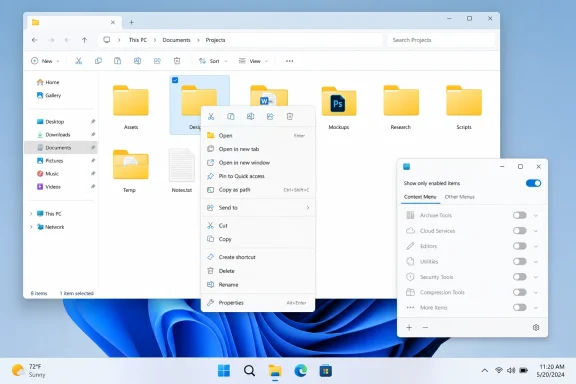
Its approach is deliberately uncomplicated. Instead of presenting a giant catalog of shell settings or asking users to navigate Registry Editor, the utility scans for eligible context-menu registrations and displays them in a manageable list. Each supported entry can be enabled or disabled through a simple toggle.
The result is not a new menu design. It is the same Windows 11 menu, with fewer distractions.
Windows 11 Context Menu Manager takes a more conservative route:
A compression tool can offer Extract Here. An editor can offer Edit with [App]. A cloud service can provide sync or sharing commands. A security product can offer a file scan. These integrations can save time when they are thoughtfully implemented.
The problem begins when too many applications decide their feature belongs one click away.
The modern Windows 11 context menu attempts to impose more discipline on this ecosystem. Newer app commands can be grouped, and applications with multiple verbs can use flyouts rather than claiming several separate rows.
That is an improvement, but it does not solve the basic governance issue: applications still have strong incentives to put their capabilities in front of users.
Well-built extensions should return titles, icons, and availability states quickly. Poorly designed or overloaded integrations can create visible delays when users right-click. The issue can become especially noticeable on systems with large creative suites, enterprise security products, cloud sync applications, or numerous legacy utilities.
Disabling unused commands is therefore not guaranteed to make every Windows 11 right-click menu dramatically faster, but it can remove unnecessary integrations from the decision path and make the interface feel more immediate.
There are several ways to escape Windows 11’s streamlined menu. Users can invoke the full legacy menu on demand, apply a system tweak to make the classic menu the default, or install a broader shell customization tool. Those options can be useful, particularly for people whose work depends on older File Explorer commands.
However, returning permanently to the classic menu is not always the most elegant answer.
For users who appreciate the cleaner Windows 11 appearance, the better outcome is not necessarily “bring back everything.” It is “keep the modern design and remove what does not belong.”
That is the space Windows 11 Context Menu Manager occupies.
Built-in commands are governed differently from third-party app extensions. Depending on the Windows version, configuration, and selected object, these may include entries such as:
A utility that freely hid essential Windows actions could create confusing support problems, especially on shared computers. It could also make troubleshooting harder if users removed commands and later forgot why familiar options had disappeared.
The narrower design creates clearer expectations: Windows 11 Context Menu Manager is for pruning application-added clutter, not rewriting the Windows shell.
A user who disables everything at once may later discover that an important workflow has vanished.
Machine-wide modifications may also require administrative permissions. That is normal for changes affecting registrations available to multiple accounts, but it should encourage users to think before applying a broad change.
The utility is open source and distributed under a permissive license, which provides transparency benefits. Users can inspect the project, review its release history, and evaluate the codebase or community feedback before trusting it.
Open source is not a guarantee of safety, however. It means the code is available for review; it does not mean every release, mirror, or repackaging site is trustworthy.
Nilesoft Shell can modify, remove, relocate, group, and create context-menu entries. It can create nested menus, add folder shortcuts, launch custom commands, and apply rules based on the item being clicked. It can also extend beyond ordinary File Explorer file commands into desktop and taskbar context-menu scenarios.
That power comes with a different trade-off.
For example, an advanced user may create a custom menu that includes:
A malformed rule, an incorrect executable path, a bad quotation mark, or an overly broad removal pattern can produce unexpected results. Nilesoft Shell includes diagnostics and logging, but using it responsibly requires a willingness to read documentation and test each change.
For most people, the decision is simple:
Windows 11 already demonstrates that Microsoft recognizes the problem. The entire redesign was meant to reduce clutter, promote more coherent grouping, and avoid the uncontrolled expansion that made classic File Explorer menus unwieldy.
But the operating system still lacks the final layer: user choice.
A well-designed version could include:
A general-purpose Edit with [App] command can be useful. Five separate commands for similar features usually are not. Sharing actions should not duplicate Windows’ built-in Share experience unless the application offers a distinct and compelling workflow.
The best context-menu extension is often the one that is concise, fast, context-aware, and easy to disable.
What it does offer is arguably more valuable for most Windows users: a quick, low-friction way to remove the app integrations that do not deserve permanent space in the right-click menu.
That restraint is the point. The utility preserves the modern Windows 11 context menu instead of forcing a retreat to the classic layout, while offering a practical way to remove entries from apps that have become noise rather than convenience.
For users tired of seeing unused OneDrive actions, duplicate archive commands, unwanted editor shortcuts, or miscellaneous third-party integrations every time they right-click, this free Windows 11 context menu cleanup tool is a sensible place to start. It demonstrates that the best Windows customization is often not a dramatic redesign—it is simply restoring relevance to the commands users see most often.
For users who want a simpler File Explorer experience without registry gymnastics, shell replacement software, or a return to the classic Windows 10 aesthetic, that narrow focus is the tool’s greatest strength. It does not attempt to redesign Windows. It does not promise broad system tuning. It simply gives users control over a part of Windows 11 that remains surprisingly difficult to manage through built-in settings.
 Overview: Why the Windows 11 Right-Click Menu Still Frustrates Users
Microsoft’s original rationale for the Windows 11 context menu redesign was sound. The older right-click menu had accumulated decades of compatibility baggage, with duplicate actions, obscure shell verbs, legacy extensions, and vendor-specific entries appearing in a single long list.The redesigned menu introduced a more polished visual language. Common actions such as Cut, Copy, Paste, Rename, Share, and Delete moved into a compact icon row, while application commands were expected to appear in a more controlled layout beneath the primary file actions.
In practice, the modern menu created a compromise rather than a full solution.
The “Show more options” problem
Many traditional File Explorer commands remain behind Show more options, which opens the legacy-style menu. This preserves compatibility, but it also adds another interaction to tasks that long-time Windows users perform constantly.The extra click is especially frustrating when a frequently used command lives only in the expanded menu. Depending on the installed software and selected item, that can include actions such as:
- Create shortcut
- Cast to Device
- Archive and extraction commands
- Advanced editor integrations
- Older security and scanning tools
- Specialty file-management actions
- Legacy application commands that have not adopted the modern Windows 11 menu model
Cleaner than Windows 10, but not truly customizable
Windows 11’s right-click menu is less indiscriminately crowded than the traditional Windows shell menu, but it is still not genuinely user-controlled. The operating system offers no central, consumer-friendly panel for reviewing every context-menu entry and deciding what should stay visible.That matters because context menus are highly personal. One person may use Open in Terminal multiple times per day. Another may never need it. A photo editor’s command might be essential for a creative professional but meaningless clutter for everyone else using the same household PC.
Windows 11 does not make that distinction. It generally lets applications register their own commands, then leaves users to manage the consequences.
What Windows 11 Context Menu Manager Actually Does
Windows 11 Context Menu Manager is a small, free utility built for one specific task: managing unwanted entries in the modern Windows 11 File Explorer context menu.Its approach is deliberately uncomplicated. Instead of presenting a giant catalog of shell settings or asking users to navigate Registry Editor, the utility scans for eligible context-menu registrations and displays them in a manageable list. Each supported entry can be enabled or disabled through a simple toggle.
The result is not a new menu design. It is the same Windows 11 menu, with fewer distractions.
A targeted tool rather than a shell replacement
This distinction is important. Many Windows customization utilities replace broad portions of the shell experience, including the taskbar, Start menu, File Explorer command bar, or the context menu itself. Those tools can be powerful, but they also introduce more moving parts and potentially more compatibility concerns.Windows 11 Context Menu Manager takes a more conservative route:
- It focuses on the modern File Explorer right-click menu
- It targets eligible application-added entries
- It avoids forcing the older Windows 10-style menu to appear by default
- It allows entries to be restored after being disabled
- It can operate at either a per-user or broader machine-level scope, where permissions and registrations allow it
Entries it may expose
The exact list varies from one computer to another because it depends on installed applications and Windows components. On a heavily used Windows 11 PC, potential entries may include integrations from:- OneDrive
- Quick Share
- Microsoft PowerToys
- WinRAR
- 7-Zip
- Windows Terminal
- Notepad
- Paint
- Copilot-related components
- Image editors and PDF tools
- Cloud-storage clients
- OEM utilities
- Developer tools
- Security suites
- Media applications
Why Context Menu Clutter Exists in the First Place
The Windows shell has always been designed to be extensible. That extensibility is one of the platform’s enduring strengths. It enables applications to work directly inside File Explorer, rather than forcing users to open a separate program for routine actions.A compression tool can offer Extract Here. An editor can offer Edit with [App]. A cloud service can provide sync or sharing commands. A security product can offer a file scan. These integrations can save time when they are thoughtfully implemented.
The problem begins when too many applications decide their feature belongs one click away.
Context menus are shared space
Every program that adds a permanent command is effectively asking for space inside one of Windows’ most frequently used interfaces. The user pays the cost in visual noise, extra scrolling, slower discovery, and sometimes slower menu loading.The modern Windows 11 context menu attempts to impose more discipline on this ecosystem. Newer app commands can be grouped, and applications with multiple verbs can use flyouts rather than claiming several separate rows.
That is an improvement, but it does not solve the basic governance issue: applications still have strong incentives to put their capabilities in front of users.
Performance can suffer too
Context-menu clutter is not only an aesthetic problem. File Explorer must inspect registered extensions and determine which commands apply to the selected file, folder, background area, or desktop item.Well-built extensions should return titles, icons, and availability states quickly. Poorly designed or overloaded integrations can create visible delays when users right-click. The issue can become especially noticeable on systems with large creative suites, enterprise security products, cloud sync applications, or numerous legacy utilities.
Disabling unused commands is therefore not guaranteed to make every Windows 11 right-click menu dramatically faster, but it can remove unnecessary integrations from the decision path and make the interface feel more immediate.
The Best Reason to Use It: It Preserves the Modern Windows 11 Menu
The most persuasive case for Windows 11 Context Menu Manager is that it does not treat the modern menu as the enemy.There are several ways to escape Windows 11’s streamlined menu. Users can invoke the full legacy menu on demand, apply a system tweak to make the classic menu the default, or install a broader shell customization tool. Those options can be useful, particularly for people whose work depends on older File Explorer commands.
However, returning permanently to the classic menu is not always the most elegant answer.
The classic menu restores access—but restores old clutter too
The legacy context menu exposes more commands at once, which can eliminate the annoying Show more options detour. But it can also reintroduce exactly what Windows 11 was trying to reduce: crowded lists, inconsistent icons, duplicate commands, and a visual style that feels disconnected from the rest of the operating system.For users who appreciate the cleaner Windows 11 appearance, the better outcome is not necessarily “bring back everything.” It is “keep the modern design and remove what does not belong.”
That is the space Windows 11 Context Menu Manager occupies.
A more balanced Windows 11 customization strategy
The utility enables a sensible middle ground:- Keep the modern Windows 11 context menu.
- Identify third-party entries that are never used.
- Disable only those entries.
- Retain essential commands from archivers, cloud services, editors, or developer tools.
- Re-enable anything that becomes useful later.
What It Cannot Remove
The tool’s limited scope is also its most important limitation. It is not a universal right-click menu editor, and it cannot freely erase every item Microsoft places in the Windows 11 menu.Built-in commands are governed differently from third-party app extensions. Depending on the Windows version, configuration, and selected object, these may include entries such as:
- Add to Favorites
- Pin to Start
- Share
- Send to My Phone
- Open
- Open with
- Properties
- Core copy, paste, rename, and delete actions
- Windows-managed cloud and device actions
This is a safety feature as much as a limitation
At first glance, the inability to remove every built-in entry may feel disappointing. Yet it also prevents the tool from becoming a dangerous “delete anything” interface for core shell features.A utility that freely hid essential Windows actions could create confusing support problems, especially on shared computers. It could also make troubleshooting harder if users removed commands and later forgot why familiar options had disappeared.
The narrower design creates clearer expectations: Windows 11 Context Menu Manager is for pruning application-added clutter, not rewriting the Windows shell.
How to Use It Without Creating New Problems
Context-menu cleanup is simple, but it still deserves a careful workflow. The right-click menu often contains commands that are invisible until a specific file type, folder, or multi-file selection is used.A user who disables everything at once may later discover that an important workflow has vanished.
A practical cleanup process
- Review the current menu before changing anything.
Right-click a typical document, image, archive, folder, and desktop area. Take note of the commands that are genuinely useful. - Start with obvious duplicates.
Multiple cloud-sharing commands, duplicate archive handlers, rarely used AI integrations, or unwanted media tools are usually safe first candidates. - Keep one preferred tool per job.
If both WinRAR and 7-Zip are installed, decide which one should own the context-menu workflow. There is little value in displaying two large sets of archive commands if only one application is used. - Disable rather than uninstall where possible.
Some applications remain useful even if their Explorer integration is not. Disabling an entry keeps the program available without allowing it to dominate the right-click menu. - Test representative scenarios.
Check files, folders, desktop items, and multiple selected files. A command may appear only in a particular context. - Re-enable selectively.
If a disabled command turns out to matter, restore it. The goal is not minimalism for its own sake; the goal is a faster and more relevant menu.
Per-user versus machine-wide changes
The option to manage entries for a single user account or more broadly across a system is useful, but it deserves caution. On a personal PC, broader cleanup may be perfectly reasonable. On a shared family computer, workstation, or managed business device, one user’s clutter can be another user’s essential command.Machine-wide modifications may also require administrative permissions. That is normal for changes affecting registrations available to multiple accounts, but it should encourage users to think before applying a broad change.
Security and Trust Considerations for Free Windows Utilities
A small context-menu management tool can be safer than manually editing the Registry, but it is still software with the ability to influence how File Explorer behaves. That means the download and verification process matters.The utility is open source and distributed under a permissive license, which provides transparency benefits. Users can inspect the project, review its release history, and evaluate the codebase or community feedback before trusting it.
Open source is not a guarantee of safety, however. It means the code is available for review; it does not mean every release, mirror, or repackaging site is trustworthy.
Sensible precautions
Before running any Windows shell customization utility:- Download it from the project’s official release location
- Avoid third-party download portals and “cracked software” sites
- Check whether Windows Security or another trusted security product flags the file
- Use a standard user account for routine work whenever practical
- Create a System Restore point before deeper shell customizations
- Keep a record of major changes, especially on work or family PCs
- Avoid stacking several context-menu or File Explorer modification tools at once
When Nilesoft Shell Makes More Sense
Windows 11 Context Menu Manager is the straightforward recommendation for people who want to subtract clutter. Nilesoft Shell is the more ambitious choice for users who want to actively design their own context-menu experience.Nilesoft Shell can modify, remove, relocate, group, and create context-menu entries. It can create nested menus, add folder shortcuts, launch custom commands, and apply rules based on the item being clicked. It can also extend beyond ordinary File Explorer file commands into desktop and taskbar context-menu scenarios.
That power comes with a different trade-off.
Nilesoft Shell is configuration-driven
Instead of relying solely on toggles, Nilesoft Shell uses a plain-text configuration system. Users can define rules that target existing menu items, add their own commands, or move less frequently used actions into submenus.For example, an advanced user may create a custom menu that includes:
- A direct shortcut to a preferred browser
- A compact archive submenu
- Quick access to Downloads, Documents, Pictures, or Videos
- A command to open the current folder in Windows Terminal
- Custom scripts for image conversion, hashing, or development tasks
- Rules that hide unwanted entries only for certain file types
Configuration errors are possible
A text-based system has advantages: it is portable, reviewable, backup-friendly, and shareable. It also makes mistakes easier to introduce.A malformed rule, an incorrect executable path, a bad quotation mark, or an overly broad removal pattern can produce unexpected results. Nilesoft Shell includes diagnostics and logging, but using it responsibly requires a willingness to read documentation and test each change.
For most people, the decision is simple:
- Choose Windows 11 Context Menu Manager to remove unwanted modern menu entries quickly.
- Choose Nilesoft Shell when the right-click menu is becoming a personalized productivity environment rather than a basic Windows interface.
Why Microsoft Still Needs a Native Solution
The popularity of third-party context-menu tools points to a missing Windows feature, not merely a niche enthusiast preference. A modern operating system should make it easy to review and manage the commands that applications add to its primary file-management interface.Windows 11 already demonstrates that Microsoft recognizes the problem. The entire redesign was meant to reduce clutter, promote more coherent grouping, and avoid the uncontrolled expansion that made classic File Explorer menus unwieldy.
But the operating system still lacks the final layer: user choice.
What a proper Settings page should offer
A native Windows 11 context-menu management page would not need to expose every low-level shell registration. It could remain approachable while giving users meaningful control.A well-designed version could include:
- A list of installed applications with active File Explorer menu integrations
- Individual toggles for supported commands
- A preview showing whether a command appears for files, folders, or the desktop
- A “recently added” category after installing new software
- Basic menu-performance warnings for slow or failing extensions
- Restore-default controls
- Clear separation between core Windows commands and optional application commands
- Per-user and administrator-managed system-wide settings
Developers also have a role
Application developers should treat context-menu space as scarce. A command should appear only when it is truly relevant to the selected item and when it provides value that cannot be delivered through a more appropriate interface.A general-purpose Edit with [App] command can be useful. Five separate commands for similar features usually are not. Sharing actions should not duplicate Windows’ built-in Share experience unless the application offers a distinct and compelling workflow.
The best context-menu extension is often the one that is concise, fast, context-aware, and easy to disable.
The Verdict: A Small Fix for a Real Windows 11 Irritation
Windows 11 Context Menu Manager will not transform File Explorer into a fully customizable power-user shell. It cannot remove every Microsoft-owned command, eliminate the Show more options layer, or replace the advanced rule-based control offered by utilities such as Nilesoft Shell.What it does offer is arguably more valuable for most Windows users: a quick, low-friction way to remove the app integrations that do not deserve permanent space in the right-click menu.
That restraint is the point. The utility preserves the modern Windows 11 context menu instead of forcing a retreat to the classic layout, while offering a practical way to remove entries from apps that have become noise rather than convenience.
For users tired of seeing unused OneDrive actions, duplicate archive commands, unwanted editor shortcuts, or miscellaneous third-party integrations every time they right-click, this free Windows 11 context menu cleanup tool is a sensible place to start. It demonstrates that the best Windows customization is often not a dramatic redesign—it is simply restoring relevance to the commands users see most often.
References
- Primary source: MakeUseOf
Published: 2026-07-23T10:00:12+00:00
I cleaned up Windows 11's cluttered right-click menu with this free app
Get a cleaner context menu, instantly. www.makeuseof.com
- Official source: support.microsoft.com
File Explorer in Windows | Microsoft Support
Find and open File Explorer in Windows, and customize Quick access by pinning and removing files and folders.support.microsoft.com - Official source: learn.microsoft.com
Right-click options on Windows 11 - Microsoft Q&A
Yes...I'm old school. I can adapt to change, but adding extra steps can get frustrating. Is there a way to get the "right-click" function to automatically open the options window into the "show more options (Shift + F10)" view as a…learn.microsoft.com - Official source: blogs.windows.com
Extending the Context Menu and Share Dialog in Windows 11
 blogs.windows.com
- Related coverage: techradar.com
In a shock move from nowhere, it seems Microsoft is finally giving Windows 11 users the ability to configure the right-click menu | TechRadar
Right-click the right waywww.techradar.com - Related coverage: windowsforum.com
Windows 11 Context Menu Manager: Disable Shell Entries Without Registry Edits | Windows Forum
When Windows 11 shipped, Microsoft promised a cleaner right-click experience. Four years later, that promise has largely been replaced by something more...windowsforum.com
