

Microsoft has quietly handed Windows 10 users a significant reprieve: the consumer Extended Security Updates (ESU) program now runs through October 12, 2027, adding a full extra year beyond its previous October 2026 endpoint. For eligible home users who are already enrolled, the extension is automatic. For everyone else still using Windows 10, it creates a much-needed opportunity to restore security-update coverage without immediately buying a new PC.
The change is especially important because standard support for Windows 10 ended on October 14, 2025. Since then, unprotected consumer PCs have faced an increasingly uncomfortable reality: the operating system can still run familiar apps and hardware perfectly well, but newly discovered vulnerabilities no longer receive ordinary updates unless the device is enrolled in ESU.
For many households, this is not a theoretical concern. A Windows 10 PC may still be fast enough for web browsing, documents, schoolwork, remote appointments, photo management, gaming, and home-office use, while failing Windows 11’s stricter hardware requirements. The extra year does not turn Windows 10 back into a fully supported modern platform, but it does provide a practical security bridge through October 2027.
If a Windows 10 PC is already enrolled in the consumer ESU program, no manual renewal is required for the newly extended period.
Microsoft is notifying some enrolled users by email, but that message is not necessary to preserve coverage. The Windows 10 device should continue receiving eligible critical and important security updates through Windows Update, now extending to October 12, 2027.
That distinction matters because email notifications can easily be overlooked—or misidentified as scams. A legitimate-looking email can still end up in Junk Email, while a fake message may use the news to pressure users into clicking a dangerous link. The safest approach is simple:
It is a security-focused continuation program designed to reduce the risk of continuing to use a retired operating system. Enrolled devices receive critical and important security updates delivered through Windows Update.
That is valuable, but it is narrower than ordinary Windows servicing.
For the consumer program, a PC generally needs to meet several conditions.
That can be inconvenient for users who deliberately maintain a local Windows account, but Microsoft ties the consumer ESU license to a Microsoft account. A local-account user may therefore be asked to sign in during the enrollment process.
Child accounts cannot be used to enroll directly. In a household where a child uses the computer, an adult administrator can enroll the PC through their own eligible account.
Microsoft offers three consumer ESU enrollment methods:
Settings > Update & Security > Windows Update
Select Check for updates, then install everything offered. Restart the PC if requested.
This is not just routine maintenance. The ESU enrollment experience depends on Windows being current enough to present the program and process the registration. A missing “Enroll now” button can sometimes be resolved simply by installing pending updates and restarting.
Settings > Update & Security > Windows Update
On an eligible personal Windows 10 PC, look for an Enroll now link, button, or ESU-related notice. The exact wording can vary by region and by the device’s existing account configuration.
Selecting Enroll now starts the guided process.
This account becomes associated with the ESU license. That is useful for households with several Windows 10 machines because one consumer ESU license can be applied to up to 10 eligible devices using the same Microsoft account.
This is often misunderstood. The requirement is not necessarily a demand to upload every personal file, photograph, or document to OneDrive. The essential requirement is that Windows settings are synchronized through the Microsoft account.
Depending on the PC and region, Windows may direct the user to enable options such as:
The confirmation language should indicate that security updates continue through the revised end date of October 12, 2027. If the page still refers to the earlier October 2026 date, allow Windows Update time to refresh, install any pending updates, and revisit the status screen later.
The change is handled at the service level, so an older confirmation message does not necessarily mean the extension has failed. However, users should continue checking Windows Update and should not assume coverage is active if the enrollment status remains unclear.
The Windows Update screen is also the right place to verify that recent security updates are installing normally. A system enrolled in ESU should not be left unattended. Automatic updates should remain enabled, and users should restart promptly after monthly security patches arrive.
Windows 11’s hardware requirements have been a major point of friction. Systems without supported processors, TPM 2.0, Secure Boot compatibility, or the right firmware configuration may continue to run Windows 10 perfectly capably while being blocked from an officially supported Windows 11 upgrade.
That creates a difficult choice. Replacing a fully functioning computer can be expensive, particularly when the existing machine still handles day-to-day workloads. Continuing on an unsupported operating system, however, creates cumulative security exposure as new vulnerabilities are identified and attackers shift attention toward unpatched systems.
The free ESU route gives users breathing room without pretending that the migration challenge has disappeared.
A computer upgrade can be worthwhile when performance, reliability, energy efficiency, or security capabilities genuinely demand it. But a forced replacement caused solely by operating-system support policy is harder to justify when the hardware remains functional.
The extension does not eliminate the eventual need to move on from Windows 10, but it allows users to do so on a more rational timetable.
Microsoft says that eligible devices enrolled later can receive applicable security updates issued after the standard support cutoff. Still, waiting is not wise. The computer remains more exposed until it is enrolled and updated.
The practical takeaway is clear: enroll now, update immediately, and do not postpone the process until 2027.
Windows 10 users should use the additional support period to reinforce the basics:
For others, it raises legitimate concerns about account dependence, cloud integration, data handling, and the gradual erosion of local-account simplicity. The paid route may be preferable for users who do not want to activate settings sync, while Microsoft Rewards may suit those who already participate in that program.
The important point is that “free” does not mean “without conditions.” Users should make the choice knowingly.
Microsoft could change its plans, but Windows 10 users should not build their long-term strategy around speculation. The safer assumption is that October 2027 is the current endpoint and that a migration plan should be complete before then.
A replacement should be evaluated for more than its Windows 11 logo. Look for adequate memory, repairability, storage, ports, battery quality for laptops, display quality, and a realistic expected life span.
That path requires care. A retired Windows installation should not be casually exposed to email, banking, or sensitive online activity once security coverage ends.
The enrollment process is also relatively manageable. Open Windows Update, look for Enroll now, sign in with an administrator Microsoft account, and choose the free settings-sync option if it suits your privacy and account preferences. Existing consumer ESU users should remain covered automatically and do not need to take action simply because an email has not appeared.
Still, this is an extension—not a restoration of Windows 10’s full support status. ESU delivers security updates, not new features, ordinary technical support, or a promise that Windows 10 will remain viable indefinitely. The most sensible response is to enroll promptly, keep the machine patched, maintain strong security habits, and use the extra year to prepare for a well-planned move beyond Windows 10.
The change is especially important because standard support for Windows 10 ended on October 14, 2025. Since then, unprotected consumer PCs have faced an increasingly uncomfortable reality: the operating system can still run familiar apps and hardware perfectly well, but newly discovered vulnerabilities no longer receive ordinary updates unless the device is enrolled in ESU.
For many households, this is not a theoretical concern. A Windows 10 PC may still be fast enough for web browsing, documents, schoolwork, remote appointments, photo management, gaming, and home-office use, while failing Windows 11’s stricter hardware requirements. The extra year does not turn Windows 10 back into a fully supported modern platform, but it does provide a practical security bridge through October 2027.
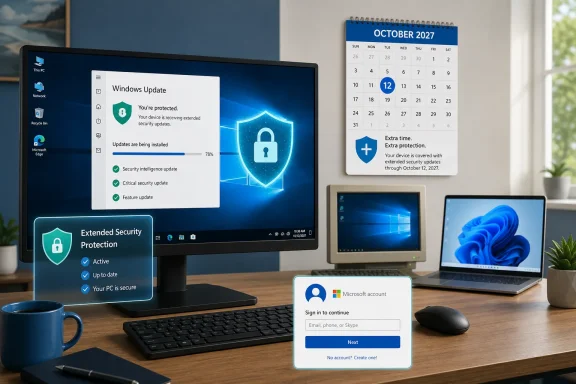 The Key Detail: Existing ESU Users Do Not Need to Re-Enroll
If a Windows 10 PC is already enrolled in the consumer ESU program, no manual renewal is required for the newly extended period.Microsoft is notifying some enrolled users by email, but that message is not necessary to preserve coverage. The Windows 10 device should continue receiving eligible critical and important security updates through Windows Update, now extending to October 12, 2027.
That distinction matters because email notifications can easily be overlooked—or misidentified as scams. A legitimate-looking email can still end up in Junk Email, while a fake message may use the news to pressure users into clicking a dangerous link. The safest approach is simple:
- Do not rely on an unexpected email to manage ESU.
- Do not enter passwords or payment details through links in a message claiming to “renew” Windows 10 support.
- Check the PC directly through Windows Update.
- Only enroll through Windows Settings and Microsoft’s own sign-in prompts.
What Windows 10 ESU Actually Provides
The phrase “free support extension” needs an important qualification. Windows 10 ESU is not full Windows 10 support.It is a security-focused continuation program designed to reduce the risk of continuing to use a retired operating system. Enrolled devices receive critical and important security updates delivered through Windows Update.
That is valuable, but it is narrower than ordinary Windows servicing.
What ESU includes
- Critical security updates
- Important security updates
- Security fixes delivered through Windows Update
- Continued protection against newly identified vulnerabilities addressed by Microsoft
- Coverage for eligible Windows 10 consumer devices through October 12, 2027
What ESU does not include
- New Windows 10 features
- Major interface improvements
- General product enhancements
- Routine non-security bug fixes unless included with a security update
- Direct technical support for ordinary Windows 10 problems
- An indefinite extension beyond October 2027
Who Can Get the Consumer Windows 10 ESU Extension?
The consumer program is intended for personal devices. It is not the same as Microsoft’s commercial Extended Security Updates arrangements for organizations, schools, managed fleets, or domain-joined business PCs.For the consumer program, a PC generally needs to meet several conditions.
Eligible Windows editions
The device must be running Windows 10 version 22H2 in one of these editions:- Windows 10 Home
- Windows 10 Pro
- Windows 10 Pro Education
- Windows 10 Pro for Workstations
Account requirements
The enrollment process requires a Microsoft account that is an administrator on the PC.That can be inconvenient for users who deliberately maintain a local Windows account, but Microsoft ties the consumer ESU license to a Microsoft account. A local-account user may therefore be asked to sign in during the enrollment process.
Child accounts cannot be used to enroll directly. In a household where a child uses the computer, an adult administrator can enroll the PC through their own eligible account.
Device restrictions
Consumer ESU is not meant for devices used in managed commercial environments. Enrollment is not offered for systems such as:- PCs joined to an Active Directory domain
- Microsoft Entra joined devices
- Devices enrolled in mobile device management platforms
- Kiosk-mode systems
- PCs already licensed through a commercial ESU arrangement
How to Get the Windows 10 Extension for Free
For users not already enrolled, the most straightforward route is to enroll through Windows Update and select the free option based on syncing PC settings.Microsoft offers three consumer ESU enrollment methods:
- Sync Windows PC settings to the Microsoft account at no additional cost.
- Redeem 1,000 Microsoft Rewards points.
- Make a one-time purchase, listed in the United States as $30 plus applicable tax or the local equivalent.
Step 1: Confirm the Windows 10 version
Before looking for the enrollment option, verify that the device is running Windows 10 version 22H2.- Open Settings.
- Select System.
- Choose About.
- Look under Windows specifications for the version number.
Step 2: Install all available updates
Go to:Settings > Update & Security > Windows Update
Select Check for updates, then install everything offered. Restart the PC if requested.
This is not just routine maintenance. The ESU enrollment experience depends on Windows being current enough to present the program and process the registration. A missing “Enroll now” button can sometimes be resolved simply by installing pending updates and restarting.
Step 3: Open the ESU enrollment option
Return to:Settings > Update & Security > Windows Update
On an eligible personal Windows 10 PC, look for an Enroll now link, button, or ESU-related notice. The exact wording can vary by region and by the device’s existing account configuration.
Selecting Enroll now starts the guided process.
Step 4: Sign in with an administrator Microsoft account
If Windows is currently set up with a local account, the wizard may request a Microsoft account sign-in. Use an account that has administrator privileges on the PC.This account becomes associated with the ESU license. That is useful for households with several Windows 10 machines because one consumer ESU license can be applied to up to 10 eligible devices using the same Microsoft account.
Step 5: Choose the free settings-sync option
If the free enrollment route is available, choose the option to sync or back up Windows settings.This is often misunderstood. The requirement is not necessarily a demand to upload every personal file, photograph, or document to OneDrive. The essential requirement is that Windows settings are synchronized through the Microsoft account.
Depending on the PC and region, Windows may direct the user to enable options such as:
- Remember my apps
- Remember my preferences
- Windows Backup settings
- Microsoft account synchronization
Step 6: Confirm enrollment
At the end of the process, Windows should display a confirmation that the PC is enrolled in Extended Security Updates.The confirmation language should indicate that security updates continue through the revised end date of October 12, 2027. If the page still refers to the earlier October 2026 date, allow Windows Update time to refresh, install any pending updates, and revisit the status screen later.
The change is handled at the service level, so an older confirmation message does not necessarily mean the extension has failed. However, users should continue checking Windows Update and should not assume coverage is active if the enrollment status remains unclear.
How to Check Whether a PC Is Already Enrolled
There is no need to search old emails or guess based on whether a notification arrived. The most reliable method is on the computer itself.- Open the Start menu.
- Search for Windows Update settings.
- Open the result.
- Look for the ESU enrollment or coverage status.
The Windows Update screen is also the right place to verify that recent security updates are installing normally. A system enrolled in ESU should not be left unattended. Automatic updates should remain enabled, and users should restart promptly after monthly security patches arrive.
If “Enroll now” does not appear
A missing ESU option does not automatically mean the computer is ineligible. Work through these checks:- Confirm that Windows 10 is on version 22H2.
- Install all available Windows updates.
- Restart the computer.
- Confirm that the PC uses an administrator account.
- Check whether the device is managed by work, school, or an organization.
- Confirm that it is not joined to a domain or enrolled in a management platform.
- Sign in with a Microsoft account if using a local account.
- Check whether a previous commercial ESU license or workplace policy is blocking consumer enrollment.
Why the Extension Matters for Windows 10 Users
The decision acknowledges a basic reality: Windows 10 remains embedded in homes, small businesses, schools, specialist environments, and older but otherwise capable PCs.Windows 11’s hardware requirements have been a major point of friction. Systems without supported processors, TPM 2.0, Secure Boot compatibility, or the right firmware configuration may continue to run Windows 10 perfectly capably while being blocked from an officially supported Windows 11 upgrade.
That creates a difficult choice. Replacing a fully functioning computer can be expensive, particularly when the existing machine still handles day-to-day workloads. Continuing on an unsupported operating system, however, creates cumulative security exposure as new vulnerabilities are identified and attackers shift attention toward unpatched systems.
The free ESU route gives users breathing room without pretending that the migration challenge has disappeared.
The environmental argument
There is also a credible environmental benefit. Extending the secure usable life of a working PC delays unnecessary replacement and reduces pressure to discard hardware prematurely.A computer upgrade can be worthwhile when performance, reliability, energy efficiency, or security capabilities genuinely demand it. But a forced replacement caused solely by operating-system support policy is harder to justify when the hardware remains functional.
The extension does not eliminate the eventual need to move on from Windows 10, but it allows users to do so on a more rational timetable.
The consumer-protection argument
The revised ESU period also improves the situation for consumers who missed the original deadline. Windows 10 reached end of support in October 2025, and some PCs spent months outside normal security coverage before their owners learned that ESU enrollment existed.Microsoft says that eligible devices enrolled later can receive applicable security updates issued after the standard support cutoff. Still, waiting is not wise. The computer remains more exposed until it is enrolled and updated.
The practical takeaway is clear: enroll now, update immediately, and do not postpone the process until 2027.
Important Risks and Limitations
The extension is welcome, but it should not be mistaken for a complete solution.ESU does not solve every security problem
Security updates are fundamental, but they cannot compensate for unsafe browsing habits, reused passwords, pirated software, unsupported drivers, weak router security, or a lack of backups.Windows 10 users should use the additional support period to reinforce the basics:
- Keep Windows Update enabled.
- Use a modern, supported browser.
- Remove software that is no longer maintained.
- Enable multi-factor authentication on important accounts.
- Use unique passwords stored in a reputable password manager.
- Back up important files independently of the PC.
- Be wary of unexpected attachments, pop-ups, and software installers.
- Ensure Microsoft Defender or another trusted security product is active.
The cloud-account trade-off remains real
The free consumer ESU option is tied to Microsoft account use and settings synchronization. For some people, that is a sensible compromise: settings are backed up, device migration becomes easier, and no cash payment is required.For others, it raises legitimate concerns about account dependence, cloud integration, data handling, and the gradual erosion of local-account simplicity. The paid route may be preferable for users who do not want to activate settings sync, while Microsoft Rewards may suit those who already participate in that program.
The important point is that “free” does not mean “without conditions.” Users should make the choice knowingly.
October 2027 remains a hard planning horizon
The extended consumer ESU deadline is October 12, 2027. Nothing in the program guarantees another extension after that date.Microsoft could change its plans, but Windows 10 users should not build their long-term strategy around speculation. The safer assumption is that October 2027 is the current endpoint and that a migration plan should be complete before then.
Planning the Eventual Move Beyond Windows 10
The best use of the extra time is not simply to stay put. It is to make a better, less rushed decision about what comes next.Option 1: Upgrade eligible hardware to Windows 11
If the PC meets Windows 11 requirements, the in-place upgrade remains the most straightforward future path. Before upgrading, users should check:- Processor compatibility
- TPM 2.0 availability
- Secure Boot support
- Available storage
- Driver support for printers, scanners, audio interfaces, and older peripherals
- Compatibility of critical software
Option 2: Replace the PC on a planned schedule
For unsupported hardware, a replacement can be deferred until there is a genuine need or a compelling value opportunity. The ESU extension gives buyers time to avoid panic purchases and to compare laptops, desktops, refurbished systems, and repair options.A replacement should be evaluated for more than its Windows 11 logo. Look for adequate memory, repairability, storage, ports, battery quality for laptops, display quality, and a realistic expected life span.
Option 3: Repurpose a legacy machine
An older Windows 10 PC may remain useful after its primary role ends. It can serve as a secondary offline device, a media machine, a home lab system, or a lightweight Linux computer, depending on the owner’s needs and technical comfort.That path requires care. A retired Windows installation should not be casually exposed to email, banking, or sensitive online activity once security coverage ends.
A Practical Win, Not a Permanent Reprieve
Microsoft’s extension of free Windows 10 ESU coverage through October 12, 2027 is a meaningful victory for users who need more time. It reduces the pressure to discard useful hardware, brings a security lifeline to PCs that cannot officially move to Windows 11, and gives households a clearer path through a difficult platform transition.The enrollment process is also relatively manageable. Open Windows Update, look for Enroll now, sign in with an administrator Microsoft account, and choose the free settings-sync option if it suits your privacy and account preferences. Existing consumer ESU users should remain covered automatically and do not need to take action simply because an email has not appeared.
Still, this is an extension—not a restoration of Windows 10’s full support status. ESU delivers security updates, not new features, ordinary technical support, or a promise that Windows 10 will remain viable indefinitely. The most sensible response is to enroll promptly, keep the machine patched, maintain strong security habits, and use the extra year to prepare for a well-planned move beyond Windows 10.
References
- Primary source: Consumer NZ
Published: 2026-07-23T23:20:07+00:00
Loading…
www.consumer.org.nz - Official source: support.microsoft.com
July 14, 2026—KB5099539 (OS Builds 19045.7548 and 19044.7548) | Microsoft Support
July 14, 2026—KB5099539 (OS Builds 19045.7548 and 19044.7548)support.microsoft.com - Official source: microsoft.com
Loading…
www.microsoft.com - Official source: learn.microsoft.com
Loading…
learn.microsoft.com - Related coverage: bleepingcomputer.com
Loading…
www.bleepingcomputer.com - Official source: download.microsoft.com
Loading…
download.microsoft.com