

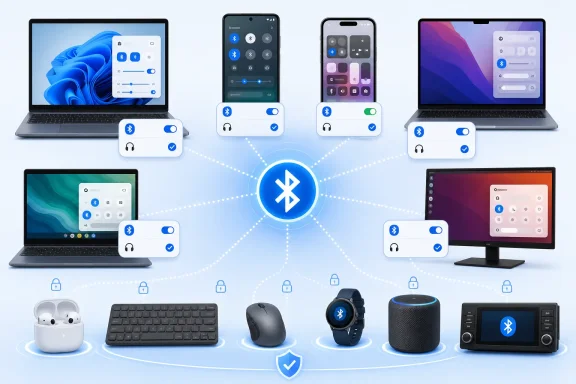
Bluetooth is one of those features that feels invisible until it stops working: headphones refuse to connect, a keyboard vanishes, a car stereo will not see a phone, or a nearby device never appears in the pairing list. Turning it on is usually simple, but the correct control lives in different places on Windows, Android, iPhone, iPad, macOS, ChromeOS, Ubuntu, and managed work devices. The reliable starting point is to enable Bluetooth at the system level first, then put the accessory into pairing mode.
Bluetooth does far more than connect wireless earbuds. It powers keyboards, mice, controllers, speakers, smartwatches, hearing devices, fitness sensors, vehicle integrations, file transfers, and increasingly specialized health and workplace hardware. That breadth explains why the settings can sometimes look more complicated than a single on/off switch suggests.
For Windows users in particular, understanding the difference between turning Bluetooth on, connecting a previously paired accessory, pairing a new device, and granting an app permission can eliminate much of the confusion. The same distinction applies across phones, tablets, and laptops.
Bluetooth pairing requires two separate conditions:
Many devices indicate pairing mode with a flashing LED, an audio prompt, or a symbol on a small display. The procedure varies considerably. Some headphones require holding the power button; others use a dedicated Bluetooth button. A keyboard may require a specific key combination, while a car’s infotainment system may need its own “Add device” screen opened first.
A useful troubleshooting principle follows from this: if Bluetooth is clearly enabled but the accessory is missing, the likely problem is usually the accessory’s pairing mode, not the Bluetooth switch on the computer or phone.
This method is ideal when reconnecting headphones before a meeting or enabling a wireless mouse after returning to a desk. It is a quick toggle, not a full troubleshooting interface.
Common reasons include:
For a desktop PC without built-in Bluetooth, a reputable USB Bluetooth adapter can add support. However, installing an adapter should not be the first reaction on a laptop that previously had working Bluetooth. In that case, the driver, power state, firmware, or device policy deserves investigation first.
For detailed control:
This is generally the most efficient way to turn Bluetooth on Android when connecting earbuds, a smartwatch, or a car.
The important takeaway is that menu labels are not universal. Searching for “Bluetooth” from the Settings app’s search field is often faster than trying to match an online guide written for a different Android manufacturer.
The icon’s color is useful but should not be treated as the only confirmation. Open the Bluetooth page when troubleshooting to see whether the phone is merely on, actively scanning, paired to a device, or connected for a specific type of audio.
When Bluetooth is on, compatible accessories that were previously paired may reconnect automatically. New accessories appear in the Other Devices area after they enter pairing mode.
Tapping Bluetooth in Control Center disconnects many currently connected accessories. However, Apple services and continuity-related features can remain available, including functions tied to Apple Watch, Apple Pencil, AirDrop, Instant Hotspot, and device handoff features.
For complete control, use Settings > Bluetooth. This behavior is a deliberate design choice, but it can be confusing for anyone who assumes a grayed-out Control Center button means Bluetooth is entirely disabled.
To review or change that access:
Not every audio use requires the same app-level permission, so a speaker or pair of earbuds may still function without an app appearing in this list. The permission screen is primarily relevant to apps that want to interact directly with Bluetooth hardware.
The feature is particularly useful for MacBook users who alternate between wireless headphones, a desktop keyboard, a trackpad, and a portable speaker.
Chromebooks can connect to common Bluetooth accessories such as keyboards, mice, speakers, headsets, and headphones. However, pairing a phone directly to a Chromebook through the regular Bluetooth accessory screen is not generally the intended workflow. ChromeOS uses separate connected-device features for phone integration.
Ubuntu’s interface offers a practical distinction between turning Bluetooth on and choosing a device. The main button enables the radio, while the expanded menu handles connected hardware. This is a clean approach, though the exact layout may differ slightly between Ubuntu releases and desktop environments.
It does not mean that a website can turn Bluetooth on for the computer or phone. System Bluetooth must already be enabled.
That means a conventional Bluetooth Classic accessory may not work with a website even though it pairs successfully with Windows, Android, macOS, or ChromeOS. A pair of headphones, for example, is not automatically usable through a browser’s Bluetooth device connection feature.
Chrome website Bluetooth pairing is available on desktop computers and Android devices. It is not supported for Chrome on iPhone or iPad.
Use sensible safeguards:
Bluetooth is only one part of the Apple Watch connection model. Wi-Fi and cellular availability can also affect what appears to work, particularly when the watch and iPhone are not near each other.
When multiple Bluetooth accessories are active at once, wireless performance can suffer. This is not unique to Vision Pro; it is a reality of crowded wireless environments. Disconnect unused accessories when diagnosing audio glitches, delayed input, or unstable connections.
Avoid downloading random driver packages from unfamiliar websites. Bluetooth drivers operate at a low system level, and unofficial driver installers can introduce compatibility issues or unwanted software.
If the adapter appears with an error symbol in Device Manager, the problem is likely more fundamental than a pairing failure. Restarting the PC, checking Windows Update, and reinstalling the vendor-provided driver are reasonable next steps.
Some laptops also include hardware radio switches or function-key shortcuts. These can override Windows settings. If Bluetooth appears unavailable even though the adapter is installed, inspect the keyboard’s function keys and the laptop’s chassis for a wireless control.
This is not a user-level settings problem. Personal changes cannot override an organization’s management policy.
Bluetooth restrictions are often used for legitimate reasons:
The correct response is to contact the organization’s IT administrator and ask whether Bluetooth use is allowed for that device and intended accessory. Attempting to bypass management controls can violate workplace or school policies and may create security or support problems.
Turning Bluetooth off can save some power in certain situations, but it also disables convenient features such as automatic headphone reconnection, smartwatch communication, nearby device services, wireless input, and accessibility hardware. The best setting depends on the device’s role and the user’s needs.
For Windows 11, the key path is Settings > Bluetooth & devices, with the taskbar Quick Settings panel available for instant toggling. On Android, the Bluetooth tile and Connected devices section provide the primary controls. On iPhone and iPad, Settings > Bluetooth is the authoritative switch, while Control Center mainly disconnects accessories temporarily. Macs, Chromebooks, Ubuntu systems, and Apple Vision Pro each provide similarly direct controls through their system settings.
The most important troubleshooting insight is equally universal: Bluetooth enabled does not automatically mean Bluetooth connected. Verify the radio, verify the accessory’s pairing mode, remove stale pairings when necessary, and check for hardware, driver, or policy restrictions before pursuing more complicated fixes.
Bluetooth does far more than connect wireless earbuds. It powers keyboards, mice, controllers, speakers, smartwatches, hearing devices, fitness sensors, vehicle integrations, file transfers, and increasingly specialized health and workplace hardware. That breadth explains why the settings can sometimes look more complicated than a single on/off switch suggests.
For Windows users in particular, understanding the difference between turning Bluetooth on, connecting a previously paired accessory, pairing a new device, and granting an app permission can eliminate much of the confusion. The same distinction applies across phones, tablets, and laptops.
 The First Rule: Bluetooth Must Be Enabled Before Pairing Can Begin
Bluetooth pairing requires two separate conditions:- Bluetooth must be on on the phone, tablet, or computer.
- The accessory must be in pairing mode or discoverable mode.
Many devices indicate pairing mode with a flashing LED, an audio prompt, or a symbol on a small display. The procedure varies considerably. Some headphones require holding the power button; others use a dedicated Bluetooth button. A keyboard may require a specific key combination, while a car’s infotainment system may need its own “Add device” screen opened first.
A useful troubleshooting principle follows from this: if Bluetooth is clearly enabled but the accessory is missing, the likely problem is usually the accessory’s pairing mode, not the Bluetooth switch on the computer or phone.
Turn On Bluetooth in Windows 11
Windows 11 provides two practical ways to turn Bluetooth on: the Quick Settings panel for speed and the Settings app for full device management.Use Quick Settings from the Taskbar
The fastest Windows 11 method is through the cluster of icons beside the clock.- Select the Network, Volume, or Battery icon on the right side of the taskbar.
- Locate the Bluetooth tile in Quick Settings.
- Select the tile to turn Bluetooth on.
This method is ideal when reconnecting headphones before a meeting or enabling a wireless mouse after returning to a desk. It is a quick toggle, not a full troubleshooting interface.
Use the Windows Settings App
For a more complete Windows 11 Bluetooth setup, use the Settings app:- Open Start.
- Select Settings.
- Open Bluetooth & devices.
- Turn on the switch beside Bluetooth.
When the Bluetooth Tile Is Missing
A missing Bluetooth button in Windows 11 is not always a cosmetic issue. It can indicate that Windows does not currently detect a working Bluetooth adapter.Common reasons include:
- The PC does not have Bluetooth hardware.
- The Bluetooth adapter is disabled.
- A driver is missing, outdated, or incompatible.
- Airplane mode is active.
- A laptop has a physical wireless switch or keyboard shortcut that disables radios.
- A recent update or hardware issue has affected the adapter.
- Organization policy blocks Bluetooth on a managed PC.
For a desktop PC without built-in Bluetooth, a reputable USB Bluetooth adapter can add support. However, installing an adapter should not be the first reaction on a laptop that previously had working Bluetooth. In that case, the driver, power state, firmware, or device policy deserves investigation first.
Quick Settings Is Not the Same as Device Management
The Bluetooth tile is excellent for a basic on/off action, but it does not replace the Bluetooth & devices page. A device can be paired yet disconnected, connected only for voice calls rather than media audio, or remembered under an old name.For detailed control:
- Open Settings > Bluetooth & devices.
- Select a listed accessory to view available options.
- Remove stale or duplicate pairings if necessary.
- Use Add device to connect a new peripheral.
How to Turn On Bluetooth on Android Phones and Tablets
Android’s Bluetooth interface varies by device maker, Android version, and customization layer. Google Pixel phones, Samsung Galaxy devices, OnePlus devices, and tablets may use slightly different wording, but the core workflow remains the same.The Fast Android Shortcut
On most Android phones and tablets:- Swipe down from the top of the screen.
- Swipe down again if necessary to expand Quick Settings.
- Tap the Bluetooth tile.
This is generally the most efficient way to turn Bluetooth on Android when connecting earbuds, a smartwatch, or a car.
The Android Settings Route
On stock Android-style interfaces, the longer route is typically:- Open Settings.
- Tap Connected devices.
- Tap Connection preferences.
- Tap Bluetooth.
- Turn on Bluetooth.
The important takeaway is that menu labels are not universal. Searching for “Bluetooth” from the Settings app’s search field is often faster than trying to match an online guide written for a different Android manufacturer.
Samsung Galaxy and One UI
Samsung Galaxy phones commonly place Bluetooth under:- Settings
- Connections
- Bluetooth
The icon’s color is useful but should not be treated as the only confirmation. Open the Bluetooth page when troubleshooting to see whether the phone is merely on, actively scanning, paired to a device, or connected for a specific type of audio.
Pairing After Bluetooth Is Enabled
After turning Bluetooth on:- Touch and hold the Bluetooth Quick Settings tile, or open the Bluetooth settings page.
- Select Pair new device or a similarly named option.
- Put the accessory into pairing mode.
- Select it from the list.
- Confirm any pairing code or permission request.
Turn On Bluetooth on iPhone and iPad
Apple separates a quick disconnect action in Control Center from the more complete Bluetooth control in Settings. This distinction is important because the two controls do not behave identically.Use Settings for a Full Bluetooth On/Off Switch
To fully manage Bluetooth on an iPhone or iPad:- Open Settings.
- Tap Bluetooth.
- Turn on the Bluetooth switch.
When Bluetooth is on, compatible accessories that were previously paired may reconnect automatically. New accessories appear in the Other Devices area after they enter pairing mode.
What the Control Center Bluetooth Button Actually Does
The Bluetooth button in Control Center is convenient, but it is not a straightforward permanent off switch in the same sense as the Settings control.Tapping Bluetooth in Control Center disconnects many currently connected accessories. However, Apple services and continuity-related features can remain available, including functions tied to Apple Watch, Apple Pencil, AirDrop, Instant Hotspot, and device handoff features.
For complete control, use Settings > Bluetooth. This behavior is a deliberate design choice, but it can be confusing for anyone who assumes a grayed-out Control Center button means Bluetooth is entirely disabled.
App Bluetooth Permissions on iPhone and iPad
Bluetooth access for an app is separate from system Bluetooth being enabled. A smart-home app, fitness app, medical accessory app, or device configuration utility may request Bluetooth permission.To review or change that access:
- Open Settings.
- Tap Privacy & Security.
- Tap Bluetooth.
- Enable or disable access for individual apps.
Not every audio use requires the same app-level permission, so a speaker or pair of earbuds may still function without an app appearing in this list. The permission screen is primarily relevant to apps that want to interact directly with Bluetooth hardware.
Turn On Bluetooth on a Mac
macOS keeps Bluetooth controls in System Settings, with a convenient shortcut in Control Center.Enable Bluetooth in macOS System Settings
- Open the Apple menu.
- Select System Settings.
- Select Bluetooth.
- Turn Bluetooth on.
Use Control Center for Fast Access
Select Control Center in the macOS menu bar, then select Bluetooth. From there, Bluetooth can be enabled or disabled and nearby devices can be managed quickly.The feature is particularly useful for MacBook users who alternate between wireless headphones, a desktop keyboard, a trackpad, and a portable speaker.
If the Mac Has No Connected Mouse or Trackpad
Bluetooth failure can be especially frustrating when the missing accessory is the only input device. Apple provides a useful keyboard-based fallback for a Mac with a functioning keyboard:- Press Command-Space to open Spotlight.
- Search for Bluetooth File Exchange.
- Press Return.
- Press Return again to turn Bluetooth on.
Chromebook and Ubuntu: Bluetooth Controls on Linux-Based Systems
Bluetooth settings are also readily available on ChromeOS and Ubuntu, although the visual layout differs from Windows and macOS.Turn On Bluetooth on a Chromebook
On a Chromebook:- Select the time in the lower-right corner.
- Select Bluetooth.
- Turn Bluetooth on.
Chromebooks can connect to common Bluetooth accessories such as keyboards, mice, speakers, headsets, and headphones. However, pairing a phone directly to a Chromebook through the regular Bluetooth accessory screen is not generally the intended workflow. ChromeOS uses separate connected-device features for phone integration.
Turn On Bluetooth in Ubuntu
Ubuntu desktop users can enable Bluetooth from the system menu:- Open the system menu from the right side of the top bar.
- Select the Bluetooth Quick Settings button.
- Turn Bluetooth on.
Ubuntu’s interface offers a practical distinction between turning Bluetooth on and choosing a device. The main button enables the radio, while the expanded menu handles connected hardware. This is a clean approach, though the exact layout may differ slightly between Ubuntu releases and desktop environments.
Chrome Website Bluetooth: What It Can and Cannot Do
Some websites can communicate with Bluetooth accessories directly through Chrome. This capability is useful for certain sensors, development boards, fitness devices, health monitors, and specialized equipment.It does not mean that a website can turn Bluetooth on for the computer or phone. System Bluetooth must already be enabled.
The Current Chrome Pairing Workflow
To connect a supported website to a Bluetooth device:- Turn Bluetooth on in the device’s operating system.
- Put the accessory in discoverable or pairing mode.
- Open the compatible website in Google Chrome.
- Select the webpage control that starts device pairing.
- Choose the Bluetooth device from Chrome’s prompt.
- Select Pair or Connect.
Bluetooth Low Energy Only
A major limitation is that Chrome’s website Bluetooth support is intended for Bluetooth Low Energy, commonly called BLE. It is not a universal bridge to every Bluetooth device.That means a conventional Bluetooth Classic accessory may not work with a website even though it pairs successfully with Windows, Android, macOS, or ChromeOS. A pair of headphones, for example, is not automatically usable through a browser’s Bluetooth device connection feature.
Chrome website Bluetooth pairing is available on desktop computers and Android devices. It is not supported for Chrome on iPhone or iPad.
Security Risks of Website Bluetooth Access
Website Bluetooth access is powerful enough to deserve careful treatment. A trusted web application may be able to read information from a connected device and, depending on the device and service exposed, potentially change settings or send commands.Use sensible safeguards:
- Only connect Bluetooth accessories to websites you trust.
- Avoid pairing with unfamiliar pages reached through ads, QR-code redirects, or unsolicited messages.
- Review Chrome’s site permissions if a page no longer needs access.
- Disconnect or remove old website-device associations when a project or service is finished.
- Treat medical, industrial, security, and smart-home devices with extra caution.
Apple Watch, Apple Vision Pro, and Specialized Devices
Some Apple devices treat Bluetooth as part of a larger ecosystem rather than an isolated radio switch.Apple Watch
Apple Watch uses Bluetooth to communicate with its paired iPhone. If watch connectivity becomes unreliable, verify Bluetooth on the paired iPhone through Settings > Bluetooth. Control Center may be useful for a quick disconnect-and-reconnect attempt, but Settings remains the appropriate place to confirm the system-level state.Bluetooth is only one part of the Apple Watch connection model. Wi-Fi and cellular availability can also affect what appears to work, particularly when the watch and iPhone are not near each other.
Apple Vision Pro
On Apple Vision Pro:- Open Settings.
- Select Bluetooth.
- Turn Bluetooth on.
- Select a device that is in pairing mode.
When multiple Bluetooth accessories are active at once, wireless performance can suffer. This is not unique to Vision Pro; it is a reality of crowded wireless environments. Disconnect unused accessories when diagnosing audio glitches, delayed input, or unstable connections.
When Bluetooth Is On but Nothing Connects
Enabling Bluetooth is only the beginning. If an accessory still refuses to connect, work through the basics in a disciplined order.A Reliable Bluetooth Troubleshooting Sequence
- Confirm Bluetooth is on in the system settings, not merely in a shortcut panel.
- Charge the accessory or replace its battery.
- Put the accessory into pairing mode using its own instructions.
- Move the devices closer together, ideally within a few feet.
- Turn Bluetooth off and back on on the computer, phone, or tablet.
- Restart both devices if the connection remains unavailable.
- Forget or remove the old pairing, then pair again.
- Check for operating system and driver updates, particularly on Windows.
- Test the accessory with another device to determine whether the problem follows the accessory or the original computer or phone.
Windows Driver and Hardware Problems
Windows 11 Bluetooth issues often involve the adapter driver. If the Bluetooth control disappears entirely, becomes grayed out, or cannot stay on, inspect Device Manager and update the Bluetooth adapter driver through Windows Update or the PC manufacturer’s support software.Avoid downloading random driver packages from unfamiliar websites. Bluetooth drivers operate at a low system level, and unofficial driver installers can introduce compatibility issues or unwanted software.
If the adapter appears with an error symbol in Device Manager, the problem is likely more fundamental than a pairing failure. Restarting the PC, checking Windows Update, and reinstalling the vendor-provided driver are reasonable next steps.
Airplane Mode and Physical Wireless Controls
Airplane mode can disable Bluetooth on phones, tablets, and PCs. Verify that it is off before spending time on more advanced troubleshooting.Some laptops also include hardware radio switches or function-key shortcuts. These can override Windows settings. If Bluetooth appears unavailable even though the adapter is installed, inspect the keyboard’s function keys and the laptop’s chassis for a wireless control.
Managed Devices and Organization Policies
Work laptops, school Chromebooks, managed Android devices, and enterprise tablets may have Bluetooth restricted through device management policy. In these cases, the Bluetooth control may be missing, unavailable, or immediately revert to off.This is not a user-level settings problem. Personal changes cannot override an organization’s management policy.
Bluetooth restrictions are often used for legitimate reasons:
- Protection of sensitive data.
- Control of unauthorized peripheral use.
- Regulatory requirements.
- Standardized device configurations.
- Reduced exposure to unknown nearby hardware.
The correct response is to contact the organization’s IT administrator and ask whether Bluetooth use is allowed for that device and intended accessory. Attempting to bypass management controls can violate workplace or school policies and may create security or support problems.
Privacy, Security, and Battery Considerations
Bluetooth is designed for short-range connections, but “short range” should not be mistaken for “zero risk.” Modern operating systems generally protect pairing with confirmation dialogs and permissions, yet users still need to make sound choices.Practical Bluetooth Security Habits
- Pair only with accessories you recognize and intend to use.
- Do not approve unexplained pairing prompts.
- Remove old devices before selling, donating, or recycling a phone, tablet, or computer.
- Use app-level Bluetooth permissions sparingly.
- Keep operating systems, browsers, and accessory firmware updated.
- Be cautious when using public charging stations, unknown kiosks, or unfamiliar smart devices.
- Turn off discoverability when it is no longer necessary, where the operating system exposes that control.
Turning Bluetooth off can save some power in certain situations, but it also disables convenient features such as automatic headphone reconnection, smartwatch communication, nearby device services, wireless input, and accessibility hardware. The best setting depends on the device’s role and the user’s needs.
The Bottom Line
Turning on Bluetooth is straightforward once the operating system’s layout is understood: use Quick Settings for speed, use the full Bluetooth settings page for pairing and management, and remember that an accessory must enter pairing mode before it can be found.For Windows 11, the key path is Settings > Bluetooth & devices, with the taskbar Quick Settings panel available for instant toggling. On Android, the Bluetooth tile and Connected devices section provide the primary controls. On iPhone and iPad, Settings > Bluetooth is the authoritative switch, while Control Center mainly disconnects accessories temporarily. Macs, Chromebooks, Ubuntu systems, and Apple Vision Pro each provide similarly direct controls through their system settings.
The most important troubleshooting insight is equally universal: Bluetooth enabled does not automatically mean Bluetooth connected. Verify the radio, verify the accessory’s pairing mode, remove stale pairings when necessary, and check for hardware, driver, or policy restrictions before pursuing more complicated fixes.
References
- Primary source: Technobezz
Published: 2026-07-24T18:49:37.438000+00:00
How to Turn On Bluetooth on Phone Computer or Tablet | Technobezz
How to turn on Bluetooth on iPhone, Android, Windows 11, Mac, Chromebook, Ubuntu, Apple Vision Pro, and work devices.www.technobezz.com - Official source: support.microsoft.com
Turn Bluetooth on or off in Windows | Microsoft Support
Learn the step for turning Bluetooth on or off in Windows using the Settings app, quick settings, and action center.support.microsoft.com
