

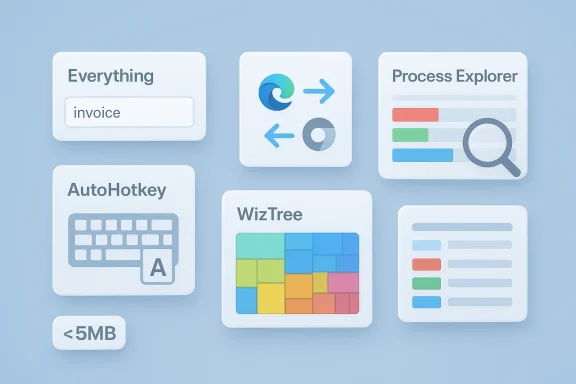
These five Windows utilities prove a point that gets lost in today’s software market: small does not have to mean limited, and lightweight does not have to mean toy-like. In the MakeUseOf piece, the appeal is not just that each tool stays well under 5MB, but that each one solves a real daily problem with almost no friction. File search, browser redirection, automation, storage analysis, and process inspection are all handled by tools that stay fast, focused, and out of the way. That combination is increasingly rare, which is exactly why these apps stand out.
Windows users have grown accustomed to an ecosystem where everyday convenience often comes packaged with bloat, background services, and a long tail of menu clutter. That is especially noticeable in categories like search, system monitoring, and automation, where many modern apps feel like they are trying to become platforms instead of utilities. The result is a subtle but persistent disappointment: tools that should save time end up demanding time.
The five apps highlighted in the MakeUseOf article offer the opposite philosophy. Everything is built for instant filename search, MSEdgeRedirect exists to remove Edge-and-Bing lock-in, AutoHotkey turns repetitive tasks into scripts, WizTree makes storage usage visible in seconds, and Process Explorer goes deeper than Task Manager without forcing users into enterprise-grade complexity. Each one does one job unusually well, and each one stays remarkably small. That narrowness is not a weakness; it is the reason they still feel useful every day.
There is also a broader Windows story here. Microsoft’s ecosystem has increasingly absorbed features that users once relied on third-party tools to provide, but those built-in options are not always best-in-class. The gap creates room for utilities that are focused, fast, and opinionated. The article’s real argument is that the best software is often the software you barely notice because it removes just enough friction to become part of your routine.
That matters even more in 2026, when many users are feeling some combination of app fatigue and interface fatigue. They do not want another all-in-one productivity suite with AI sidebars and account prompts. They want tools that open instantly, get the job done, and disappear again. These five Windows utilities fit that description almost perfectly.
The MakeUseOf article implicitly makes a strong case for utility density: the amount of real-world usefulness a tool provides relative to its size and complexity. Everything can outpace the built-in Windows Search experience because it limits scope and indexes only what matters most for its mission. WizTree similarly wins by using the Master File Table, which lets it reveal storage hogs with startling speed. These are not flashy tricks; they are design choices that prioritize performance over spectacle.
There is also a psychological advantage to small tools. When software stays focused, it feels less like a commitment and more like an instrument. You do not have to “learn the ecosystem” to use it. You simply invoke it, accomplish the task, and move on.
It also points to a healthier software philosophy. The best lightweight apps tend to solve a sharp problem rather than expand endlessly into adjacent ones. That restraint keeps the interface understandable and the learning curve shallow. In practice, that is worth more than a long feature checklist.
That is why lightweight utilities still thrive. They create an immediate sense of control. Instead of asking the user to adapt to the app, they adapt to the user’s workflow.
That design choice is crucial. By narrowing the scope, Everything avoids the lag that comes from trying to be a universal search engine. It becomes especially effective when users know a partial filename, a folder prefix, or even just the rough shape of a path. The result is a search experience that feels almost conversational: type a few characters, see the likely match, and move on.
The MakeUseOf article also notes that Everything can adapt to usage patterns over time, prioritizing the files and folders a user selects most often. That turns it from a fast search utility into a genuinely practical habit-forming tool. If you use the same resources frequently, it begins to feel like a shortcut to your own memory.
That is why Everything remains so useful even in a world full of smarter search engines. It is not trying to solve every information-retrieval problem. It is trying to solve the one most Windows users face several times a day.
It also changes how users think about organization. If you can retrieve a file in seconds, you are more willing to keep a cleaner system and rely on naming discipline. That is a small behavioral shift, but it compounds over time.
This is a good example of a utility solving a policy problem rather than a technical one. Windows does not need help opening a web link. What users need is consistency. If they set Chrome, Firefox, Brave, or another browser as default, they want that preference honored everywhere, not just in the obvious places.
The tool’s appeal is also that it is set-and-forget. Once configured, it quietly handles Start menu queries, Widgets links, and other “open in Edge” pathways. That makes it less like a launcher and more like a translation layer for user intent.
MSEdgeRedirect restores predictability. That predictability is valuable because it cuts down on tiny moments of friction that otherwise accumulate into annoyance.
That makes it a classic “invisible win.” The less you notice it, the better it is working.
That matters because so much of daily PC use is repetitive. Open this website. Paste that formatted text. Launch this app. Move that window. Trigger a sequence of actions after a specific key combo. AutoHotkey lets users replace manual repetition with a shortcut or script that does the work once and repeats it forever.
What has changed recently is not the tool’s concept, but the support ecosystem around it. The article correctly points out that AI assistants make script creation easier than it used to be. That lowers the barrier for people who do not consider themselves programmers, which widens AutoHotkey’s audience significantly.
Once a workflow has been scripted, it becomes consistent. It also becomes easier to scale across your own habits, especially if you use the same action dozens of times per week. That consistency is the real time saver.
That does not make scripting effortless, but it does make it more realistic for ordinary Windows users. In practical terms, that means AutoHotkey can now serve as a bridge between “I wish this were easier” and “I made it easier myself.”
That speed matters. Storage problems are often annoying because they are vague. Users know they are low on space, but not why. WizTree turns that uncertainty into a visual map, making it easier to spot enormous folders, hidden buildup, or forgotten media libraries in seconds.
The MakeUseOf example about Audacity’s SessionData folder is the sort of thing that explains WizTree’s appeal better than any feature list. A storage leak that would otherwise remain invisible can suddenly become obvious and fixable. That is exactly what a good utility should do.
This is why WizTree can be more useful than the Settings app for serious cleanup work. It does not just summarize storage; it exposes it.
The larger lesson is that a good utility often improves decision-making more than it improves measurement. Once users can see where the problem lives, they can solve it confidently instead of deleting random files and hoping for the best.
That combination makes it much more than a prettier task list. It becomes a diagnostic lens. If a process looks suspicious, behaves strangely, or refuses to let go of a file, Process Explorer gives users more evidence to work with than Task Manager usually can.
The color-coding system is one of the tool’s most approachable features. It provides immediate visual cues about process state and type, which helps users understand the system without reading every property panel. The deeper inspection is there if needed, but the surface view already carries meaningful information.
That matters both for troubleshooting and for security-minded users who want more confidence before ending a task.
That is why the two tools are better viewed as complementary. One is the fast dashboard. The other is the magnifying glass.
That reliability matters because software is not only judged by what it can do, but by how it feels to use it on the hundredth day. Apps that stay light usually age better in daily workflows. They remain useful because they do not exhaust the user’s patience.
The MakeUseOf list is also a reminder that the most satisfying software often solves ordinary problems extremely well. Search, redirection, automation, cleanup, and process analysis are not glamorous tasks. But they are exactly the kinds of tasks that shape a user’s experience of Windows.
It means the same lightweight philosophy can scale from simple convenience to serious workflow enhancement, which is a rare and valuable trait.
The other thing worth watching is how AI changes adoption, not just capability. AutoHotkey is a good example: the tool itself has not fundamentally changed, but the surrounding ecosystem has made it much easier for non-programmers to benefit from it. That pattern could help other small utilities find new audiences, especially if users start expecting instant assistance in generating scripts, filters, or workflows.
What to watch next:
Lightweight Windows utilities succeed because they optimize for the way people actually work. They are quick to launch, easy to trust, and focused on practical results. In a world of expanding interfaces and shrinking attention spans, that combination feels not just refreshing, but increasingly necessary.
Source: MakeUseOf These 5 Windows tools are under 5MB and somehow more useful than most apps I use daily
 Overview
Windows users have grown accustomed to an ecosystem where everyday convenience often comes packaged with bloat, background services, and a long tail of menu clutter. That is especially noticeable in categories like search, system monitoring, and automation, where many modern apps feel like they are trying to become platforms instead of utilities. The result is a subtle but persistent disappointment: tools that should save time end up demanding time.The five apps highlighted in the MakeUseOf article offer the opposite philosophy. Everything is built for instant filename search, MSEdgeRedirect exists to remove Edge-and-Bing lock-in, AutoHotkey turns repetitive tasks into scripts, WizTree makes storage usage visible in seconds, and Process Explorer goes deeper than Task Manager without forcing users into enterprise-grade complexity. Each one does one job unusually well, and each one stays remarkably small. That narrowness is not a weakness; it is the reason they still feel useful every day.
There is also a broader Windows story here. Microsoft’s ecosystem has increasingly absorbed features that users once relied on third-party tools to provide, but those built-in options are not always best-in-class. The gap creates room for utilities that are focused, fast, and opinionated. The article’s real argument is that the best software is often the software you barely notice because it removes just enough friction to become part of your routine.
That matters even more in 2026, when many users are feeling some combination of app fatigue and interface fatigue. They do not want another all-in-one productivity suite with AI sidebars and account prompts. They want tools that open instantly, get the job done, and disappear again. These five Windows utilities fit that description almost perfectly.
Why Lightweight Tools Still Win
Lightweight software remains compelling because it respects the user’s attention. A small utility is often not just faster to install and launch; it is easier to trust, easier to learn, and easier to keep in muscle memory. That makes it especially valuable for tasks you repeat constantly, where even a few seconds saved per action add up quickly.The MakeUseOf article implicitly makes a strong case for utility density: the amount of real-world usefulness a tool provides relative to its size and complexity. Everything can outpace the built-in Windows Search experience because it limits scope and indexes only what matters most for its mission. WizTree similarly wins by using the Master File Table, which lets it reveal storage hogs with startling speed. These are not flashy tricks; they are design choices that prioritize performance over spectacle.
There is also a psychological advantage to small tools. When software stays focused, it feels less like a commitment and more like an instrument. You do not have to “learn the ecosystem” to use it. You simply invoke it, accomplish the task, and move on.
What “under 5MB” really signals
The file size itself is not the whole story, but it is a strong signal. A tiny download usually suggests fewer dependencies, a narrower feature set, and less startup overhead. That often translates into a more reliable experience on older hardware, managed corporate laptops, or systems that are already busy doing other work.It also points to a healthier software philosophy. The best lightweight apps tend to solve a sharp problem rather than expand endlessly into adjacent ones. That restraint keeps the interface understandable and the learning curve shallow. In practice, that is worth more than a long feature checklist.
- Small apps are usually quicker to launch.
- Focused tools are easier to remember.
- Narrow scope often means fewer distractions.
- Lower overhead can make daily use feel smoother.
- Simpler software is often easier to troubleshoot.
Why bloat matters more than users admit
Bloat is not only about disk usage. It shows up in startup delays, cluttered settings, resource consumption, and feature overload. For many users, the real cost is cognitive: the tool takes longer to understand than the task takes to complete.That is why lightweight utilities still thrive. They create an immediate sense of control. Instead of asking the user to adapt to the app, they adapt to the user’s workflow.
Everything: Search That Feels Instant
Everything is the clearest example of a tool that wins by doing less. Windows Search has improved over the years, but many users still find it slow or inconsistent when they simply want to locate a file by name. Everything’s answer is to index filenames and folder structures rather than file contents, which is why it can surface results almost immediately.That design choice is crucial. By narrowing the scope, Everything avoids the lag that comes from trying to be a universal search engine. It becomes especially effective when users know a partial filename, a folder prefix, or even just the rough shape of a path. The result is a search experience that feels almost conversational: type a few characters, see the likely match, and move on.
The MakeUseOf article also notes that Everything can adapt to usage patterns over time, prioritizing the files and folders a user selects most often. That turns it from a fast search utility into a genuinely practical habit-forming tool. If you use the same resources frequently, it begins to feel like a shortcut to your own memory.
Why filename search is enough for many users
A lot of daily file hunting is not really about content search. It is about finding the right document, installer, folder, or export before opening it. For that problem, filename-and-path indexing is often the ideal compromise between speed and utility.That is why Everything remains so useful even in a world full of smarter search engines. It is not trying to solve every information-retrieval problem. It is trying to solve the one most Windows users face several times a day.
- Fast incremental search is the main advantage.
- File-name indexing keeps the app lightweight.
- Partial matches are often enough.
- Sorting and filters add flexibility without clutter.
- Search habits can improve over time.
The hidden productivity gain
The real value of Everything is not just speed; it is reduced interruption. When search is fast enough, you stop breaking your flow to browse folders manually. That matters in any workflow that depends on quickly jumping between downloads, project folders, archives, or temporary files.It also changes how users think about organization. If you can retrieve a file in seconds, you are more willing to keep a cleaner system and rely on naming discipline. That is a small behavioral shift, but it compounds over time.
MSEdgeRedirect: Taking Back Web Search Flow
MSEdgeRedirect addresses a very specific but frustrating Windows behavior: links and search results that insist on opening in Edge, often with Bing attached. For users who prefer another browser and search engine, that can feel like an unnecessary detour every time Windows tries to “help.” MSEdgeRedirect exists to intercept those commands and hand them back to the browser the user actually chose.This is a good example of a utility solving a policy problem rather than a technical one. Windows does not need help opening a web link. What users need is consistency. If they set Chrome, Firefox, Brave, or another browser as default, they want that preference honored everywhere, not just in the obvious places.
The tool’s appeal is also that it is set-and-forget. Once configured, it quietly handles Start menu queries, Widgets links, and other “open in Edge” pathways. That makes it less like a launcher and more like a translation layer for user intent.
Why browser redirection matters
For many people, web search is not a niche action. It is part of how they use the Start menu, system prompts, and Windows-integrated surfaces every day. If those flows are inconsistent, the operating system starts to feel like it is arguing with the user.MSEdgeRedirect restores predictability. That predictability is valuable because it cuts down on tiny moments of friction that otherwise accumulate into annoyance.
- Search results open where the user expects.
- Default browser settings feel meaningful again.
- Bing prompts become less intrusive.
- Windows-integrated web links behave more consistently.
- The overall system feels more user-controlled.
The broader significance
This kind of utility says something important about Windows customization. Even when the operating system offers a default path, users often want a way to reassert control over it. MSEdgeRedirect is popular not because it is complex, but because it removes a recurring annoyance with very little effort.That makes it a classic “invisible win.” The less you notice it, the better it is working.
AutoHotkey: Automation Without the Ceremony
AutoHotkey has been a power-user staple for years because it makes Windows automatable in a way that still feels surprisingly approachable. The MakeUseOf article highlights the obvious uses first: custom shortcuts, key remapping, app launching, and personal workflows. But the real strength of AutoHotkey is that it turns the repetitive parts of computing into something programmable.That matters because so much of daily PC use is repetitive. Open this website. Paste that formatted text. Launch this app. Move that window. Trigger a sequence of actions after a specific key combo. AutoHotkey lets users replace manual repetition with a shortcut or script that does the work once and repeats it forever.
What has changed recently is not the tool’s concept, but the support ecosystem around it. The article correctly points out that AI assistants make script creation easier than it used to be. That lowers the barrier for people who do not consider themselves programmers, which widens AutoHotkey’s audience significantly.
Why scripts beat repeated clicks
There is a difference between convenience and automation. A convenient app helps you do something faster. An automated workflow removes the need to think about the task at all. AutoHotkey lives in that second category.Once a workflow has been scripted, it becomes consistent. It also becomes easier to scale across your own habits, especially if you use the same action dozens of times per week. That consistency is the real time saver.
- Keyboard shortcuts reduce mouse dependence.
- App-specific hotkeys can adapt to context.
- Repetitive actions can be reduced to one press.
- Custom scripts can grow with your workflow.
- Automation can eliminate minor daily friction.
The case for AI-assisted scripting
For a long time, AutoHotkey’s biggest obstacle was not power but accessibility. The syntax was approachable to enthusiasts, but still intimidating to casual users. That has changed somewhat because generative tools can help draft scripts, explain logic, and adapt examples to a user’s needs.That does not make scripting effortless, but it does make it more realistic for ordinary Windows users. In practical terms, that means AutoHotkey can now serve as a bridge between “I wish this were easier” and “I made it easier myself.”
WizTree: Seeing Storage Problems at a Glance
WizTree solves one of the most common Windows headaches: figuring out where disk space actually went. The built-in Windows Storage view can tell you broad categories, but it rarely gives you the kind of precision needed to find the exact folder or file that is swallowing space. WizTree approaches the problem differently by scanning the drive’s Master File Table, which allows it to surface results very quickly.That speed matters. Storage problems are often annoying because they are vague. Users know they are low on space, but not why. WizTree turns that uncertainty into a visual map, making it easier to spot enormous folders, hidden buildup, or forgotten media libraries in seconds.
The MakeUseOf example about Audacity’s SessionData folder is the sort of thing that explains WizTree’s appeal better than any feature list. A storage leak that would otherwise remain invisible can suddenly become obvious and fixable. That is exactly what a good utility should do.
Why treemaps are so effective
A treemap makes relationships visible immediately. Instead of listing sizes in a table and asking the user to infer the problem, it shows the shape of the problem. Large blocks stand out, and that visual weight makes it much easier to know where to act first.This is why WizTree can be more useful than the Settings app for serious cleanup work. It does not just summarize storage; it exposes it.
- Large folders are easy to identify.
- Hidden space usage becomes visible.
- Duplicate files can be found faster.
- The MFT scan keeps results quick.
- Visuals reduce guesswork.
Practical value for ordinary users
WizTree is not just for IT enthusiasts. Anyone who deals with downloads, creative projects, video files, backups, or cached application data can benefit from it. Storage issues are a universal problem, and lightweight tools like this are useful because they make a confusing issue feel manageable.The larger lesson is that a good utility often improves decision-making more than it improves measurement. Once users can see where the problem lives, they can solve it confidently instead of deleting random files and hoping for the best.
Process Explorer: Task Manager’s More Capable Cousin
Process Explorer is the most technically rich tool in the lineup, but it is still lightweight in spirit. The article’s central point is that Task Manager is fine for broad awareness, but Process Explorer offers the kind of detail that matters when something odd is happening. That extra detail includes process color coding, command lines, file paths, service relationships, and even VirusTotal integration.That combination makes it much more than a prettier task list. It becomes a diagnostic lens. If a process looks suspicious, behaves strangely, or refuses to let go of a file, Process Explorer gives users more evidence to work with than Task Manager usually can.
The color-coding system is one of the tool’s most approachable features. It provides immediate visual cues about process state and type, which helps users understand the system without reading every property panel. The deeper inspection is there if needed, but the surface view already carries meaningful information.
Why deeper process visibility matters
Modern Windows systems are complicated. A single app may involve multiple subprocesses, services, broker components, and support utilities. When something goes wrong, a plain process list can be too shallow to explain it. Process Explorer narrows that gap by exposing more of the chain.That matters both for troubleshooting and for security-minded users who want more confidence before ending a task.
- Process paths help validate legitimacy.
- Command lines reveal how something was launched.
- Service links show what depends on what.
- VirusTotal checks add another layer of context.
- Color coding makes scanning easier.
Where it fits relative to Task Manager
Task Manager is still the right starting point for many users. It is built in, fast, and good enough for quick triage. But Process Explorer becomes more valuable when the issue is unclear, recurring, or potentially malicious.That is why the two tools are better viewed as complementary. One is the fast dashboard. The other is the magnifying glass.
Why These Tools Feel Better Than Bigger Apps
The common thread running through all five apps is not just that they are small. It is that they are emotionally unobtrusive. They do not try to be a suite, a platform, or a subscription funnel. They do one thing, and that gives them a kind of reliability that larger apps often lose.That reliability matters because software is not only judged by what it can do, but by how it feels to use it on the hundredth day. Apps that stay light usually age better in daily workflows. They remain useful because they do not exhaust the user’s patience.
The MakeUseOf list is also a reminder that the most satisfying software often solves ordinary problems extremely well. Search, redirection, automation, cleanup, and process analysis are not glamorous tasks. But they are exactly the kinds of tasks that shape a user’s experience of Windows.
The design lesson
A useful app does not need to impress you constantly. In fact, the best ones often impress you once and then disappear into habit. That is the real benchmark.- Focus beats feature sprawl.
- Speed beats visual spectacle.
- Reliability beats novelty.
- Habit beats hype.
- Narrow scope often beats broad ambition.
Consumer and power-user value
These tools also blur the line between consumer and power-user software. A casual user can benefit from Everything or WizTree without learning anything technical. A power user can push AutoHotkey or Process Explorer much further. That flexibility is part of the appeal.It means the same lightweight philosophy can scale from simple convenience to serious workflow enhancement, which is a rare and valuable trait.
Strengths and Opportunities
The biggest strength of this set of tools is that each one removes friction in a very specific part of the Windows experience. That gives users a lot of immediate value without demanding a large learning investment. It also means these apps can coexist comfortably with built-in Windows features rather than competing with them outright.- Everything delivers near-instant filename search.
- MSEdgeRedirect restores browser and search-choice consistency.
- AutoHotkey can eliminate repetitive manual work.
- WizTree turns storage cleanup into a quick visual task.
- Process Explorer provides much deeper diagnostics than Task Manager.
- All five tools are lightweight enough to feel low-risk.
- Each app solves a daily annoyance rather than a hypothetical problem.
Risks and Concerns
The main risk with lightweight utilities is not that they are bad, but that they can become “specialist tools” users forget to configure or learn properly. A tool like AutoHotkey can be transformative, but only if a user invests a little time up front. Similarly, Process Explorer and WizTree are powerful enough that less experienced users may misread what they are seeing.- Some tools require setup before they pay off.
- AutoHotkey has a learning curve despite AI help.
- Process Explorer can overwhelm casual users.
- MSEdgeRedirect may be unnecessary for users who do not mind Edge.
- Everything is best for filename search, not content search.
- WizTree can encourage over-deletion if users act too quickly.
- Lightweight apps can still create clutter if installed without a plan.
Looking Ahead
The enduring popularity of tools like these suggests that Windows users still want software that respects their time. Even as the operating system continues to add built-in conveniences, there will always be room for utilities that are sharper, faster, or more customizable than the defaults. That is especially true in categories where the basic Windows version is good, but not quite ideal.The other thing worth watching is how AI changes adoption, not just capability. AutoHotkey is a good example: the tool itself has not fundamentally changed, but the surrounding ecosystem has made it much easier for non-programmers to benefit from it. That pattern could help other small utilities find new audiences, especially if users start expecting instant assistance in generating scripts, filters, or workflows.
What to watch next:
- Whether more Windows users adopt filename-first search over built-in search.
- Whether browser redirection tools remain relevant as Microsoft evolves Windows behavior.
- Whether AI-assisted scripting makes automation tools more mainstream.
- Whether storage analyzers become more visually integrated.
- Whether process viewers gain even richer security context.
Lightweight Windows utilities succeed because they optimize for the way people actually work. They are quick to launch, easy to trust, and focused on practical results. In a world of expanding interfaces and shrinking attention spans, that combination feels not just refreshing, but increasingly necessary.
Source: MakeUseOf These 5 Windows tools are under 5MB and somehow more useful than most apps I use daily
Last edited:
