

If you’re still clicking through menus to clear space, reset networking, or launch a familiar suite of apps, a handful of tiny text files can save you minutes every day. How-To Geek’s recent primer on “7 useful batch files you can create to automate tasks on Windows 11” walks through seven practical .bat recipes — from emptying the Recycle Bin to toggling Dark Mode — and shows how simple command-line building blocks can automate routine maintenance and workflows. that starter guide into a practical, source-checked workflow for anyone who wants more reliable automation: what those scripts are doing, how to write them safely, the exact Windows internals they call, and the trade-offs you should know before you run a .bat file as Administrator.
A batch file is a plain-text script containing a sequence of commands for the Windows command processor (cmd.exe). Saving commands into a .bat (or .cmd) file bundles repetitive actions into a single double-click or scheduled task — no GUI navigation required. This is the same behavior Microsoft documented for years: a batch file is simply a list of commands executed line-by-line by the command interpreter.
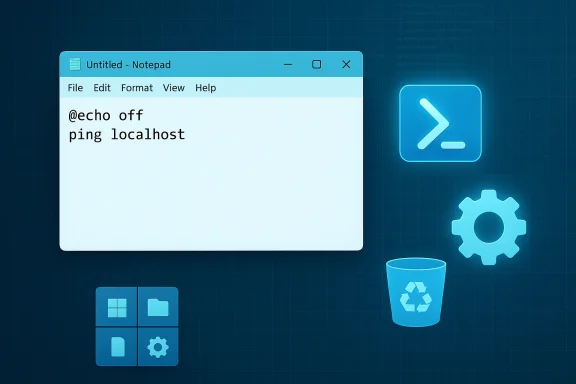
Creating a batch file is trivial: open Notepad (or any text editor), write the commands, and save the file with a .bat extension and “Save as type” set to “All Files.” When a script modifies system state — deleting files, editing the registry, or creating restore points — it typically requires elevated privileges; that is, you must “Run as administrator.” How-To Geek’s guide gives a step‑by‑step primer for creating and saving .bat files, and shows a helpful shortcut trick to run a script as admin every time ced properties.
For readers who want a more powerful, safer long‑term approach: PowerShell and Microsoft’s Power Automate Desktop provide richer automation tooling and explicit safety controls. PowerShell has structured cmdlets, better error handling, and rich logging; Power Automate adds low‑code flows and UI automation. We’ll reference the right Microsoft docs as we explain the commands below.
Notes and verification
Notes and verification
Notes and verification
Notes and verification
Notes and verification
Caveats and verification
And to switch to Light:
Notes and verification
However, for production automation or anything that interacts with user data, prefer modern tools where possible: PowerShell for safer scripting primitives and error handling, Robocopy for resilient file mirroring, and Power Automate Desktop for GUI-centric workflows. Where legacy tools like WMIC are used, be aware Microsoft is deprecating those utilities and has published migration guidance.
If you want, start by converting one of the How‑To‑Geek batch examples into a PowerShell script and add logging and -WhatIf checks; that single upgrade will make your automation safer and easier to maintain.
Source: How-To Geek 7 useful batch files you can create to automate tasks on Windows 11
 Background: what a batch file is and why it still matters
A batch file is a plain-text script containing a sequence of commands for the Windows command processor (cmd.exe). Saving commands into a .bat (or .cmd) file bundles repetitive actions into a single double-click or scheduled task — no GUI navigation required. This is the same behavior Microsoft documented for years: a batch file is simply a list of commands executed line-by-line by the command interpreter. Creating a batch file is trivial: open Notepad (or any text editor), write the commands, and save the file with a .bat extension and “Save as type” set to “All Files.” When a script modifies system state — deleting files, editing the registry, or creating restore points — it typically requires elevated privileges; that is, you must “Run as administrator.” How-To Geek’s guide gives a step‑by‑step primer for creating and saving .bat files, and shows a helpful shortcut trick to run a script as admin every time ced properties.
For readers who want a more powerful, safer long‑term approach: PowerShell and Microsoft’s Power Automate Desktop provide richer automation tooling and explicit safety controls. PowerShell has structured cmdlets, better error handling, and rich logging; Power Automate adds low‑code flows and UI automation. We’ll reference the right Microsoft docs as we explain the commands below.
Quick reference: safety first (before you run anything)
- Always inspect a .bat file before executing it. Batch files are plain text; malware authors can hide destructive commands behind an innocuous filename.
- Test scripts in a non‑critical account or VM first. A harmless-looking del /s /q can wipe more than you expect.
- Use logging and confirmations in scripts (echo, pause, redirect outputs) to see what a script will do.
- Prefer PowerShell for new work where possible: it supports -WhatIf and -Confirm switches and more granular permission models.
- When creating scheduled tasks, follow least‑privilege principles; only grant elevated rights if the task genuinely needs them. Schtasks and Task Scheduler require administrator permission to schedule tasks that run with system privileges.
1) Empty the Recycle Bin: small command, immediate space gain
Why it helps- Forgotten files in the Recycle Bin can consume gigabytes; clearing it reclaims space without diving into individual folders.
- The PowerShell cmdlet Clear-RecycleBin is the clearest, supported approach to empty recycle bins across drives. You can call it from a batch file using PowerShell -Command. Using the -Force switch suppresses confirmations.
Code:
[USER=35331]@echo[/USER] off
echo Emptying Recycle Bin for all drives...
powershell -Command "Clear-RecycleBin -Force -ErrorAction Ignore"
echo Recycle Bin emptied.
pause- Clear-RecycleBin is available in modern Windows PowerShell and PowerShell 7+; behavior and parameters are documented in the PowerShell module reference. If PowerShell can’t access a particular user’s recycle bin due to redirection or networked profiles, you may need a different approach (e.g., enumerating $Recycle.Bin folders).
- The command deletes items irrevocably; use -Confirm or omit -Force during testing. If you manage many remote profiles, test on a single account before scaling.
2) Clear temporary files: tidy up %TEMP% safely
Why it helps- Temp files accumulate from installers, browsers, and apps. Cleaning them can free space and sometimes resolve odd behavior.
- The pair of commands del and rd remove files and directories. They’re standard cmd utilities; the /q, /f, and /s switches control quiet mode, forced deletion, and recursion. Microsoft documents both del and rd/rmdir and their flags.
Code:
[USER=35331]@echo[/USER] off
echo Clearing Temporary Files...
del /q /f /s "%temp%\*"
rd /s /q "%temp%"
echo Temporary files cleared.
pause- %TEMP% is an environment variable pointing to a user’s temp folder. Deleting the temp folder entirely (rd /s /q) will remove the folder and its contents; Windows or the next app that needs it will recreate it. Always quote environment variables to handle paths with spaces.
- Some running programs may lock temp files; deletion will fail for those items. Avoid running this while critical background tasks are running. Consider adding checks or a temporary log (dir /a > temp-list.txt) before deletion.
3) Launch multiple apps at once: boot your workspace in a click
Why it helps- If you open the same set of apps every morning, a launcher .bat saves the start‑menu shuffle.
- The start command invokes applications, folders, or URLs. Use start "" "C:\Path\To\App.exe" to avoid the first quoted string being parsed as the window title. How‑to guides and the Windows start semantics are well established in Windows command docs.
Code:
[USER=35331]@echo[/USER] off
echo Launching apps...
start explorer
start "" "C:\Program Files\Google\Chrome\Application\chrome.exe"
start "" "C:\Program Files\Microsoft Office\root\Office16\OUTLOOK.EXE"
echo All apps launched.
pause- Replace paths with the actual executable paths on your PC. If an app requires specific working folders or command-line arguments, include them after the executable path.
- If an app prompts for updates or login and blocks startup, consider staggered starts (timeout /t 5) or launching under a Task Scheduler task that retries if the app crashes.
4) Back up files and folders: fast copies with xcopy
Why it helps- Automating periodic copies of important directories reduces the risk of data loss and reduces manual copying errors.
- xcopy is a classic Windows copy tool that handles directories, empty folders, and many attributes via switches like /e, /i, /h, and /y. Microsoft’s xcopy documentation explains each switch. For reliable modern backups, use Robocopy (more robust) or PowerShell’s Copy-Item for fine control, but xcopy remains a valid lightweight choice.
Code:
[USER=35331]@echo[/USER] off
echo Backing up files...
xcopy "C:\Users\%USERNAME%\Documents\Important" "D:\Backups\Documents" /e /i /h /y
echo Backup completed.
pause- /e copies subdirectories including empty ones; /i creates the destination if it doesn’t exist; /h copies hidden and system files; /y overwrites without prompting. For large or networked transfers, consider robocopy with restartable mode and logging.
- Overwriting destination files can be destructive. Test with /l (list-only) first to preview what would be copied. Add timestamped folders (e.g., D:\Backups\Documents%DATE%%TIME%) to preserve snapshots rather than blindly overwriting.
5) Reset the network: ipconfig release/renew + flush DNS
Why it helps- Releasing and renewing a DHCP lease plus flushing the DNS cache often solves common connectivity problems without a full reboot.
- ipconfig provides the standard network configuration commands: /release, /renew, and /flushdns. Microsoft’s ipconfig command documentation covers the syntax and the behavior of these switches.
Code:
[USER=35331]@echo[/USER] off
echo Resetting network...
ipconfig /release
ipconfig /renew
ipconfig /flushdns
echo Network reset completed.
pause- /release drops the current lease; /renew requests a fresh lease from the DHCP server; /flushdns clears the DNS resolver cache. These commands affect only adapters configured for DHCP and require network access to the DHCP server for renew to succeed.
- On systems with static IPs, ipconfig /release may clear an address temporarily; ensure you understand a system’s network configuration before running these in scripts scheduled to run automatically.
6) Create a system restore point: WMIC + WMI SystemRestore
Why it helps- When you’re about to change drivers, tweak the registry, or install risky software, a restore point gives you a rollback option.
- The WMI SystemRestore class exposes CreateRestorePoint. The common command-line wrapper uses WMIC:
wmic.exe /Namespace:\root\default Path SystemRestore Call CreateRestorePoint "MyRestorePoint", 100, 7
Microsoft documents the SystemRestore class and CreateRestorePoint method — including the parameter meanings and return values.
Code:
[USER=35331]@echo[/USER] off
echo Creating System Restore Point...
wmic.exe /Namespace:\\root\default Path SystemRestore Call CreateRestorePoint "Before-Major-Change", 100, 7
echo System Restore Point created (if permitted).
pause- WMIC is a convenient wrapper, but Microsoft has deprecated the WMIC command-line utility and has been moving WMI access to PowerShell CIM cmdlets and APIs. Check the current Windows deprecation status before relying on WMIC in long‑term automation; Microsoft’s deprecated-features pages note WMIC’s deprecation and phased removal. If WMIC is not available on your system, you should use PowerShell alternatives or WMI via Get-CimInstance/Invoke-CimMethod.
- System Restore may skip creating a point if one was created recently (Windows enforces frequency limits). The CreateRestorePoint method returns codes you can check; always confirm the method’s return value if you need guaranteed restore-point creation.
7) Switch between Dark and Light mode: registry tweak
Why it helps- Windows’ Settings UI allows manual theme switching, but a registry tweak lets you toggle the app color mode from a scriptable control. This is handy for automation that toggles UI theme for presentations, accessibility, or power-saving preferences.
- The registry keys under HKCU\Software\Microsoft\Windows\CurrentVersion\Themes\Personalize include AppsUseLightTheme and SystemUsesLightTheme; setting AppsUseLightTheme to 0 forces app dark mode and to 1 forces light mode. Microsoft’s personalization registry reference lists these values and their meanings.
Code:
[USER=35331]@echo[/USER] off
reg add "HKEY_CURRENT_USER\Software\Microsoft\Windows\CurrentVersion\Themes\Personalize" /v AppsUseLightTheme /t REG_DWORD /d 0 /f
echo Switched to Dark Mode.
pause
Code:
[USER=35331]@echo[/USER] off
reg add "HKEY_CURRENT_USER\Software\Microsoft\Windows\CurrentVersion\Themes\Personalize" /v AppsUseLightTheme /t REG_DWORD /d 1 /f
echo Switched to Light Mode.
pause- These values control the app color mode (AppsUseLightTheme) and the system UI color mode (SystemUsesLightTheme). Some UI elements may not refresh instantly; logging out or restarting explorer.exe can force a refresh in edge cases. Microsoft’s registry settings reference documents these keys.
- Editing the registry should be done with caution. Always export the key (reg export ...) before changing it in case you want to revert programmatically.
Beyond the seven: safer alternatives and advanced options
- PowerShell: For nearly every batch task above there’s a PowerShell equivalent that provides better error handling and -WhatIf support (e.g., Clear-RecycleBin, Copy-Item, New-CimInstance/Invoke-CimMethod for restore points). PowerShell is Microsoft’s recommended toolset for modern automation.
- Robocopy: For robust file copies and resume-on-network-fail, use Robocopy instead of xcopy.
- Task Scheduler / schtasks: Use Task Scheduler or schtasks.exe to run .bat files on a schedule, at logon, or on event triggers; Microsoft documents schtasks’ create/run/query syntax and administrative requirements.
- Power Automate Desktop: For non‑scripted workflows, Power Automate Desktop (bundled with Windows 11) can automate GUI interactions and cross-app flows without hand-coding. It’s a good alternative when you need UI automation rather than file or network commands.
- AutoHotkey: If your automation needs keyboard/mouse macros or hotkeys, AutoHotkey remains a popular community tool — but treat compiled scripts from unknown authors as untrusted executables.
Critical analysis: strengths, limitations, and security implications
Strengths- Simplicity: Batch files are easy to author and require no external dependencies.
- Transparency: Because they’re plain text, you (or an auditor) can quickly review what a .bat file does before executing it.
- Portability: A .bat file will run on most Windows 10/11 machines without installing additional tooling.
- Limited error handling: cmd.exe has primitive flow control and weak error handling compared with PowerShell.
- Opacity for complex tasks: When tasks need conditionals, structured data, or APIs, batch scripts become fragile or verbose.
- Environment changes: Windows is evolving — WMIC has been deprecated and may be absent on newer systems, so scripts that rely on legacy utilities may break. Microsoft’s deprecation notices explicitly call out WMIC’s phased removal and recommend PowerShell alternatives.
- Destructive commands: del, rd and registry edits can be destructive if mis‑targeted. Scripts that run as Administrator amplify risk.
- Execution of untrusted scripts: Opening downloaded .bat files is a common infection vector. Treat all scripts from the internet as potentially hostile.
- Scheduling side effects: Scheduled tasks running under high privilege can be exploited if system accounts are compromised; use least-privipossible.
- Add confirmation prompts and logging. For example, prompt the user to continue, or log actions to a file for later auditing.
- Use PowerShell’s -WhatIf and -Confirm when adopting cmdlets that modify system state.
- Test in a virtualized snapshot or non‑production account before deploying a script broadly.
- Use digitally-signed scripts or store scripts in a controlled repository and serve them with version control and review.
How to harden a batch-startup workflow (concrete steps)
- Create folder structure:
- Keep scripts in C:\Scripts and set NTFS ACLs so only administrators can modify them.
- Add a header to each .bat with author, change date, and a short description.
- Redirect standard output and error to log files for every run:
- script.bat >> C:\Scripts\Logs\script_%DATE:~10,4%%DATE:~4,2%%DATE:~7,2%.log 2>&1
- Add a dry-run flag:
- Let the script accept a parameter like /dryrun to show actions without performing them.
- Convert high-risk operations to PowerShell functions with -WhatIf support and call PowerShell from your .bat for the risky bits.
Real-world checklist before you hit “Run as Administrator”
- Did you inspect every line? (Yes/No)
- Is the destination path hard-coded or parameterized?
- Does the script overwrite files without prompting? If so, are they backed up?
- Have you tested it with test data or used list-only switches (/l for xcopy)?
- Is logging enabled? Is there an alert when an error occurs?
- Will the script run under the account you intend (user admin vs System)?
Final takeaways
Batch files remain a fast, accessible way to automate routine Windows tasks. How‑To‑Geek’s “7 useful batch files” article is a practical starting point, and the seven examples it presents are useful building blocks for desktop maintenance and light automation.However, for production automation or anything that interacts with user data, prefer modern tools where possible: PowerShell for safer scripting primitives and error handling, Robocopy for resilient file mirroring, and Power Automate Desktop for GUI-centric workflows. Where legacy tools like WMIC are used, be aware Microsoft is deprecating those utilities and has published migration guidance.
If you want, start by converting one of the How‑To‑Geek batch examples into a PowerShell script and add logging and -WhatIf checks; that single upgrade will make your automation safer and easier to maintain.
Source: How-To Geek 7 useful batch files you can create to automate tasks on Windows 11
