

A lot of Windows 11 Pro users never move beyond the basics, which means they miss some of the most practical tools already built into the operating system. That is a shame, because several of the best features are not flashy at all; they are quiet, efficient, and designed to shave seconds off repetitive tasks all day long. Once you start using them, they can feel less like optional extras and more like the parts of Windows that should have been there in your muscle memory from the beginning.
What makes these features so useful is not just convenience, but compounding value. A shortcut that saves five seconds today becomes a time-saver you use dozens of times per week, and a small system setting can make the difference between frustration and flow. Windows 11 Pro is full of those little improvements, and the best ones tend to hide in plain sight.
Windows 11 arrived with a strong emphasis on design, consistency, and a more modern desktop experience, but the platform also carried forward a long tradition of deep productivity tooling. For many users, that depth is invisible because the default workflow is still centered on Start, the taskbar, and a handful of familiar apps. The result is that a surprising number of useful system features remain underused, even by people who spend most of their workday inside Windows.
That pattern is especially visible in Windows 11 Pro, where Microsoft positions the edition not just as a consumer operating system, but as a more configurable environment for power users and professionals. The “Pro” label matters less because of a single dramatic feature and more because it sits at the intersection of manageability, security, and convenience. In practice, that means the version most likely to be installed on business laptops or high-use personal machines is also the one most likely to benefit from small efficiency gains.
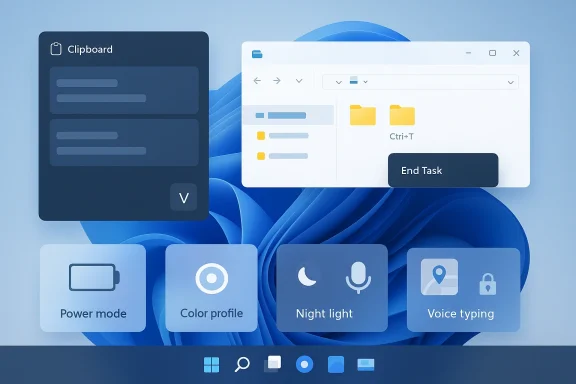
Microsoft has also been steadily improving built-in tools through feature updates rather than big headline launches. File Explorer has gained tabs, clipboard functionality has become more flexible, voice typing has matured, and even basic system behaviors like app termination and display handling have been refined. These changes rarely dominate launch-day marketing, but they often deliver the most noticeable day-to-day improvements.
The broader lesson is that modern Windows is increasingly an operating system of layers. There is the visible interface that everyone recognizes, and then there are the settings, hotkeys, and background controls that quietly define the real experience. The nine features below belong to that second layer, which is exactly why so many people wish they had started using them sooner.
It also matters that these features are available without a hardware upgrade. A newer display, faster CPU, or premium docking setup can improve the experience, but the tools here are mostly software-based and immediately accessible. In other words, they offer low-friction wins for users who want better performance from the machine they already own.
That makes a big difference in multi-window work. If you are pulling text from a browser, a spreadsheet, and an email draft at the same time, the old copy-and-paste model becomes a bottleneck. Clipboard History turns that repetitive back-and-forth into a quick retrieval process, which is why it feels like a small feature with outsized impact.
A lot of users still rely on mouse-only navigation even when they are performing repetitive file operations. That is workable, but it is not efficient. Once you know a handful of high-frequency shortcuts, File Explorer becomes less of a window you click through and more of a command surface you can navigate directly.
This kind of feature sounds almost trivial until you are dealing with a frozen app during a busy work session. In that moment, anything that shortens recovery time feels valuable. A direct end-task control is one of those practical efficiencies that changes how frustrating a crash feels.
It also has a psychological benefit. Users often delay recovery actions because the full Task Manager routine feels too invasive. A simple context-menu action feels lighter, which means people may resolve freezes sooner instead of letting them linger.
This is not just a convenience feature; it is a mitigation feature. If a laptop goes missing, being able to see its last known location and potentially lock it remotely may reduce the damage. That is especially relevant for anyone carrying documents, customer data, passwords, or personal files on a portable PC.
Still, the feature covers an important middle ground. It helps with recovery, gives you a last-known location, and can support a lock action to reduce unauthorized access. That makes it a worthwhile baseline setting rather than an optional extra.
The key idea here is that performance is not just about raw speed. It is also about how aggressively the system decides to conserve energy, manage heat, and balance workloads. A laptop that feels sluggish in everyday use may not need new hardware at all; it may just need a more suitable power posture.
That is why power tuning is best thought of as situational rather than permanent. A balanced or efficient mode can be ideal for travel and document work, while a more aggressive profile makes sense when plugged in and under load. The point is to make the system behave in a way that matches your actual workload.
This is one of those features that is easy to ignore because the display already “looks fine” to the eye. But fine and accurate are not the same thing. A screen that is slightly too warm, too cool, or improperly calibrated can throw off editing decisions and make content appear different on other devices.
It also helps in multi-monitor setups, where two displays may look visibly different even if they are technically similar. Profiles can reduce those differences and make transitions between devices less jarring. That is a subtle but real quality improvement.
It is not a cure-all for screen fatigue, and it should not be treated as one. But it can help reduce the harshness of a bright, blue-heavy display late in the evening, which is often enough to make prolonged work feel easier on the eyes. Small comfort improvements like this often get dismissed because they are not dramatic, yet they can materially change how sustainable a work session feels.
That matters because the best productivity settings are the ones you stop thinking about. Automation is what turns a good idea into a routine. In that sense, Night Light is less about color and more about reducing friction in your daily setup.
This is not just a disability-accessibility feature, although it absolutely serves that role. It is also a speed tool for anyone who can think faster than they can type, or for anyone who simply wants to get ideas on the page without fighting the keyboard. That makes it surprisingly valuable for brainstorming, note-taking, email replies, and draft writing.
The service is more context-dependent than keyboard typing, of course. Noisy environments, weak microphones, or unstable connectivity can affect accuracy. But when conditions are good, it can feel like a legitimate alternative input method rather than a novelty.
This is one of the clearest examples of a feature that seems optional until it becomes part of your routine. Once it does, the shortcut feels less like an accessory and more like a different way to work.
This feature matters because specialized characters often create tiny interruptions in writing. People switch to a browser tab, search for the symbol, copy it, and then return to their document. The Windows panel eliminates that detour and keeps you in the same flow.
Windows has also added shortcuts for en and em dashes, which is a quietly excellent improvement for writers. It shows that Microsoft understands the difference between playful input and professional input—and that punctuation deserves its own convenience layer.
There is also a competitive angle. As laptops become more homogeneous in hardware, software quality matters more, and small built-in advantages can shape how users feel about the platform. If Windows keeps turning buried utilities into genuinely useful default behaviors, it strengthens the case for staying within the ecosystem instead of chasing third-party workarounds.
Windows 11 Pro is already full of capabilities that can make you faster, calmer, and more in control of your machine, but most of them only pay off once they become habits. That is why these nine features stand out. They are not just clever additions; they are the kind of tools that change the way Windows feels after you stop overlooking them.
Source: Windows Central 9 Windows 11 Pro features you'll wish you started using sooner
What makes these features so useful is not just convenience, but compounding value. A shortcut that saves five seconds today becomes a time-saver you use dozens of times per week, and a small system setting can make the difference between frustration and flow. Windows 11 Pro is full of those little improvements, and the best ones tend to hide in plain sight.
 Background
Windows 11 arrived with a strong emphasis on design, consistency, and a more modern desktop experience, but the platform also carried forward a long tradition of deep productivity tooling. For many users, that depth is invisible because the default workflow is still centered on Start, the taskbar, and a handful of familiar apps. The result is that a surprising number of useful system features remain underused, even by people who spend most of their workday inside Windows.That pattern is especially visible in Windows 11 Pro, where Microsoft positions the edition not just as a consumer operating system, but as a more configurable environment for power users and professionals. The “Pro” label matters less because of a single dramatic feature and more because it sits at the intersection of manageability, security, and convenience. In practice, that means the version most likely to be installed on business laptops or high-use personal machines is also the one most likely to benefit from small efficiency gains.
Microsoft has also been steadily improving built-in tools through feature updates rather than big headline launches. File Explorer has gained tabs, clipboard functionality has become more flexible, voice typing has matured, and even basic system behaviors like app termination and display handling have been refined. These changes rarely dominate launch-day marketing, but they often deliver the most noticeable day-to-day improvements.
The broader lesson is that modern Windows is increasingly an operating system of layers. There is the visible interface that everyone recognizes, and then there are the settings, hotkeys, and background controls that quietly define the real experience. The nine features below belong to that second layer, which is exactly why so many people wish they had started using them sooner.
Why these features matter now
For years, many PC users treated productivity gains as something you added through third-party apps. Windows 11 changes that equation by shipping a larger share of those tools directly in the box. That is a meaningful shift, because built-in features are generally faster to learn, more stable over time, and less likely to become a security or maintenance headache.It also matters that these features are available without a hardware upgrade. A newer display, faster CPU, or premium docking setup can improve the experience, but the tools here are mostly software-based and immediately accessible. In other words, they offer low-friction wins for users who want better performance from the machine they already own.
Clipboard History: the simplest productivity upgrade you may never have enabled
Clipboard History is one of those features that sounds minor until you actually use it for a day. Instead of losing everything every time you copy something new, Windows 11 stores several recent items so you can paste from a small history panel. Microsoft’s own documentation confirms that you can open Clipboard History with Windows key + V, turn it on from Settings > System > Clipboard, and even sync items across devices if you want a shared clipboard experience.That makes a big difference in multi-window work. If you are pulling text from a browser, a spreadsheet, and an email draft at the same time, the old copy-and-paste model becomes a bottleneck. Clipboard History turns that repetitive back-and-forth into a quick retrieval process, which is why it feels like a small feature with outsized impact.
A better way to move content between apps
The practical value of Clipboard History is not abstract. It reduces the cognitive overhead of remembering where the last copied item came from, and it removes the need to constantly re-copy text you already had moments ago. The pinning option also makes it useful for repeating snippets such as addresses, canned replies, or formatting templates.- Press Windows key + V to open the history panel.
- Turn on clipboard history in Settings if it is disabled.
- Sync clipboard data across devices if you rely on multiple PCs.
- Pin recurring items so they remain available longer.
- Use it for text, links, and images when juggling projects.
File Explorer shortcuts: the hidden speed layer inside everyday file work
File Explorer is one of the most frequently used parts of Windows, which is exactly why shortcuts matter so much there. Microsoft’s documentation shows that Windows 11 supports keyboard navigation throughout File Explorer, including Windows key + E to open it, Ctrl + Tab to move through tabs, and Ctrl + T to open a new tab. Those shortcuts sound small on paper, but they can radically change how fast you move between folders.A lot of users still rely on mouse-only navigation even when they are performing repetitive file operations. That is workable, but it is not efficient. Once you know a handful of high-frequency shortcuts, File Explorer becomes less of a window you click through and more of a command surface you can navigate directly.
The shortcuts worth memorizing first
Not every shortcut deserves equal attention. The ones below are the best candidates because they replace actions you perform constantly and they are easy to build into muscle memory.- Alt + Up Arrow: go to the parent folder.
- Ctrl + Shift + N: create a new folder.
- F2: rename a file immediately.
- Ctrl + L: jump to the address bar.
- Alt + Enter: open file properties.
- Ctrl + T: open a new tab.
- Ctrl + W: close the current tab.
Why this matters for power users
For professionals, these shortcuts reduce friction in file-heavy workflows like content production, software development, accounting, and IT support. They also cut down on context switching, which is often more expensive than the file operation itself. Even small navigation savings add up when you spend hours every day in Explorer.- Better tab management reduces clutter.
- Faster folder creation keeps file organization consistent.
- Quick renaming helps when processing batches of files.
- Property access is more direct when checking metadata.
- The address bar shortcut is especially useful for deep paths.
End Task: a faster escape hatch for frozen apps
When an app hangs, many users still reach for Task Manager as their default rescue plan. Windows 11 Pro has a faster option: an End Task action from the taskbar, which Microsoft has made available as an optional setting. Once enabled in Settings > System > Advanced, you can right-click the unresponsive app and terminate it directly without opening Task Manager. That is a very small change, but it removes several steps from a common annoyance.This kind of feature sounds almost trivial until you are dealing with a frozen app during a busy work session. In that moment, anything that shortens recovery time feels valuable. A direct end-task control is one of those practical efficiencies that changes how frustrating a crash feels.
Why the taskbar approach is better
The old path usually involves opening Task Manager, finding the process, selecting it, and then ending it. That works, but it is more effort than most users need when one app is obviously stuck. The taskbar method gives you a quicker intervention point with less visual clutter and less interruption.It also has a psychological benefit. Users often delay recovery actions because the full Task Manager routine feels too invasive. A simple context-menu action feels lighter, which means people may resolve freezes sooner instead of letting them linger.
- Faster than launching Task Manager.
- Useful during full-screen or near-full-screen work.
- Reduces the chance of losing focus during a crash.
- Helpful for apps that stop responding but still occupy the taskbar.
- Easy to enable and easy to remember.
Find My Device: security, recovery, and peace of mind
Find My Device is one of the most important built-in protections in Windows 11, particularly for laptops. Microsoft says the feature can help locate a Windows 10 or Windows 11 device if it is lost or stolen, provided it is enabled ahead of time and location services are turned on. The company also notes that the device must be signed in with a Microsoft account and that remote locating can notify the user on the device when it is being tracked.This is not just a convenience feature; it is a mitigation feature. If a laptop goes missing, being able to see its last known location and potentially lock it remotely may reduce the damage. That is especially relevant for anyone carrying documents, customer data, passwords, or personal files on a portable PC.
What it can and cannot do
Find My Device is not magic, and it does not turn Windows into a full enterprise endpoint platform on its own. It depends on location services and on the device having been configured correctly before it went missing. Microsoft also states that it is tied to a Microsoft account and is not available for work or school account scenarios in the same way, which matters for managed environments.Still, the feature covers an important middle ground. It helps with recovery, gives you a last-known location, and can support a lock action to reduce unauthorized access. That makes it a worthwhile baseline setting rather than an optional extra.
- Helps locate lost or stolen PCs.
- Requires a Microsoft account.
- Depends on location services being enabled.
- Can show a last known position.
- Adds a remote-lock option for damage control.
Power plans and performance modes: the underrated control center
Windows 11 tends to default to a balanced approach, which is usually sensible for average users. But when performance or battery life becomes more important than the default compromise, power settings become much more interesting. Microsoft documents power and battery controls in Windows 11, and the system allows users to shift between performance-oriented and efficiency-oriented behavior depending on the hardware and configuration.The key idea here is that performance is not just about raw speed. It is also about how aggressively the system decides to conserve energy, manage heat, and balance workloads. A laptop that feels sluggish in everyday use may not need new hardware at all; it may just need a more suitable power posture.
When to prioritize performance
There are times when Best performance is the right answer, even on a laptop. Video editing, large spreadsheet work, development builds, and heavier multitasking sessions all benefit from a system that is less eager to throttle itself. The tradeoff is obvious: more performance can mean more heat and shorter battery life.That is why power tuning is best thought of as situational rather than permanent. A balanced or efficient mode can be ideal for travel and document work, while a more aggressive profile makes sense when plugged in and under load. The point is to make the system behave in a way that matches your actual workload.
The enterprise angle
In enterprise settings, power management is often about standardization. IT teams want predictable battery behavior, fewer thermal complaints, and a consistent baseline across device fleets. Windows 11’s built-in controls help because they give administrators and users more room to tune machines without resorting to third-party utilities.- Better battery-life management for mobile workers.
- Higher throughput for demanding tasks.
- More predictable thermal behavior.
- Useful for docked versus undocked workflows.
- Can reduce unnecessary performance complaints.
Color profiles: the overlooked tool for better display accuracy
If you edit photos, build graphics, or work with video, display color accuracy matters more than many users realize. Windows 11 supports color management and ICC profiles, allowing you to add, remove, and set display profiles so colors are represented more consistently across monitors and workflows. Microsoft’s support guidance explains that users can manage color profiles directly in Windows settings and even set a default profile for connected displays.This is one of those features that is easy to ignore because the display already “looks fine” to the eye. But fine and accurate are not the same thing. A screen that is slightly too warm, too cool, or improperly calibrated can throw off editing decisions and make content appear different on other devices.
Why creators should care
For creative work, color profiles are about reducing guesswork. If a display is tuned properly, you are less likely to overcorrect brightness, saturation, or contrast in a way that looks wrong elsewhere. That makes the final output more reliable and the editing process less frustrating.It also helps in multi-monitor setups, where two displays may look visibly different even if they are technically similar. Profiles can reduce those differences and make transitions between devices less jarring. That is a subtle but real quality improvement.
- More accurate color reproduction.
- Better consistency across multiple displays.
- Useful for SDR and HDR workflows.
- Can use manufacturer-provided profiles.
- Important for photography, video, and design tasks.
Night Light: a small tweak that can make late work easier
Night Light is one of the easiest Windows features to enable and one of the easiest to underestimate. Microsoft explains that Night Light shifts the display toward warmer colors at night and can be turned on from Settings > System > Display, with options to adjust strength and schedule activation. That makes it a useful comfort setting for long sessions after dark.It is not a cure-all for screen fatigue, and it should not be treated as one. But it can help reduce the harshness of a bright, blue-heavy display late in the evening, which is often enough to make prolonged work feel easier on the eyes. Small comfort improvements like this often get dismissed because they are not dramatic, yet they can materially change how sustainable a work session feels.
Scheduling is the real advantage
The best part of Night Light is not manual activation; it is the schedule. Once configured, you do not have to remember to toggle it each evening. Windows can switch it on automatically at sunset or during a chosen time range, which turns a tiny preference into a background habit.That matters because the best productivity settings are the ones you stop thinking about. Automation is what turns a good idea into a routine. In that sense, Night Light is less about color and more about reducing friction in your daily setup.
- Helpful for late-night work sessions.
- Can be scheduled automatically.
- Intensity can be adjusted to taste.
- Works well as a low-effort comfort setting.
- Especially useful on laptops used in bed, on couches, or in dim rooms.
Voice Typing: when speaking is faster than typing
Windows 11’s Voice Typing feature turns spoken words into text in almost any text field, and Microsoft says you can start it with Windows key + H. The company also notes that the service uses online speech recognition and requires a microphone and internet connection, which is important to understand before relying on it heavily.This is not just a disability-accessibility feature, although it absolutely serves that role. It is also a speed tool for anyone who can think faster than they can type, or for anyone who simply wants to get ideas on the page without fighting the keyboard. That makes it surprisingly valuable for brainstorming, note-taking, email replies, and draft writing.
Where voice typing shines
Voice typing is best when the goal is to capture rough text quickly rather than produce polished prose immediately. It is excellent for first drafts, short messages, and moments when your hands are busy or tired. It can also help reduce repetitive strain during long workdays.The service is more context-dependent than keyboard typing, of course. Noisy environments, weak microphones, or unstable connectivity can affect accuracy. But when conditions are good, it can feel like a legitimate alternative input method rather than a novelty.
- Great for first drafts and quick replies.
- Helpful for accessibility and ergonomics.
- Useful in text boxes across many apps.
- Can be paired with automatic punctuation.
- Works best with a decent microphone and stable internet.
A practical workflow tip
The smartest way to use voice typing is to combine it with editing rather than expecting perfection on the first pass. Dictate the rough thought first, then clean it up with the keyboard. That hybrid approach often produces better results than either method alone.This is one of the clearest examples of a feature that seems optional until it becomes part of your routine. Once it does, the shortcut feels less like an accessory and more like a different way to work.
Emoji and symbol entry: fast expression without leaving the keyboard
Windows 11 includes a built-in panel for inserting emojis, kaomoji, GIFs, and symbols, and Microsoft documents that it opens with Windows key + period or Windows key + semicolon. The panel also includes a broad collection of symbols for currency, math, punctuation, and special characters. That makes it useful far beyond casual chatting.This feature matters because specialized characters often create tiny interruptions in writing. People switch to a browser tab, search for the symbol, copy it, and then return to their document. The Windows panel eliminates that detour and keeps you in the same flow.
More than just emojis
The emoji panel is easy to dismiss as something only used in messaging apps, but that undersells it. Symbols and special characters come up in documentation, social posts, names, formatting, and even technical writing. Having them one shortcut away saves time and reduces the temptation to copy awkward approximations.Windows has also added shortcuts for en and em dashes, which is a quietly excellent improvement for writers. It shows that Microsoft understands the difference between playful input and professional input—and that punctuation deserves its own convenience layer.
- Quick access to symbols and special characters.
- Useful in messaging and documentation.
- Helps writers avoid browser detours.
- Includes search for fast lookup.
- Adds punctuation shortcuts that feel surprisingly polished.
Strengths and Opportunities
The best thing about these Windows 11 Pro features is that they improve the experience without demanding a new app ecosystem, a subscription, or a major workflow overhaul. They are built in, generally easy to activate, and focused on small but repeated moments where users either waste time or gain it. That makes them especially appealing for people who want incremental productivity rather than a total desktop reinvention.- Clipboard History reduces repetitive copy-and-paste work.
- File Explorer shortcuts improve daily navigation speed.
- End Task shortens recovery time when apps freeze.
- Find My Device adds valuable theft and loss protection.
- Power modes let users better match performance to workload.
- Color profiles improve visual consistency for creative work.
- Night Light makes late-session use more comfortable.
- Voice Typing gives users a faster alternative to keyboard input.
- Emoji and symbol tools eliminate unnecessary lookup steps.
Risks and Concerns
The main risk with features like these is not that they are bad, but that they are easy to ignore, misunderstand, or leave disabled. Some of them require setup, some depend on account type or internet access, and some can affect privacy or battery life if turned on carelessly. In that sense, the biggest danger is underconfiguration—having the feature but never tuning it properly.- Clipboard sync may raise privacy concerns for some users.
- Find My Device depends on location services and prior setup.
- Voice Typing uses online speech recognition, which may not suit every workflow.
- Performance modes can trade battery life for speed.
- Night Light may help comfort, but it is not a substitute for better screen habits.
- Color profiles can be misused if users install the wrong profile.
- Optional settings like End Task may remain unavailable until manually enabled.
Looking Ahead
The trajectory of Windows 11 suggests that Microsoft is still refining the operating system around practical daily use rather than dramatic interface overhauls. That is good news for users, because features like clipboard syncing, file navigation, voice input, and device recovery become more valuable every time Microsoft improves their reliability and visibility. The real test is whether the company continues making these tools easier to find, easier to trust, and easier to combine into a smoother workflow.There is also a competitive angle. As laptops become more homogeneous in hardware, software quality matters more, and small built-in advantages can shape how users feel about the platform. If Windows keeps turning buried utilities into genuinely useful default behaviors, it strengthens the case for staying within the ecosystem instead of chasing third-party workarounds.
- More discoverable settings could drive higher feature adoption.
- Better default onboarding would help casual users unlock Pro-grade tools.
- Continued tab and shortcut improvements could make File Explorer even more efficient.
- Further integration of voice and text features may change how people draft content.
- Stronger privacy controls would make clipboard and device-tracking tools easier to trust.
Windows 11 Pro is already full of capabilities that can make you faster, calmer, and more in control of your machine, but most of them only pay off once they become habits. That is why these nine features stand out. They are not just clever additions; they are the kind of tools that change the way Windows feels after you stop overlooking them.
Source: Windows Central 9 Windows 11 Pro features you'll wish you started using sooner
