

The AC1300 USB Wi‑Fi adapter being sold under a variety of budget brand names (AXOYOXA, ElecMoga and similar white‑label listings) promises a fast, cost‑effective way to revive an older desktop or laptop: dual‑band connectivity, plug‑and‑play setup on Windows 11/10, high‑gain antennas, USB 3.0 throughput and “1300 Mbps” aggregate speed. Those marketing claims have real value for many users, but the reality beneath the headline numbers is nuanced. This deep‑dive verifies the specs I could confirm, explains where vendors mix or misstate the numbers, and outlines the practical strengths and risks you should weigh before buying one of these AC1300 USB Wi‑Fi adapters.
AC1300 is a common marketing designation for small dual‑band USB Wi‑Fi adapters. It’s shorthand for the adapter’s theoretical aggregate physical layer (PHY) capacity across both bands rather than a guarantee of single‑stream throughput. On most retail AC1300 devices you’ll see a per‑band split similar to:
Source: theglobalfilipinomagazine.com https://theglobalfilipinomagazine.c...l-Band-USB-WiFi-1300Mbps-High-Speed-Wireless/
 Background / Overview
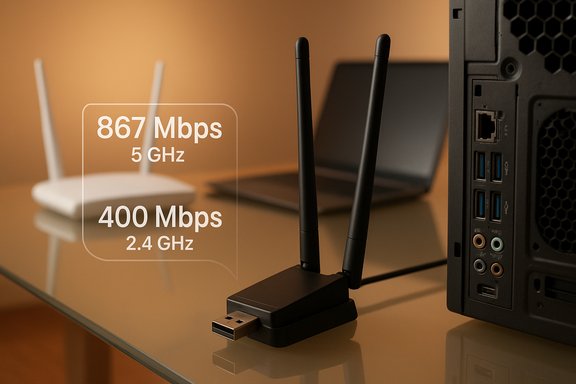
AC1300 is a common marketing designation for small dual‑band USB Wi‑Fi adapters. It’s shorthand for the adapter’s theoretical aggregate physical layer (PHY) capacity across both bands rather than a guarantee of single‑stream throughput. On most retail AC1300 devices you’ll see a per‑band split similar to:- 5 GHz: around 867 Mbps (typical for a 2x2 802.11ac link with 80 MHz channels)
- 2.4 GHz: around 400 Mbps (2x2 802.11n/802.11ac fallback estimates)
What the vendor listing actually claims
The ad copy you supplied (and the similar retailer pages) contains several claims repeated in many listings:- “AC1300” dual‑band operation supporting 5 GHz and 2.4 GHz bands.
- High speed: marketing figures ranging from “1300 Mbps” aggregate to per‑band numbers (listed variably as 867/400, 1201/574, or other combinations in some listings).
- USB 3.0 interface and plug‑and‑play setup for Windows 11/10.
- High‑gain antenna(s) and a small cradle for better reception.
- Compatibility with Windows 11/10/8/7 and MacOS 10.9–10.15.
- A vendor warranty/service promise (advertised “2‑year service” or replacement support).
A critical mismatch in the copy
Some product descriptions mix numbers in a confusing way — for example, claims of “5 GHz up to 1201 Mbps and 2.4 GHz 574 Mbps” appear in some ad text. Those figures do not match the AC1300 label and are likely the result of recycled copy or a miscalculation. The 1201/574 pair aligns with some Wi‑Fi 5/6 marketing combos used on other devices, but it does not equal the promised AC1300 aggregate. When you see inconsistent per‑band numbers in a low‑cost vendor listing, treat them as unverified marketing claims, not guaranteed real‑world throughput. Evidence from retailer pages and historic AC1300 product sheets shows the more plausible vendor split is 867 + 400 ≈ AC1300, not 1201 + 574.How the numbers translate to real‑world use
Marketing PHY vs. application throughput
Manufacturers usually give PHY link rates (the theoretical maximum at the radio/physical layer), not the real TCP/UDP speeds you’ll see in Windows. The PHY rate is reduced by protocol overhead, environmental interference, USB bus overhead, driver implementation, and router/AP channel width/quality. Independent reviews and long‑standing testing on USB Wi‑Fi adapters show single‑flow application throughput frequently lands at a fraction of the headline PHY numbers. For dual‑band USB dongles, expect practical 5 GHz throughput in the low hundreds of megabits per second under real conditions, not the full aggregate. Reputable test labs and reviewer roundups confirm this behavior across models.USB port and host constraints
A USB 3.0 port provides plenty of raw bandwidth for AC1300 devices, but real performance depends on the host controller and port location. Front‑panel ports and some hub configurations are noisier and share bandwidth with other ports. For best results, use a rear‑panel motherboard USB 3.x port and avoid unpowered hubs. Community troubleshooting threads on forum indexes emphasize that many connectivity problems trace back to front‑panel ports, underpowered hubs, or outdated hub drivers.Antennas, range and heat
External high‑gain antennas and a cradle can materially improve link stability and range compared to low‑profile nano dongles. However, large marketing claims about “eliminating dead zones” should be tempered: the adapter’s transmit power, the router’s ability to receive, obstacles, channel congestion and client orientation all influence real coverage. USB dongles can also run hot under sustained load; lack of heatsinking is a real failure mode for small devices. These are commonly reported issues in user communities.Verified technical specifics (what I could confirm)
- AC1300 marketing: Verified on multiple retailer pages. Retail listings show the AC1300 label and list dual‑band operation with USB 3.0 and external antennas. Use these baseline numbers as the expected marketing spec.
- Typical per‑band decomposition: Most vendor product text and resellers list approximately 867 Mbps at 5 GHz and ~400 Mbps at 2.4 GHz as the intended AC1300 split. That is the more credible per‑band breakdown for AC1300 devices in this category.
- USB 3.0 requirement and plug‑and‑play on Windows 11/10: Sellers commonly state the adapter is USB 3.0 and may be driver‑free on Windows 11/10, while older OSes need vendor drivers. The “driver‑free” claim depends on Windows providing a compatible driver or the vendor’s driver being included in Windows Update; if you run into problems, download the vendor driver package from the seller page or product manual.
- OS compatibility claims (Windows 11/10/8/7, macOS 10.9–10.15): Retail pages list these OSes as supported. That is a vendor claim and is typical for plug‑and‑play marketed hardware, but real driver support and functionality vary by OS version. For macOS beyond 10.15 or the latest Windows builds, expect potential driver gaps. Always confirm driver availability for your exact OS before purchase.
- SoftAP / hotspot capability: Many listings advertise a SoftAP (software access point) function. SoftAP reliability varies by driver maturity and Windows support—this feature sometimes fails or is limited on certain host OS/driver combinations. Community reports note SoftAP/AP modes are one of the more common trouble areas.
Strengths: where these AC1300 adapters deliver value
- Cost‑effective upgrade path: For users with an older desktop or a laptop whose internal Wi‑Fi is broken, an AC1300 USB adapter gives a fast and inexpensive path to dual‑band Wi‑Fi without opening the case.
- Better than integrated legacy Wi‑Fi: Many older devices only have single‑band 2.4 GHz NICs. An AC1300 adapter can reduce interference and raise throughput by adding 5 GHz connectivity.
- Portability and simple install: No case modification or special drivers (often) required for Windows 10/11 — plug in and go in the majority of straightforward cases.
- Improved range with antennas: Included high‑gain antennas and a USB cradle can significantly improve reception in rooms with weak signal compared to small nano dongles.
- Broad retailer availability and low price: Multiple sellers stock very similar hardware; prices are cheap, and returns are straightforward when purchased from major retailers.
Risks and caveats buyers must know
- Marketing numbers are theoretical. The “AC1300” label is an aggregate figure; real single‑device file transfers will be substantially lower. Independent test labs and community tests routinely show application throughput below the marketing PHY links. Plan expectations accordingly.
- Inconsistent vendor data is a red flag. When listings show different per‑band numbers (867/400 vs. 1201/574), that indicates cut‑and‑paste marketing rather than careful specs. Treat contradictory numbers as unverified until the vendor provides an explicit datasheet.
- Driver and stability concerns. Community threads and forum archives show that USB Wi‑Fi adapters often require time to stabilize with driver updates; issues include random disconnects after sleep, hotspots that don’t work, and odd Device Manager behavior. Budget adapters in particular may need manual driver installs or power‑management tweaks.
- USB port and power: Front ports or cheap hubs can cause poor performance or unreliable connections. A rear motherboard USB 3.x port is recommended. Some users find an included USB extension cable and external cradle materially improves real‑world performance.
- Heat and longevity: Small USB dongles without heatsinks can run hot under sustained transfers and may throttle or disconnect. If you plan heavy, continuous traffic (big backups, local network file copies, long gaming sessions), an internal PCIe or M.2 adapter is a more robust choice.
- SoftAP/Hotspot reliability: Not all vendor drivers fully implement hosted network/AP features. If you depend on the adapter to create a stable hotspot, verify the feature after installation or choose a vendor that documents AP/SoftAP support explicitly. Community posts flag hotspot as a recurring failure mode.
Buying checklist — pick the right AC1300 USB adapter and avoid regret
- Confirm the per‑band spec on the vendor’s product page and prefer listings that explicitly show 867 Mbps (5 GHz) + 400 Mbps (2.4 GHz) for AC1300. Avoid sellers with contradictory per‑band numbers unless they publish a detailed datasheet.
- Verify driver availability for your exact OS build (Windows 11 build, Windows 10 version, macOS version). If you run a newer or older OS, download the vendor driver first and test before making installation permanent.
- Plan to plug the adapter into a rear motherboard USB 3.x port. If your case makes that difficult, expect to use the included cradle or a short USB extension cable to get better placement.
- If you need hotspot/AP mode, validate it after install and keep the original packaging for returns if SoftAP does not function. Community threads show this can be a common compatibility problem.
- Check the seller’s return and warranty policy. Low‑cost adapters can fail or show driver issues on certain systems — a friendly return policy makes the purchase low risk. Retail listings commonly advertise limited returns and small warranty windows.
Installation and quick troubleshooting (practical steps)
- Plug into a rear USB 3.x port on the motherboard. If no rear port is available, use the supplied USB cradle or a short USB 3.0 extension cable.
- Let Windows try automatic driver install. If Windows does not provide a working driver, download the vendor driver package from the product support page or retailer manual.
- After installing, run a local speed test (wired device or phone next to the adapter) to compare relative performance and rule out ISP issues.
- If you see frequent disconnects:
- Move to a different USB port (rear panel) and avoid hubs.
- Disable USB selective suspend in Windows power options.
- Update the host controller drivers (chipset/USB drivers) from the motherboard vendor.
- Reinstall the adapter driver using the vendor package and reboot between uninstall/reinstall steps. Community troubleshooting guides for similar USB adapters recommend this process.
- If SoftAP fails, check the driver docs and Windows hosted network support; sometimes older drivers lack a functional AP mode even if advertised.
Use‑cases where an AC1300 USB adapter is a good fit
- Reviving a desktop whose internal Wi‑Fi card failed and you need wireless without opening the case.
- Occasional gaming or streaming where wired Ethernet is impractical but high sustained throughput is not mission‑critical.
- Travelers with laptop docking setups that want a quick upgrade to 5 GHz when at home.
- Secondary machines (living‑room HTPCs, older laptops) that benefit from a cheap, easy dual‑band upgrade.
Use‑cases where you should avoid it
- Mission‑critical low‑latency gaming or competitive esports where every millisecond counts; use wired Ethernet or a tested internal PCIe/M.2 Wi‑Fi card.
- Heavy sustained local file transfers where heat and USB limitations can throttle throughput; prefer internal or enterprise‑grade adapters.
- Environments where you require guaranteed hotspot/AP operation for multiple client devices (business hotspot scenarios).
Final verdict and recommendation
For a modest price, these AC1300 USB Wi‑Fi adapters deliver clear, practical value: they are a low‑cost, low‑effort path to dual‑band Wi‑Fi and improved range for older or Wi‑Fi‑less machines. Retail listings and product pages confirm that the adapters use USB 3.0, include high‑gain antennas and advertise plug‑and‑play support for Windows 11/10. If your goal is a quick upgrade for web browsing, light streaming, home office use or casual gaming, an AC1300 USB adapter can be the right, budget‑friendly tool. However, be realistic about the numbers: AC1300 is a theoretical aggregate, not a promise of full single‑stream throughput, and vendor copy sometimes mixes incompatible per‑band figures. Expect practical 5 GHz speeds in the hundreds of megabits per second rather than the PHY headline, and plan for potential driver or stability work — particularly on older or non‑standard Windows/macOS builds. Community discussion archives and technical reviews underline driver maturity and USB port choice as the most common causes of trouble, so budget a little time to install and test. If you decide to buy:- Favor a seller with a clear return policy and driver downloads.
- Test the adapter immediately on your system (use that return window if anything is flaky).
- Use a rear USB 3.x port and the supplied cradle to maximize performance.
Source: theglobalfilipinomagazine.com https://theglobalfilipinomagazine.c...l-Band-USB-WiFi-1300Mbps-High-Speed-Wireless/
