
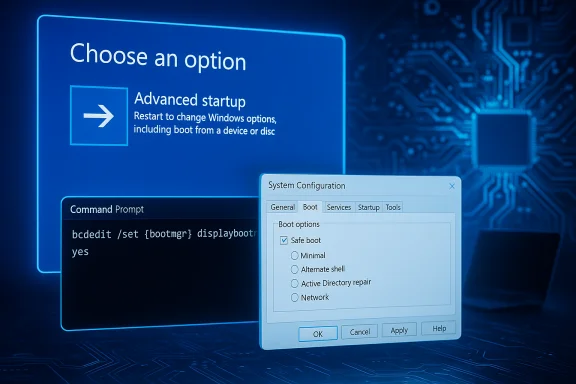
Adding a persistent Safe Mode option to the Windows 11 boot menu is a small, surgical change that can save hours of hassle when troubleshooting — whether you’re isolating a driver, scrubbing stubborn malware, or recovering a system that won’t start normally. Two straightforward approaches make this possible: a Command Prompt (BCDEdit) tweak that forces the boot manager to display Advanced Startup every time, and a GUI toggle in System Configuration (msconfig) that forces repeated Safe Mode boots until you turn it off. Both are legitimate, useful techniques, but they come with important caveats and failure modes that every tinkerer should know before making changes.
Safe Mode is a diagnostic boot configuration that loads a minimal set of drivers and services to help isolate software-caused problems. In modern Windows this is managed through the Windows Recovery Environment (WinRE) — the “Startup Settings” screen inside Advanced Startup — which exposes multiple Safe Mode variants (Minimal, Networking, Command Prompt) and several other boot options for diagnostics. Booting into Safe Mode is a standard first step for uninstalling drivers, running offline malware scanners, or using System File Checker and DISM to repair system files. Historically, older Windows allowed F8 during startup to bring up Advanced Boot Options. Windows 8 and later removed that behavior by default to speed up boot times. That makes entering Safe Mode a little less convenient on many modern machines, hence the appeal of adding a persistent or one-time Safe Mode/boot-menu option. The techniques covered below restore or simulate that convenience while giving you explicit control over how and when Safe Mode appears.
Command:
bcdedit /set {bootmgr} displaybootmenu no
This exact approach is widely reproduced in Windows help guides and community troubleshooting writeups and matches the BCDEdit capabilities documented by Microsoft.
Before you change anything:
Putting this into practice is straightforward: use BCDEdit to add the menu when you want quick boot-time access, or use msconfig when you need Safe Mode to persist for a repair session — but always have your recovery plan and BitLocker keys ready. Safe Mode remains Windows’ most reliable isolation environment; making it easier to reach is a small sysadmin win that pays back many hours in reduced troubleshooting friction.
Source: Guiding Tech Add Safe Mode to Windows 11 Boot Menu for Easier Troubleshooting
 Background / Overview
Safe Mode is a diagnostic boot configuration that loads a minimal set of drivers and services to help isolate software-caused problems. In modern Windows this is managed through the Windows Recovery Environment (WinRE) — the “Startup Settings” screen inside Advanced Startup — which exposes multiple Safe Mode variants (Minimal, Networking, Command Prompt) and several other boot options for diagnostics. Booting into Safe Mode is a standard first step for uninstalling drivers, running offline malware scanners, or using System File Checker and DISM to repair system files. Historically, older Windows allowed F8 during startup to bring up Advanced Boot Options. Windows 8 and later removed that behavior by default to speed up boot times. That makes entering Safe Mode a little less convenient on many modern machines, hence the appeal of adding a persistent or one-time Safe Mode/boot-menu option. The techniques covered below restore or simulate that convenience while giving you explicit control over how and when Safe Mode appears. Two reliable ways to add Safe Mode to the boot menu
The two approaches each serve a slightly different use-case:- Command-line (BCDEdit): Shows the Boot Manager / Advanced Boot screen on every boot (or one time) so you can press F8 or choose Startup Settings. Good for users who want the menu available at boot without permanently forcing Safe Mode. Requires an elevated command prompt and an understanding of the BCD store.
- System Configuration (msconfig): Sets Windows to always boot into a selected Safe Mode profile until you uncheck the option. Best for multi‑step recoveries that require repeated Safe Mode restarts, but remember it persists and will keep booting that way until reversed.
Using Command Prompt (BCDEdit) — make the boot menu appear every time
Why use BCDEdit?
BCDEdit edits the Boot Configuration Data store — the authoritative boot configuration for Windows. It’s powerful because it works even when GUI tools are unavailable, it’s scriptable for remote administration, and it offers options you can apply either for a single reboot or persistently. However, because it touches the system boot configuration, it must be used with care and with administrative privileges. Microsoft explicitly warns that BCDEdit can render a system unbootable if used incorrectly.What this change does
The command below forces the Windows Boot Manager to display the boot menu (the blue boot manager screen) every time you start the PC. From that screen you can press F8 (or the relevant key sequence) to reach Startup Settings and choose Safe Mode.Command:
- Open an elevated Command Prompt (search “cmd”, right-click → Run as administrator).
- Run:
bcdedit /set {bootmgr} displaybootmenu yes
bcdedit /set {bootmgr} displaybootmenu no
This exact approach is widely reproduced in Windows help guides and community troubleshooting writeups and matches the BCDEdit capabilities documented by Microsoft.
Optional variants you may prefer
- Show the legacy F8 menu once (one-time): bcdedit /set {current} onetimeadvancedoptions on — shows the legacy menu on the next boot only.
- Change boot menu policy to legacy (make F8 behave like pre‑Windows 8): bcdedit /set {default} bootmenupolicy legacy — this can re-enable F8 behavior permanently on systems that allow it, but it may not help on every UEFI or fast-boot configuration. Use with caution.
Pros and cons (BCDEdit)
- Pros:
- Non-invasive to Windows startup configuration (unless you change safeboot entries).
- Scriptable and reversible.
- Useful for remote or headless systems if you can access an admin shell.
- Cons / risks:
- Requires administrative privileges.
- Editing the BCD is powerful and can leave a system unbootable if misused.
- On BitLocker-enabled systems you may need to suspend BitLocker first to avoid recovery triggers.
Using System Configuration (msconfig) — force Safe Mode until you turn it off
Why use msconfig?
System Configuration (msconfig.exe) is the easiest, GUI-based method to force Windows to boot in Safe Mode. It’s straightforward and intentionally persistent — which is useful if you plan multiple troubleshooting steps that require repeated Safe Mode boots. MakeUseOf, Lifewire, MajorGeeks and other reliable guides document this flow and the available Safe Mode subtypes (Minimal, Network, Alternate Shell, Active Directory repair).Step-by-step: set Windows to always boot into Safe Mode
- Press Win + R, type msconfig, press Enter.
- In System Configuration, open the Boot tab.
- Under Boot options, check Safe boot.
- Choose a subtype:
- Minimal — normal Safe Mode with GUI (no networking).
- Network — Safe Mode with Networking.
- Alternate shell — Safe Mode with Command Prompt (no GUI).
- Active Directory repair — for domain controllers and AD repair tasks (specialized).
- Click Apply → OK and then restart.
Reverting msconfig
- If you forget to uncheck Safe boot, the system will continue to boot into Safe Mode. To return to normal boot:
- Run msconfig again and uncheck Safe boot, then restart.
- If the GUI is inaccessible, use WinRE or an elevated command prompt and remove the safeboot BCD entry (see next section).
Pros and cons (msconfig)
- Pros:
- Simple GUI; ideal for less technical users.
- Useful for planned, persistent troubleshooting workflows.
- Cons / risks:
- Persistence is a double-edged sword — leaving Safe boot on is a common cause of confusion and “I can’t get out of Safe Mode” problems.
- Msconfig relies on the running OS to save the original boot configuration; some systems or disk setups may show errors when msconfig cannot write changes (rare but reported). If msconfig can't save changes the operation may fail or revert.
How to undo changes and recover if something goes wrong
If you used BCDEdit and want to hide the boot menu again
- Run as admin:
bcdedit /set {bootmgr} displaybootmenu no
If you used BCDEdit to set safeboot (force Safe Mode) and need to remove it
- Run as admin:
bcdedit /deletevalue {current} safeboot
This removes the safeboot flag and returns the boot entry to normal; use {default} instead of {current} if you edited the default entry. Community guides and Microsoft’s BCDEdit documentation list this as the standard recovery step if you find yourself stuck in a safeboot loop.
If msconfig left the machine in Safe Mode and the GUI won’t load
- Boot into WinRE (interrupt boot 2–3 times or use a recovery USB), choose Troubleshoot → Advanced options → Command Prompt and run the BCDEdit deletevalue command above. This is the common recovery path and is widely documented.
BitLocker-specific recovery considerations
- Making firmware/BCD changes on a BitLocker-protected system can trigger recovery prompts. Suspend BitLocker before changing the BCD:
- From an elevated prompt or PowerShell:
manage-bde -protectors -disable C: -rebootcount 1 - Or use the GUI: Control Panel → BitLocker Drive Encryption → Suspend protection.
- After maintenance, re-enable protection:
manage-bde -protectors -enable C:
Common pitfalls, edge cases, and how to avoid them
1. Fast Startup and UEFI/secure boot interactions
Fast Startup (hibernation-based) can complicate boot-menu timing and keypress detection. On some systems F8 presses are ignored because the firmware or Fast Startup bypasses the pre-OS interval. Disabling Fast Startup temporarily can help if the keyboard doesn’t respond to F8. Also, some UEFI firmware or vendor settings may change where the boot manager draws output (external monitors, DisplayPort quirks) and make the boot menu invisible; try a different display output if the menu doesn’t appear.2. Dual-boot and multi-boot systems
If you have more than one OS, editing {bootmgr}, {default} or {current} entries affects which entry shows the menu and which OS is affected. Always confirm which identifier you are editing (bcdedit /enum shows identifiers and descriptions) before making persistent changes. Mistakes here can alter which OS is selected by default. Microsoft’s BCDEdit documentation and community best-practices recommend enumerating the store before edits.3. Mistyping BCDEdit commands
BCDEdit does not offer “undo” the way typical GUIs do; a typo can make the BCD invalid and cause boot failures. Double-check commands, copy/paste where possible, and if uncertain prefer the one-time advanced option (onetimeadvancedoptions) rather than permanent changes.4. Forgetting to revert msconfig
The most common complaint after using msconfig is forgetting to uncheck Safe boot and being baffled by persistent Safe Mode restarts. Treat msconfig’s Safe boot as a temporary switch: uncheck it immediately when you finish your recovery steps. If you can’t access the GUI, use WinRE and the BCDEdit deletevalue command shown above.5. BitLocker and enterprise policies
Enterprise-managed devices may have BitLocker and Intune/MDM policies that block or audit boot changes. Always coordinate with IT on corporate machines before editing the BCD or suspending BitLocker. Failing to do so may trigger compliance alerts or lock the device behind a recovery key. Microsoft guidance and community sysadmin notes emphasize this point.Practical workflows: when to pick which method
- Quick one-off troubleshooting (you can reach desktop or sign-in): Use Shift + Restart → Troubleshoot → Advanced options → Startup Settings → Restart. This is non-permanent and safe.
- You need the ability to press F8 at boot every time (legacy-style access): Use BCDEdit to enable displaybootmenu yes (or bootmenupolicy legacy if you want classic F8 behavior — test first). This is convenient if you prefer an old-school menu or expect to need Startup Settings frequently.
- You are doing a multi-step repair that requires repeated Safe Mode boots (several restarts while uninstalling/reinstalling drivers or cleaning malware): Use msconfig to force Safe Boot with the correct subtype, then remember to clear it afterward.
- You’re scripting remote maintenance on servers or headless systems: Use BCDEdit commands or cloud-provider serial consoles to set safeboot flags, then clear them when done. Ensure BitLocker is suspended or you have recovery keys available.
Troubleshooting: stuck in Safe Mode — step-by-step recovery
If you find yourself rebooting repeatedly into Safe Mode or a minimal environment, follow this sequence:- Try msconfig first if you can open the desktop: Win + R → msconfig → Boot tab → uncheck Safe boot → Apply → Restart.
- If the GUI is unavailable, boot into WinRE:
- Interrupt the boot sequence 2–3 times (power off while the Windows logo or spinning circle appears) to force WinRE → Troubleshoot → Advanced options → Command Prompt.
- In the elevated prompt run:
bcdedit /deletevalue {current} safeboot - Reboot. This removes the safeboot setting.
- If BitLocker recovery locks the drive, use the recovery key (stored in your Microsoft account or corporate key escrow) and re-enable BitLocker after finishing edits. If BitLocker is present, suspend it before making persistent BCD edits:
- manage-bde -protectors -disable C: -rebootcount 1
- Do your BCDEdit edits and re-enable protection afterward.
- If the BCD is corrupt or edits made the system unbootable, you may need to use installation media or WinRE to repair the boot files with bootrec /rebuildbcd and related commands — this is advanced and should be done carefully. Community and Microsoft guidance stress imaging the drive before destructive steps and ensuring you have recovery keys.
Security, privacy and support considerations
- Never suspend BitLocker or remove encryption protectors on a machine you don’t control or when troubleshooting sensitive data — suspending protection exposes encryption keys and temporarily weakens the device’s security posture. Use the shortest possible suspension window and re-enable protection immediately afterward.
- When in doubt, prefer non-persistent methods (Shift+Restart → Startup Settings) over permanent BCD changes. The GUI flow is safer for occasional users and avoids accidental persistence.
- For enterprise devices, coordinate with IT — changing BCD or msconfig settings can conflict with management policies and BitLocker configurations controlled by MDM or Group Policy.
Final verdict: useful, but handle with care
Adding Safe Mode access to the Windows 11 boot menu is a legitimate and practical tweak for power users, sysadmins, and technicians. The Command Prompt / BCDEdit approach gives flexible, scriptable control and can restore F8-style access for users who value it. System Configuration (msconfig) is the safest GUI route when you need to boot repeatedly into Safe Mode for multi-step repairs. Both are widely documented in Microsoft and community resources and will solve the practical problem of “how do I force Safe Mode reliably?” — but neither is a substitute for careful preparation.Before you change anything:
- Back up important data (always).
- Note BitLocker and enterprise policies; suspend BitLocker temporarily if required.
- Prefer one-time or GUI methods if you’re uncertain.
- Keep a recovery USB or restore plan on hand in case BCD edits go sideways.
Putting this into practice is straightforward: use BCDEdit to add the menu when you want quick boot-time access, or use msconfig when you need Safe Mode to persist for a repair session — but always have your recovery plan and BitLocker keys ready. Safe Mode remains Windows’ most reliable isolation environment; making it easier to reach is a small sysadmin win that pays back many hours in reduced troubleshooting friction.
Source: Guiding Tech Add Safe Mode to Windows 11 Boot Menu for Easier Troubleshooting
