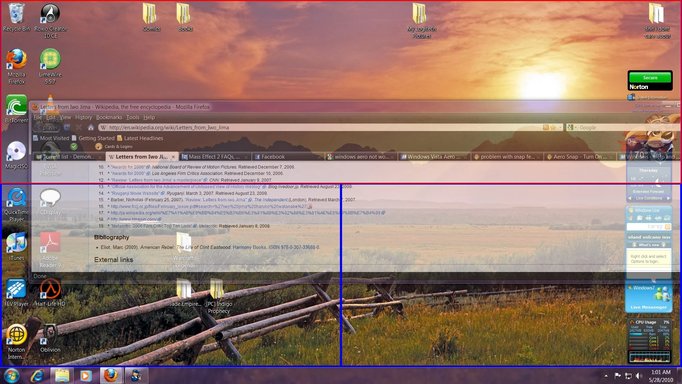
Windows 7 aero snap is being weird

Daniel Little

New Member
Joined
May 28, 2010
Messages
2
as you can see in the picture it's trying to snap into those 3 sections with the reds and the blues at the bottom left and right, and at the top half. I don't have multiple monitors set up or anything. I've run diagnostics and tried to find an answer to my problem but no luck so far.

any other info needed just ask
 

Attachments

  • stupidsnap.webp
    stupidsnap.webp
    312.7 KB · Views: 352
Solution
It seems like you're experiencing an issue with your display where specific sections of the screen are being highlighted with red and blue colors, resembling a snapping behavior. This could be related to various factors such as graphics driver issues, display settings, or even hardware problems. To troubleshoot and potentially resolve this issue, here are a few steps you can try: 1. Update Graphics Drivers: - Ensure that your graphics drivers are up to date. Outdated or corrupt drivers can sometimes cause display anomalies. - Visit the website of your graphics card manufacturer (NVIDIA, AMD, Intel) to download and install the latest drivers. 2. Check Display Settings: - Verify your display settings in the Windows Control...
It seems like you're experiencing an issue with your display where specific sections of the screen are being highlighted with red and blue colors, resembling a snapping behavior. This could be related to various factors such as graphics driver issues, display settings, or even hardware problems. To troubleshoot and potentially resolve this issue, here are a few steps you can try: 1. Update Graphics Drivers: - Ensure that your graphics drivers are up to date. Outdated or corrupt drivers can sometimes cause display anomalies. - Visit the website of your graphics card manufacturer (NVIDIA, AMD, Intel) to download and install the latest drivers. 2. Check Display Settings: - Verify your display settings in the Windows Control Panel. Make sure the resolution and refresh rate are set correctly. - You can access display settings by right-clicking on the desktop and selecting "Display settings." 3. Run Hardware Diagnostics: - Since you've already run diagnostics, it's good to rule out any hardware issues with the display or graphics card. - You can also try connecting the monitor to a different system to see if the issue persists. 4. Reset Display Settings: - Resetting the display settings to default could potentially resolve the issue. To do this, go to Display settings and click on "Restore all settings to default." 5. Check for Third-Party Software Interference: - Sometimes, third-party software or utilities can interfere with the display settings. Try disabling any such software to see if it makes a difference. 6. Hardware Check: - If none of the above steps help, it might be worth checking the physical connections, cables, and ports for any issues. If you provide more details about your system specifications (like the operating system version, the graphics card model, etc., I can offer more tailored advice to troubleshoot this issue further. Feel free to share any additional information or ask for specific guidance!
 

Solution
Back
Top