

Affinity’s transformation into a free, Canva‑backed creative suite is the most consequential shift in desktop photo and image editing this year — and it arrives at the same moment the editing market is being reshaped by aggressive AI features, licensing bifurcation, and even the small‑scale physical storage habits of casual users.
The photo‑editing landscape in 2025 looks less like a two‑horse race and more like a crowded ecosystem where pricing models, AI strategy, and platform choices define winners and losers. Adobe’s Lightroom Classic and Photoshop still occupy the high ground for pros, but alternatives now compete on raw conversion quality, price, and AI-assisted workflows — and one formerly paid perennial, Affinity, has been relaunched in a free, unified form following acquisition and integration under Canva.
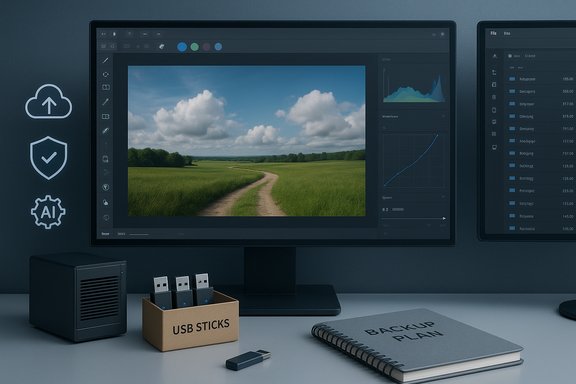
At the same time, the everyday habits of photographers and hobbyists — how they store and carry music, photos, and media on small USB sticks — still matter. Small, practical storage tips, such as keeping labelled USB sticks in craft boxes for quick access to MP3s in Bluetooth speakers, are resurfacing in mainstream magazine readers and reinforce that physical media still fills a convenience gap that cloud services do not always solve.
This feature unpacks what Affinity’s relaunch means for Windows users, evaluates the major photo‑editing options in 2025, and offers practical guidance on storage, backup, and compatibility — balancing the excitement of free, AI‑enabled editing tools against the operational realities of file formats, provenance, and data safety.
Why this should matter to Windows photographers and hobbyists:
Key takeaway: unmatched capabilities, subscription cost, and system requirements that scale with catalog size.
Key takeaway: best choice when maximum RAW quality and denoising matter.
Practical steps:
Concurrently, the diversity of tools in 2025 — from DxO’s denoising to Radiant’s assistive, privacy‑minded AI, and ON1’s generative toolset — means photographers can choose based on concrete workflow needs rather than being forced into a single vendor ecosystem. Confirm whether critical AI steps run locally or in the cloud, budget for credits where applicable, and always preserve your original RAWs.
On the physical side, the humble USB stick remains a practical companion for portable media — but it should be treated as a convenience, not a backup. Label sticks, keep a master copy on reliable storage, and use encryption for sensitive content. The simple habit of keeping small, labeled sticks in a craft box is less about nostalgia than about solving everyday friction in the simplest possible way.
Windows photographers who act now should:
Source: Readly | All magazines - one magazine app subscription Affinity - 5 Dec 2025 - Digital Camera World Magazine - Readly
 Background / Overview
The photo‑editing landscape in 2025 looks less like a two‑horse race and more like a crowded ecosystem where pricing models, AI strategy, and platform choices define winners and losers. Adobe’s Lightroom Classic and Photoshop still occupy the high ground for pros, but alternatives now compete on raw conversion quality, price, and AI-assisted workflows — and one formerly paid perennial, Affinity, has been relaunched in a free, unified form following acquisition and integration under Canva.At the same time, the everyday habits of photographers and hobbyists — how they store and carry music, photos, and media on small USB sticks — still matter. Small, practical storage tips, such as keeping labelled USB sticks in craft boxes for quick access to MP3s in Bluetooth speakers, are resurfacing in mainstream magazine readers and reinforce that physical media still fills a convenience gap that cloud services do not always solve.
This feature unpacks what Affinity’s relaunch means for Windows users, evaluates the major photo‑editing options in 2025, and offers practical guidance on storage, backup, and compatibility — balancing the excitement of free, AI‑enabled editing tools against the operational realities of file formats, provenance, and data safety.
Affinity by Canva: what changed, and why it matters
The tectonic move: Affinity becomes free and unified
Affinity’s core suite — Photo, Designer, and Publisher — has been reworked into a single, unified app distributed under Canva’s umbrella and offered with a free core feature set while advanced AI tools are reserved for Canva Premium subscribers. This relaunch converts a long‑standing buy‑once model into a freemium product, making a powerful layer‑based editor available at zero cost for many users.Why this should matter to Windows photographers and hobbyists:
- Immediate access: For users who avoided Adobe subscription fees, a full, layer‑capable editor with RAW and vector capabilities suddenly being free lowers the barrier to professional‑grade editing.
- Competition pressure: Adobe and other incumbents will feel pricing pressure in parts of the market that care more about capabilities than ecosystem lock‑in.
- File‑format and workflow friction: The transition introduces compatibility caveats; the new unified Affinity format is not fully backward compatible with older Affinity v1/v2 files, and teams with archival workflows must plan for round‑trip issues.
Strengths and immediate wins
Affinity’s strength has always been its performance, precision tools, and a Photoshop‑like layer workflow without subscription lock‑in — qualities that remain in the new free version. For Windows users, this means a potent on‑device editor that avoids cloud upload requirements for core editing tasks, and it competes directly with Photoshop for many day‑to‑day retouching and compositing needs.Risks and long‑term concerns
- AI gated behind paywall: Advanced generative and AI features are an upsell under Canva’s subscription model. Users who rely on those capabilities will still face ongoing costs.
- Dependency on Canva’s roadmap: Product direction and integration will now be influenced by Canva’s priorities. If feature development skews toward web‑first, some desktop‑native behaviors may change over time.
- Archive compatibility: Teams and archivists should export originals and keep legacy files before migrating production workflows. The new container format can disrupt older pipelines.
The competitive landscape: who does what best in 2025
Adobe: the professional reference, still expensive
Adobe Lightroom Classic and Photoshop remain indispensable for many professionals because of their mature toolsets and interoperability across large teams. Lightroom Classic is still the go‑to for cataloging and batch workflows, while Photoshop dominates pixel‑level compositing and advanced masks. Adobe’s AI pushes accelerated many tasks but often at the cost of cloud dependencies or credit‑based generative features. For Windows users, Adobe’s published system guidance shows Lightroom benefits from modern hardware — 8 GB RAM is the minimum with 16 GB recommended for heavy catalogs and AI features.Key takeaway: unmatched capabilities, subscription cost, and system requirements that scale with catalog size.
DxO PhotoLab: raw quality and denoising specialist
DxO continues to push RAW conversion and denoising frontiers with its DeepPRIME family (DeepPRIME 3 / XD3), repeatedly measured to deliver superior noise reduction and detail recovery. DxO still offers perpetual license options, making it attractive to professionals who prioritise image fidelity over catalog convenience.Key takeaway: best choice when maximum RAW quality and denoising matter.
Capture One: studio tethering and color control
Capture One remains the studio staple for tethered shooting, color precision, and session‑based workflows. It offers both subscription and perpetual license models (with caveats on updates), and its managed catalog and robust tethering make it a first pick in commercial studio environments.Luminar Neo, ON1 Photo RAW, Radiant Photo: AI and speed
The market has seen an influx of AI‑centric products:- Luminar Neo shines at sky replacement and fast creative edits.
- ON1 Photo RAW bundles generative features (Canvas/Generative Erase, Generative Crop) and supports both local models and Stability AI integrations — though cloud credits may apply.
- Radiant Photo focuses on assistive AI — improving existing pixels with privacy‑minded, local processing. This appeals to users who want speed without generative manipulation.
Open‑source options: RawTherapee, darktable, digiKam
For users committed to no‑cost tooling and deep control, open‑source tools remain powerful. digiKam, for example, now supports modern auto‑tagging and face management with local neural models and indexes files in place (useful for multi‑drive or NAS setups). RawTherapee and darktable provide serious RAW engines while GIMP fills layer‑editing gaps. The trade‑offs are steeper learning curves and occasional performance lags.How to choose: a practical roadmap for Windows users
Short decision framework:- If you need robust cataloging and batch edits: choose Lightroom Classic (prepare for subscription and hardware demands).
- If you need pixel‑level compositing or are a retoucher: keep Photoshop in the toolkit or consider Affinity for many tasks if you want to avoid subscription costs — but test the freemium AI gates first.
- If RAW quality and denoising trump everything: DxO PhotoLab.
- If you want AI speed with privacy: Radiant Photo or local options.
- If you prefer no cost and flexibility: RawTherapee, darktable, digiKam.
Practical storage, portability, and compatibility — the USB stick renaissance
The simple habit: craft boxes, labelled sticks, and MP3 playback
A recurring reader tip in mainstream magazine circles is worth repeating: store small, labelled USB sticks in craft boxes or similar organisers for quick, tactile access to MP3 libraries played on portable Bluetooth speakers. This analog ritual solves friction points cloud services don’t: offline playback, immediate device compatibility, and the pleasure of curated physical collections. It’s a small‑scale habit but surprisingly resilient as a convenience pattern.Why physical sticks still make sense
- Instant access with no streaming subscription required.
- No reliance on cellular/Wi‑Fi for playback.
- Simple cross‑device portability for older car stereos or standalone Bluetooth speakers with USB inputs.
Risks and failure modes: don’t treat USB sticks as backups
USB sticks are convenient but fragile. Expectable failure modes:- Wear and contact issues: connectors and small retractable mechanisms wear out.
- Data corruption: sudden removal or cheap controllers increase the chance of corrupted files.
- Limited lifespan: consumer flash has finite program/erase cycles — high rewrite activity shortens lifespan.
- Security: easily lost and a vector for malware if files are shared or swapped.
Practical checklist: safe USB stick use for Windows photographers and media fans
- Format choices:
- Use exFAT for cross‑platform compatibility and large file support (Windows/macOS). Avoid FAT32 if you need files >4 GB.
- Label and inventory:
- Physically label each stick with purpose and date; keep an index in a small notebook or a CSV on your main storage.
- Backup and redundancy:
- Keep at least one permanent copy on an SSD/HDD or NAS. Use the stick only as a secondary, replaceable copy.
- Health monitoring:
- Periodically copy files off and check for errors; if you detect read errors, retire the stick immediately.
- Encryption:
- For private photos or sensitive media, use BitLocker To Go on Windows to encrypt the stick. This prevents a lost stick from exposing content.
- Avoid cheap, micro‑brand devices:
- Buy from reputable vendors; counterfeit flash often misreports capacity and fails quickly.
- Use checksum verification for critical transfers:
- Generate an MD5/SHA256 checksum on the source and verify copies after transfer to the stick.
Provenance, AI edits, and ethical considerations
Generative tools are now common in mainstream editors. That raises provenance and ethical questions: when an image has significant generative changes (sky replacement, scene insertions, or cloned content), photographers and publishers should record edit provenance and label images where appropriate. Vendors increasingly provide AI credits or cloud processing that can make editing opaque; treat those outputs as edited content and disclose major alterations in professional contexts.Practical steps:
- Keep an original RAW file untouched in archival storage.
- Maintain a simple edit log (text file with steps and software versions).
- For publishable content, add metadata tags indicating “substantial generative edits” when applicable.
Recommended Windows workstation configurations for 2025 photo workflows
AI features and large catalogs benefit from modern hardware. Minimum and recommended guidelines based on vendor guidance and user reports:- Minimum (light editing and small catalogs):
- CPU: 4+ cores, modern x64 processor.
- RAM: 8–16 GB.
- Storage: 500 GB SSD for OS + working files.
- GPU: DirectX12 compatible (integrated may suffice for light use).
- Recommended (heavy catalogs, local AI, large RAW libraries):
- CPU: 6–12 cores or better.
- RAM: 32 GB+ to keep Lightroom/large catalogs responsive.
- Storage: NVMe SSD for catalog and scratch, large SSD/HDD or NAS for archive.
- GPU: discrete GPU with ample VRAM for accelerated masks and AI models.
- For on‑device AI and massive batch work, consider a workstation with high core counts and 64 GB+ RAM.
Migration and testing checklist before you switch tools
- Export a canonical RAW set (5–20 representative frames) with consistent exposure and content.
- Process the set in candidate apps and compare:
- Color rendering and tone curve behavior.
- Shadow/highlight recovery and noise handling.
- Masking/selection ease and outcome.
- Verify export compatibility and ICC behavior across pipeline steps.
- Confirm whether AI edits run locally or in the cloud and estimate any credit costs.
- For teams: test round‑trip compatibility with legacy Affinity files if you plan to adopt the new free Affinity by Canva. Keep originals backed up.
Final verdict and what Windows users should do next
Affinity’s relaunch as a free, unified editor under Canva is a watershed moment: the availability of a powerful layer‑based editor at zero cost changes the calculus for many hobbyists and pros who want to avoid subscriptions. However, the freemium gating of AI features, the risk of format incompatibility with legacy files, and the strategic dependency on Canva’s roadmap require careful testing before wholesale adoption.Concurrently, the diversity of tools in 2025 — from DxO’s denoising to Radiant’s assistive, privacy‑minded AI, and ON1’s generative toolset — means photographers can choose based on concrete workflow needs rather than being forced into a single vendor ecosystem. Confirm whether critical AI steps run locally or in the cloud, budget for credits where applicable, and always preserve your original RAWs.
On the physical side, the humble USB stick remains a practical companion for portable media — but it should be treated as a convenience, not a backup. Label sticks, keep a master copy on reliable storage, and use encryption for sensitive content. The simple habit of keeping small, labeled sticks in a craft box is less about nostalgia than about solving everyday friction in the simplest possible way.
Windows photographers who act now should:
- Test Affinity’s free edition against their everyday tasks and verify file round‑trip behavior.
- Keep a multi‑tool approach: Lightroom or Capture One for catalog/studio needs, DxO for RAW quality, Affinity for layer work where it fits, and a specialized AI tool (Radiant/ON1/Luminar) for speed tasks.
- Harden storage practices: move important archives to SSD/NAS, and use USB sticks only for transport or temporary playback — with encryption and checksum verification when content matters.
Source: Readly | All magazines - one magazine app subscription Affinity - 5 Dec 2025 - Digital Camera World Magazine - Readly
