

Excel's new Agent Mode pushes visualization from an afterthought into the analysis loop, using AI to read your workbook, plan a multistep workflow, and build charts that match the shape and intent of your data — often with fewer mistakes than human intuition but with new governance and validation trade-offs to manage. (support.microsoft.com)
For years, Excel users have relied on a simple pattern: clean the numbers, pick a familiar chart type (bar, pie, line), and call the visualization “good enough.” That approach works for small, well-understood datasets, but it also produces the infamous cluttered pie chart and other misleading visuals when the chart choice doesn't match the data’s underlying structure.
Microsoft's Copilot integration has been evolving beyond one-off chat help. The company introduced a more agentic pattern — branded internally as part of a "vibe working" push — where Copilot doesn't just answer but plans, executes, and iterates inside Office apps. Agent Mode for Excel embodies that shift: it reasons about the workbook, runs steps inside the file (tables, formulas, PivotTables, and charts), and displays its plan and reasoning in a persistent pane while it works. This is not a thin wrapper that pastes charts into a sheet; it tries to produce native, editable Excel artifacts that recalculate with your data.
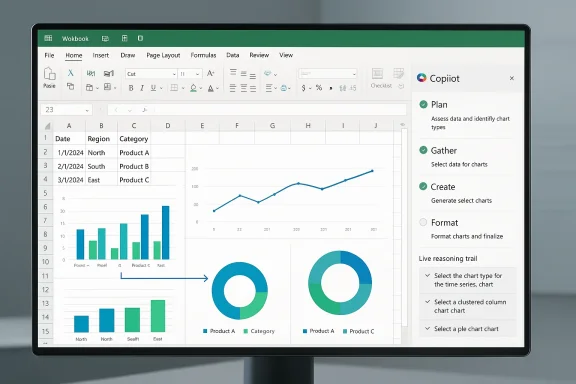
That means Agent Mode is likely to choose a line chart for time-series revenue data, a clustered column for categorical comparisons, and a donut or pie only when a share-of-whole visualization is an appropriate match for the data shape. The result is fewer “10-slice unreadable pie charts” and a higher chance the visualization actually reveals meaningful patterns. Microsoft documents this behavior and highlights that Agent Mode plans multi-step tasks and explains its decisions in the reasoning pane as it works. (support.microsoft.com)
Key availability and policy bullets:
At the same time, organizations must invest in governance, logging, and training. Agent-driven edits are effectively code changes to your spreadsheets; they need the same controls as macros, templates, and BI pipelines. Expect organizations to demand features like prompt auditing, change approvals, model whitelisting, and conditional disabling of external web grounding before they deploy Agent Mode at scale. Microsoft has already signaled the need for admin controls and is rolling out preview programs to surface these concerns. (support.microsoft.com)
If you have an eligible Microsoft 365 plan, start experimenting on copies of well-understood datasets, use high-level prompts that encode business intent, and treat the agent's output as a collaborator — not an oracle. Over time, with governance and auditing in place, Agent Mode is likely to become a standard part of the analyst toolbox for turning raw spreadsheets into actionable visualizations. (support.microsoft.com)
Source: MakeUseOf You're picking the wrong charts — let Excel's new Agent Mode decide for you
 Background
For years, Excel users have relied on a simple pattern: clean the numbers, pick a familiar chart type (bar, pie, line), and call the visualization “good enough.” That approach works for small, well-understood datasets, but it also produces the infamous cluttered pie chart and other misleading visuals when the chart choice doesn't match the data’s underlying structure.Microsoft's Copilot integration has been evolving beyond one-off chat help. The company introduced a more agentic pattern — branded internally as part of a "vibe working" push — where Copilot doesn't just answer but plans, executes, and iterates inside Office apps. Agent Mode for Excel embodies that shift: it reasons about the workbook, runs steps inside the file (tables, formulas, PivotTables, and charts), and displays its plan and reasoning in a persistent pane while it works. This is not a thin wrapper that pastes charts into a sheet; it tries to produce native, editable Excel artifacts that recalculate with your data.
What Agent Mode actually does (and how it chooses charts)
It sees structure, not just cells
Agent Mode inspects the workbook for column types, data ranges, date fields, and relationships between columns. Instead of basing recommendations on the number of selected cells, it classifies fields — for example, recognizing date-time series, categorical groupings, or continuous numeric measures — and maps those structures to appropriate visual encodings.That means Agent Mode is likely to choose a line chart for time-series revenue data, a clustered column for categorical comparisons, and a donut or pie only when a share-of-whole visualization is an appropriate match for the data shape. The result is fewer “10-slice unreadable pie charts” and a higher chance the visualization actually reveals meaningful patterns. Microsoft documents this behavior and highlights that Agent Mode plans multi-step tasks and explains its decisions in the reasoning pane as it works. (support.microsoft.com)
It builds native Excel objects
Unlike an external add-in that pastes images, Agent Mode constructs native Excel charts, PivotTables, and tables that remain live — they update if the underlying data changes, obey Excel’s calculation engine, and can be customized in the normal format pane. That difference matters: dashboards created this way are maintainable and auditable within Excel rather than brittle static exports. Microsoft explicitly notes Agent Mode uses Excel’s built-in features to keep content editable and synced. (support.microsoft.com)It shows its reasoning (transparency, but not approval gating)
While Agent Mode runs, you’ll see a play-by-play of the steps it intends to take — selecting ranges, calculating aggregates, creating series, formatting axes. This transparency is useful for understanding and correcting mistakes. However, that reasoning is presented live while edits are already being applied to the workbook; there is no separate “preview then apply” approval step. You can stop the agent while it’s running, and you can undo changes, but the edits are made directly unless you intervene. That has important consequences for shared or sensitive files. (support.microsoft.com)Availability, models, and licensing — what you must know
Agent Mode is available in Excel for Microsoft 365 and Excel for the web, with desktop support rolling through preview programs. Access is gated by subscription type and organization policies: eligible licenses include Microsoft 365 Personal or Family with an AI credits plan, Microsoft 365 Premium, or commercial Microsoft 365 Copilot subscriptions. Enterprise admins also control whether Anthropic (Claude) models are allowed in their tenant. Microsoft’s support pages and product blog are explicit about these requirements. (support.microsoft.com)Key availability and policy bullets:
- Agent Mode runs in Excel for Microsoft 365 and Excel for the web; desktop availability has been staged through Insider channels and enterprise preview programs. (support.microsoft.com)
- You can pick between supported generative models (OpenAI-based or Anthropic Claude models) where your subscription and admin policy allow; model switching is available via a model picker in the Copilot pane. (support.microsoft.com)
- Agent Mode currently operates only on the workbook you have open — it cannot access other files, email, or enterprise data sources, and enterprise search integrations are not supported for the agent today. That limitation affects workflows that rely on merging data from multiple systems. (support.microsoft.com)
A practical walkthrough: how to ask Agent Mode to pick charts
- Open your workbook in Excel for the web or the desktop app (on supported channels).
- Go to the Home tab and select Copilot to open the chat pane, then click the Tools menu and enable Agent Mode. (support.microsoft.com)
- Optionally choose a model using the model picker (OpenAI vs Anthropic) if your subscription and policies permit. (support.microsoft.com)
- Issue a high-level prompt, for example: “Analyze this sales data and create charts showing monthly revenue trends by region and category comparisons by total sales.” Agent Mode will return a plan and begin executing the steps. (support.microsoft.com)
Real-world strengths — where Agent Mode shines
1) Faster multi-step dashboards and repeatable workflows
Agent Mode automates the tedious glue work: create a pivot, group dates into months, compute totals, add series for each region, assign colors, and format axes. That saves time and reduces the manual error surface of doing each step yourself. The charts it creates are live Excel objects, so they remain valid as the dataset updates. (support.microsoft.com)2) Decision-making matched to data shape
Because the agent examines column types and relationships, it tends to select visual encodings aligned with best practices: time-series mapped to line charts, categorical comparisons mapped to columns, share-of-whole visualizations used sparingly. That reduces common visualization errors born from familiarity bias. (support.microsoft.com)3) Iteration and conversational refinement
One of the most useful aspects is iteration: you can say “add data labels,” “stack by product category,” or “show salesperson share as a donut” and the agent will refine the workbook in follow-up steps. This conversational loop speeds exploration and makes it easier to produce multiple views from one prompt. Independent reporting has emphasized this conversational-and-execute pattern as the heart of Agent Mode.4) Model options and evolving capabilities
For organizations that want diversity in model behavior, Microsoft supports Anthropic and OpenAI models where policy permits — which can produce subtly different reasoning styles and verification behavior. Microsoft’s support documentation explains how model switching works and the enterprise controls required to enable Anthropic models. (support.microsoft.com)Risks and weaknesses — what to watch for
Direct edits without a preview gate
Agent Mode applies edits directly to the workbook as it runs. There’s no built-in “preview then apply” approval step; you can only watch the reasoning, pause the run, or undo after changes are made. That’s a crucial operational risk when working on sensitive or shared files. Microsoft explicitly warns users to be careful and suggests working on copies for safety in many scenarios. (support.microsoft.com)Limited to the open workbook (no cross-system join)
If your analysis depends on combining multiple data sources — databases, ERP exports, cloud datasets, or emails — Agent Mode can't reach out to other files or enterprise search today. You must consolidate external data into the workbook before prompting the agent. That reduces its usefulness for enterprise BI scenarios that rely on live data pipelines. (support.microsoft.com)Model inconsistency and formatting quirks
In practical tests reported by independent reviewers, Agent Mode sometimes applies inconsistent color palettes or formatting choices that require a quick manual correction. Those small errors are fixable conversationally, but they add a verification step you cannot safely skip. Tech coverage notes both the promise and the "rough edges" common to early-stage agentic features.Auditability, governance, and data protection
From a governance perspective, Agent Mode raises questions:- How are prompts logged and by whom?
- Are edits attributable to a user or an automated agent in audit trails?
- Does the agent persist prompts or telemetry that could include sensitive field names or sample values?
Legal and privacy surface: model selection matters
Because Agent Mode can route requests to external generative models (OpenAI or Anthropic), the legal and privacy posture may change depending on which model a tenant allows. Enterprises with strict data residency or data processing rules must coordinate with IT and compliance before enabling agentic features. Microsoft’s documentation warns admins to configure model access explicitly. (support.microsoft.com)Practical checklist before you let Agent Mode touch your files
- Make a copy of any shared or sensitive workbook before using Agent Mode. Undo is available, but a copy prevents accidental version leaks. (support.microsoft.com)
- Set Calculation Options to Automatic (Agent Mode requires it). (support.microsoft.com)
- Disable Web Search in the agent session if you want to avoid model grounding on external web content. (support.microsoft.com)
- Check your tenant admin policy for allowed models (Anthropic vs OpenAI) and Frontier program settings. (support.microsoft.com)
- Validate aggregates and groupings: ask the agent to show the aggregation steps or the underlying PivotTable so you can confirm the numbers. (support.microsoft.com)
How to get better visuals (human + agent workflow)
Agent Mode is strongest when combined with a human editor who understands basic visualization hygiene. Use this recommended pattern:- Start with a high-level instruction: tell the agent the business question (e.g., "Which regions show growth month over month?") rather than a specific chart type.
- Let the agent produce a set of visuals and the supporting tables/PivotTables.
- Inspect the agent's reasoning pane and the intermediate tables it created — confirm grouping levels (daily vs monthly), filters, and aggregations.
- Ask for refinements (labels, axis formatting, color palette consistent with your brand).
- Run unit checks: sum totals, compare PivotTable aggregates with raw SUM formulas. If anything mismatches, request the agent to re-evaluate or roll back.
- Once satisfied, save the workbook and capture a version with descriptive notes for future auditing.
When to use Recommended Charts, and when to call the agent
- Use Excel’s built-in Recommended Charts for quick, simple, single-chart tasks where you want a fast visual without multi-step data reshaping. Agent Mode can perform the same tasks but adds overhead — and is better used for more complex, multi-element dashboards. (support.microsoft.com)
- Use Agent Mode when you want:
- Multi-step results (PivotTables, aggregated tables, and several coordinated charts).
- A repeatable workflow that can be rerun as data updates.
- Fast iteration and conversational refinement of charts and formulas.
- Avoid Agent Mode for:
- One-off, extremely simple visuals where manual steps are faster.
- Files containing sensitive data where you can’t tolerate remote model routing or live edits without approval. (support.microsoft.com)
What reviewers and early adopters are saying
Early coverage from independent outlets highlights the practical usefulness of Agent Mode while also flagging early-stage limitations. Reporters note that Agent Mode can feel like handing work to an “Excel expert” that explains what it did, but also caution that rollout has been staged, features vary by subscription, and the integration needs governance for enterprise use. Reviewers also point out occasional formatting inconsistencies and the lack of cross-file querying as important operational limits to plan for.Long-term implications for Excel workflows
Agent Mode represents a paradigmatic shift: visualization is no longer merely cosmetic or the last step in a spreadsheet lifecycle. When an agent can propose, build, and verify a set of charts as part of an analysis flow, the cognitive model for spreadsheet work changes. Analysts will be able to iterate faster, less-experienced users will produce higher-quality visuals, and teams can prototype dashboards quickly.At the same time, organizations must invest in governance, logging, and training. Agent-driven edits are effectively code changes to your spreadsheets; they need the same controls as macros, templates, and BI pipelines. Expect organizations to demand features like prompt auditing, change approvals, model whitelisting, and conditional disabling of external web grounding before they deploy Agent Mode at scale. Microsoft has already signaled the need for admin controls and is rolling out preview programs to surface these concerns. (support.microsoft.com)
Conclusion — a pragmatic verdict
Agent Mode in Excel is a meaningful advance: it does a better job than defaulting to familiar chart types because it reasons about data shape and builds native Excel artifacts that update with your data. For multistep visualizations and quick dashboard assembly, it can save hours and reduce common visualization mistakes. That said, it is not a drop-in replacement for human judgment: it applies edits directly, can't yet integrate live external sources, and introduces governance and privacy considerations that organizations must address before broad adoption.If you have an eligible Microsoft 365 plan, start experimenting on copies of well-understood datasets, use high-level prompts that encode business intent, and treat the agent's output as a collaborator — not an oracle. Over time, with governance and auditing in place, Agent Mode is likely to become a standard part of the analyst toolbox for turning raw spreadsheets into actionable visualizations. (support.microsoft.com)
Source: MakeUseOf You're picking the wrong charts — let Excel's new Agent Mode decide for you
