

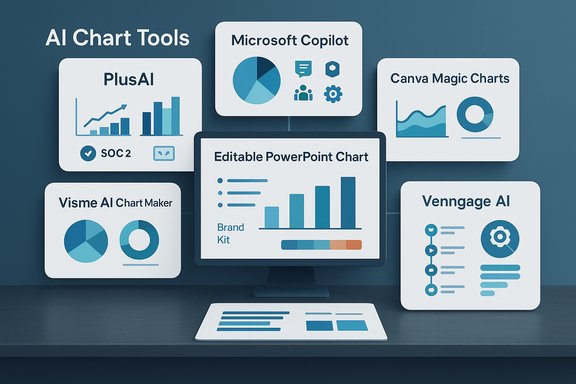
AI chart generators have moved from curiosity to core workflow tools for anyone who turns numbers into slides — the apps I tested in this round deliver everything from one-click, in-slide native charts to one-click, whole-deck exports, but they do so with markedly different trade-offs around editability, governance, and polish. The six products Analytics Insight highlighted — PlusAI, Microsoft Copilot (Excel/Power BI route), Canva Magic Charts, Visme AI Chart Maker, Powerdrill Bloom, and Venngage AI — represent the distinct design points teams choose between in 2026: in‑PowerPoint fidelity, tenant‑bound compliance, design-forward imagery, analytic depth, auto-curated decks, and infographic storytelling respectively. The rest of this feature reviews each tool, validates the most important technical claims where possible, explains practical deployment and governance questions for Windows‑centric organizations, and closes with a pragmatic decision checklist for IT and power users.
AI chart generators address a simple but painful friction: slide builders frequently export images from dashboards or recreate charts manually, which wastes time and breaks brand and animation fidelity. Modern AI chart generators promise to collapse that work into a single action: paste a table or type a plain‑English prompt, and the tool recommends a chart type, applies brand styles, and either inserts a fully editable chart into the slide or produces a high‑quality image you can drop into PowerPoint. That distinction — native PowerPoint chart object vs. flattened image — is the dividing line that determines how much post‑creation editing and governance work remains for teams that use Microsoft 365 or manage strict compliance controls.
Across the six vendors covered here, three recurring technical and operational questions determine fit:
Source: Analytics Insight 6 Best AI Chart Generators for PowerPoint in 2026
 Background / Overview
AI chart generators address a simple but painful friction: slide builders frequently export images from dashboards or recreate charts manually, which wastes time and breaks brand and animation fidelity. Modern AI chart generators promise to collapse that work into a single action: paste a table or type a plain‑English prompt, and the tool recommends a chart type, applies brand styles, and either inserts a fully editable chart into the slide or produces a high‑quality image you can drop into PowerPoint. That distinction — native PowerPoint chart object vs. flattened image — is the dividing line that determines how much post‑creation editing and governance work remains for teams that use Microsoft 365 or manage strict compliance controls.Across the six vendors covered here, three recurring technical and operational questions determine fit:
- Can the tool insert a fully editable, native PowerPoint chart object (not a flat PNG)? If yes, you preserve animations, recoloring, and slide‑master inheritance.
- Where does the AI processing occur and what compliance attestations exist (SOC 2, ISO)? This matters for regulated data.
- How easily does the tool export to PPTX while preserving fonts, slide masters, and interactivity?
PlusAI — in‑PowerPoint add‑in that inserts editable chart objects
What PlusAI promises
PlusAI positions itself as a PowerPoint ribbon add‑in that accepts pasted tables or natural language prompts and drops a fully editable PowerPoint chart object onto the slide, inheriting the active slide master so fonts, axes, and brand colors match automatically. The vendor advertises a seven‑day free trial and lists SOC 2 Type II compliance as part of its enterprise positioning.Verification and cross‑checks
- PlusAI is listed on Microsoft AppSource as an add‑in for PowerPoint and advertises creation and editing of presentations directly inside PowerPoint. The AppSource listing and product pages describe a seven‑day trial and call out SOC 2 Type II certification.
- Independent roundups and product comparisons likewise describe PlusAI as a native PowerPoint add‑in that produces editable shapes and text rather than raster screenshots. That positioning is consistent across vendor and third‑party writeups.
Strengths
- True in‑slide editability. Because PlusAI claims to use PowerPoint’s native chart primitives, you can recolor series, animate series, and refine labels without recreating the visual from scratch.
- Slide master inheritance. Generated charts are reported to pick up theme fonts and color tokens, reducing time spent on template cleanup.
- Enterprise posture. Presence in AppSource and a public SOC 2 Type II claim make PlusAI easier to vet for teams that must produce attestation evidence.
Risks, caveats, and what to validate
- Mixed availability messaging. Some pages historically referenced Google Slides or limited PowerPoint availability; procurement should verify the exact PowerPoint SKUs, Office build numbers, and AppSource listing status on the date of purchase. Test installation on a sample tenant before rollout.
- Data handling and retention. SOC 2 Type II indicates controls, but organizations should request the attestation and a written data‑retention / non‑training clause if sensitive KPIs will be processed. Confirm processing regions and whether prompts or model context are persisted.
- Accuracy dependency. Like any generator, PlusAI formats what you provide: axis scales, unit labels, and aggregation choices must be verified manually before distribution.
Microsoft Copilot — tenant‑grounded Office AI (Excel / Power BI detour)
How it fits the chart‑to‑slide problem
Microsoft 365 Copilot’s chart generation workflow is strongest when used inside Excel or Power BI: prompt Copilot in Excel to create charts and short narrative summaries; then copy into PowerPoint or export an entire Power BI report page to PowerPoint with live data links intact. Copilot’s primary advantage is enterprise governance: it runs inside your Microsoft 365 tenant and is subject to your organization’s compliance settings, data residency, and admin policies.Verified pricing and governance notes
- Microsoft’s consumer and business Copilot offerings shifted substantially through 2024–2025. Microsoft documentation and partner guidance list an enterprise‑oriented Copilot price point commonly quoted around $30 per user per month for Microsoft 365 Copilot (enterprise SKU), though bundles, promotions, and business‑tier pricing changed through 2025 and 2026, so confirm current licensing at purchase. Microsoft’s partner announcements in late 2025 also show Copilot Business bundles and promotional pricing that can materially affect list cost. Confirm the effective price in your region and the exact SKU you’ll assign.
- Because Copilot inherits tenant controls and Azure AD, it is the conservative choice for regulated industries that require audit logs, data residency, and contractual controls.
Practical trade‑offs
- Extra step for PowerPoint. Copilot typically produces the chart inside Excel or Power BI; you must then move the visual to a slide (copy/paste or Export → PowerPoint). That introduces a small friction compared with in‑slide add‑ins.
- Governance wins. For finance, healthcare, or other regulated teams, the extra step is often acceptable because Copilot adheres to tenant‑level controls and enterprise contractual options.
Canva Magic Charts — design‑forward visuals you can drop into a deck
What Canva delivers
Canva’s Magic Charts (part of its Visual Suite and Canva Sheets) converts CSVs or plain‑language prompts into on‑brand visuals, suggests chart types, and can generate a short insight sentence. Exports include PNG and PPTX, and Canva’s Brand Kit ensures color and font consistency across outputs. Canva emphasizes speed and design polish rather than exhaustive chart type coverage.Verification
- Canva’s Visual Suite documentation and product pages show Magic Charts, Magic Insights, and Canvas + Sheets integrations that convert data to visuals and export to PPTX or PNG. Multiple tool roundups confirm Magic Charts’ focus on design and brand kits.
Strengths
- Design polish. Magic Charts produces visually appealing graphics and tile‑ready designs that are ideal for marketing recaps and social‑ready slides.
- Brand kits for consistency. Upload your fonts and hex palettes to preserve corporate identity.
- Low learning curve. Non‑designers can generate attractive visuals quickly.
Limitations
- Statistical chart gap. Niche formats like waterfall, Mekko, or complex statistical plots may be missing or limited relative to Visme or Excel.
- Browser limits. Very large datasets can degrade browser performance; Canva is optimized for design, not high‑volume analytics.
Visme AI Chart Maker — deep chart types and pixel control
What Visme offers
Visme’s chart maker emphasizes breadth and fine control: more than a dozen chart types are standard, and the platform lists specialty visuals — funnels, Mekko blocks, gauges, and interactive maps — that are useful for board decks and complex reporting. Paid plans enable editable PPTX export that preserves master slides, and Visme supports live data connections and granular animation controls.Verification & cross‑checks
- Visme’s product pages explain PPTX export, interactive embeds, and a large visual library for dashboards and reports. Independent summaries and the analytics roundup confirm Visme’s strength in niche chart types.
Strengths
- Specialized chart types. If you need Mekko, waterfall, or gauges, Visme is a strong candidate.
- Interactive options for web embeds. Hover tooltips and web‑embedded interactivity let you reuse charts across channels.
- Editable PPTX export on paid tiers. Paid plans preserve masters and deliver high‑fidelity exports.
Limitations
- Learning curve. The depth of controls means more clicks to get pixel perfection.
- Price and tier gating. Editable PPTX and enterprise SSO are behind paid plans; review team scale pricing before procurement.
Powerdrill Bloom — one‑click data‑to‑deck for the time‑pressed analyst
What Bloom claims
Powerdrill Bloom is a data‑first canvas: upload Excel or CSV and Bloom autoscans dozens of tabs, maps the workbook into question‑driven charts (revenue by region, churn by cohort, anomalies), then bundles chosen charts and plain‑language insights into a PPTX export on demand. The vendor stresses rapid deck generation for analysts who need a first‑draft deck in minutes.Verification
- Powerdrill’s product pages describe an AI canvas, auto‑insights, and one‑click export to PowerPoint and other formats. Those pages explicitly advertise the ability to export curated visuals and narratives into a PPTX file.
- A claim in the Analytics Insight summary that a 25‑slide deck was created in under two minutes in an AutoPPT review is included in the uploaded roundup, but an independent copy of that specific AutoPPT review could not be located at the time of writing; treat the 25‑slide under‑two‑minutes figure as unverified outside the vendor/roundup context. Procurement and pilots should time the export on representative workbooks to measure the actual delta.
Strengths
- Scale for messy workbooks. Bloom’s ability to map dozens of tabs into exploration cards speeds the analyst workflow.
- One‑click deck export. Exports can include headlines and takeaways, which accelerates handoffs to product managers and consultants.
- Good for first drafts. When speed matters and domain nuance will be added later, Bloom is an effective starting place.
Limitations and verification steps
- Curation required. Automatic trend selection can surface spurious correlations; analysts must validate picks.
- Master slide fidelity. Confirm exported PPTX files honor corporate slide masters and font licenses in your environment.
- Unverified timed claims. The oft‑quoted “25‑slide deck in under two minutes” line appears in vendor‑adjacent roundups; run your own timed pilot with your data to validate the actual speed gains.
Venngage AI — infographic‑first charts that keep brands front and center
What Venngage offers
Venngage thinks like a designer: paste data or provide a prompt and the AI suggests infographic layouts complete with icons, color blocks, and a Brand Kit that enforces logos, hex colors, and fonts across the entire design. PowerPoint export (PPTX) and other high‑resolution outputs are gated to Business plans, while hover tooltips and interactivity can be preserved via HTML sharing.Verification
- Venngage support docs clearly document Brand Kit features — logos, colors, fonts, and the ability to apply brand palettes across charts and maps — and state that PowerPoint export exists for Business plan customers.
Strengths
- Brand consistency at scale. Brand Kits reduce manual recoloring and asset chaos for marketing teams.
- Infographic storytelling. Venngage is optimized for narrative visuals rather than deep statistical analysis.
- Export flexibility. Business tiers export to PPTX, PDF, and HD images suitable for slides and social channels.
Limitations
- Not a statistical analytics suite. Venngage prioritizes storytelling and design; for advanced statistical plots or live data linking, pair it with Excel or Visme.
- Export gating. High‑resolution and PPTX export require paid plans; evaluate cost vs. frequency of exports.
Comparative Practical Checklist: How to pilot and choose
- Inventory needs (two pages)
- Catalog how many charts your team builds per week and which chart types are essential (waterfall? Mekko? maps?.
- Note whether live data links or editable, in‑slide charts are required.
- Shortlist by primary constraint (one sentence each)
- Governance/data residency required: pilot Microsoft 365 Copilot (Excel/Power BI path) and confirm contractual terms.
- Must stay inside PowerPoint and keep charts editable: test PlusAI add‑in on a pilot tenant and validate AppSource install and attestation docs.
- Designer polish and social‑ready visuals: pilot Canva Magic Charts.
- Niche chart types and board‑grade reports: pilot Visme and confirm PPTX fidelity.
- Rapid analyst draughting from messy workbooks: test Powerdrill Bloom and time exports on your own Excel files.
- Infographic storytelling and brand kits: pilot Venngage Business plan for PPTX exports.
- Run timed pilots (recommended)
- Use a representative dataset and a standard slide master.
- Measure: time to first draft, time to board‑ready slide, and number of manual fixes required.
- Validate: open exported PPTX in your official PowerPoint version and test fonts, animations, and slide master inheritance.
- Governance & procurement checks
- Request SOC 2 Type II or ISO attestations and a point‑blank statement on prompt retention or non‑training of models if sensitive information is uploaded.
- Confirm where processing occurs (region / cloud provider) and the vendor’s data deletion policy.
- Ask for a short trial or proof‑of‑concept with non‑production data.
- Cost modeling
- Understand per‑user, seat, and meter‑based billing (some tools bill by generation credits or agent runs).
- Estimate monthly runs for your team based on your timed pilot to avoid surprises.
Strengths across the category — and the critical risks to plan for
Aggregate strengths
- Major time savings for first drafts. Vendors consistently report substantial time reclaimed for drafting and basic layout work.
- Better visual consistency. Brand Kits and slide‑master inheritance reduce micro‑formatting work.
- Reduced manual copy/paste errors when tools insert native chart objects or preserve vector exports.
Common and material risks
- Accuracy is not automatic. AI recommends chart types and narratives but does not guarantee correct aggregations, axis units, or business context; human verification is mandatory.
- Export fidelity and vendor lock‑in. Web‑native tools can produce non‑editable frames in exported PPTX files; always test deep export flows and retain canonical offline copies.
- Privacy and training risks. Vendors differ on whether customer prompts or data are retained for model training. For regulated data, insist on contractual non‑training guarantees or enterprise plans that exclude customer data from training sets.
- Price and licensing flux. Copilot and other vendors changed pricing and packaging in 2024–2025; confirm current pricing and any promotional bundles at contract time. Microsoft’s enterprise bundles and promotional periods in late 2025 changed effective prices for some customers.
Final verdict — which tool for which mission
- Choose PlusAI when editable, native PowerPoint charts and staying inside the desktop app are non‑negotiable; verify AppSource compatibility and SOC 2 attestations before production.
- Choose Microsoft Copilot when tenant governance, auditability, and live Power BI links matter more than one‑click in‑slide insertion; expect an Excel or Power BI detour. Validate the current Copilot SKU and price for your organization.
- Choose Canva Magic Charts for marketing, education, and fast social‑ready slide visuals where design polish beats complex stats.
- Choose Visme when you need specialized chart types, interactive embeds, or pixel‑level control for board materials.
- Choose Powerdrill Bloom for heavy analyst workflows where an auto‑curated, multi‑slide export from large workbooks saves the greatest number of hours; validate the algorithm’s picks and export fidelity with your real data. Note that some fast‑time claims in roundups lack independent corroboration — measure yourself.
- Choose Venngage when infographic storytelling and brand enforcement matter, and your team is comfortable with Business‑tier exports to PPTX for final delivery.
How to run a quick, high‑signal pilot (six steps)
- Pick three representative charts your team builds every week (e.g., quarterly revenue waterfall, cohort retention curve, regional sales map).
- Create a one‑slide template that reflects your official slide master (logo, fonts, color tokens).
- For each vendor, build or generate the three charts using the same source spreadsheet.
- Measure:
- Time to first usable chart
- Time to board‑ready slide (post manual edits)
- Whether the output is a native, editable chart object or an image
- Validate governance:
- Ask for the vendor’s SOC 2 report or equivalent audit document
- Confirm processing regions and prompt retention policy
- Decide using three metrics (speed / fidelity / governance) scored 1–5 to make an apples‑to‑apples comparison.
Closing assessment and practical recommendation
AI chart generators are no longer gimmicks; they are practical accelerants for the slide pipeline. The right choice depends on whether your primary constraint is governance (Copilot), in‑slide editability (PlusAI), design polish (Canva, Venngage), chart depth (Visme), or analyst scale (Powerdrill Bloom). Vendor claims about trial lengths, export capabilities, and compliance are generally verifiable on product pages and marketplace listings, but several commercially important details change rapidly — licensing bundles, promotional pricing, and attestation availability — so treat vendor documentation as the starting point and confirm the live contract terms at procurement time. The six products above are strong in their respective design spaces; the practical next step is a short, timed pilot using your real data and slide master to measure the true time and fidelity benefits in your environment.Source: Analytics Insight 6 Best AI Chart Generators for PowerPoint in 2026
