

Excel can be brilliant — and brutally tedious — and the new generation of AI-for-Excel tools promises to turn hours of spreadsheet drudgery into minutes of insight and automation, but that promise comes with trade-offs: licensing, security, and the need for human validation.
Excel remains the lingua franca of business analysis, finance, and reporting. For decades, the same tasks — cleaning messy imports, translating business rules into formulas, building repeatable dashboards — have consumed disproportionate time and attention. The arrival of AI assistants embedded in or paired with Excel changes the calculus: plain‑English prompts can produce formulas, cleanup scripts, visualizations, and even multi‑step automations. These capabilities are rolling out in different shapes and at different levels of maturity, from enterprise-grade FP&A platforms to lightweight web tools for single‑formula help.
This feature breaks down the market of AI Excel helpers, evaluates what each class of tool does best, flags where claims are unsupported or unverifiable, and offers a practical buying and implementation checklist for Windows-focused teams that rely on Excel for mission‑critical work.
The market is diverse: pick the tool that matches your workflow and risk profile, run tests on real data, and treat all AI outputs as accelerants to human insight rather than substitutes for it.
Source: autogpt.net Best AI For Excel
 Background
Excel remains the lingua franca of business analysis, finance, and reporting. For decades, the same tasks — cleaning messy imports, translating business rules into formulas, building repeatable dashboards — have consumed disproportionate time and attention. The arrival of AI assistants embedded in or paired with Excel changes the calculus: plain‑English prompts can produce formulas, cleanup scripts, visualizations, and even multi‑step automations. These capabilities are rolling out in different shapes and at different levels of maturity, from enterprise-grade FP&A platforms to lightweight web tools for single‑formula help.This feature breaks down the market of AI Excel helpers, evaluates what each class of tool does best, flags where claims are unsupported or unverifiable, and offers a practical buying and implementation checklist for Windows-focused teams that rely on Excel for mission‑critical work.
Overview: the 4 classes of AI-for-Excel tools
- Enterprise FP&A and governance platforms — built for finance teams, auditability, and workflows (example: Datarails).
- Embedded copilots in Office — native assistants inside Excel (example: Microsoft Copilot; Anthropic’s Claude add‑ins).
- Add‑ins and desktop/web utilities — focused on formula generation, data cleaning, or domain‑specific automation (examples: Ajelix AI, Arcwise).
- Niche and specialist assistants — auditor-specific and statistical toolkits (examples: DataSnipper, XLSTAT).
Microsoft Copilot (Excel) — the default “co‑pilot” for Microsoft 365 users
Microsoft Copilot is the most prominent, broadly distributed AI in Excel: it’s integrated into Microsoft 365 and exposes natural‑language formula generation, conversational analysis, inline formula completion, and multi‑step “Agent” automations that can create sheets, run validations, and build dashboards. Many features depend on cloud‑saved workbooks and qualifying licenses, and Microsoft packages Copilot capabilities across in‑app experiences and paid Copilot seats for heavier usage.Key strengths
- Deep integration with Excel, OneDrive and SharePoint makes cross‑document queries, real‑time updates, and Office context available to Copilot.
- Natural‑language formula generation converts plain English to formulas and previews results so users can inspect before committing.
- Agent Mode supports chained multi‑step tasks (create sheets, run transformations, format outputs) and is designed to be auditable.
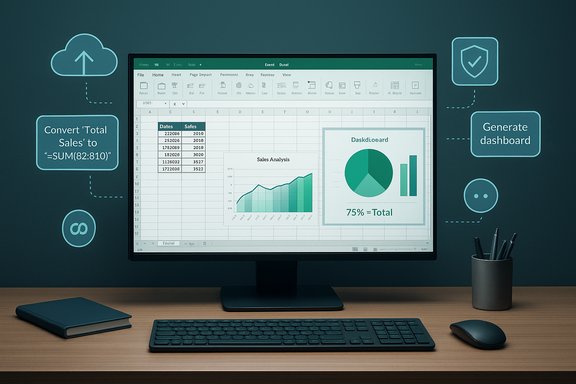
- Auto visualizations and dashboards — single prompts can create a one‑page dashboard with charts and KPI cards.
Important technical notes and constraints
- Many features require workbooks to be saved to OneDrive or SharePoint with AutoSave enabled; local files may not expose the full Copilot surface.
- Enterprise governance and tenant settings determine whether Copilot can access tenant data (Graph grounding) and whether outputs are logged for audit. Paid Copilot seats provide stronger tenant-level controls.
- Pricing and availability vary by tenant, feature gating, and Microsoft’s staged rollouts; some Agent features remain in preview for selected customers.
Risks and gotchas
- Probabilistic outputs: Copilot suggestions are model‑driven and require human validation, especially for financial or regulatory calculations.
- Licensing and cost: Advanced Copilot features are not uniformly included in basic Microsoft 365 plans; organizations must evaluate per‑user vs. tiered procurement.
- Data residency and privacy: For regulated workloads, ensure tenant configurations prevent unwanted model training on private data and that audit logs are preserved.
Anthropic / Claude for Excel — finance‑first assistant (where available)
Anthropic has positioned a Claude add‑in for Excel aimed at institutional finance workflows: a sidebar that reads and edits workbooks, tracks cell‑level changes with explanations, and connects to licensed market‑data providers and prebuilt “Agent Skills” for tasks like DCF models and earnings analysis. This vertical approach is intended to meet auditability and connector needs for analysts. Early availability has been previewed to specific enterprise tiers and test cohorts.Why finance teams should notice
- Cell‑level traceability is a differentiator: the add‑in annotates each change and lets reviewers jump to referenced cells, a strong feature for audit and compliance workflows.
- Licensed connectors to vendors like LSEG and Moody’s allow Claude to pull institutional inputs directly into models, reducing copy‑paste risk and improving data provenance.
Practical limits
- The add‑in initially targets enterprise customers, and feature completeness (macros, some pivot operations) is limited in early previews.
- Like any assistant that edits models, outputs must be validated; the tool is an accelerator, not a replacement for model governance.
Ajelix AI — multilingual formula and template generator (add‑in + web)
Ajelix is positioned as a hybrid Excel add‑in and web tool that accepts plain‑text descriptions and produces templates, formulas, and data cleaning steps. It emphasizes multilingual explanations for formulas and downloadable Excel templates.Strengths
- Two deployment modes: Excel add‑in for in‑workbook assistance, or web interface for template generation.
- Multilingual formula explanations, helpful for teams with mixed language skills.
- Good for templates: converts descriptions into ready‑to‑use spreadsheets.
Limitations and verification
- Some features reportedly perform best on the web platform, and free plans usually cap file sizes and credit usage.
- Independent verification of accuracy claims (speed and formula correctness percentages) is limited; treat vendor accuracy claims as optimistic until tested in your workload.
GPT Excel / Formula‑focused extensions — code and formula factories
Tools that leverage GPT‑style models to generate formulas, VBA macros, regex, and batch processing are numerous. The “GPT Excel” class of extensions focuses on formula and script generation rather than broad spreadsheet assistance.Where they shine
- VBA and macro generation — quickly scaffold automation and cell‑formatting steps.
- Formula generation — generate complex nested formulas from plain language prompts.
- Low cost or free tiers often make these tools attractive to power users and educators.
Caveats
- Performance on very complex scripts can be slow and may require iterative prompt refinement.
- Offline capability is rarely available; these services typically require an internet connection.
- Claims like “over 95% of generated code is accurate” should be treated cautiously unless backed by independent benchmarks. This type of percentage is often vendor‑provided and not externally validated.
Formula Bot and Formulas HQ — web‑first formula assistants
Formula Bot and Formulas HQ are web platforms focused on translating human descriptions into spreadsheet formulas and providing educational resources.- Formula Bot emphasizes translation of text to formulas, recommended charts, and template generation for export to Excel.
- Formulas HQ takes a minimalist approach: a searchable library of formulas, explanations, and small‑scale generator tools that often require no sign‑up.
Datarails — enterprise FP&A automation
Datarails markets itself as a robust Financial Planning & Analysis (FP&A) platform built around Excel workflows. It focuses on consolidating multiple workbooks, detecting anomalies during data ingestion, and producing repeatable financial reports.Useful features for finance teams
- Anomaly detection and rule checks during uploads reduce manual reconciliation time.
- In‑add‑in chatbot assists with financial reporting questions and can surface answers against consolidated models.
- Customizable dashboards and centralized storage for auditability.
Considerations
- Datarails targets organizations: pricing and onboarding effort reflect enterprise deployment requirements.
- Setup time and integration complexity are not trivial; expect a non‑zero implementation cycle to realize value.
Julius AI — advanced analytics and natural‑language querying
Julius AI focuses on deep statistical analysis and natural‑language queries against uploaded Excel/CSV/PDF files. It offers hypothesis testing, regression, clustering, and automatically generated charts and infographics.Ideal use cases
- Teams or analysts who need advanced statistics but lack in‑house data science skills.
- Ad‑hoc research where you want readable explanations and charts without coding.
Limitations
- Julius excels at analytic outputs, but it’s not primarily a tool for routine ETL tasks or large‑scale data cleaning.
- Data security concerns should be evaluated before uploading sensitive documents to any SaaS analytic service.
XLSTAT — the traditional statistical powerhouse
XLSTAT is a long‑standing, comprehensive statistical add‑in for Excel. It remains the gold standard for advanced statistical testing, predictive modeling, clustering, and data mining inside Excel.Strengths
- Extremely broad statistical toolkit for researchers and analysts.
- Advanced graphing and modeling capabilities that outstrip generalist AI assistants.
Downsides
- Not beginner friendly — requires statistical knowledge to avoid misuse.
- Premium pricing makes it a specialist purchase for teams that need rigorous analysis, not casual users.
Arcwise — screen‑aware Excel assistant
Arcwise presents itself as an add‑in with strong visual/contextual capabilities; it can "see" the user’s screen context to better interpret follow‑up questions and suggest formulas with explanations.Pros
- Interactive experience with visually explained calculations.
- Useful for exploratory tasks where seeing the spreadsheet structure matters.
Cons
- Premium tiers can be expensive for individuals.
- Early‑stage UX choices may be too complex for casual users.
DataSnipper — audit and reconciliation automation
DataSnipper is targeted at auditors and accountants. It automates matching of figures from PDF or Word documents with cells in Excel and highlights discrepancies for review.When to choose DataSnipper
- Audit teams reconciling source documents with ledger exports.
- Workflows that require rapid matching and documentation for audit trails.
Caveat
- Highly niche: excellent for audit teams but less useful outside that domain.
How to evaluate the right AI for Excel: a practical checklist
- Identify your primary use case: formula generation, data cleaning, advanced statistics, audit reconciliation, or enterprise FP&A.
- Prioritize governance needs: do you need tenant grounding, audit logs, or vendor connectors for licensed data?
- Test accuracy with representative data: run the same use case across 2–3 tools to compare outputs and audit trails.
- Validate security posture: confirm whether the vendor trains models on your data, encryption at rest/in transit, and contractual protections for sensitive content.
- Compare pricing models: per‑user subscriptions, pay‑per‑request, and enterprise seats have very different cost profiles.
- Plan for human‑in‑the‑loop verification: adopt reconciliation tests, checksums, and peer review before accepting AI edits for reporting.
Deployment and governance best practices
- Start small, scale deliberately. Pilot on non‑sensitive projects, measure time saved and error rates, then expand.
- Keep auditable trails. For finance or regulatory work, ensure edits are logged and cell‑level explanations are exportable. Claude and some enterprise copilots emphasize this capability.
- Use tenant grounding and admin controls. Where available, enable tenant‑level grounding to prevent external model training on confidential documents.
- Implement acceptance tests. Before an AI‑produced model is used in reporting, run automated reconciliation tests against golden datasets.
- Train users on prompt engineering and validation. Small differences in phrasing can change results; build a short internal playbook for how to phrase requests, how to inspect formula previews, and how to document changes.
Security, privacy, and compliance considerations
AI assistants often require cloud connectivity and may store or process workbook content externally. For regulated environments:- Demand contractual non‑training clauses (vendor promises not to use your data to train public models).
- Require data residency and encryption standards that meet your compliance needs.
- Maintain manual review gates for any AI edits used in statutory reports.
- Where possible, choose tools that support local processing or on‑prem connectors.
Reality check: what the tools cannot (reliably) do — yet
- Replace domain expertise. AI can accelerate model building but cannot replace the judgment that goes into financial assumptions.
- Guarantee error‑free outputs. Model suggestions are probabilistic and will sometimes produce incorrect formulas or inappropriate visualizations.
- Fully automate audit compliance. Even where assistants provide traceability, regulatory acceptance of AI‑generated outputs often requires human review and documented procedures.
Practical recommendations: which tool for which user
- If you live inside Microsoft 365 and need broad assistance across Excel, Word, and PowerPoint, start with Microsoft Copilot and evaluate whether tenant controls and paid Copilot seats meet your governance needs.
- If you’re an analyst or financial team needing auditability and licensed market data connectors, evaluate Claude for Excel (Anthropic) or enterprise FP&A platforms like Datarails for repeatable, auditable workflows.
- For formula generation, quick macros, and learning, try Formula Bot, Formulas HQ, or a GPT-based formula extension — they’re fast, low-friction, and often free to start.
- For statistical research and advanced modeling inside Excel, XLSTAT remains the heavyweight choice.
- For audit reconciliation and PDF matching, DataSnipper is purpose‑built and saves huge amounts of review time.
Conclusion
AI for Excel is no longer a novelty. From Copilot’s natural‑language formulas and Agent Mode to finance‑focused add‑ins that connect licensed market data, these tools materially change how work gets done in spreadsheets. The upside is enormous — faster analysis, fewer manual errors, and democratized access to analytic capabilities — but so are the responsibilities. Licensing, governance, and the need for rigorous validation remain the limiting factors for adoption in regulated and high‑risk environments. Teams that adopt thoughtfully — starting with pilots, insisting on auditability, and building human review into automated workflows — will enjoy real productivity gains without sacrificing control.The market is diverse: pick the tool that matches your workflow and risk profile, run tests on real data, and treat all AI outputs as accelerants to human insight rather than substitutes for it.
Source: autogpt.net Best AI For Excel
