

The rush to paste a shiny new block of PowerShell into an elevated prompt and watch Windows “return to factory lean” is real — and so is the risk. Recent reporting and community threads are issuing a blunt warning: do not run scripts produced by AI without thorough human review, testing, and safeguards. When those scripts are aimed at “debloating” Windows — removing inbox apps, AI surfaces, services, scheduled tasks, or servicing artifacts — the margin for error is wide and the consequences can be permanent or expensive to fix. ws debloating has moved from occasional tinkering to a sizable ecosystem of one‑click tools, community PowerShell projects and even GUI wrappers that promise to remove Copilot, uninstall inbox apps, and purge telemetry and telemetry-related services. That movement accelerated as Windows 11 introduced more built‑in AI surfaces and bundled apps, and as users and administrators sought quieter, slimmer systems. Community projects such as RemoveWindowsAI, Tiny11/Nano11 builders, FlyOOBE add‑ons, and a raft of GitHub scripts make it easy to apply broad, systemic changes — but also make it easy to inflict broad, systemic damage if used carelessly.
At the same time, Aacreasingly being used to generate the very scripts that users run. The appeal is obvious: tell an assistant “give me a PowerShell script to remove junk apps and Copilot” and you get a block of code in seconds. But language models do not understand system state, policy, or the nuanced semantics of Windows service and servicing infrastructure the way an experienced admin does — and that gap shows up as incorrect removal commands, dangerous file or registry operations, and instructions that break updates or data. Community reporting and forum threads now show multiple cases where aggressive, automated removals caused broken apps, failed updates, or the need for a full OS reset.
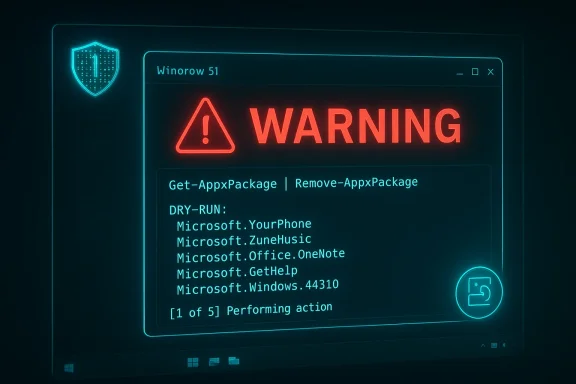
AI models can invent plausible-looking package names and registry keys, or confuse per-user and system-provisioned packages. That leads to scripts that either silently fail or try to remove the wrong thing. A practical example: PowerShell’s Get-AppxPackage, Remove-AppxPackage, and Remove-AppxProvisionedPackage behave differently across accounts and images — and a mistake here can make a built-in app disappear for all future users or prevent re-provisioning. Community posts repeatedly document confusion and breakage around these commands.
At the same time, community tools that do attempt deep servicing edits demonstrate why automation should be treated with caution: the convenience is real, the maintainability cost is real, and the long‑term support burden for users who run them is non-trivial. Expect that any tool which manipulates low-level servicing artifacts will require continuous maintenance to keep pace with Windows updates.
If you’re a tool author or community maintainer, make safe defaults the baseline: reversible changes, explicit user consent, comprehensive logging, and clear warnings about unsupported modifications. The convenience of one‑click debloat will keep attracting users, but the community’s duty is to make that convenience accountable, transparent, and reversible — especially now that AI can write the commands for you in seconds.
Source: Neowin Please don't use scripts generated by AI to "debloat" Windows
At the same time, Aacreasingly being used to generate the very scripts that users run. The appeal is obvious: tell an assistant “give me a PowerShell script to remove junk apps and Copilot” and you get a block of code in seconds. But language models do not understand system state, policy, or the nuanced semantics of Windows service and servicing infrastructure the way an experienced admin does — and that gap shows up as incorrect removal commands, dangerous file or registry operations, and instructions that break updates or data. Community reporting and forum threads now show multiple cases where aggressive, automated removals caused broken apps, failed updates, or the need for a full OS reset.
 Why AI-generated “debloat” scripts are riskier than h correct package and component names
AI models can invent plausible-looking package names and registry keys, or confuse per-user and system-provisioned packages. That leads to scripts that either silently fail or try to remove the wrong thing. A practical example: PowerShell’s Get-AppxPackage, Remove-AppxPackage, and Remove-AppxProvisionedPackage behave differently across accounts and images — and a mistake here can make a built-in app disappear for all future users or prevent re-provisioning. Community posts repeatedly document confusion and breakage around these commands.2. Destructive commands dressed up as “cleanup”
LLMs can generate commands that look logical but are t: recursively deleting folders, pruning servicing store entries, or deleting scheduled tasks and registry keys without checks. Some community debloat projects intentionally edit the Component-Based Servicing (CBS) database or install “blocker” packages in ways that conflict with Windows Update; those same patterns can be reproduced by AI without proper caveats. When updates expect specific servicing state, those changes can result in failed cumulative updates or the need to rebuild system components.3. Missing contextual checks
Real-world scripts should verify environment (OS build, installed features, roles, user accoufore making changes. AI outputs frequently omit guards like “if this feature exists, then…”, or fail to do non‑destructive dry runs and logging. Without environment-aware logic, a one-size-fits-all script will do the wrong thing on many machines. Forum threads show users who ran scripts on multi-user or managed endpoints and unexpectedly broke functionality for other accounts.4. Fragile assumptions about updates and provisioning
Windows update, provisioning, and app servicing are complex. Removing a package from a liame as removing it from an offline image; removing a provisioned app without correctly handling the provisioning state will lead to mismatches between new and existing users. Scripts that attempt to “block” re-provisioning by manipulating servicing artifacts are especially fragile and can make future updates fail or reinstall unwanted components in unpredictable ways. Community reporting shows that modifications to how the platform re-provisions apps or to the servicing store often produce long-term instability.Real-world failure modes seen in the wild
- Broken inbox apps and system features: Several users report that after running aggressive debloat scripts they can in apps (Settings, Photos, Calculator) without re-registering packages or performing an OS repair. In worst-case scenarios a full reset or reinstall was required.
- Windows Update and servicing regressions: Scripts that remove or modify servicing artifacts have caused update operations to fail or trigger regressions during cumulative updates. When seonger matches expectations, Windows Update may error out or leave the machine partially updated. Several community threads highlight this as the most common and insidious outcome.
- Loss of easy recovery paths: Removing the Microsoft Store or App Installer components (either intentionally or accidentally) removes the simplest way to reinstall modern Store apps, and can force admins to reffline packages. That increases recovery time and complexity when something goes wrong.
- Data and account impacts: Some debloat operations delete user-specific data, cached indexes, or telemetry traces that are later needed by useful features (e.g., search indexing, diagnostics). Community posts include examples wherettings was impossible after a mass script run.
The anatomy of a dangerous AI-generated debloat script
Below are common elements that make an AI-generated script dangerous. If you see any of these in a script you’re considering, treat the script with extreme skepticism — and never run it on- Blanket removal of AppX packages with no dry-run, no backup, and no per-user checks.
- Use of Remove-AppxPackage with -AllUsers or Remove-AppxProvisionedPackage applied indiscriminately.
- Registry removals using Remove-Item -Recurse without careful path validation.
- Edits to Component-Based Servicing (CBS) or dism / online / remove-package operations that are irreversible without reinstalling the OS.
- Commands that delete or modify ProgramFiles/Windows/System32 or scheduled tasks without verifying ownership.
- No logging, no rollback mechanism, no creation of a system image or restore point.
Why the “it worked for me” defense is a weak shield
It is common for a script to appear to “work” on a single machine or in a VM, then break when used on a different hardware profile, language pack, OEM image, or enterprise-joined machine. Shared community tools amor me” feedback loop: successful stories are visible and repeated, but failed cases are underreported or buried in threads. When an AI generates code, it contributes to that illusion: the assistant doesn’t know the unseen constraints of your endpoint. The result is that even well-meaning automation can become a vector for support escalations, lost productivity, and recoverability burdens.Practical, defensible guidelines for anyone considering debloating
If you insist on trimming Windows — and there are perfectly valid reasons to do so (lab images, kiosks, air-gapped appliances, low‑powered VMs) — follow an engineering approach that treats the system like critical infrasevel rules (do these first)- Back up before you touch anything. Create a full disk image or snapshot (Hyper-V/VMware/VirtualBox snapshot or a disk image tool) and verify the backup. If you don’t have a tested rollback, don’t run the script.
- Test in a disposable environment. Use a VM that mirrors the target environment (same Windows build, same language/packs, same driver set) and run the script there first. Observe updates and app behavior after several reboots and an update cycle.
- Audit line-by-line. Treat every line of generated code . Confirm what each cmdlet does, why it’s necessary, and whether there are non-destructive alternatives. If you don’t understand a command, don’t run it.
- Prefer policy-based, supported methods on managed devices. For enterprise and education deplt’s policy-based inbox app removal and MDM/Intune packaging approaches rather than ad‑hoc PowerShell. Those methods are designed to work with servicing and provisioning.
A safe, repeatable debloat workflow (recommended)
- Inventory:X packages, services, scheduled tasks, drivers and installed updates.
- Baseline snapshot: create a VM snapshot / disk image.
- Scoped plan: define a minimal, risk-ranked change list (low, medium, high risk). Start with low-risk cosmetic changes (start menu tiles, app recommendations).ging: modify scripts to perform non‑destructive enumerations and to write a detailed plan to a log file rather than execute changes immediately.
- Run on test image: execute the script in the VM and run through at least one cumulative update cycle to detect servicing regressions.
- Validate user flows: make sure Settings, Store, Edge, Search Indexer, OneDrive, Defender, and Update continue to operate as expected.
- Harden rollback paths: document precise rollback steps and verify that images restore cleanly.
- Deploy gradually: roll out changes in waves with monitoring, not all at once.
Using AI responsibly: how to get benefit without the blunt force
AI can be a useful assistant for creating scripts — but only when used as a drafting and educational tool, not as an automatic execution engine.- Use AI to generate an initial checklist or to explain complex cmdlets in plain language. Then manually translate that into vetted, idempotent code.
- Ask the model to annotateine so you can review intent; don’t accept the script as an all-or-nothing artifact.
- Require strict review for any script that includes servicing or provisioning changes; a second human reviewer with Windows servicing experience is essential.
- Add automated safety gates: prompts that instrument scripts with confirmation prompts, dry-run flags, and explicit checksoning state before any destructive action.
- Never run untrusted code as SYSTEM or with elevated privileges until it has been thoroughly audited and tested.
What responsible toolmakers are doing — and where AI fits in
The community has responded with a mix of approaches. Some projects have doubled down on auditable code, rollback features, and GUI wrappers that expose changes before they run. Others have added “safe” presets that only remove non-essential trialware and promotional items. A few maintainers explicitly advise against manipulating the servicing store or using -AllUsers remorn users to preserve Store and App Installer components. Those are the patterns to follow: transparency, auditable commits, and reversible operations.At the same time, community tools that do attempt deep servicing edits demonstrate why automation should be treated with caution: the convenience is real, the maintainability cost is real, and the long‑term support burden for users who run them is non-trivial. Expect that any tool which manipulates low-level servicing artifacts will require continuous maintenance to keep pace with Windows updates.
A checklist for power users and admins before executi
verified disk image or snapshot? Yes / No. If No — stop.- Has the script been reviewed line-by-line by at least one experienced human? Yes / No. If No — stop.
- Is there a documented rollback plan that you can execute without internet access? Yes / No. If No — stop.
- Does the script avoid editing CBS, removing provisioning metadata, or uninstalling the Microsoft Store without a supp Yes / No. If No — be very cautious.
- Have you tested the script on a VM with the same OS build and feature set? Yes / No. If No — stop.
When to walk away
Some scenarios are simply not worth the risk of an automated script:- Your device is the only work machine and contains irreplaceable data.
- The device is domain-joined or managed by enterprise tooling with strict support SLAs.
- The device must remain compliant with organizational or regulatory baselines.
- You cannot create a trusted image backup and test the script in a mirror environment.
Conclusion: use AI as an assistant, not an executioner
The bottom line is simple and non‑negotiable: do not run AI-generated Windows debloat scripts unreviewed. The same characteristics that make language models useful — fluency, rapid generation, plausible reasoning — also allow them to produce plausible but unsafe commands. Community reporting and incident threads show repeated, avoidable mistakes: broken apps, failed updates, loss of reinstall paths, and in some cases the need to refresh or reinstall Windows. If you value your time, ypportability, adopt a disciplined process: inventory, backup, test, audit, and stage. Use AI to assist human experts who understand Windows servicing and provisioning — but never to replace the human judgement those tasks require.If you’re a tool author or community maintainer, make safe defaults the baseline: reversible changes, explicit user consent, comprehensive logging, and clear warnings about unsupported modifications. The convenience of one‑click debloat will keep attracting users, but the community’s duty is to make that convenience accountable, transparent, and reversible — especially now that AI can write the commands for you in seconds.
Source: Neowin Please don't use scripts generated by AI to "debloat" Windows
