

Sparkle arrives as the kind of practical, community-driven tweaker Windows enthusiasts have been asking for: an open-source GUI that bundles debloating, privacy toggles, a basic cleaner, restore points, and a handful of utilities into one package aimed at making Windows 10 and 11 leaner without forcing users to run cryptic PowerShell scripts. The app is still in beta, it uses Electron (which contributes to a relatively large installer footprint), and it walks a sensible middle path between “one‑click nukes” and raw, unguarded scripts by offering an auditable codebase and reversible changes — but it also exposes real trade‑offs that anyone planning to run it should understand before clicking “Apply.”
Sparkle is an open‑source Windows optimization utility that surfaced as a polished GUI wrapper around common debloating tasks, privacy toggles, and maintenance chores. The project is published on GitHub and documented on an official docs site; the source explicitly credits and integrates community scripts such as Raphire’s Win11Debloat and other community tooling inspirations. The GitHub repository and the documentation make the project auditable and suggest it’s intended for users who want transparency and the option to inspect what will change on their machines. The key selling points Sparkle emphasizes are:
Key categories you’ll find:
Other useful modules:
The technical reality is nuanced and hardware dependent:
However, Sparkle is not a universal solution. It is a post‑install, user‑level optimizer — not an image builder — and it is conservative in some maintenance areas (Cleaner) while exposing experimental low‑level tweaks that require careful testing. For environments demanding vendor support or absolute immutability, such tools should be used only with change control, backups, and testing.
If you plan to use Sparkle, follow these pragmatic rules of engagement:
Conclusion: Sparkle is a practical, responsibly designed debloat and optimization tool that brings auditability and reversibility to tasks many users already perform with scripts. It’s best suited for enthusiasts and technicians who will take the time to back up, choose tweaks deliberately, and test changes, but its integrated workflow and transparent source code make it one of the more trustworthy entries in the post‑install optimization space.
Source: gHacks Technology News Sparkle review: make Windows leaner and less bloated with this new tweaker - gHacks Tech News
 Background / Overview
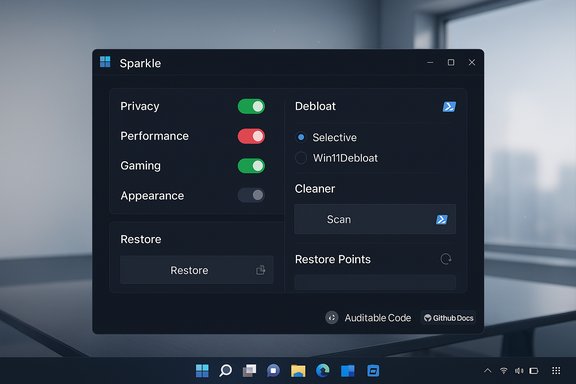
Sparkle is an open‑source Windows optimization utility that surfaced as a polished GUI wrapper around common debloating tasks, privacy toggles, and maintenance chores. The project is published on GitHub and documented on an official docs site; the source explicitly credits and integrates community scripts such as Raphire’s Win11Debloat and other community tooling inspirations. The GitHub repository and the documentation make the project auditable and suggest it’s intended for users who want transparency and the option to inspect what will change on their machines. The key selling points Sparkle emphasizes are:- A categorized collection of tweaks (privacy, performance, gaming, appearance).
- Two debloat script options: Sparkle’s own selective script and the more aggressive Raphire/Win11Debloat script.
- A Cleaner for temporary files, prefetch data, Windows Update cache and thumbnails.
- Restore Point management and a backup/restore flow for applied tweaks.
- Basic utilities (reset IP, open Device Manager), a DNS Manager, and an Apps hub for uninstall/export/bulk uninstall operations.
First impressions: installation, UI and initial run
Sparkle delivers a contemporary Electron UI that launches quickly after installation and opens to a dashboard showing system information and a summary of applied tweaks. The app is available as an installer or a portable build and, as the project warns, is still classed as beta — so some rough edges are expected. The official documentation walks new users through installing via the website or a one‑liner PowerShell installer. A few practical notes about the package and platform:- The app uses Electron; that leads to a larger on‑disk footprint than native Win32 utilities. The reviewer observed an installer/installed size in the region of 100–300 MB depending on packaging and platform specifics — a common trade‑off for Electron apps. Independent discussions confirm modern Electron apps often start in the ~150 MB range for a minimal build, with installed footprints that can vary. This is not a Sparkle‑specific bug but a design choice: a Chromium + Node runtime is bundled in the package.
- The app is cross‑checked by community reviewers and testers as open source and auditable, which increases trust compared with closed “one‑click” debloaters. The code and tweak lists are visible in the repo and the docs.
Tweaks: what Sparkle offers and how it behaves
What’s in the tweaks roster
Sparkle currently exposes a set of categorized tweaks (the number cited by reviewers sits around the mid‑30s at the time of writing). Tweaks range from small toggles — disable Copilot, disable location tracking — to whole debloating scripts that remove many preinstalled apps and services. The UI presents most toggles as simple on/off controls, with an adjacent “docs” button that opens more detailed explanations on the project’s website.Key categories you’ll find:
- Performance tweaks (timers, scheduler options)
- Privacy toggles (telemetry, data collection)
- App removals and debloat scripts
- Gaming/latency tweaks (HPET, Dynamic Tick toggles)
- System behavior changes (Search/Indexing, background apps)
Debloat scripts: Sparkle vs. Win11Debloat
Sparkle offers two approaches to “debloating”:- Sparkle’s selective script — designed to be safer for non‑technical users by allowing you to uncheck apps you want to keep. This script aims for surgical removals with a higher degree of user control.
- Raphire’s Win11Debloat — a widely used community PowerShell script that is more aggressive, applying a suite of changes for privacy and removal of bundled apps. It is powerful and fast but can be more destructive if used blindly. Sparkle simply provides a UI front end for that script as an option.
Usability gap: docs vs inline descriptions
A consistent critique from hands‑on reviews is the brevity of inline descriptions inside Sparkle. Some toggles have terse summaries that don’t fully explain consequences, forcing users to click out to the online docs to get the full picture. For a tool that alters system behavior, that extra click‑through is an avoidable friction and a UX gap; ideally the most important details should appear in a tooltip or expandable panel inside the app.Cleaner, utilities and other features — practical but basic
Sparkle’s Cleaner section handles routine junk like temporary files, prefetch, Windows Update cache, thumbnails, and the Recycle Bin. These are effective targets and can free meaningful disk space, especially on machines that have not been cleaned in months. However, the Cleaner is intentionally conservative compared with full‑featured tools such as CCleaner or BleachBit; it lacks many of their advanced cleaning filters, browser history scoping, and extension handling. The net effect is safe but limited cleaning.Other useful modules:
- Restore Points — lists available System Restore snapshots, lets you create and delete them.
- Utilities — a hub of quick actions (reset IP stack, launch Device Manager).
- DNS Manager — pre‑configured DNS providers for quick switching (six providers included).
- Apps — shows installed apps, supports uninstall, export, and bulk uninstalls.
Advanced tweaks: timers, HPET, and gaming claims — the nuance
Sparkle exposes several low‑level tweaks often marketed as “gaming” or “latency” improvements: toggles for Dynamic Tick, HPET selection, and some GPU latency adjustments. These changes alter timing and scheduling behavior in the Windows kernel and can affect stutter and input latency in specific setups.The technical reality is nuanced and hardware dependent:
- Dynamic Tick: toggling can reduce certain microstutters on some systems but may increase power usage.
- HPET and system timers: forcing Windows to prefer or avoid HPET can sometimes resolve platform‑specific timing oddities — and sometimes make them worse.
- GPU tweaks: small scheduling or priority changes can help in edge cases but aren’t a universal frame‑rate panacea.
Performance claims — what’s credible, and what to expect
Community reports and reviewers describe perceptible gains after judicious debloating: lower idle RAM and CPU usage, snappier app launches, and reduced background interruptions. Example test results shared by community reviewers showed improvements in idle resource footprints and modest benchmark uplifts in CPU scores after a one‑click debloat on heavily OEM‑loaded systems. That said, the real‑world impact depends heavily on the baseline:- Machines cluttered with OEM utilities and background telemetry show larger gains.
- Stock installs or carefully curated systems see modest or negligible benefits.
- Gaming framerate improvements are typically small; the primary benefit is system responsiveness rather than raw FPS boosts.
Safety, transparency and supply‑chain considerations
Sparkle’s open‑source status and public tweak lists are major safety advantages. Users and security auditors can inspect the exact commands and scripts Sparkle will run; the project explicitly stores tweaks in visible folders and points to the docs and GitHub for full details. This transparency is a critical defense against blind changes. Nevertheless, there are non‑technical risks to keep front of mind:- Some removals are effectively irreversible without reinstalling components or resetting Windows. Sparkle’s restore points mitigate the risk, but restore points may not always recover everything (for example, some provisioned package removals change the default profile). Always back up and, if you manage critical systems, test against a VM or image first.
- Using community scripts (Win11Debloat) via a GUI introduces supply‑chain risk if you enable external plugins or scripts from untrusted repositories. The project recommends using the built‑in options and avoiding unvetted third‑party plugins.
- Electron footprint and update behavior: the app’s bundled runtime brings convenience but also a storage and update cost; users who prioritize minimal disk usage may prefer native tools. Community threads note that some Electron apps can accumulate cache or data and balloon on disk if not managed. This is a general Electron quirk rather than Sparkle‑specific, but it’s worth accounting for in constrained environments.
How Sparkle stacks up against alternatives
Sparkle sits in the crowded ecosystem of Windows debloaters and tweak tools. Here’s a comparative snapshot:- WinAero Tweaker, O&O ShutUp10 / ShutUp11: these are focused tweak utilities with precise, often native controls. They’re smaller, more focused, and have long track records.
- O&O AppBuster, NoBloatbox, BloatyNosy: specialized tools for removing store and OEM apps or applying JSON filter lists. They can be more surgical or more modular depending on use.
- Talon, WinUtil/Winhance: community solutions (and front‑ends) that automate scripts for fresh installations; Talon aims for two‑click debloating in OOBE scenarios. Sparkle occupies the middle ground — more approachable than raw scripts, more auditable and GUI‑friendly than some one‑click debloaters.
- It is a single app combining debloat, cleaning, restore points, and app provisioning (winget), which is convenient for technicians who provision multiple machines.
- It emphasizes reversibility and documentation, reducing the blur of “what did I change?” after a run.
- It’s not as lightweight or narrowly focused as WinAero or O&O tools.
- The Cleaner is more basic than CCleaner/BleachBit/UWP cleaners.
- Electron overhead may be a disqualifier for users who demand minimal tooling.
Practical, safe workflow: how to use Sparkle responsibly
- Create a full system image or at minimum a System Restore Point. Sparkle exposes restore point management, but an image backup is safer for critical machines.
- Inspect the tweak list in Sparkle; for any tweak you don’t fully understand, open the online docs and read the commands to see what will change. Sparkle links to docs for deeper explanations.
- Use Sparkle’s selective debloat mode rather than blind one‑click defaults, especially on personal or vendor‑supported machines.
- Apply changes incrementally — debloat a small subset, reboot, and validate stability for 24–48 hours.
- If experimenting with HPET / Dynamic Tick / timer tweaks, apply one tweak at a time and test gaming/music/latency scenarios; revert immediately on regression.
- Use the App list and bulk uninstall features with care; export installed app lists before mass changes so you can reinstall anything needed via winget or a saved manifest.
- Keep Sparkle up to date and prefer official GitHub releases; avoid mirrored packages or untrusted community plugins.
Strengths — why Sparkle deserves attention
- Open source and auditable: transparency is a major plus for tools that change system behavior. You can inspect the code and tweak definitions before running them.
- Integrated workflow: debloat → clean → restore point → re‑provision with winget is faster than cobbling together many separate utilities. Reviews praise the consolidated UX.
- Reversibility emphasis: Sparkle includes restore/backup flows that reduce the risk versus headless scripts that offer no rollback.
- Two debloat modes: offering both a selective Sparkle script and Win11Debloat lets novice and advanced users pick the right level of aggressiveness.
Weaknesses and potential risks
- Electron footprint: some users will balk at a larger installer/runtime and potential on‑disk growth over time. For storage‑sensitive environments, native tools remain preferable.
- Sparse inline descriptions: the app sometimes directs users off‑app to the docs for important detail, which hurts usability and the “safest default” experience.
- Cleaner scope: the cleaner is intentionally conservative; users who want more aggressive cleaning will need supplementary tools.
- Beta maturity: Sparkle is in beta — while testers report reasonable reliability, broader deployment in production environments should wait for additional testing and feature hardening.
Final analysis and recommendation
Sparkle is a valuable addition to the Windows customization toolbox because it packages transparency, reversibility, and a sensible workflow into a single, approachable GUI. For Windows enthusiasts, technicians provisioning machines, and power users who want a safer alternative to raw debloat scripts, it’s an excellent candidate for inclusion in the toolkit.However, Sparkle is not a universal solution. It is a post‑install, user‑level optimizer — not an image builder — and it is conservative in some maintenance areas (Cleaner) while exposing experimental low‑level tweaks that require careful testing. For environments demanding vendor support or absolute immutability, such tools should be used only with change control, backups, and testing.
If you plan to use Sparkle, follow these pragmatic rules of engagement:
- Back up first (image + restore point).
- Read the docs and inspect tweak code for operations you’re unsure about.
- Use selective debloat unless you’re familiar with Win11Debloat.
- Treat timer/GPU tweaks as experiments and validate across a 24–48 hour window.
- Keep the app updated from the official GitHub releases and avoid unknown third‑party plugins.
Conclusion: Sparkle is a practical, responsibly designed debloat and optimization tool that brings auditability and reversibility to tasks many users already perform with scripts. It’s best suited for enthusiasts and technicians who will take the time to back up, choose tweaks deliberately, and test changes, but its integrated workflow and transparent source code make it one of the more trustworthy entries in the post‑install optimization space.
Source: gHacks Technology News Sparkle review: make Windows leaner and less bloated with this new tweaker - gHacks Tech News
