

Sparkle arrives as the kind of tidy, opinionated utility Windows users have been asking for: a polished, open‑source debloater and optimizer that packages decades of PowerShell tweaks, community scripts, and practical maintenance tasks into a modern GUI — and the real‑world gains reported so far are meaningful for everyday use, if not miraculous.
Windows ships with a surprising amount of preinstalled software, hidden services, and telemetry hooks that silently consume CPU, RAM, and I/O. That “digital cruft” slows responsiveness on budget and midrange machines, shortens battery life on laptops, and frustrates power users who prefer a lean environment. Third‑party debloat tools have existed for years, but many are either raw scripts aimed at experienced users or piecemeal solutions that lack rollback, documentation, or a friendly interface. Sparkle tries to change that by offering a modern UI, reversible changes, and an integrated toolkit for debloating, privacy hardening, cleanup, and app provisioning. The concept is simple: make the routine tasks that power users perform after a fresh install safe and repeatable for a broader audience. Sparkle does this by combining a curated debloat script, privacy toggles, cleaning utilities, backup/restore points, and optional advanced tweaks (HPET/dynamic tick toggles, GPU latency tweaks, and network adjustments) into one package — with explanations for every tweak. The project is open‑source and documented on an official docs site and a GitHub repository, which makes it auditable and community‑friendly.
What the tweaks do:
Sparkle does not reinvent debloating; it refines and packages it. By leaning into explainability, reversibility, and a polished workflow, it lowers friction for users who want a leaner, less intrusive Windows experience. The performance gains reported by testers are real and meaningful in daily use: lower idle resource use, snappier app launches, and fewer background interruptions. Advanced tweaks can help some setups but must be treated as experiments. For anyone who has wrestled with vendor utilities, background telemetry, or sluggish multitasking, Sparkle is a practical, community‑driven tool that deserves a place in the toolbox — just remember the usual rules: back up, test, and apply changes incrementally.
Source: MakeUseOf This open-source app nukes Windows bloat and the performance boost is significant
 Background
Windows ships with a surprising amount of preinstalled software, hidden services, and telemetry hooks that silently consume CPU, RAM, and I/O. That “digital cruft” slows responsiveness on budget and midrange machines, shortens battery life on laptops, and frustrates power users who prefer a lean environment. Third‑party debloat tools have existed for years, but many are either raw scripts aimed at experienced users or piecemeal solutions that lack rollback, documentation, or a friendly interface. Sparkle tries to change that by offering a modern UI, reversible changes, and an integrated toolkit for debloating, privacy hardening, cleanup, and app provisioning. The concept is simple: make the routine tasks that power users perform after a fresh install safe and repeatable for a broader audience. Sparkle does this by combining a curated debloat script, privacy toggles, cleaning utilities, backup/restore points, and optional advanced tweaks (HPET/dynamic tick toggles, GPU latency tweaks, and network adjustments) into one package — with explanations for every tweak. The project is open‑source and documented on an official docs site and a GitHub repository, which makes it auditable and community‑friendly. What Sparkle actually does
Debloat: surgical removal vs. blunt instrument
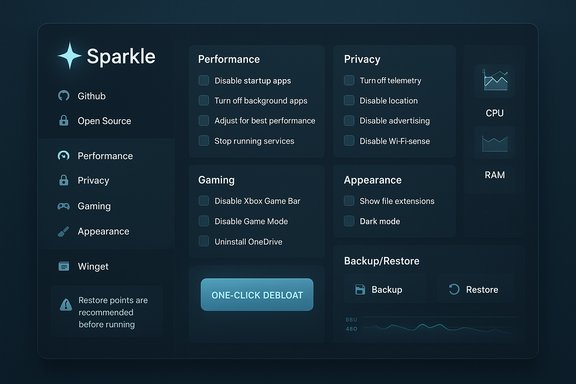
Sparkle exposes a one‑click debloat workflow while also allowing granular control. Under the hood it offers the choice to run its own debloat script or to invoke a well‑known community script (Win11Debloat). The difference is important: Sparkle’s script lets you choose what to keep, whereas some community scripts apply a recommended list of removals automatically. That makes Sparkle safer for less technical users. Key debloat capabilities:- Remove built‑in apps (OneDrive, Xbox components, Clipchamp, optional store apps).
- Disable telemetry services and background privacy‑invasive tasks.
- Prevent some apps from re‑installing automatically (where possible).
- Offer a PowerShell command and an installer that runs the same debloat logic for scripted deployments.
Maintenance and cleanup
Sparkle also bundles several routine maintenance operations into accessible UI flows:- Temporary files and Windows Update cache cleanup.
- Prefetch and preinstallation artifacts removal.
- Recycle Bin emptying and safe disk cleaning.
- Create and restore system restore points before and after major changes.
App provisioning and convenience features
Sparkle integrates with winget to let you bulk‑install popular applications, which makes reinstalling or provisioning a machine after debloating fast and repeatable. It also provides a backup/restore mechanism for the tweaks it applies, reducing the risk of permanent unintended consequences.Why the user experience matters (and Sparkle’s UX is notable)
Most debloat tools live in two camps: PowerShell scripts and stripped GUIs that expose checkboxes with terse descriptions. Sparkle pivots away from both extremes by:- Presenting each tweak with a clear explanation of what it changes and why.
- Grouping tweaks by categories (Performance, Privacy, Gaming, Appearance) to guide decision‑making.
- Including an undo/restore flow so users can experiment without permanent risk.
Real‑world performance: what to expect (and what’s credible)
The fundamental premise of debloating is not adding CPU cycles but freeing the resource pool that background apps and services consume. In practical terms this means:- Lower idle CPU and RAM usage.
- Fewer background tasks contending for disk I/O.
- Reduced chance of transient slowdowns when the system is under intermittent load.
- Benchmark gains vary by system: machines overloaded with OEM telemetry and vendor utilities will show larger headroom than a stock install that’s already minimal.
- Some removals are irreversible without reinstalling components or resetting Windows. Sparkle’s restore points mitigate this risk but backup first remains essential.
- Framerate gains in games are typically modest; the primary win is system responsiveness and fewer background interruptions.
The advanced tweaks: HPET, dynamic tick, and GPU latency options — useful or snake oil?
Sparkle exposes several advanced timing and scheduling tweaks — notably commands to disable Dynamic Tick and change HPET/platform timer behavior, and some GPU tweaks aimed at lowering latency. These options appear in many community tweak lists and are sometimes packaged into “game optimization” guides. The reality is nuanced and platform‑dependent.What the tweaks do:
- Dynamic Tick: Windows can stop the periodic clock tick when idle to save power. Disabling dynamic tick forces a constant tick cadence which may reduce certain stuttering behaviors on some systems.
- HPET / Platform Clock: HPET is a high‑precision hardware timer; forcing Windows to use or ignore platform timers can alter timing behavior and sometimes improve or worsen stutters.
- Synthetic timers and TSC policies: These are low‑level clock configuration options exposed via bcdedit that can be tuned for certain workloads.
Safety, transparency, and the open‑source advantage
Sparkle’s open‑source nature is not just marketing: it matters for trust. The project publishes its tweaks, stores the debloat script in an auditable location, and credits upstream projects (CTT’s WinUtil, Win11Debloat). That means:- Community security reviews are possible.
- Users can inspect exactly what a tweak changes before applying it.
- Issues can be reported and patched publicly.
- Create a full system restore point (or an image) before mass removals.
- Test on a secondary machine or VM if you administer critical systems.
- Download from the official project page or GitHub releases; avoid mirrored packages.
How Sparkle compares to other community debloat solutions
Sparkle is one node in a crowded ecosystem of community debloaters and optimization tools. It stands out for presentation and consolidation, but here’s how it compares to other options commonly discussed in the Windows community:- Talon — targeted at two‑click debloating and OOBE customizations; emphasizes automation for fresh installs. Talon takes a minimal, opinionated route and bundles scripts from several maintainers. Sparkle offers more explainability and per‑tweak control.
- Winhance / WinScript / WinUtil — these are GUI front‑ends for PowerShell scripts that provide deep granularity. They are powerful for advanced users but can be intimidating; Sparkle borrows from these projects while wrapping the logic in a friendlier UX.
- Tiny11 / Tiny11Core Maker / Flyoobe — approaches that build a lean ISO during installation. These are image‑level solutions for creating a small Windows footprint at install time; Sparkle is post‑install, offering clean‑up and tweaks without rebuilding installation media.
- BloatyNosy, NoBloatbox — community tools focused on blocking certain auto‑installs and applying filter lists for removals. They’re often modular and rely on JSON filters; Sparkle centralizes common operations into a packaged experience.
Recommended workflow for using Sparkle (safe and repeatable)
- Create a full backup or system image; at least create a Windows System Restore point.
- Record baseline metrics (optional): open Task Manager, note idle CPU/RAM; run a quick benchmark if desired.
- Launch Sparkle and review the “Debloat” descriptions. Use the selective mode if you’re unsure.
- Apply the debloat and then run the cleanup tools.
- Reboot and monitor stability for 24–48 hours. If issues arise, use Sparkle’s restore or your system backup.
- If experimenting with advanced timer tweaks (HPET / Dynamic Tick), enable one at a time and test. Revert immediately if you observe stutter or regressions.
Strengths and limitations — an independent appraisal
Strengths- User‑friendly UI that explains each tweak and keeps reversibility front and center.
- Open‑source and auditable codebase, with community contributions.
- Integrated workflow (debloat, cleanup, backup, winget app installs) keeps post‑install setup efficient.
- Restore support reduces risk compared to headless scripts.
- Advanced tweaks (timers, HPET) are hardware dependent and can cause regressions unless tested carefully. Sparkle documents this, but the risk remains.
- Not a substitute for a clean image when you need a lean install from the ground up (Tiny11‑style solutions still win there).
- Some removals are effectively permanent without reinstalling or complex restores; always back up first.
- Community scripts evolve quickly; ensure you’re running an up‑to‑date release and review the changelog on GitHub before mass deployment.
Final verdict: who should (and shouldn’t) use Sparkle
Sparkle is an excellent tool for:- Enthusiasts who want a safer, friendlier debloat experience than raw scripts.
- Technicians provisioning machines who want a reproducible, documented workflow.
- Everyday users who want to reclaim responsiveness and privacy without learning PowerShell.
- Environments requiring strict vendor support guarantees (enterprise images should use officially sanctioned provisioning).
- Users unwilling to create a restore point or backup (change management is mandatory).
- Those seeking an image‑level tiny ISO — Sparkle is post‑install, not an image builder.
Sparkle does not reinvent debloating; it refines and packages it. By leaning into explainability, reversibility, and a polished workflow, it lowers friction for users who want a leaner, less intrusive Windows experience. The performance gains reported by testers are real and meaningful in daily use: lower idle resource use, snappier app launches, and fewer background interruptions. Advanced tweaks can help some setups but must be treated as experiments. For anyone who has wrestled with vendor utilities, background telemetry, or sluggish multitasking, Sparkle is a practical, community‑driven tool that deserves a place in the toolbox — just remember the usual rules: back up, test, and apply changes incrementally.
Source: MakeUseOf This open-source app nukes Windows bloat and the performance boost is significant
