

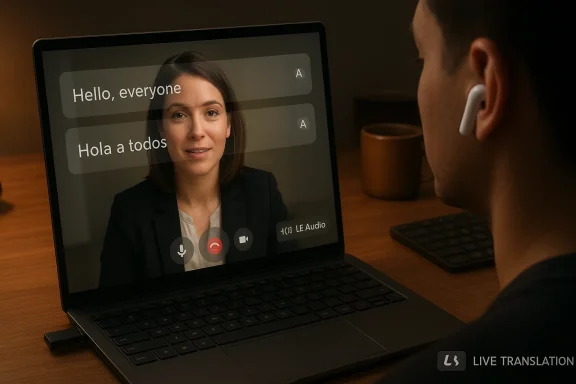
Apple’s new Live Translation capability — and the AirPods 4 models that support it — have become the latest flashpoint for Windows users trying to pair Apple hardware with non‑Apple platforms, with multiple reports of dropped audio, ultralow call volume, and headset/microphone failures when AirPods 4 are used with Windows PCs. While the headline circulation began with a flagged report on a Brazilian news site, independent community threads, Microsoft support posts, and Apple’s own documentation together paint a clearer technical picture: Live Translation is an Apple‑centric feature that requires Apple software and hardware conditions, and many of the connection failures Windows users are seeing trace back to well‑known Bluetooth profile, codec, and driver mismatches rather than a single catastrophic defect.
Background / Overview
What Apple announced and what “Live Translation” actually is
Apple introduced an on‑device Live Translation capability that can run with AirPods when used alongside Apple Intelligence on compatible iPhones. The feature converts a nearby speaker’s words into a user’s chosen language and can play translated audio through supported AirPods models; Apple lists AirPods 4 (with ANC), AirPods Pro 2, and AirPods Pro 3 as supported hardware when paired with a compatible iPhone running iOS 26 and Apple Intelligence enabled. Apple emphasizes privacy by processing translations on device where possible.Why this matters to Windows users
AirPods have always been usable as generic Bluetooth headsets on Windows. But several AirPods features — automatic switching, battery reporting, Siri, and now Live Translation — rely on Apple platform services. When AirPods are used with Windows, link‑level compatibility is limited to Bluetooth audio profiles available on the PC. That difference is the root of many cross‑platform headaches: Windows may negotiate different codecs and profiles (SBC vs AAC; A2DP vs HFP), and older or generic Bluetooth drivers on PCs may not expose newer standards such as LE Audio and LC3 that remove historic trade‑offs.What users are reporting (symptoms, scale, and patterns)
Common, reproducible failures
Across Microsoft’s community forums, Apple’s discussion forums, Reddit threads, and enterprise help boards, distinct and repeatable complaint patterns emerge:- AirPods 4 connect successfully for media playback, but when a conferencing app (Teams, Zoom, Google Meet) starts a call, audio output drops to near‑silence or goes mute while the system also fails to expose the mic properly.
- In some setups Windows shows separate “Headphones (Stereo)” and “Headset (Hands‑Free)” endpoints; selecting the headset for calls collapses audio quality or causes the stream to vanish temporarily. Users report audio returning only after leaving the call or toggling Bluetooth.
- Microphone input sometimes fails entirely for AirPods 4 when paired to macOS or Windows unless a web page actively holds an audio input stream (an odd workaround reported in an Apple Community thread). That symptom implies platform audio‑service negotiation bugs rather than hardware failure.
- Many Windows‑side reports are specifically tied to Microsoft Teams, where volume quickly drops or the app refuses to accept the AirPods mic while still listing the AirPods as the selected device.
Geographic and reporting variability
The initial Mix Vale link cited by the reader was blocked on access (Cloudflare protection), so we could not rely solely on that single story. However, the same issue patterns are corroborated across multiple independent forums and official Q&A pages, which suggests the problem is widespread among heterogeneous hardware and driver combinations rather than isolated to a single retailer or model lot. Where community threads show clustering (for example, Teams + certain Intel/Realtek Bluetooth stacks), that points to platform/driver interactions as the most likely root cause.The technical anatomy — why AirPods sometimes misbehave on Windows
Bluetooth profiles, codecs, and the stereo vs mic trade‑off
Bluetooth audio uses different profiles for stereo playback and two‑way voice:- A2DP is designed for stereo, high‑fidelity playback (music).
- HFP/HSP (Hands‑Free Profile / Headset Profile) is designed for bidirectional voice (calls) but historically provides much lower fidelity and can force mono audio.
Codec negotiation: AAC vs SBC vs LC3
AirPods prefer AAC for high‑quality streaming on Apple hosts. Many PC Bluetooth stacks historically expose SBC only, leading to noticeably degraded audio quality on Windows compared with iPhones. The arrival of LE Audio and LC3 promises to fix many compromises by offering efficient, high‑quality streams and better multi‑stream/microphone behavior — but only when the entire chain (headset firmware, Bluetooth controller, drivers, and OS) supports it. Windows 11 has rolled out LE Audio support and a “super wideband stereo” mode that maintains stereo while the mic is active, but that benefit requires Windows 11 22H2/24H2 (and vendor drivers), plus LE Audio capable radios. Systems remaining on older Windows builds or using generic drivers will not automatically receive these improvements.Driver, firmware, and app interplay
Many of the real‑world failures are caused by a mismatch of:- Outdated PC Bluetooth drivers that don’t expose AAC or LE Audio.
- AirPods firmware expectations (AirPods 4 firmware assumes Apple host capabilities for advanced features).
- Conferencing apps that select the wrong endpoint or aggressively request mic audio, provoking the profile switch.
Verification: cross‑checking the major claims
- Live Translation exists for AirPods 4 and requires Apple device software and hardware conditions. Apple’s support documentation explicitly lists AirPods 4 (with ANC) among supported models and requires an Apple Intelligence‑enabled iPhone running iOS 26. This confirms that Live Translation on AirPods is an Apple‑centric experience, not a native PC feature.
- Windows users are experiencing connection failures and audio anomalies with AirPods 4 in conferencing scenarios. Microsoft Q&A and Apple Community threads contain multiple user reports describing ultralow volume and failure to route mic/audio correctly, particularly with Teams on Windows 11. These independent community threads match professional troubleshooting writeups and point to driver/profile mismatch as the common thread.
- The long‑term technical fix is platform adoption of LE Audio / LC3 and updated drivers. Microsoft’s rollout of LE Audio and “super wideband stereo” in Windows 11 addresses the classic A2DP ↔ HFP compromise, but the benefits are conditional on hardware/driver updates. Multiple Windows engineering posts and media explain the dependency chain clearly.
Practical troubleshooting: step‑by‑step (prioritized)
Below are practical, tested steps ranked by speed and likelihood of success for Windows users experiencing AirPods 4 connection failures, low call volume, or stuttering.- Quick checks (2 minutes)
- Verify AirPods are selected as the Output device (right‑click speaker → Open Sound settings → Output).
- Toggle Bluetooth off/on on the PC, and place the AirPods back into the case for 10 seconds, then reopen and reconnect. Many intermittent issues clear on a fresh handshake.
- Re‑pair and firmware (5–10 minutes)
- Remove the AirPods from Windows (Settings → Bluetooth & other devices → Remove device). Reset AirPods per Apple instructions and re‑pair. Re‑pairing recreates clean profiles and removes stale GUIDs that apps may be holding.
- Make sure the AirPods have the latest firmware; Apple updates AirPods firmware via paired iPhone. If you do not own an Apple device you cannot update AirPods firmware directly on Windows — that limitation can matter for cross‑platform interoperability.
- Update PC Bluetooth drivers and prevent power savings (10–30 minutes)
- Install the OEM or chipset vendor Bluetooth drivers (Intel, Qualcomm, Broadcom, Realtek), not just the generic Microsoft driver.
- In Device Manager → Bluetooth adapter → Properties → Power Management, uncheck “Allow the computer to turn off this device to save power.” Many community tests show dramatic improvement after these changes.
- App‑specific settings (5–15 minutes)
- In Teams/Zoom/Chrome/Edge: explicitly select the AirPods device for both microphone and speaker inside the app.
- If volume drops only in Teams, check the Teams audio device selection and disable any automatic device switching features. Teams is repeatedly implicated in user reports, so test with another app to isolate whether the problem is app‑specific.
- Hands‑Free Telephony trade‑off (2–5 minutes)
- If you only need music and not the headset mic, disable Hands‑Free Telephony: Control Panel → Devices and Printers → right‑click the AirPods → Properties → Services → uncheck Hands‑Free Telephony. This forces A2DP stereo for playback at the cost of the headset mic. It is a pragmatic stopgap that many users use to restore music fidelity.
- Try a modern USB Bluetooth dongle (10–30 minutes)
- If the internal radio is old or doesn’t correctly expose AAC/LE Audio, test with a modern USB Bluetooth 5.x dongle that advertises AAC or LE Audio/LC3 support. Disable the internal adapter and re‑pair the AirPods to the dongle. This often exposes better codecs on older machines.
- System repair (30–90 minutes)
- If driver fiddling fails, run DISM /Online /Cleanup-Image /RestoreHealth and then sfc /scannow to repair corrupted system files. Reboot after completion. On deeply broken stacks this can help resolve driver conflicts.
- When to escalate
- If the issue persists after the above steps, document your exact Windows build, Bluetooth adapter model, driver version, AirPods firmware, and the conferencing app logs (if available). Contact Apple Support for firmware or device hardware checks and Microsoft or your PC vendor for audio driver assistance. Provide these diagnostic details to speed resolution.
Trade‑offs and risk considerations
- Disabling Hands‑Free Telephony restores stereo but removes the AirPods microphone from the OS: useful for music but unacceptable if you rely on the AirPods mic for calls. Always test this trade‑off before a meeting.
- Driver updates can fix codec negotiation but occasionally introduce regressions. Keep a note of the previous driver so you can roll back if audio worsens.
- Using third‑party “hacks” or reverse‑engineered utilities to expose Apple‑only features on Windows has security and warranty risks and is not recommended for enterprise machines. Community projects sometimes fill gaps on Android and Linux, but they are not a sanctioned remedy for Windows users.
Why this isn’t (only) an Apple bug — and where the long‑term fix lives
The pattern of failures is consistent with historical cross‑platform Bluetooth problems: profile switching, codec fallbacks, and driver limitations. Apple’s Live Translation is designed for iPhone → AirPods workflows; when you remove the iPhone from that chain, Windows remains reliant on standard Bluetooth profiles. The durable technical fix is ecosystem alignment, not a single patch:- Apple can update AirPods firmware to be more tolerant of non‑Apple stacks.
- PC vendors and Microsoft must continue rolling out LE Audio and LC3 drivers and expose proper codec negotiation.
- App vendors (Microsoft Teams, Zoom) must ensure graceful device endpoint handling to avoid forcing destructive profile switches mid‑call.
Recommended plan of action for affected Windows users
- If you only use AirPods with an iPhone: update iOS and AirPods firmware, and use Live Translation on the Apple platform (this is the supported path).
- If you need reliable conferencing on Windows:
- Use a certified USB headset or a wired USB microphone for calls.
- Use AirPods as a secondary audio output only (disable the Hands‑Free profile), or
- Ensure your Windows 11 device supports LE Audio and install the latest OEM Bluetooth drivers.
- For power users who want both high‑fidelity audio and usable mic on Windows now:
- Move to a Windows 11 device with confirmed LE Audio support and an updated vendor driver; alternatively, use a modern USB Bluetooth adapter that explicitly supports LC3/LE Audio and pair to it.
- If you’re troubleshooting today: follow the prioritized checklist in the Practical Troubleshooting section above and collect diagnostic data before escalating to vendor support.
Final analysis and outlook
Apple’s Live Translation for AirPods 4 is a major step for consumer translation — but it was architected for the Apple ecosystem. The flurry of Windows complaints is predictable: plug a feature tightly bound to one platform into a heterogeneous ecosystem and you create a complex matrix of driver, firmware, and app interactions. The immediate user experience issues (dropped audio during calls, low Teams volume, mic not being exposed) map cleanly to well‑documented Bluetooth profile and codec behavior on Windows and are, in most reported cases, mitigable with driver updates, re‑pairing, or temporary profile workarounds.Longer term, the arrival of LE Audio and Microsoft’s “super wideband stereo” on Windows 11 promises systemic resolution of the A2DP ↔ HFP compromise, but benefits are conditional: Windows build, chipset, vendor drivers, and headset firmware must all align. Until that alignment is widespread, users who require predictable call quality on Windows should keep a certified UC headset or USB microphone as their primary conferencing tool and treat AirPods as a secondary consumer listening device — or use AirPods’ advanced features only when paired to Apple devices as intended.
If you were affected by the reported failures, follow the practical steps outlined above, gather your diagnostics (OS build, Bluetooth adapter model, driver version, AirPods firmware, and affected app), and engage Apple and your PC vendor support with that information. That will both speed your own resolution and help vendors prioritize the interoperability fixes that will ultimately make these scenarios rare rather than routine.
Conclusion: AirPods 4’s Live Translation is real and powerful on Apple hardware, but the Windows connection headaches described by users are a symptomatic clash of cross‑platform Bluetooth realities and rapid feature expansion. The fixes are known and mostly actionable; the systemic cure depends on industry adoption of LE Audio and coordinated driver/firmware updates across vendors.
Source: Mix Vale Windows users report connection failures with AirPods 4 and their innovative simultaneous translation
