

Apple’s new AirPods Live Translation has shone a spotlight on a long‑standing interoperability fault line: when AirPods 4 are used with Windows PCs, users across forums and support channels are reporting dropped audio, ultralow call volume, and microphone failures—symptoms that are not a single vendor defect but a predictable clash of Bluetooth profiles, codecs, drivers, and platform‑bound features.
Apple recently expanded its on‑device Live Translation capability to several AirPods models; the feature requires a compatible iPhone with iOS 26 and Apple Intelligence enabled, and works only with AirPods models that support the required firmware and hardware (AirPods 4 with Active Noise Cancellation, AirPods Pro 2, AirPods Pro 3). Apple’s documentation makes that device‑centric dependency explicit and notes that translations are processed on the iPhone once language packs are downloaded.
At the same time, Microsoft has been rolling out Bluetooth LE Audio support and a Windows 11 “super wideband stereo” mode intended to eliminate the historic audio‑quality collapse when a headset’s microphone is activated. Those OS‑level improvements (rolled into Windows 11 24H2 and vendor driver stacks) will materially improve cross‑platform headset behavior—but only when the entire chain (earbuds, radio, drivers, and OS) supports LE Audio/LC3.
The result: Live Translation is a breakthrough feature on Apple hardware, but many Windows users experiencing connection failures are seeing the natural tension between Aand Windows audio architecture play out in real time. Community threads, Microsoft Q&A posts, and troubleshooting writeups show consistent, reproducible failure patterns rather than a single mass hardware defect.
The Windows connection failures reported by users are not evidence of an irreparable defect in AirPods hardware; they are the natural consequence of a heterogeneous ecosystem where Bluetooth profiles, codecs, and driver stacks historically create friction. The good news is that the failure modes are well understood and mostly mitigable today through driver updates, re‑pairing, and pragmatic workarounds, while LE Audio and Microsoft’s “super wideband stereo” represent a clear, standards‑based path to a systemic cure—provided vendors, OEMs, and accessory makers fully adopt the technology.
For end users: treat AirPods’ advanced features as best‑experienced on Apple devices, use the checklist above to troubleshoot Windows issues, and prefer certified conferencing hardware for mission‑critical calls. For organizations: demand driver and firmware roadmaps in procurement, test interoperability before rollout, and prioritize LE Audio support when assessing new mobile devices.
AirPods Live Translation is real, powerful, and a signpost of how tightly platform innovation and hardware features are now coupled. The present friction with Windows is predictable; the path to better cross‑platform behavior exists and depends on ecosystem coordination rather than a single vendor patch.
Source: Mix Vale Windows users report connection failures with AirPods 4 and their innovative simultaneous translation
 Background
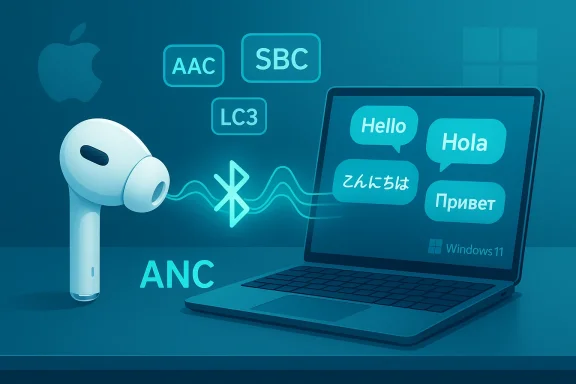
Apple recently expanded its on‑device Live Translation capability to several AirPods models; the feature requires a compatible iPhone with iOS 26 and Apple Intelligence enabled, and works only with AirPods models that support the required firmware and hardware (AirPods 4 with Active Noise Cancellation, AirPods Pro 2, AirPods Pro 3). Apple’s documentation makes that device‑centric dependency explicit and notes that translations are processed on the iPhone once language packs are downloaded. At the same time, Microsoft has been rolling out Bluetooth LE Audio support and a Windows 11 “super wideband stereo” mode intended to eliminate the historic audio‑quality collapse when a headset’s microphone is activated. Those OS‑level improvements (rolled into Windows 11 24H2 and vendor driver stacks) will materially improve cross‑platform headset behavior—but only when the entire chain (earbuds, radio, drivers, and OS) supports LE Audio/LC3.
The result: Live Translation is a breakthrough feature on Apple hardware, but many Windows users experiencing connection failures are seeing the natural tension between Aand Windows audio architecture play out in real time. Community threads, Microsoft Q&A posts, and troubleshooting writeups show consistent, reproducible failure patterns rather than a single mass hardware defect.
What Apple shipped — what Live Translation actually is
The supported configuration (short and non‑negotiable)
- AirPods models: AirPods 4 with ANC, AirPods Pro 2, AirPods Pro 3.
- Phone requirement: iPhone 15 Pro or later running iOS 26 (and later updates for expanded regions).
- Platform feature: Apple Intelligence must be turned on.
- Firmware: AirPods must have the latest onboard firmware, which updates only via a paired iPhone.
Apple’s own support pages list these requirements and emphasize on‑device processing and language pack downloads for privacy and offline capability.
What Live Translation does (practical view)
- Real‑time translation of in‑person speech into the user’s chosen language through AirPods.
- When both participants have compatible AirPods configured, each hears translated audio in their language.
- The Translate app on iPhone coordinates language downloads, transcripts, and fallback behavior (for example, using the iPhone’s microphones to improve capture in noisy environments).
Why Windows users are seeing failures: the technical anatomy
Bluetooth profiles vs. real‑world use
Bluetooth audio historically splits responsibilities across profiles:- A2DP (Advanced Audio Distribution Profile) — high‑fidelity stereo playback, one‑way audio.
- HFP / HSP (Hands‑Free / Headset Profile) — bidirectional voice (mic + audio) but with much lower fidelity.
Codecs: AAC, SBC, and LC3 (LE Audio)
- AirPods prefer AAC for higher‑quality streaming when paired with Apple hosts, but many Windows Bluetooth stacks historically expose SBC only, forcing a fall back and visibly poorer media quality.
- LE Audio / LC3 is the modern replacement that promises efficient, high‑quality multi‑stream audio and the ability to maintain stereo while using a mic—but it requires end‑to‑end support: headset firmware, the Bluetooth controller, OEM drivers, and the OS. Windows 11’s LE Audio support is the long‑term cure, not an immediate universal fix.
Drivers, radios, and app behavior (the practical failure chain)
In community diagnostics, the most common root‑cause pattern includes:- Anetooth driver that doesn’t expose AAC or LE Audio capabilities.
- AirPods firmware that assumes Apple host features.
- Conferencing apps (commonly Microsoft Teams in reported threads) selecting the wrong audio endpoint or triggering an aggressive profile switch mid‑call.
This mix produces the reproducible symptoms Windows users report: ultralow call volume, microphone not exposed, or audio collapsing when the call begins.
The evidence: scope, patterns, and what’s verified
- Multiple independent community threads and vendor support posts report the same clustered pattern: AirPods 4 work fine for media, but calls (Teams, Zoom, Meet) often reduce volume or stop audio and fail to expose the mic properly. That clustering is consistent across platforms and points to host‑side interactions rather than a universal hardware fault.
- Apple’s documentation confirms Live Translation is designed to run with Apple Intelligence on a supported iPhone, not as a native Windows feature; that strongly supports the idea that unexpected behavior on Windows is a cross‑platform compatibility issue rather than a software bug within Live Translation itself.
- Microsoft’s Windows 11 updates provide a clear roadmap to a systemic fix: LE Audio + super wideband stereo reduces the A2DP ↔ HFP trade‑off by enabling stereo while using the mic, but adoption is conditional on hardware and drivers. Multiple reputable outlets and Microsoft statements document that rollout and tr drivers.
- Where Mix Vale and other outlets suggested an “outage” or a single catastrophic failure, those sensational claims were not corroborated by official vendor advisories; instead, the pattern is consistent with known Bluetooth interoperability limits ampliroduction of a platform‑bound feature. Treat broad outage claims as unverified until a vendor issues an advisory.
Practical troubleshooting — prioritized and field‑tested
If you’re a Windows user experiencing AirPods 4 audio or mic failures, follow this ranked checklist. Each step moves from quick checkpoints to deeper fixes.Quick checks (1–3 minutes)
- Confirm AirPods are the active Output device in Windows Sound settings. Sometimes Windows connects to the AirPods but silently routes audio elsewhere.
- Toggle Bluetooth off/on on the PC, place the AirPods in their case for 10 seconds, then remove and reconnect.
- Test with a different conferencing app (for example, play a local music file or open a different voice app) to isolate app‑specific behavior.
Re‑pair, reset, and firmware (5–15 minutes)
- Remove the AirPods from Windows: Settings → Bluetooth & other devices → Remove device.
- Reset AirPods per Apple’s instructions and re‑pair. Re‑pairing clears stale device GUIDs and profile remnants.
- Ensure AirPods firmware is current—firmware updates occur via a paired iPhone, so if you don’t have an iPhone you may not be able to update the earbuds’ firmware dire matters for cross‑platform interoperability.
Driver & adapter work (10–30 minutes)
- Install the OEM Bluetooth drivers (Intel, Qualcomm, Broadcom, Realtek) rather than relying on the generic Microsoft driver; OEM drivers often expose additional codecs and LE n Device Manager → Bluetooth adapter → Properties → Power Management, uncheck “Allow the computer to turn off this device to save power.” Community reports show this reduces disconnects.
App‑specific checks (5–15 minutes)
- Inside Microsoft Teams, Zoom, or Chrome, explicitly select the AirPods for both microphone and speaker. If audio drops only in Teams, test in another app m. Teams has been repeatedly implicated in user reports and may require per‑app selection or toggling of automatic device switching.
Hands‑Free Telephony trade‑off (2–5 minutes)
If you only need music playback and not the AirPods microphone for calls:- Control Panel → Devices and Printers → right‑clickrties → Services → uncheck Hands‑Free Telephony.
This forces the device to use A2DP stereo for playback at the cost of the headset mic—an effective stopgap for music fidelity.
Try a modern USB Bluetootes)
If your internal radio is old or lacks modern codec exposure, a USB dongle that advertises AAC or LE Audio/LC3 support often resolves codec negotiation problems. Disable the internal adapter and re‑pair the AirPods to the dongle for a reliable test.System repair (30–90 minutes)
If driver fiddling fails, run:- DISM /OnlstoreHealth
- sfc /scannow
Then reboot. This can fix deep stack corruption that breaks Bluetooth behavior.
What IT managers and procurement teams should do
- For fleets: don’t assume consumer AirPods will behave predictably in managed conferencing environments. Require qualified UC headsets for predictable call quality, and treat AirPods as secondary listening devices until LE Audio support is confirmed across the device estateptops for hybrid work: verify a device’s LE Audio flag and OEM driver roadmap; require vendor commitments for Bluetooth driver updates or consider certified USB adapters as a supported accessory.
- For help desks: collect the key diagnostics before escalation—Windows build and patch level, Bluetooth adapter model, driver version, AirPods firmware, and the conferencing app and version. That data materially speeds vendor triage.
Risks, limitations, and cautionary notes
- Live Translation’s intended privacy model processes language models on the iPhone when languages are downloaded; routing audio through third‑party translation overlays or using reverse‑engineered tools may change the privacy posture and introduce data‑flow risks. Apple’s documentation highlights on‑device privacy, but third‑party approaches should be scrutinized.
- Firmware updates for AirPods are controlled by Apple via iPhone; Windows‑only users cannot update AirPods firmware directly. This gap can leave non‑iPhone users stuck on older firmware with known limitations.
- Disabling Hands‑Free Telephony restores music fidelity but removes the mic from the OS. That trade‑off is fine for music listeners but unacceptable for people who need a single‑device conferencing solution.
- Beware of third‑party hacks or reverse‑engineering projects that promise Apple‑like features on Windows: they often require elevated privileges, may break warranties, and carry security and stability risks. Use such tools only with a clear understanding of enterprise policy and risk.
Long‑term outlook: why LE Audio matters (and when it will help)
Microsoft’s Windows 11 24H2 push and LE Audio adoption change the technical landscape: super wideband stereo enables stereo audio to persist while the mic is active, addressing the A2DP ↔ HFP trade‑off that causes many of today’s complaints. But this fix is conditional:- Windows 11 24H2 or later must be installed.
- The PC must have a Bluetooth controller that exposes LE Audio / Isochronous Channels.
- OEM drivers must be updated to expose the new capabilities.
- Headsets must implement LC3 and LE Audio features.
A compact decision checklist (for readers who want to act now)
- If you rely on AirPods primarily with an iPhone: use Live Translation on Apple hardware (the supported path) and keep iOS and Ai.
- If you need dependable conferencing on Windows today: use a certified USB headset or a wired USB microphone as the primary device. Treat AirPods as a secondary listening device.
- If you want both high‑fidelity playback and usable mic on Windows now: move to a Windows 11 device with confirmed LE Audio support and updated vendor drivers, or use a modern USB Bluetooth adapter that explicitly supports LC3/LE Audio.
- Before contacting support: gather diagnostics—Windows build, Bluetooth adapter model, driver version, AirPods firmware, and affected app/version—and include them in your ticket.
Final analysis — strong innovation, predictable cross‑platform friction
Apple’s Live Translation for AirPods 4 is an important consumer innovation that leverages on‑device models and Apple Intelligence to reduce friction in multilingual, face‑to‑face conversations. That innovation is strongest within Apple’s ecosystem, where the chain of firmware, device software, and services is under Apple’s control.The Windows connection failures reported by users are not evidence of an irreparable defect in AirPods hardware; they are the natural consequence of a heterogeneous ecosystem where Bluetooth profiles, codecs, and driver stacks historically create friction. The good news is that the failure modes are well understood and mostly mitigable today through driver updates, re‑pairing, and pragmatic workarounds, while LE Audio and Microsoft’s “super wideband stereo” represent a clear, standards‑based path to a systemic cure—provided vendors, OEMs, and accessory makers fully adopt the technology.
For end users: treat AirPods’ advanced features as best‑experienced on Apple devices, use the checklist above to troubleshoot Windows issues, and prefer certified conferencing hardware for mission‑critical calls. For organizations: demand driver and firmware roadmaps in procurement, test interoperability before rollout, and prioritize LE Audio support when assessing new mobile devices.
AirPods Live Translation is real, powerful, and a signpost of how tightly platform innovation and hardware features are now coupled. The present friction with Windows is predictable; the path to better cross‑platform behavior exists and depends on ecosystem coordination rather than a single vendor patch.
Source: Mix Vale Windows users report connection failures with AirPods 4 and their innovative simultaneous translation
