

AirPods can and do work with Windows 10 PCs — but the apparent simplicity of pairing hides a number of codec, profile, and driver details that affect audio quality and microphone performance. The basic pairing steps VOI.id published are correct and easy to follow, but for Windows users who want the best sound and reliable call quality there are important caveats, practical troubleshooting steps, and upgrade considerations that every Windows user should know before expecting an Apple-like experience on a PC.
Apple’s AirPods are Bluetooth headsets that pair like any other Bluetooth accessory, and Apple explicitly documents how to pair AirPods with non‑Apple devices using the case’s setup button or the newer tap-to-pair gestures on recent AirPods models. Basic functionality — audio playback and the built‑in microphone — is supported on Windows because AirPods implement standard Bluetooth audio profiles. Apple’s own guide explains the pairing gestures and the discovery process used for non‑Apple devices. Microsoft’s Windows documentation likewise describes how to add Bluetooth devices via Settings → Devices (or Settings → Bluetooth & devices) and the Add device flow, which is the official route to pair AirPods to a Windows 10 PC. These same Microsoft steps are what VOI.id summarized: open Settings, choose Devices, Add Bluetooth or other device, put AirPods in pairing mode (case lid open + press button until white light), and select the AirPods in the Windows add-device list to complete pairing. What the simple how‑to leaves out — and what matters for day‑to‑day audio — are the Bluetooth profiles and codecs Windows uses, the differences between Windows 10 and modern Windows 11 Bluetooth stacks, and the practical troubleshooting steps when audio is missing, mono, or low quality. Community and vendor guidance fills these gaps with pragmatic fixes and explains why device behavior can vary across PCs.
Source: VOI.id Here's How to Connect AirPods to Windows 10 PC
 Background / Overview
Apple’s AirPods are Bluetooth headsets that pair like any other Bluetooth accessory, and Apple explicitly documents how to pair AirPods with non‑Apple devices using the case’s setup button or the newer tap-to-pair gestures on recent AirPods models. Basic functionality — audio playback and the built‑in microphone — is supported on Windows because AirPods implement standard Bluetooth audio profiles. Apple’s own guide explains the pairing gestures and the discovery process used for non‑Apple devices. Microsoft’s Windows documentation likewise describes how to add Bluetooth devices via Settings → Devices (or Settings → Bluetooth & devices) and the Add device flow, which is the official route to pair AirPods to a Windows 10 PC. These same Microsoft steps are what VOI.id summarized: open Settings, choose Devices, Add Bluetooth or other device, put AirPods in pairing mode (case lid open + press button until white light), and select the AirPods in the Windows add-device list to complete pairing. What the simple how‑to leaves out — and what matters for day‑to‑day audio — are the Bluetooth profiles and codecs Windows uses, the differences between Windows 10 and modern Windows 11 Bluetooth stacks, and the practical troubleshooting steps when audio is missing, mono, or low quality. Community and vendor guidance fills these gaps with pragmatic fixes and explains why device behavior can vary across PCs.How to pair AirPods to a Windows 10 PC — step‑by‑step (verified)
These steps are the Windows 10 equivalent of the VOI.id instructions, validated against official documentation and trusted how‑to guides.- Charge your AirPods and place them in the case; open the lid.
- Put the AirPods into pairing mode:
- AirPods 1/2/3 and AirPods Pro (1/2): press and hold the setup button on the rear of the case until the status light flashes white.
- Newer AirPods (AirPods 4 / AirPods Pro 3): follow the model’s front‑tap gestures or the manufacturer instructions if different.
- On the Windows 10 PC: Settings → Devices → Bluetooth & other devices → Add Bluetooth or other device → Bluetooth. Wait for Windows to scan.
- When your AirPods appear in the list (often as “AirPods” or “Your Name’s AirPods”), click them to pair. Windows will show a “Your device is ready to go!” confirmation if pairing succeeds.
- To reconnect later: open Settings → Bluetooth & other devices, find the AirPods and click Connect. Windows will remember the profile for future reconnects.
Why audio can sound different on Windows: codecs and profiles explained
Two technical ideas drive most of the differences users notice when using AirPods on Windows:- Bluetooth audio profiles: A2DP is used for high‑quality stereo playback (music, video), while HFP/HSP are used for voice calls (mic + call audio). Historically, enabling the headset mic triggered a switch from A2DP (good stereo) to HFP (narrow/wideband voice), which reduces playback quality.
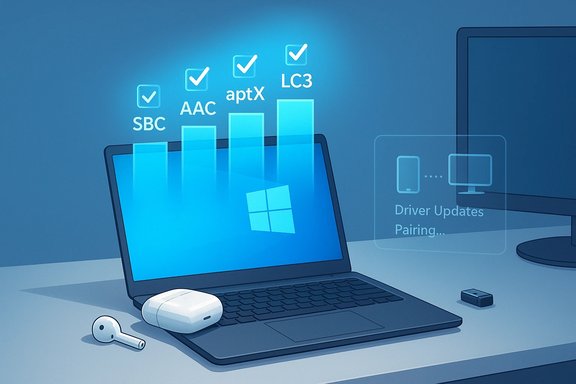
- Bluetooth codecs: SBC, AAC, and proprietary codecs (aptX family, LDAC) determine the efficiency and fidelity of A2DP audio. If both host and headset support the same codec, they typically negotiate the best common codec and use it for media playback.
- Windows 10 historically prioritized SBC and aptX support; AAC support was limited or absent in many Windows 10 installs, which could force AirPods to fall back to SBC even when AirPods support AAC natively. That fallback explains the perceptible drop in fidelity for streaming AAC‑encoded music on Windows.
- Windows 11 added more modern codec support and LE Audio features (LC3), and Microsoft has been rolling out improved support for Bluetooth audio, including better codec negotiation and "super‑wideband" performance that helps preserve stereo while using the mic — but these improvements are tied to newer Windows 11 builds, compatible Bluetooth radios, and OEM drivers.
Practical troubleshooting — get better sound and reliable calls
If pairing succeeds but sound is degraded, intermittent, or one earbud is silent, follow this prioritized checklist that combines official guidance and community-proven steps. Each item is short and actionable.- Quick checks (2 minutes)
- Confirm Windows output is set to your AirPods: right‑click the speaker icon → Open Sound settings → Output and select the AirPods. Sometimes Windows connects but routes audio to another device (HDMI, speakers).
- Toggle Bluetooth off/on and power‑cycle the AirPods (place them back in the case, close lid, wait, reopen). Reconnect.
- Re‑pair and reset (5–10 minutes)
- Remove the AirPods from Windows (Settings → Bluetooth & other devices → Remove device), then re‑enter pairing mode and re-add them. Clean pairings reset profiles and often fixes profile negotiation.
- If a single earbud is silent, fully reset the AirPods per Apple’s instructions and re‑pair.
- Codec & profile workarounds (5–15 minutes)
- If the mic use causes stereo to collapse (older HFP/A2DP trade‑off), and you only need music quality (not the headset mic), you can disable the Hands‑Free Telephony service for the device in Control Panel → Devices and Printers → right‑click the headset → Properties → Services. This forces A2DP stereo for playback at the cost of the headset mic. Community guides validate this practical trade‑off. Use this only if you have an alternate mic for calls.
- For consistent AAC use (if desired), check if your Bluetooth adapter and its driver support the codec. Many OEM drivers and newer Bluetooth chipsets are required for AAC; updating drivers from your laptop/adapter vendor may expose additional codecs. Microsoft’s Bluetooth codec documentation explains how Windows selects a codec.
- Driver and radio diagnostics (10–30 minutes)
- Update Bluetooth drivers from the PC or chipset vendor (Intel, Qualcomm/Atheros, Broadcom, Realtek). Generic Microsoft drivers sometimes lack advanced codec support. If an update causes regressions, use Device Manager → Properties → Driver → Roll Back Driver.
- In Device Manager, disable Bluetooth power‑savings: Bluetooth adapter → Properties → Power Management → uncheck “Allow the computer to turn off this device to save power.” This reduces disconnections. Community troubleshooting threads widely report success with this setting.
- When to try a USB Bluetooth dongle (10–20 minutes)
- If the built‑in radio is old or lacks modern codec exposure, a modern USB Bluetooth dongle that advertises AAC or LE Audio support can be a practical fix. After inserting a compatible dongle, disable the internal adapter and re‑pair AirPods to the new adapter. Community reports show this reliably exposes better codec sets on older PCs.
- System repair (30–60 minutes)
- If driver fiddling fails, run SFC and DISM to repair corrupted system files (open an elevated CMD): DISM /Online /Cleanup-Image /RestoreHealth then sfc /scannow. Reboot after completion. This addresses deep stack corruption that can break Bluetooth behavior.
What Windows 10 users should understand about features they won’t get
Several AirPods features rely on Apple‑specific integrations (automatic device switching, spatial audio personalization, Siri, seamless battery reporting, ear detection with automatic pause) and do not function on Windows. Apple’s documentation states that non‑Apple devices will allow listening and talking but not Siri and other Apple‑only features. Expect a reduced but functional experience: audio playback, microphone, and basic playback controls (play/pause depending on model) are supported; advanced platform integrations are not. Moreover, modern Bluetooth advances such as LE Audio (LC3) and Microsoft’s Windows‑level Shared Audio (send to two headsets at once) are features of newer Windows 11 releases and modern Bluetooth stacks. These features require Windows 11 builds, compatible Bluetooth radios that expose Isochronous Channels (ISO), and updated drivers and accessory firmware. Windows 10 will not receive the same LE Audio / shared audio improvements and, with Microsoft’s Windows 10 end‑of‑support date, Windows 10 users should not expect long‑term updates that enable these capabilities.Codecs, LE Audio, and the path forward (what to expect if you upgrade)
- Windows 11 now officially supports AAC for A2DP and has added LE Audio features (LC3) that solve the old stereo vs mic trade‑off when implemented end‑to‑end. Those improvements mean that when every component — OS, Bluetooth radio, drivers, and headset firmware — supports LE Audio, you can get simultaneous stereo and a high‑quality microphone stream without the old compromise.
- Microsoft’s Shared Audio preview demonstrates how Windows can stream to two compatible headsets simultaneously, but this is gated to certain Copilot+ devices initially and depends on driver and firmware parity across vendors. Expect a phased rollout and some interoperability quirks early on.
- Move to a Windows 11 PC with a modern Bluetooth adapter and recent OEM drivers, or
- Use a modern USB Bluetooth dongle that explicitly advertises the codecs or LE Audio features you need, or
- Wait for driver/firmware updates from your PC vendor and from Apple that improve cross‑platform behavior.
Common user problems and quick fixes (ranked by effectiveness)
- Re‑pair the AirPods (remove device → Add device) — often resolves profile mismatches.
- Select the AirPods explicitly in Sound settings (Output) — Windows sometimes connects but routes audio elsewhere.
- Update Bluetooth drivers from the OEM or chipset vendor — exposes better codecs and fixes regressions.
- If the mic ruins stereo, temporarily disable Hands‑Free Telephony to keep A2DP for playback — pragmatic trade‑off for music listening.
- Test with a known‑good phone to isolate whether the AirPods or PC are at fault. If AirPods work on a phone but not the PC, the issue is host‑side.
Risks, limitations, and unverifiable claims
- Claims that AirPods will always use AAC on Windows are conditional. Whether AirPods actually stream AAC on your PC depends on the Bluetooth adapter and driver stack on your specific PC. Microsoft’s Bluetooth codec table shows that codec support is OS and driver dependent, and Windows 10’s long‑standing codec limitations are the main reason AirPods often default to SBC. Treat any blanket statement promising AAC on Windows 10 as conditional until you verify drivers and adapter capability.
- Statements that “audio transition between Apple and Windows devices can feel smoother and more efficient” are subjective and dependent on which AirPods generation, which Windows build, and the PC’s Bluetooth radio. The VOI.id article’s optimism about “smoother transitions” is valid in the sense that pairing is straightforward, but claims about audio quality parity are variable and should be qualified. When fidelity parity is important, validate the codec used after pairing and test the mic behavior during real calls.
- Some third‑party projects reverse‑engineer AirPods features to bring Apple‑like behaviors to non‑Apple hosts; these tools can expose additional features but carry security, stability, and warranty risks. Use third‑party hacks only with caution and awareness of the trade‑offs.
Practical recommendations (for readers who want a decision plan)
- If you only need simple playback and occasional calls: pair AirPods using the steps above and follow the quick checklist. For most casual users, this is adequate.
- If you frequently use music streaming from a Windows PC and care about fidelity: check your Bluetooth adapter’s supported codecs and update drivers. Consider a modern USB dongle with AAC/LE Audio or move to a Windows 11 machine that exposes broader codec support.
- If call quality and simultaneous stereo during calls matter (remote work, streaming): use a dedicated external mic (USB or headset) or upgrade to a setup where LE Audio is supported end‑to‑end (Windows 11 + compatible adapter + updated headset firmware). Temporarily disabling Hands‑Free Telephony can restore music fidelity but disables the AirPods mic for calls.
- If you continue to run Windows 10: remember Microsoft ended mainstream support on October 14, 2025. For long‑term access to newer OS features (LE Audio, improved codec negotiation, ongoing security fixes), plan an upgrade path or enroll in Extended Security Updates if you need more time.
Conclusion
Pairing AirPods with a Windows 10 PC is straightforward — the VOI.id steps are accurate and match Microsoft’s official pairing flow. But the real story begins after the connection: audio codec negotiation, Bluetooth profile switching, driver exposure, and firmware parity determine whether your AirPods sound like they do on an iPhone or noticeably worse. For reliable music fidelity and modern features, Windows 11 plus modern Bluetooth hardware is the safer path; for immediate fixes on Windows 10, re‑pairing, driver updates, the Hands‑Free Telephony workaround, and using a modern USB dongle are practical, proven options. Community threads and Microsoft documentation offer the detailed troubleshooting playbook needed when things go wrong, while Apple’s support pages explain the device‑side pairing gestures that make discovery simple. For Windows users who treat audio quality and call reliability as critical, the highest‑value investment is ensuring your PC’s Bluetooth stack and drivers are current — and, when feasible, choosing a platform (or an adapter) that exposes modern codecs and LE Audio primitives rather than relying on legacy SBC behavior.Source: VOI.id Here's How to Connect AirPods to Windows 10 PC
