The web is full of clearance listings and quick how‑tos that promise instant fixes — a cheap ATI Radeon X1300 card that “works on Windows 10” and a short guide that says “AirPods pair with a PC” — but the real story for Windows users is always in the technical details, driver provenance, and platform trade‑offs that those snippets skip.
Short consumer posts and SEO‑driven listings often recycle hardware descriptions and pairing steps without the lifecycle context that matters to modern Windows users. Two recurring patterns stand out: legacy GPU listings that advertise clearance cards like the ATI Radeon X1300 / X300 family with minimal VRAM and “Windows 10 compatibility,” and accessory how‑tos that explain how to connect AirPods to Windows 10 without explaining codec or conferencing compromises. Both are solvable problems, but they require deliberate steps and an awareness of risk.
This feature consolidates the practical guidance you need: verified technical facts, step‑by‑step workflows for legacy Radeon cards on Windows 10, a reliable AirPods pairing and troubleshooting workflow, and a hard look at the safety and lifecycle trade‑offs that Born2Invest‑style snippets tend to omit.
Similarly, AirPods pair to Windows 10 simply enough, but the user experience for calls often falls short because of Bluetooth profile and codec limitations. For serious conferencing or enterprise use, consumer earbuds are a stopgap, not a replacement for certified headsets. The short Born2Invest snippets are useful entry points, but readers should follow the conservative workflows and verifications described here to avoid stability, audio, and security problems.
In short: verify driver provenance, back up before you change the display stack, test AirPods in the exact conferencing app you use, and prefer vendor/OEM sources over outlet downloads. These simple precautions turn a risky “clearance” buy or a one‑paragraph how‑to into a dependable, working setup for your Windows PC.
Source: Born2Invest https://born2invest.com/?b=style-237486112/
Source: Born2Invest https://born2invest.com/?b=style-331688812/
 Background
Short consumer posts and SEO‑driven listings often recycle hardware descriptions and pairing steps without the lifecycle context that matters to modern Windows users. Two recurring patterns stand out: legacy GPU listings that advertise clearance cards like the ATI Radeon X1300 / X300 family with minimal VRAM and “Windows 10 compatibility,” and accessory how‑tos that explain how to connect AirPods to Windows 10 without explaining codec or conferencing compromises. Both are solvable problems, but they require deliberate steps and an awareness of risk.This feature consolidates the practical guidance you need: verified technical facts, step‑by‑step workflows for legacy Radeon cards on Windows 10, a reliable AirPods pairing and troubleshooting workflow, and a hard look at the safety and lifecycle trade‑offs that Born2Invest‑style snippets tend to omit.
Overview: What the two items actually claim
- The clearance card listing advertises small, low‑power ATI/AMD cards (examples: Radeon X1300 / X300 era boards, often 64–128 MB or 256 MB variants in clearance or “outlet” lots). These cards are historically useful for very light desktop work, legacy game builds, or retro systems — not modern gaming or hardware‑accelerated modern codecs.
- The how‑to about AirPods and Windows 10 correctly states the surface fact — AirPods pair like other Bluetooth headsets — but omits consistent caveats about Bluetooth profiles, codec negotiation, and how the microphone will often force a low‑bandwidth call profile that ruins stereo fidelity. Windows 10’s Bluetooth stack limitations and the broader ecosystem make the real‑world experience conditional.
Radeon X300 / X1300 on Windows 10 — verified reality and practical steps
What these cards are (quick specs and practical limits)
- The Radeon X300 / X1300 family originates from the mid‑2000s: small shader counts, narrow memory buses, and very limited local VRAM. Typical configurations you see on clearance will have 64 MB–128 MB local RAM and a 64‑bit bus, making them suitable for low‑resolution desktop work and legacy DirectX 9 titles only.
- Expect core clocks in the low hundreds of MHz, tiny memory bandwidth, and no support for modern codecs like hardware HEVC/AV1 acceleration. These cards were never designed for WDDM drivers that target the full modern Windows 10 feature set.
Driver reality — what actually works on Windows 10
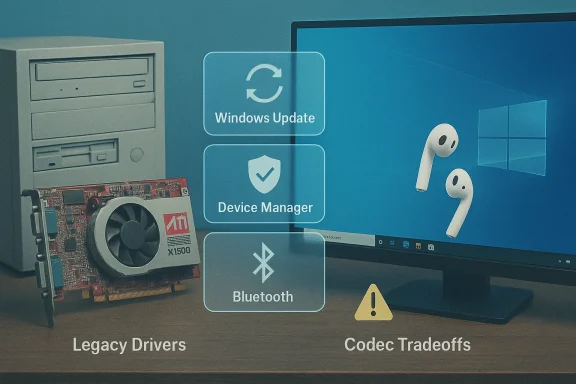
- Windows Update is the primary trust path. For many X‑series and older Radeon families, Microsoft’s signed legacy driver delivered via Windows Update is the safest, lowest‑risk option to get a working desktop. Full Catalyst/Adrenalin features are unlikely to function on current Windows 10 kernel builds.
- AMD’s archived Catalyst packages exist, but they were built for Windows 7/8 era kernels; using them on modern Windows 10 builds is an advanced, manual process that requires verifying the INF list for your device ID and being prepared to roll back if stability suffers. Third‑party repackagers are a security risk.
A safe, step‑by‑step workflow for installing or recovering a legacy Radeon driver
- Inventory and backup first: record the device hardware ID in Device Manager → Display adapters → Properties → Details → Hardware Ids (copy the PCI\VEN_1002&DEV_xxxx string); create a System Restore point and, if feasible, an image backup. Display driver changes can leave a system unbootable.
- Try Windows Update: Settings → Update & Security → Windows Update → Check for updates → View optional updates → Driver updates. If Windows Update offers a Microsoft‑signed Radeon driver, install it and validate resolution, multi‑monitor behavior, and video playback. This is the least risky route.
- If the PC is a branded OEM (Dell, HP, Lenovo), check the OEM driver page for your exact model before trying legacy Catalyst installers — OEM packages often include system‑specific patches and are safer.
- Advanced manual install (only if needed): download the archived Catalyst package, extract it (many installers unpack to C:\AMD), open Display.Driver*.inf and search for your VID/PID. If present, use Device Manager → Update driver → Have Disk to install the extracted INF. Use Display Driver Uninstaller (DDU) in Safe Mode first to remove previous driver traces. Never install unsigned drivers on production machines.
Buying used or clearance cards — what to inspect and expect
- Ask sellers for actual PCB photos and the printed part/board number; check for bulging capacitors, heat discoloration, or solder repairs. Prefer sellers that will test the card in a working system and offer a short return window.
- Price and value: a small legacy Radeon might be fine for refurbishing an office PC or adding a second monitor, but for modern codec support, streaming, or recent games, a low‑cost modern GPU is usually a better investment.
Risks and security caveats
- Third‑party repackagers are dangerous. Repackaged installers can modify INFs, strip signatures, or bundle unwanted software — avoid them. Prefer AMD, Microsoft Update, or OEM driver downloads and verify checksums where provided.
- Windows 10 lifecycle matters. Microsoft ended mainstream support for Windows 10 on October 14, 2025. That affects the driver ecosystem and vendor release‑note language; older cards will remain legacy and more brittle over time. Consider migrating to a supported OS if security is a priority.
How to connect AirPods to Windows 10 — the verified, practical guide
Short version (what works)
Yes — AirPods will pair with a Windows 10 PC like any Bluetooth headset using Settings → Devices → Bluetooth & other devices. For casual media playback this usually “just works.” But the details are where the user experience gets complicated.Why AirPods can sound worse on Windows — the codec and profile explanation
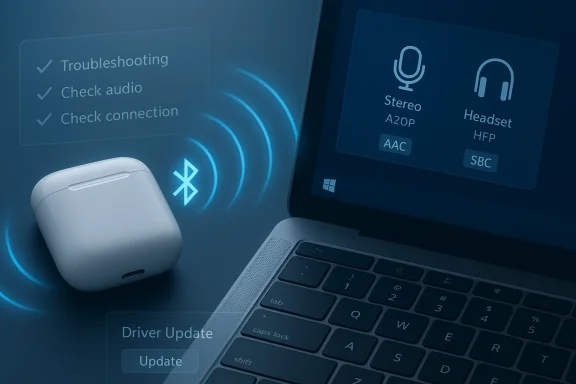
- Bluetooth Classic separates audio into profiles: A2DP for high‑quality stereo media and HFP/HSP for two‑way voice. Engaging the microphone typically forces the headset into HFP, which is a narrow, low‑bandwidth mono stream that dramatically reduces perceived audio fidelity. This explains the common “thin, AM‑radio” voice sound when using earbuds as a headset in calls.
- Codec negotiation matters. Windows 10 historically exposes SBC by default; AAC support is inconsistent and dependent on the Bluetooth chipset and vendor driver. Expect a fallback to SBC on many PCs, which is why AirPods often sound much better on Apple devices than on Windows 10.
- LE Audio (LC3) is the long‑term fix, but it’s a Windows 11 feature and requires compatible hardware and firmware on both the PC and the headset. Windows 10 will not provide the full LE Audio stack.
Step‑by‑step: Pairing AirPods to a Windows 10 PC (verified)
- Charge the AirPods and case; place earbuds in the case and open the lid.
- Put the AirPods into pairing mode: press and hold the setup button on the back of the case until the LED flashes white (AirPods 1/2/3, AirPods Pro 1/2). Newer models have model‑specific gestures — follow Apple’s model guidance if different.
- On the PC: Settings → Devices → Bluetooth & other devices → Add Bluetooth or other device → Bluetooth. Select the AirPods when they appear. Windows will report the device is ready.
- Verify audio routing: right‑click the speaker icon → Open Sound settings → choose AirPods under Output (music) and Input (microphone) as needed.
Troubleshooting: common issues and practical fixes
- If audio is stereo for music but collapses to poor quality in calls: that’s the A2DP vs HFP trade‑off. A practical workaround is to disable Hands‑Free Telephony for the AirPods device in Control Panel → Devices and Printers → device Properties → Services — this forces A2DP for music at the cost of the headset mic. Use an alternate USB microphone for calls if mic quality matters.
- If pairing is flaky or audio drops: update Bluetooth drivers from your PC/motherboard vendor (Intel, Qualcomm, Broadcom, Realtek). If the built‑in radio is old, a modern USB Bluetooth dongle that advertises AAC or LE Audio support may expose better codec sets and solve many issues.
- For a single silent bud or intermittent connection: remove the pair in Windows, reset the AirPods per Apple’s instructions, and re‑pair. Many community reports show this simple reset fixes asymmetric audio.
Enterprise and conferencing caveat — why AirPods are not a certified Teams/Skype headset
- For reliable conferencing, especially in enterprise environments, prefer a device certified for Microsoft Teams/Skype for Business or a dedicated wired/USB headset. AirPods are consumer earbuds and will often deliver inconsistent mic performance and unpredictable profile negotiation in teleconferencing apps. Test before you rely on them for important calls.
Comparative analysis: strengths and weaknesses of the two content types
Born2Invest‑style quick guides — strengths
- They surface actionable keywords and immediate steps (e.g., “how to pair AirPods to Windows 10,” “Radeon X1300 clearance”), which helps novice users get started quickly.
- For casual consumers on tight budgets, these pieces point to plausible low‑cost hardware and provide a starting place for experimentation.
Born2Invest‑style quick guides — weaknesses and risks
- Missing lifecycle context. Quick how‑tos often omit the fact that Windows 10 reached end‑of‑support on October 14, 2025, which impacts driver security and long‑term compatibility. Readers need that planning information up front.
- Unverified download claims. Many SEO pages link to third‑party “driver outlet” downloads that are not vendor‑validated; running these binaries risks unsigned kernel components and modified INFs. Always verify from AMD, Microsoft Update, or your OEM.
- Feature glossing. Quick pairing flows rarely state the audio quality and conferencing trade‑offs that come from Bluetooth profile negotiation, giving users unrealistic expectations.
Practical recommendations — what readers should actually do
- For legacy Radeon cards (X300 / X1300 / HD 4000 family): try Windows Update first, prefer OEM drivers for branded systems, and only use archived Catalyst packages after backing up and verifying the INF lists your VID/PID. Use DDU in Safe Mode to clean prior traces before attempting manual installs.
- For AirPods on Windows 10: use them for casual listening, but test before you rely on them for meetings. If consistent call quality is required, use a certified headset or a separate USB microphone. Consider a modern Bluetooth dongle or a Windows 11 device for improved codec support and LE Audio features.
- Avoid third‑party “driver updaters” and repackaged installer bundles. Prefer vendor sites and Microsoft Update; verify digital signatures and checksums where provided.
Conclusion
Cheap clearance cards and short how‑tos are not inherently bad — they can be great for hobbyists and casual users — but they require context and caution. The ATI Radeon X1300 / X300 era cards can still provide functional desktops in limited scenarios, but they depend on Microsoft‑signed legacy drivers or carefully vetted OEM packages; they are not a modern solution for codec‑heavy or security‑sensitive workloads.Similarly, AirPods pair to Windows 10 simply enough, but the user experience for calls often falls short because of Bluetooth profile and codec limitations. For serious conferencing or enterprise use, consumer earbuds are a stopgap, not a replacement for certified headsets. The short Born2Invest snippets are useful entry points, but readers should follow the conservative workflows and verifications described here to avoid stability, audio, and security problems.
In short: verify driver provenance, back up before you change the display stack, test AirPods in the exact conferencing app you use, and prefer vendor/OEM sources over outlet downloads. These simple precautions turn a risky “clearance” buy or a one‑paragraph how‑to into a dependable, working setup for your Windows PC.
Source: Born2Invest https://born2invest.com/?b=style-237486112/
Source: Born2Invest https://born2invest.com/?b=style-331688812/