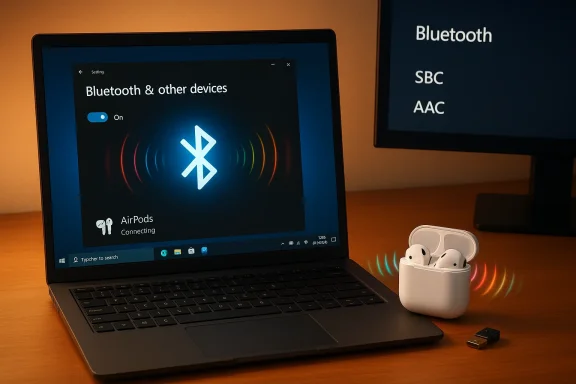
If you’ve ever plugged AirPods into a Windows 10 laptop and wondered why music sounds great until you join a meeting and everything turns into tinny mono, you’re not alone — the pairing works, but the experience is deeply shaped by Bluetooth profiles, codecs, drivers, and the limits of Windows 10 itself. This feature walks through the verified, step‑by‑step pairing flow, explains the technical reason behind the problems you’ll likely hit, and gives practical, tested fixes and purchase guidance so you can choose the best path for reliable audio and conferencing on a Windows PC.
AirPods are standard Bluetooth headsets and will pair with a Windows 10 PC like almost any other Bluetooth audio device. The basic user flow — put AirPods in pairing mode and use Settings → Devices → Bluetooth & other devices → Add Bluetooth or other device — is consistent across Apple’s guidance and Windows how‑tos. For casual media playback that handshake alone will often be enough to get music and video playing.
The friction begins when you expect Apple‑level features (AAC playback, automatic device switching, spatial audio) or need stable two‑way voice (conference calls). Those expectations collide with two technical realities: Bluetooth audio profiles (A2DP vs HFP/HSP) and codec negotiation (SBC, AAC, aptX, LE Audio/LC3). On Windows 10 these layers are implemented inconsistently across Bluetooth chipsets and drivers, and Windows 10’s platform limitations make some fixes harder or impossible without hardware/OS upgrades.
Microsoft ended mainstream support for Windows 10 on October 14, 2025, which affects the ongoing availability of feature and Bluetooth stack improvements for that OS. Many of the improvements that reduce these headaches (LE Audio, LC3, better system codec negotiation) are concentrated in Windows 11 and driver updates from OEMs. That lifecycle fact matters for planning and troubleshooting.
Codecs are a second key factor. A2DP audio can use different codecs: SBC (baseline required codec), AAC (preferred by AirPods on Apple devices), and proprietary options such as aptX or LDAC. On many Windows 10 machines, the Bluetooth stack and adapter drivers default to SBC because AAC support depends on the chipset and vendor drivers — so AirPods frequently fall back to SBC on PCs and sound worse than on iPhones. Windows 11 and newer hardware have improved codec negotiation, but Windows 10 remains inconsistent.
Conclusion: For most Windows 10 users, AirPods are a convenient, acceptable choice for everyday listening. For reliable conferencing and professional use, plan for a validated headset solution or upgrade your Bluetooth stack and OS to take advantage of newer audio codecs and LE Audio features. The trade‑offs are technical and avoidable with the right hardware and settings — but they’re real, and knowing them will save you time and frustration.
Source: Born2Invest https://born2invest.com/?b=style-331836212/
 Background / Overview
AirPods are standard Bluetooth headsets and will pair with a Windows 10 PC like almost any other Bluetooth audio device. The basic user flow — put AirPods in pairing mode and use Settings → Devices → Bluetooth & other devices → Add Bluetooth or other device — is consistent across Apple’s guidance and Windows how‑tos. For casual media playback that handshake alone will often be enough to get music and video playing.The friction begins when you expect Apple‑level features (AAC playback, automatic device switching, spatial audio) or need stable two‑way voice (conference calls). Those expectations collide with two technical realities: Bluetooth audio profiles (A2DP vs HFP/HSP) and codec negotiation (SBC, AAC, aptX, LE Audio/LC3). On Windows 10 these layers are implemented inconsistently across Bluetooth chipsets and drivers, and Windows 10’s platform limitations make some fixes harder or impossible without hardware/OS upgrades.
Microsoft ended mainstream support for Windows 10 on October 14, 2025, which affects the ongoing availability of feature and Bluetooth stack improvements for that OS. Many of the improvements that reduce these headaches (LE Audio, LC3, better system codec negotiation) are concentrated in Windows 11 and driver updates from OEMs. That lifecycle fact matters for planning and troubleshooting.
How to pair AirPods with a Windows 10 PC — step‑by‑step (verified)
Follow these steps precisely to get a clean pairing; many connection problems stem from skipping a step or not clearing stale pairings first.- Charge the AirPods and put the earbuds in the case; open the lid.
- Put the AirPods into pairing mode: for most models (AirPods 1/2/3, AirPods Pro 1/2) press and hold the small setup button on the back of the case until the status LED flashes white. Newer models may have different gestures — check model guidance if behavior differs.
- On the PC: open Settings → Devices → Bluetooth & other devices → Add Bluetooth or other device → Bluetooth. Wait for Windows to scan.
- Select the AirPods entry when it appears (often labeled “AirPods” or “<Your Name>’s AirPods”) and click to pair. Windows should confirm “Your device is ready to go!” when pairing completes.
- Verify audio routing: right‑click the speaker icon on the taskbar → Open Sound settings → pick the AirPods under Output for media and Input for microphone as required.
- To reconnect later: Settings → Bluetooth & other devices → find the AirPods and click Connect. Windows will remember the pairing for future sessions.
Why audio can degrade when you use AirPods for calls (A2DP vs HFP explained)
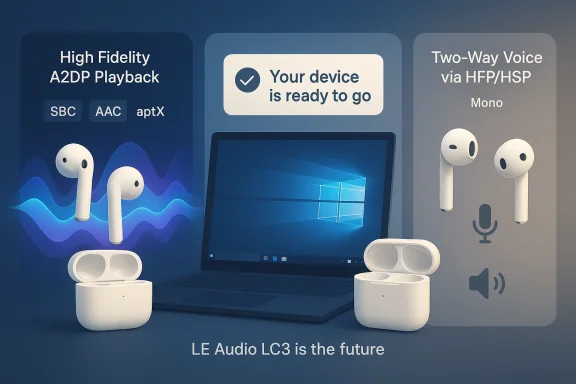
The single most important concept to understand is that Bluetooth Classic separates audio into profiles that serve different purposes:- A2DP (Advanced Audio Distribution Profile) — used for high‑quality, one‑way stereo playback (music, movies).
- HFP/HSP (Hands‑Free Profile / Headset Profile) — used for two‑way voice, exposing the built‑in microphone but using a low‑bandwidth mono stream optimized for telephony.
Codecs are a second key factor. A2DP audio can use different codecs: SBC (baseline required codec), AAC (preferred by AirPods on Apple devices), and proprietary options such as aptX or LDAC. On many Windows 10 machines, the Bluetooth stack and adapter drivers default to SBC because AAC support depends on the chipset and vendor drivers — so AirPods frequently fall back to SBC on PCs and sound worse than on iPhones. Windows 11 and newer hardware have improved codec negotiation, but Windows 10 remains inconsistent.
Practical troubleshooting — prioritized and tested fixes
If pairing succeeds but sound is degraded, intermittent, or one earbud is silent, work through this checklist in order. Each fix notes the trade‑offs.Quick checks (2 minutes)
- Confirm Windows is routing audio to the AirPods: right‑click the speaker icon → Open Sound settings → Output and select the AirPods. Sometimes Windows connects but routes audio to HDMI or internal speakers.
- Toggle Bluetooth off/on and power‑cycle the AirPods (place them back in the case, close lid, wait 10 seconds, reopen). Reconnect.
Re‑pair and reset (5–10 minutes)
- Remove the AirPods from Windows: Settings → Bluetooth & other devices → Remove device. Reset the AirPods per Apple’s instructions (press and hold the case button until the LED flashes amber then white), then re‑pair. Many one‑ear or rejoin issues are fixed by a clean pairing.
If stereo disappears during calls (A2DP → HFP switch)
- If you only need music fidelity (no mic), disable the Hands‑Free Telephony service for the AirPods: Control Panel → Devices and Printers → right‑click the AirPods → Properties → Services → uncheck “Hands‑Free Telephony.” This forces Windows to keep A2DP active for playback but disables the AirPods’ microphone at OS level. Trade‑off: you’ll lose the headset mic for system calls.
- If you need the mic for conference calls, use a dedicated USB headset or a Teams/Skype‑certified Bluetooth headset designed for Windows — these devices provide better mic performance and more predictable profiles in conferencing apps.
Driver, radio, and dropout fixes (5–30 minutes)
- Update Bluetooth and audio drivers from your PC or chipset vendor (Intel, Qualcomm, Broadcom, Realtek). Avoid third‑party repackaged driver bundles; prefer OEM or vendor downloads and verify signatures.
- Disable Bluetooth adapter power saving: Device Manager → Bluetooth adapter → Properties → Power Management → uncheck “Allow the computer to turn off this device to save power.” Reboot and re‑pair.
- If the built‑in radio is old or unreliable, consider a modern USB Bluetooth dongle that advertises better codec support (AAC, aptX, or LE Audio) and has up‑to‑date drivers. Many real‑world dropouts are solved by a better radio.
If Windows shows “connected” but no audio
- Confirm the AirPods are selected as the system output. If Windows lists both “Headphones (AirPods Stereo)” and “Headset (AirPods Hands‑Free Audio)”, select the Stereo device for media playback in Sound settings. If silence persists, remove and re‑pair the device.
Deeper technical primer: codecs, LE Audio, and why Windows 10 lags
Understanding the technical stack helps you choose the right hardware or workaround.Codecs: SBC, AAC, aptX, LDAC
- SBC: mandatory baseline codec for A2DP; widely supported but less efficient than others.
- AAC: higher‑quality option commonly used by Apple devices with AirPods; requires host support.
- aptX / LDAC: vendor codecs offering improved fidelity on systems that support them.
LE Audio and LC3: the future fix (but not on Windows 10)
- LE Audio with the LC3 codec is the Bluetooth SIG’s long‑term solution to preserving higher quality with lower power and enabling better multi‑profile handling. Windows 11 has been receiving LE Audio improvements; Windows 10 does not provide the full LE Audio stack and therefore cannot deliver the same benefits. If LE Audio compatibility is critical to you, plan for a Windows 11 capable machine with compatible Bluetooth hardware.
Best AirPods for PC use — practical buyer guidance (Top sellers and what to pick)
If you already own AirPods, the guidance above will help you use them with Windows. If you’re buying now and plan to use earbuds primarily with Windows:- AirPods (3rd generation) and AirPods Pro (1st or 2nd gen) are the most common consumer picks; they’ll pair with Windows for both media and calls, but expect the profile/codecs trade‑offs described earlier. If you rely on advanced Apple ecosystem features (spatial audio, automatic switching), those will not be available on Windows.
- AirPods Max (over‑ear) deliver stronger passive performance in music listening but still face the same Windows profile/codecs limitations for calls.
- If stable conference‑call performance is critical, consider a headset certified for Microsoft Teams or Skype for Business instead of relying on AirPods for team meetings. These certified devices are designed to interact with Windows HFP/HSP and modern conferencing stacks more predictably.
Practical setup recommendations — short checklist (cheat sheet)
- Ensure AirPods and case are charged before pairing.
- Use Settings → Devices → Bluetooth & other devices → Add Bluetooth or other device to pair.
- If music collapses during calls and you don’t need the mic, disable Hands‑Free Telephony for the device in Control Panel → Devices and Printers → Properties → Services.
- For flaky Bluetooth, update chipset drivers from Intel/Qualcomm/Broadcom/Realtek or use a modern USB dongle.
- For mission‑critical conferencing, buy a Teams‑certified USB headset and use AirPods strictly for casual media.
Security, driver, and enterprise considerations
- Avoid downloading unsigned or repackaged drivers from unknown sites; prefer OEM/vendor driver packages and verify signatures. Repackaged installers can alter INFs or bundle unwanted software.
- Enterprise users who must remain on Windows 10 should know that Bluetooth stack improvements are unlikely to be backported; consider device lifecycle planning if Bluetooth reliability and modern codecs matter for your fleet. Microsoft’s end of mainstream support for Windows 10 on October 14, 2025, reduces the likelihood of new feature backports.
- Test AirPods with your conferencing platform before relying on them for important calls. Inconsistent mic behavior and mid‑call profile switches are common in enterprise teleconferencing scenarios. If you plan to use consumer earbuds in a meeting-heavy environment, keep a backup certified headset available.
Critical analysis — strengths, limitations, and risks
- Strengths: AirPods offer easy pairing and very good consumer audio quality on devices that support their preferred codecs. For casual media playback on Windows 10, they usually “just work,” and many users will be satisfied with the convenience and sound for music and video. Quick how‑to guides accurately describe the pairing steps and basic fixes that solve many common issues.
- Limitations: The Windows 10 Bluetooth stack, driver variability, and legacy profile behavior mean AirPods will not consistently reproduce the Apple experience on PCs. Two‑way voice performance is the biggest pain point: the A2DP→HFP profile switch and codec fallbacks cause degraded audio in calls. LE Audio and improved codec negotiation are largely tied to newer OS/hardware, not Windows 10.
- Risks: Expect intermittent behavior across different PCs. Buying AirPods solely for work conferencing on Windows 10 is a risk; you may end up with poor mic performance, dropped audio, or ugly codec fallbacks. There’s also a security/maintenance risk if you rely on third‑party drivers or repackaged installers — always get drivers from OEMs and check signatures.
Final recommendations
- If you already own AirPods and use Windows 10 mainly for media playback, pair them using the verified flow above and apply the quick fixes when necessary; they work well for casual use.
- If you depend on conference calls and consistent mic quality, buy a USB headset or a Teams‑certified headset and keep AirPods for media. This is the simplest way to avoid the A2DP/HFP trade‑off.
- If you’re buying new and expect long‑term Windows compatibility, consider upgrading to hardware and OS that support LE Audio/LC3 (Windows 11 + modern Bluetooth adapter) or select headsets explicitly designed and certified for Windows conferencing.
Conclusion: For most Windows 10 users, AirPods are a convenient, acceptable choice for everyday listening. For reliable conferencing and professional use, plan for a validated headset solution or upgrade your Bluetooth stack and OS to take advantage of newer audio codecs and LE Audio features. The trade‑offs are technical and avoidable with the right hardware and settings — but they’re real, and knowing them will save you time and frustration.
Source: Born2Invest https://born2invest.com/?b=style-331836212/