

AMD's long-standing GPU flasher, known broadly as AMDVBFlash / ATIFlash (WinFlash), remains the go-to tool for saving and writing vBIOS images on Radeon cards — but the tool's evolution in recent years introduces behavioral and security trade-offs every Windows user should understand before touching a BIOS file.
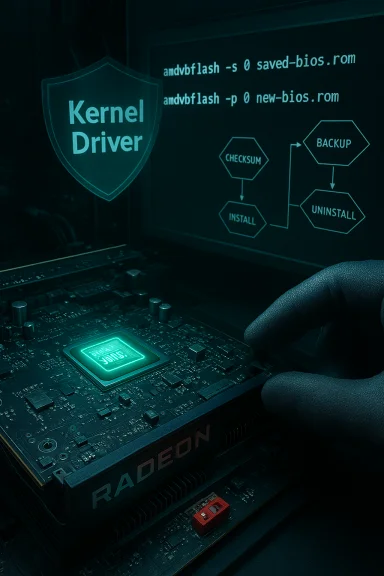
AMDVBFlash (ATIFlash) is a Windows-based utility that can read (save) and program the video BIOS (vBIOS) on AMD Radeon graphics cards. It has a long heritage — the utility was distributed under names such as ATIFlash and WinFlash in earlier years — and TechPowerUp maintains one of the most widely used download pages and version archives for the tool. The current Windows builds are distributed as console and (historically) GUI variants, with a version history spanning DOS, Linux, and Windows builds. Starting with mid-2021 releases, a notable architectural change was introduced: modern AMDVBFlash builds require a running Ring‑0 kernel‑mode driver to access GPU flash memory on Windows. To simplify install/uninstall of that low-level driver, AMDVBFlash packages distributed by TechPowerUp include AMDVBFlashDriverInstaller.exe (first bundled with v3.15), which automates installation and removal of the kernel driver. That installer is signed by TechPowerUp for the distributions they provide. This behavior is different from older portable/distribution models where the flasher could be run without installing a persistent kernel component, and it has both convenience and security implications for Windows users that will be unpacked below.
Source: TechPowerUp AMDVBFlash / ATI ATIFlash 5.0.874 Download
 Background / Overview
AMDVBFlash (ATIFlash) is a Windows-based utility that can read (save) and program the video BIOS (vBIOS) on AMD Radeon graphics cards. It has a long heritage — the utility was distributed under names such as ATIFlash and WinFlash in earlier years — and TechPowerUp maintains one of the most widely used download pages and version archives for the tool. The current Windows builds are distributed as console and (historically) GUI variants, with a version history spanning DOS, Linux, and Windows builds. Starting with mid-2021 releases, a notable architectural change was introduced: modern AMDVBFlash builds require a running Ring‑0 kernel‑mode driver to access GPU flash memory on Windows. To simplify install/uninstall of that low-level driver, AMDVBFlash packages distributed by TechPowerUp include AMDVBFlashDriverInstaller.exe (first bundled with v3.15), which automates installation and removal of the kernel driver. That installer is signed by TechPowerUp for the distributions they provide. This behavior is different from older portable/distribution models where the flasher could be run without installing a persistent kernel component, and it has both convenience and security implications for Windows users that will be unpacked below. What AMDVBFlash does — and which cards it supports
AMDVBFlash is a low-level tool that performs two essential functions:- Save (dump) the current vBIOS from a detected adapter to a file on disk (recommended before any change).
- Program (flash) a new vBIOS image to the board's SPI/NOR flash memory.
- Newer AMDVBFlash releases added explicit support for Navi‑3x / RX 7900 series and other RDNA3 devices in later builds (for example, v5.0.567 added Navi‑3x support).
- Some older builds (DOS or portable console builds) are still kept available for users who rely on legacy toolchains or need to avoid the Windows driver behavior.
Why the kernel‑driver change matters
What changed
Recent AMDVBFlash packages require a small kernel‑mode driver that runs in Ring‑0 while the flash utility performs its work. Historically, many GPU BIOS operations could be performed with user‑mode utilities that temporarily accessed hardware through standard driver interfaces or by using DOS/UEFI boot environments; the move to a dedicated kernel component shifts that access into a resident kernel context. TechPowerUp and community threads make this explicit, and TechPowerUp's packaged installer was introduced to make installing/uninstalling that kernel driver simple.The security surface and practical concerns
- Running code at Ring‑0 increases attack surface. Kernel drivers run with the highest privilege on Windows. A bug, design flaw, or malicious tampering with a kernel component can cause system crashes, privilege escalation, or persistent compromise. Because AMDVBFlash’s driver touches flash memory and hardware interfaces, any vulnerability in that driver or its installer could expose the system to heightened risk while it is loaded.
- Persistence vs. ephemeral operation. In principle, you only need kernel‑level access for a few minutes to dump or write the vBIOS. A permanently installed or persistently running driver multiplies risk because the component remains present on the system beyond the brief flashing window. TechPowerUp’s AMDVBFlashDriverInstaller.exe exists precisely to let users install and then remove the driver in a controlled way — but that relies on operators doing the install/uninstall dance correctly.
- Driver signing and provenance. Distributions maintained by recognized outlets (TechPowerUp’s builds are digitally signed by them) reduce tampering risk compared to random third‑party binaries. Still, a signed distribution is not proof of perfect safety; it only increases trust in integrity at signing time. If you download the flasher from unofficial sources, the risk rises.
Real‑world evidence: community experiences and consequences
Community threads and forum posts provide useful operational context:- Several users and forums confirm that the modern Windows builds behave differently and that portable or older distributions avoid installing a persistent kernel driver. Users who prefer minimal system changes often seek out older console or DOS builds to perform flashing operations.
- Cases of bricks from vBIOS flashes are well documented. When a flash fails or an incompatible vBIOS is written, the card may stop enumerating, and recovery sometimes requires physical intervention (dual‑BIOS switch, GPU‑to‑motherboard iGPU boot, or SPI programmer). Community threads and Q&A discussions (and recovery walkthroughs) repeatedly emphasize the need to back up the original vBIOS first.
- Hardware modding stories (flashing non‑stock vBIOS to boost performance) demonstrate both potential gains and the trade‑offs: higher clocks and power draw in exchange for warranty voiding, thermal stress, and risk of unrecoverable failure. Independent reviews and coverage of vBIOS‑driven mods show measurable performance lifts but confirm the attendant risks.
A practical safety guide: how to flash an AMD GPU BIOS more safely
Below is a concise but thorough workflow for users who choose to proceed. Follow it step‑by‑step and only proceed if you accept the risk of warranty loss and potential hardware damage.Preparation (do these before touching the flasher)
- Document hardware and firmware versions. Record the exact GPU model, vendor (Sapphire, MSI, Gigabyte, etc., vendor BIOS version, and device IDs.
- Download official files from trusted sources. Use the vendor's BIOS images (board partner BIOS) whenever possible. If using the AMDVBFlash package, prefer the official TechPowerUp archive or well‑known mirrors and verify checksums.
- Back up the current vBIOS. Always save the current BIOS to disk before attempting a flash (amdvbflash -s or the GUI Save). Store the backup in multiple locations and label it clearly.
- Prepare recovery options. If your board has a dual‑BIOS switch, ensure you know how to toggle it. If it does not and you are flashing an essential GPU, locate a local service that can SPI‑program the chip should a flash brick the card. Community posts show SPI programmers are a practical last resort.
Flashing steps (recommended sequence)
- Boot into Windows in Clean Administrator mode (disable unnecessary services and overlays; close GPU tools).
- Verify the downloaded AMDVBFlash package checksum and the digital signature (if provided) before running any installer. TechPowerUp packages include MD5/SHA sums on the download page — confirm them.
- If you're using a modern AMDVBFlash build that includes the driver installer:
- Run AMDVBFlashDriverInstaller.exe to install the kernel driver only when ready to flash.
- Use the flasher to Save the current vBIOS immediately to create a backup file.
- Proceed to Load Image and Program the new vBIOS, or use the console commands for precise control.
- After the flash completes and the system restarts or you’ve validated the flash:
- Run AMDVBFlashDriverInstaller.exe again to stop and uninstall the kernel driver so it does not remain resident.
- Reboot and verify the card enumerates and performs correctly.
- If anything goes wrong, stop and refer to recovery options: toggle dual‑BIOS, try restoring the saved backup via the same tool (if accessible), or use an SPI programmer if the board is not detected. Community threads emphasize that a successful restore requires the card to be at least intermittently recognized by the system.
Key command examples (console)
- List adapters: amdvbflash -i
- Save BIOS of adapter 0: amdvbflash -s 0 saved‑bios.rom
- Program BIOS to adapter 0: amdvbflash -p 0 new‑bios.rom
(Consult the specific version’s included README for exact syntax; GUI builds present intuitive buttons but always default to the console commands for scripting and recovery clarity.
Alternatives and mitigations
- Use a DOS/UEFI or Linux-based flasher: Older DOS builds or Linux variants (where available) let you interact with the flash chip without installing a Windows kernel driver. This reduces the chance of adding a resident kernel‑mode component to your system. TechPowerUp archives DOS/Linux packages for this reason.
- Prefer board‑partner BIOS files: Using BIOS images distributed by the card maker (Sapphire, ASUS, Gigabyte, etc. minimizes compatibility surprises versus cross‑flashing arbitrary BIOS images from other models.
- If you need to test alternative BIOS images for tuning/performance, use dual‑BIOS hardware or a secondary card to keep a recovery path available.
- For enterprise or managed systems, keep firmware operations off production endpoints — use spare lab hardware and full backups.
Technical strengths and notable limitations
Strengths
- Capability: AMDVBFlash is one of the few established utilities that can program Radeon vBIOS images across generations, including modern RDNA devices when supported. It provides both GUI and console interfaces and is well documented in community archives.
- Tooling for Windows environments: For Windows users, having a single vendor tool simplifies workflows compared to using separate DOS boot USBs or external flash programmers.
- Installer convenience: AMDVBFlashDriverInstaller.exe is a practical convenience for users who need the driver only temporarily. It simplifies install/uninstall where previously manual driver management was required.
Limitations and risks
- Kernel driver increases risk: The requirement for a kernel‑mode driver in modern Windows builds introduces a meaningful security and stability concern if the driver is left installed or if the binary is tampered with. Users must manage driver installation carefully.
- Potential for bricks: Firmware flashing is unforgiving. Incompatible or incorrectly written vBIOS images can render a GPU non‑enumerable and require physical reprogramming. Community evidence and troubleshooting threads show this is a common, real result when things go wrong.
- Distribution fragmentation: Multiple mirrors, forks, and community builds exist. Not all builds are equal; some community versions avoid the driver requirement by packaging different variants. Choosing the wrong distribution can expose the system to unknown binaries.
When flashing is appropriate — and when it is not
Flashing vBIOS is justified when:- The vendor-provided BIOS fixes an explicit hardware fault (e.g., power‑management bug, compatibility fix).
- You need to recover a corrupted BIOS and have a known‑good backup or vendor image.
- You're an advanced user with test hardware and clear recovery paths.
- The only goal is a small performance bump without understanding the cooling/power implications.
- You lack a validated backup of the original BIOS.
- You cannot accept warranty voiding or the possibility of needing physical rework.
Recovery options if things go wrong
- Dual‑BIOS switch: Flip to the backup BIOS and boot. This is the easiest recovery if your card supports it.
- Boot with integrated graphics: If the discrete GPU stops enumerating, a system iGPU can let you boot and attempt reprogramming with the backup image. Community threads show this technique sometimes allows reprogramming when the GPU is only intermittently recognized.
- Use a known‑good old flasher: Some older, portable AMDVBFlash builds can still access the flash chip even when newer builds cannot; this is very case‑dependent.
- SPI programmer: If the flash chip itself is still physically programmable, an external SPI programmer (e.g., CH341A with clip or a hardware reprogrammer service) can overwrite the corrupted image. This is the most reliable but also the most technical and hands‑on recovery path. Community recovery posts frequently end with SPI programmer as the final recourse.
Final assessment and recommended best practices
- Treat AMDVBFlash as a powerful but potentially dangerous tool: it gives you direct write access to the GPU firmware and therefore to a component that can permanently disable the card if misused.
- If you must use modern Windows AMDVBFlash builds, adopt a disciplined process:
- Verify downloads (checksums/signature).
- Save a backup before any change.
- Install the kernel driver only when necessary, and uninstall it immediately after the job is done.
- Prefer vendor BIOS files and avoid cross‑flashing unless you fully understand the consequences.
- For cautious users, prefer DOS/UEFI or Linux flash methods or perform BIOS operations only on spare hardware to avoid impacting a primary workstation.
Conclusion
AMDVBFlash (ATIFlash) remains an essential tool in the GPU enthusiast and repair toolkit, capable of both life‑saving recoveries and destructive mistakes. Recent changes — notably the requirement for a kernel‑mode driver on Windows and the inclusion of an installer to manage that driver — make it more convenient for some workflows but also raise the bar for safe operation. The combination of official builds (TechPowerUp), community discussion, and real‑world recovery stories leads to a single practical rule: treat the flasher like firmware surgery — prepare, verify, back up, and have a recovery plan before making an incision. By following a conservative, process‑driven approach you can use AMDVBFlash to fix problems and explore firmware options while minimizing the most serious risks.Source: TechPowerUp AMDVBFlash / ATI ATIFlash 5.0.874 Download
