

Android 10 accent color settings can appear not to work because Android 10 did not give every phone the same color controls, and newer guides often describe Android 12–13 or later features. This guide covers Android 10 phones and tablets, plus newer Pixel, Samsung Galaxy, and Motorola devices where the manufacturer provides wallpaper-based color controls. Start with the supported setting on your device; if the control is missing, it is usually an OEM limitation rather than a fault.
An Android “accent color” does not necessarily recolor every app, icon, or screen.
Use the section below that matches your phone.
Warning: Deleting a purchased theme, wallpaper, or icon pack removes it from the phone. Samsung says deleted purchases must be downloaded or purchased again.
If your Android 10 Motorola phone does not offer Themes or Colors, use the customization settings it does provide. Do not install a root overlay or a system-modification utility merely to restore a missing color menu.
Then check for Android updates:
To update the affected app:
If you use a third-party launcher, temporarily switch back to the phone maker’s default launcher before testing. On a Samsung, that is usually One UI Home; on a Pixel, Pixel Launcher. If the color starts working with the default launcher, the third-party launcher is the cause or does not support the requested icon or palette behavior.
Warning: Safe mode disables downloaded apps. On Pixel phones, it can also remove some Home screen widgets temporarily. Take a screenshot of your Home screen first if you need to restore the layout.
On current Pixel phones:
Check whether the phone has a work profile:
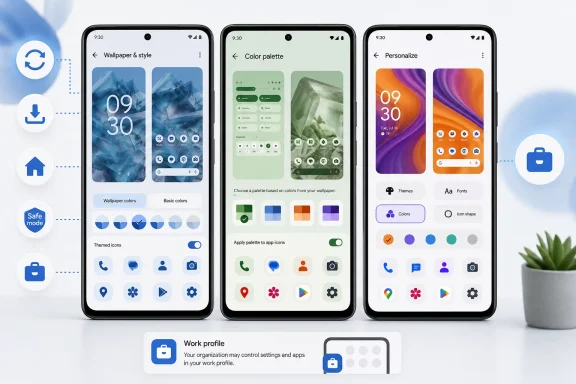 Confirm what should change
An Android “accent color” does not necessarily recolor every app, icon, or screen.- System menus and quick settings: May follow the selected palette on supported phones.
- Home-screen icons: Require launcher and icon support. Third-party app icons may remain unchanged.
- Individual apps: May use their own colors or only follow the system light/dark theme.
- Android 10 devices: May have a manufacturer theme engine instead of the newer Wallpaper & style color picker.
Check your Android version and phone maker
- Open Settings.
- Tap About phone or About tablet.
- Find Android version.
Use the section below that matches your phone.
Pixel: apply a color palette from Wallpaper & style
On current Pixel software, the supported color controls are in Wallpaper & style, not Developer options.- Touch and hold an empty part of the Home screen.
- Tap Wallpaper & style.
- Tap Colors.
- Select one of the offered color styles.
- For more choices, tap Other colors.
- Tap Apply.
If the Pixel palette is missing or limited
Pixel palettes are based partly on the current wallpaper. Change the wallpaper, then choose the color again.- Touch and hold an empty Home screen area.
- Tap Wallpaper & style.
- Tap Change wallpaper.
- Select Home screen or Lock screen if prompted.
- Choose a photo or wallpaper category.
- Tap Preview, then Apply.
- Go back to Wallpaper & style > Colors.
- Choose and apply a different color style.
Fix Pixel icon colors separately
Changing the system palette does not guarantee that every icon changes.- Touch and hold an empty Home screen area.
- Tap Wallpaper & style.
- Tap Icons.
- Tap Style.
- Choose Default or Minimal, then tap Apply.
Samsung Galaxy: enable Color palette
Samsung calls its wallpaper-based color setting Color palette. It is available only on supported Galaxy phones and tablets with compatible One UI software.- Open Settings.
- Tap Wallpaper and style.
- Tap Color palette.
- Turn on Color palette.
- Select a choice under Wallpaper colors, or tap Basic colors for a solid-color option.
- Review the preview at the top of the screen.
- Tap Apply.
- Return to Settings > Wallpaper and style > Color palette.
- Turn on Apply palette to app icons.
- Tap Apply if Samsung asks you to confirm.
Remove a Samsung theme or icon pack conflict
A Galaxy Theme or icon pack can override the appearance you expect from Color palette.Warning: Deleting a purchased theme, wallpaper, or icon pack removes it from the phone. Samsung says deleted purchases must be downloaded or purchased again.
- Touch and hold an empty area of the Home screen.
- Tap Themes.
- Tap Menu.
- Tap Purchased items.
- Select the relevant category: Themes, Wallpapers, or Icons.
- Tap the Delete icon.
- Select the item you want to remove.
- Tap Delete.
- Return to Settings > Wallpaper and style > Color palette and apply your palette again.
Motorola: use Personalize and Themes
Motorola phones use different customization menus by model and Android release. On supported models, the color settings are in Personalize.- Open Settings.
- Tap Personalize.
- Tap Themes.
- Select a supplied theme, or tap the + button to create one.
- When creating a theme, choose the available settings, such as Wallpaper, Font, Color, and Icon shape.
- Tap Save.
- Select the saved theme to apply it.
If your Android 10 Motorola phone does not offer Themes or Colors, use the customization settings it does provide. Do not install a root overlay or a system-modification utility merely to restore a missing color menu.
Check the app that is not following the accent color
Android apps can choose their own visual design. Many apps only offer light mode, dark mode, or a “follow system” option; that does not mean they support system accent colors.- Open the app that still has the wrong appearance.
- Open its Settings.
- Look for Theme, Appearance, Display, or Color.
- Select an option such as System default, Use device theme, or Follow system if one is available.
- Close and reopen the app.
Restart and update the phone and affected apps
Restarting reloads the launcher, wallpaper service, and system interface. It is a safe first repair after you have applied a palette.- Press and hold the phone’s Power button until the restart controls appear.
- Tap Restart.
- If your phone does not show a restart menu, hold the Power button for about 30 seconds until it restarts.
- Swipe down from the top of the display with two fingers.
- Tap the Power icon.
- Tap Restart, then confirm Restart.
Then check for Android updates:
- Open Settings.
- Tap System.
- Tap Software update or System update.
- Follow the on-screen instructions.
To update the affected app:
- Open the Google Play Store.
- Tap your profile icon.
- Tap Manage apps & device.
- Under Updates available, tap See details.
- Tap Update beside the affected app, or choose Update all.
- Restart the phone if the app or Play Store requests it.
Rule out a launcher, theme, or wallpaper app
Third-party launchers, icon packs, wallpaper apps, and theme utilities commonly control the parts of the interface where color changes are expected. Test the suspected app before changing system settings.- Open Settings > Apps.
- Tap See all apps if required.
- Select the suspected launcher, icon pack, theme, or wallpaper app.
- Tap Force stop, then confirm.
- Open Storage & cache.
- Tap Clear cache.
- Restart the phone and test the accent color again.
If you use a third-party launcher, temporarily switch back to the phone maker’s default launcher before testing. On a Samsung, that is usually One UI Home; on a Pixel, Pixel Launcher. If the color starts working with the default launcher, the third-party launcher is the cause or does not support the requested icon or palette behavior.
Use Safe mode to identify a downloaded-app conflict
Use Safe mode when color changes work inconsistently, disappear after restarting, or fail only while a launcher, icon pack, or wallpaper app is installed.Warning: Safe mode disables downloaded apps. On Pixel phones, it can also remove some Home screen widgets temporarily. Take a screenshot of your Home screen first if you need to restore the layout.
On current Pixel phones:
- Turn off the phone.
- For Pixel 5a and earlier, hold the Power button and choose Power off.
- For Pixel 6 and later, hold Power + Volume Up, then touch and hold Power off or Restart.
- Tap OK to start Safe mode.
- Confirm that Safe mode appears at the bottom of the screen.
- Test the system color controls.
- Open the Power menu.
- Touch and hold Power off.
- Tap Safe mode.
- Test the color setting after the phone restarts.
Check for work or school management
A work profile or company-owned device can impose settings restrictions. Android Enterprise documentation confirms that an administrator can set wallpaper for the profile they control, and company-owned devices can have wider device-level restrictions.Check whether the phone has a work profile:
- Open Settings.
- Tap Passwords and accounts.
- Look for a Work tab or Work Profile settings.
- Check the app drawer for apps marked with a briefcase badge.
References
- Primary source: Technobezz
Published: 2026-07-18T16:11:11.493000+00:00
Android 10 Accent Color Not Working? How to Fix It | Technobezz
Fix Android 10 accent color not working with current Wallpaper & style, Pixel, Samsung, Motorola, app theme, and update steps.www.technobezz.com