

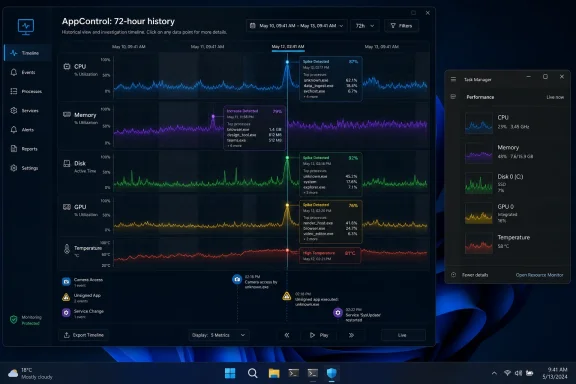
AppControl is a free Windows monitoring utility that launched in February 2026 and gives users a three-day, second-by-second history of CPU, memory, disk, GPU, temperature, and process activity that Microsoft’s built-in Task Manager still does not provide. That single difference changes the entire troubleshooting workflow. Task Manager tells you what is happening now; AppControl tries to tell you what happened when you were not looking. For Windows users who live with mystery slowdowns, fan spikes, unsigned apps, and suspicious background behavior, that makes Microsoft’s familiar tool feel suddenly underpowered.
Task Manager has survived for decades because it is fast, built in, and good enough for the first thirty seconds of panic. Press Ctrl+Shift+Esc, sort by CPU or memory, kill the runaway browser tab, and move on. For many Windows users, that ritual is muscle memory.
The problem is that modern PC troubleshooting rarely fits inside that thirty-second window. The process that pegged a CPU core at 2:14 p.m. may have disappeared by the time the user notices the fan. The installer that spawned an unsigned helper may have completed its work before anyone opens the Processes tab. The background updater that wakes the system every afternoon can look perfectly innocent when inspected at the wrong moment.
That is the gap AppControl is trying to exploit. It is not merely a prettier Task Manager clone, and it is not really competing with Microsoft on the old battlefield of live process lists. Its core argument is that Windows needs a timeline, not just a dashboard.
This is why the breathless “Task Manager replacement” framing is both understandable and incomplete. AppControl can end processes, display publishers, show current resource use, and make process behavior easier to understand. But its real value is that it changes the question from “What is using my PC right now?” to “What has this machine been doing?”
This matters because intermittent Windows problems are often temporal. A laptop that feels sluggish at 9 a.m. may be dealing with a startup stampede, cloud sync, browser restore, security scanning, Teams updates, and vendor utilities all competing for attention. By noon, the same machine looks fine, and Task Manager can only testify to the present.
A historical graph gives the user something closer to a witness statement. If memory pressure rises every time a particular Electron app wakes up, or disk activity surges after a scheduled updater runs, AppControl has a chance of showing that pattern. It is less about catching a culprit red-handed and more about noticing the same fingerprints at the scene every time.
The app’s interface appears designed around that investigative loop. Users can switch among CPU, RAM, disk, and GPU views, zoom the timeline from minutes to hours or days, and hover over points in the graph to see the processes and component temperatures associated with that moment. That is the sort of everyday observability Windows has long scattered across Task Manager, Resource Monitor, Event Viewer, Performance Monitor, and third-party Sysinternals tools.
Microsoft has the plumbing for this kind of insight all over Windows. What it has never quite delivered is a consumer-friendly, unified, historical view that makes the last few days of a PC’s behavior intelligible without turning the user into an amateur forensic analyst.
AppControl tries to reduce that ambiguity by giving users plain-English descriptions of selected processes, along with publisher information and other identifying details. That may sound like hand-holding, but hand-holding is exactly what a lot of Windows troubleshooting needs. The difference between a Microsoft-signed component, a vendor utility, a browser helper, and an unsigned mystery executable should not require a scavenger hunt.
This is especially important because AppControl also gives users more assertive controls. Killing a process is familiar; disabling an app to prevent it from launching again is more consequential. A better explanation layer helps reduce the odds that a frustrated user will disable something Windows actually needs.
The MakeUseOf account rightly notes the danger: killing vital Windows processes can destabilize the system. That caveat is not incidental. Any tool that makes process control easier also makes damage easier, and no amount of friendly copy can fully remove that risk.
Still, the alternative is not safety; it is opacity. Users already end processes they do not understand, uninstall software based on vibes, and follow dubious forum advice when their machines misbehave. A monitoring tool that explains what a process is, who published it, and how it behaved over time can make those decisions more informed, even if it cannot make them foolproof.
This is a smart expansion of the Task Manager model. Task Manager treats the system as a resource economy: CPU, memory, disk, network, GPU. AppControl treats it more like a behavior log. That framing is closer to how users actually experience unease on modern PCs.
A camera light turning on unexpectedly is not primarily a CPU event. An unsigned app launching is not merely another row in a process table. A service changing in the background may be routine, but it is also the sort of event that administrators and security-minded users want surfaced rather than buried.
There is a fine line here. Too many alerts can become another version of Windows notification fatigue, and unsigned does not automatically mean malicious. Plenty of legitimate utilities, niche tools, and enthusiast software live outside the clean world of polished enterprise signing.
But the default set is defensible because it focuses on events users can understand. Camera access, service changes, and unsigned launches are concrete. They give AppControl a security-adjacent role without pretending to be a full antivirus or endpoint detection platform.
AppControl’s AI story is stronger because the underlying data is historical and structured. The optional MCP extension allows an AI assistant such as Claude, Cursor, Gemini, or another compatible tool to query local AppControl history. In practical terms, a user can ask what unsigned apps ran in the past day, what process caused a resource spike, or what happened around a particular time.
That is a better use of AI than writing generic summaries of live CPU usage. AppControl is sitting on a local timeline that may be too dense for casual browsing. Natural language becomes a query layer over telemetry, not a decorative side panel.
The distinction matters. AI is most valuable in diagnostic software when it helps the user ask better questions of existing evidence. It is least valuable when it invents confidence, abstracts away uncertainty, or encourages users to take destructive action without understanding the system.
The MCP approach also brings new trust questions. Giving an AI tool access to local system history is not the same as giving it full control of the PC, but it is still a meaningful expansion of the diagnostic surface. Users should understand what the extension can read, where data stays, and which AI client is handling the request. The feature may be optional, but optional does not mean trivial.
The company’s public positioning is that AppControl was built to solve a common frustration and that it collects little to no data by default, with deeper monitoring requiring explicit user consent. Reports have also described it as not requiring registration to start using. Those claims are important, but users should treat them as the beginning of trust, not the end.
A system monitor is not a weather widget. It observes processes, resource behavior, hardware activity, and security-relevant events. Depending on implementation, it may use services or drivers to collect data at a level ordinary apps never touch. That does not make it suspicious by default, but it does raise the bar for transparency.
For Windows enthusiasts, this is familiar territory. Sysinternals tools became beloved not simply because they were powerful, but because they were explainable, portable, and eventually Microsoft-owned. New utilities do not inherit that trust automatically.
AppControl can earn confidence through clear privacy documentation, minimal telemetry, signed components, visible update behavior, and conservative defaults. The more it expands into AI integrations and deeper monitoring, the more important that trust ledger becomes.
The issue is not that Windows lacks data. The issue is that Windows often lacks a humane path through the data. Microsoft tends to split the beginner view and the expert view into different tools, leaving a large middle audience underserved.
Task Manager has improved over time, especially in Windows 11, with a modernized interface, efficiency mode, startup impact data, GPU visibility, and better process grouping than older versions. But it still remains primarily a live instrument panel. Its history is limited, its explanations are sparse, and its security context is thin.
Performance Monitor can log data, but configuring it is not exactly friendly. Event Viewer is rich but notoriously hostile to interpretation. Resource Monitor gives more detail than Task Manager but still does not solve the “what happened while I was away?” problem in a consumer-friendly way.
AppControl’s challenge to Microsoft is therefore less about raw capability than product packaging. It asks why a free third-party app can present system history, plain-English process context, temperature correlation, privacy alerts, and AI-queryable diagnostics in one place while Windows users still bounce among legacy consoles.
Startup management is especially important. A major class of Windows performance problems begins at boot, when half a dozen vendor utilities, launchers, sync clients, chat apps, RGB controllers, update agents, and cloud services all arrive at once. Task Manager’s Startup apps tab is not perfect, but it is useful and built into the normal Windows workflow.
Process priority controls are more niche, but they matter to power users. Restarting a process can be cleaner than killing it and hoping Windows or the app recovers. Full-system specs are not central to process monitoring, but they are part of the diagnostic context users often want when they are already investigating performance.
These missing features point to a broader truth: AppControl is not yet a universal control room. It is strongest as a historical activity monitor and behavior explainer. Task Manager remains the safer default for quick startup toggles, process priority changes, and basic built-in management.
That is not a knock so much as a boundary. The best Windows utility is often the one that knows what job it is trying to do. AppControl’s job is not to reproduce every Task Manager tab; it is to make the invisible recent past visible.
Enterprise IT already has monitoring, logging, endpoint protection, device management, and inventory tools. A free desktop utility with local history may be useful for troubleshooting, but it also raises deployment, support, update, compliance, and data-handling questions. Administrators will want to know how the app updates, how it stores history, whether it can be centrally configured, and how it behaves under least-privilege accounts.
The AI integration adds another layer. Even read-only access to system history may be sensitive in organizations where process names, installed software, paths, and usage patterns can reveal business activity. A local MCP server that is harmless on a home PC may be unacceptable on a regulated workstation without policy controls.
That said, AppControl is a useful reminder for enterprise software vendors as well. Users increasingly expect observability to be searchable, explainable, and time-based. If a help desk cannot easily answer “what was this laptop doing yesterday afternoon?” then the tooling is still falling short, no matter how many dashboards exist elsewhere.
For small businesses and independent IT consultants, AppControl may find a sweet spot. It offers a quick way to catch recurring behavior without standing over a user’s shoulder or building a formal monitoring stack. But serious deployment should wait on clear administrative controls and documentation.
Modern Windows machines are busy when they appear idle. Browsers run background services, cloud clients index and sync, game launchers update, security tools scan, AI assistants linger, OEM utilities phone home, and Windows itself performs maintenance on its own schedule. The user experiences the aggregate result as heat, noise, lag, battery drain, or suspicion.
A live process table is a poor narrator for that kind of story. It shows the last page the user happened to open. AppControl tries to preserve the previous chapters.
That preservation changes user behavior. Instead of waiting for the fan to roar and scrambling to open Task Manager before the culprit disappears, users can let the evidence accumulate. Instead of guessing which app caused a slowdown, they can compare spikes, launches, and temperature changes across time.
This does not make every diagnosis easy. Correlation is not causation, and a graph can mislead as easily as it can illuminate. But it gives users a more honest starting point than staring at a momentary snapshot and pretending it explains an intermittent problem.
Microsoft has often responded to power-user needs by preserving old tools rather than reimagining them. That strategy has benefits: compatibility, depth, and stability. But it also leaves Windows with a museum of diagnostic surfaces that are individually useful and collectively exhausting.
AppControl’s interface-first approach shows what happens when the product question is reframed. Not “how do we expose every counter?” but “how do we help a normal user understand what just happened to their PC?” That is a different design target, and it produces a different kind of tool.
The company is also tapping into a broader shift in Windows culture. Users no longer trust background activity just because it comes from a familiar platform. They want to know why a process launched, whether it is signed, what it accessed, and why the machine got hot when they were not doing anything obvious.
That appetite is not going away. If anything, AI features, background agents, cloud-connected apps, and more aggressive telemetry debates will make local visibility more valuable. Windows needs better native answers here, whether AppControl becomes the long-term winner or simply proves the market exists.
But AppControl deserves attention because it addresses the part of troubleshooting that Task Manager has historically ignored. It treats time as a first-class diagnostic dimension. For home users, that can make the difference between guessing and knowing. For enthusiasts, it can turn a vague suspicion into a repeatable pattern.
There are also sensible cautions. Users should avoid disabling processes they do not understand, especially Microsoft-signed Windows components and security software. They should think carefully before connecting local system history to AI tools. They should watch how any monitoring app behaves, because a diagnostic utility that becomes a resource hog is its own punchline.
The best role for AppControl today may be as a companion that slowly becomes the first stop for certain problems. If the PC is frozen right now, Task Manager still has the reflex advantage. If the PC was slow yesterday, loud overnight, or suspicious while idle, AppControl is the more modern answer.
 Task Manager Still Wins the Shortcut, but Loses the Investigation
Task Manager has survived for decades because it is fast, built in, and good enough for the first thirty seconds of panic. Press Ctrl+Shift+Esc, sort by CPU or memory, kill the runaway browser tab, and move on. For many Windows users, that ritual is muscle memory.The problem is that modern PC troubleshooting rarely fits inside that thirty-second window. The process that pegged a CPU core at 2:14 p.m. may have disappeared by the time the user notices the fan. The installer that spawned an unsigned helper may have completed its work before anyone opens the Processes tab. The background updater that wakes the system every afternoon can look perfectly innocent when inspected at the wrong moment.
That is the gap AppControl is trying to exploit. It is not merely a prettier Task Manager clone, and it is not really competing with Microsoft on the old battlefield of live process lists. Its core argument is that Windows needs a timeline, not just a dashboard.
This is why the breathless “Task Manager replacement” framing is both understandable and incomplete. AppControl can end processes, display publishers, show current resource use, and make process behavior easier to understand. But its real value is that it changes the question from “What is using my PC right now?” to “What has this machine been doing?”
The Three-Day Timeline Is the Feature Microsoft Should Have Built Years Ago
AppControl’s standout feature is deceptively simple: it keeps a rolling history of system activity for up to 72 hours. That history includes resource usage across CPU, memory, disk, and GPU, and it lets the user rewind to a point in time to see which apps and processes were active around a spike.This matters because intermittent Windows problems are often temporal. A laptop that feels sluggish at 9 a.m. may be dealing with a startup stampede, cloud sync, browser restore, security scanning, Teams updates, and vendor utilities all competing for attention. By noon, the same machine looks fine, and Task Manager can only testify to the present.
A historical graph gives the user something closer to a witness statement. If memory pressure rises every time a particular Electron app wakes up, or disk activity surges after a scheduled updater runs, AppControl has a chance of showing that pattern. It is less about catching a culprit red-handed and more about noticing the same fingerprints at the scene every time.
The app’s interface appears designed around that investigative loop. Users can switch among CPU, RAM, disk, and GPU views, zoom the timeline from minutes to hours or days, and hover over points in the graph to see the processes and component temperatures associated with that moment. That is the sort of everyday observability Windows has long scattered across Task Manager, Resource Monitor, Event Viewer, Performance Monitor, and third-party Sysinternals tools.
Microsoft has the plumbing for this kind of insight all over Windows. What it has never quite delivered is a consumer-friendly, unified, historical view that makes the last few days of a PC’s behavior intelligible without turning the user into an amateur forensic analyst.
Plain-English Process Explanations Are More Than Interface Polish
One of Task Manager’s oldest weaknesses is not the data it shows but the assumptions it makes about the person reading it. Windows is full of processes with names that are technically accurate and practically useless to ordinary users. A process list can make even a clean machine look infected.AppControl tries to reduce that ambiguity by giving users plain-English descriptions of selected processes, along with publisher information and other identifying details. That may sound like hand-holding, but hand-holding is exactly what a lot of Windows troubleshooting needs. The difference between a Microsoft-signed component, a vendor utility, a browser helper, and an unsigned mystery executable should not require a scavenger hunt.
This is especially important because AppControl also gives users more assertive controls. Killing a process is familiar; disabling an app to prevent it from launching again is more consequential. A better explanation layer helps reduce the odds that a frustrated user will disable something Windows actually needs.
The MakeUseOf account rightly notes the danger: killing vital Windows processes can destabilize the system. That caveat is not incidental. Any tool that makes process control easier also makes damage easier, and no amount of friendly copy can fully remove that risk.
Still, the alternative is not safety; it is opacity. Users already end processes they do not understand, uninstall software based on vibes, and follow dubious forum advice when their machines misbehave. A monitoring tool that explains what a process is, who published it, and how it behaved over time can make those decisions more informed, even if it cannot make them foolproof.
The Privacy Alerts Turn Background Noise Into Events
AppControl also leans into a second Windows anxiety: not just what is consuming resources, but what is accessing sensitive hardware or changing system state. By default, the app can notify users when the camera is accessed, when services change, or when an unsigned application launches. Other alert categories can reportedly be configured as well.This is a smart expansion of the Task Manager model. Task Manager treats the system as a resource economy: CPU, memory, disk, network, GPU. AppControl treats it more like a behavior log. That framing is closer to how users actually experience unease on modern PCs.
A camera light turning on unexpectedly is not primarily a CPU event. An unsigned app launching is not merely another row in a process table. A service changing in the background may be routine, but it is also the sort of event that administrators and security-minded users want surfaced rather than buried.
There is a fine line here. Too many alerts can become another version of Windows notification fatigue, and unsigned does not automatically mean malicious. Plenty of legitimate utilities, niche tools, and enthusiast software live outside the clean world of polished enterprise signing.
But the default set is defensible because it focuses on events users can understand. Camera access, service changes, and unsigned launches are concrete. They give AppControl a security-adjacent role without pretending to be a full antivirus or endpoint detection platform.
The AI Integration Is Useful Because It Has a Narrow Job
AppControl’s optional AI assistant integration is the kind of feature that would normally invite eye-rolling. In 2026, nearly every software product wants to claim an AI angle, whether or not the product has a natural language problem. Task managers do not obviously need a chatbot.AppControl’s AI story is stronger because the underlying data is historical and structured. The optional MCP extension allows an AI assistant such as Claude, Cursor, Gemini, or another compatible tool to query local AppControl history. In practical terms, a user can ask what unsigned apps ran in the past day, what process caused a resource spike, or what happened around a particular time.
That is a better use of AI than writing generic summaries of live CPU usage. AppControl is sitting on a local timeline that may be too dense for casual browsing. Natural language becomes a query layer over telemetry, not a decorative side panel.
The distinction matters. AI is most valuable in diagnostic software when it helps the user ask better questions of existing evidence. It is least valuable when it invents confidence, abstracts away uncertainty, or encourages users to take destructive action without understanding the system.
The MCP approach also brings new trust questions. Giving an AI tool access to local system history is not the same as giving it full control of the PC, but it is still a meaningful expansion of the diagnostic surface. Users should understand what the extension can read, where data stays, and which AI client is handling the request. The feature may be optional, but optional does not mean trivial.
Free Software Always Comes With a Trust Ledger
AppControl’s price is one of its most compelling selling points: it is free. That immediately makes it more interesting to everyday Windows users who would never pay for a professional monitoring suite just to diagnose fan noise or occasional stutter. It also invites the obvious question: why is a polished monitoring app free?The company’s public positioning is that AppControl was built to solve a common frustration and that it collects little to no data by default, with deeper monitoring requiring explicit user consent. Reports have also described it as not requiring registration to start using. Those claims are important, but users should treat them as the beginning of trust, not the end.
A system monitor is not a weather widget. It observes processes, resource behavior, hardware activity, and security-relevant events. Depending on implementation, it may use services or drivers to collect data at a level ordinary apps never touch. That does not make it suspicious by default, but it does raise the bar for transparency.
For Windows enthusiasts, this is familiar territory. Sysinternals tools became beloved not simply because they were powerful, but because they were explainable, portable, and eventually Microsoft-owned. New utilities do not inherit that trust automatically.
AppControl can earn confidence through clear privacy documentation, minimal telemetry, signed components, visible update behavior, and conservative defaults. The more it expands into AI integrations and deeper monitoring, the more important that trust ledger becomes.
Microsoft’s Built-In Tools Are Powerful, but Fragmented
It is tempting to dunk on Task Manager as obsolete, but that would be too easy and not entirely fair. Windows includes a substantial set of diagnostic utilities. Resource Monitor, Performance Monitor, Event Viewer, Reliability Monitor, PowerShell, Windows Terminal tools, and Sysinternals can all reveal pieces of the system’s story.The issue is not that Windows lacks data. The issue is that Windows often lacks a humane path through the data. Microsoft tends to split the beginner view and the expert view into different tools, leaving a large middle audience underserved.
Task Manager has improved over time, especially in Windows 11, with a modernized interface, efficiency mode, startup impact data, GPU visibility, and better process grouping than older versions. But it still remains primarily a live instrument panel. Its history is limited, its explanations are sparse, and its security context is thin.
Performance Monitor can log data, but configuring it is not exactly friendly. Event Viewer is rich but notoriously hostile to interpretation. Resource Monitor gives more detail than Task Manager but still does not solve the “what happened while I was away?” problem in a consumer-friendly way.
AppControl’s challenge to Microsoft is therefore less about raw capability than product packaging. It asks why a free third-party app can present system history, plain-English process context, temperature correlation, privacy alerts, and AI-queryable diagnostics in one place while Windows users still bounce among legacy consoles.
Where AppControl Falls Short Still Matters
The MakeUseOf piece notes several omissions: AppControl does not currently provide a dedicated startup apps section, cannot restart processes, cannot set process priorities, and does not expose full-system specifications the way some users might expect. Those gaps are not fatal, but they limit the “replacement” claim.Startup management is especially important. A major class of Windows performance problems begins at boot, when half a dozen vendor utilities, launchers, sync clients, chat apps, RGB controllers, update agents, and cloud services all arrive at once. Task Manager’s Startup apps tab is not perfect, but it is useful and built into the normal Windows workflow.
Process priority controls are more niche, but they matter to power users. Restarting a process can be cleaner than killing it and hoping Windows or the app recovers. Full-system specs are not central to process monitoring, but they are part of the diagnostic context users often want when they are already investigating performance.
These missing features point to a broader truth: AppControl is not yet a universal control room. It is strongest as a historical activity monitor and behavior explainer. Task Manager remains the safer default for quick startup toggles, process priority changes, and basic built-in management.
That is not a knock so much as a boundary. The best Windows utility is often the one that knows what job it is trying to do. AppControl’s job is not to reproduce every Task Manager tab; it is to make the invisible recent past visible.
The Sysadmin View Is Cautious, Not Dismissive
For individual enthusiasts, AppControl’s appeal is obvious. Install it, let it run, and use it to understand why a machine behaves badly. For managed environments, the calculus is more complicated.Enterprise IT already has monitoring, logging, endpoint protection, device management, and inventory tools. A free desktop utility with local history may be useful for troubleshooting, but it also raises deployment, support, update, compliance, and data-handling questions. Administrators will want to know how the app updates, how it stores history, whether it can be centrally configured, and how it behaves under least-privilege accounts.
The AI integration adds another layer. Even read-only access to system history may be sensitive in organizations where process names, installed software, paths, and usage patterns can reveal business activity. A local MCP server that is harmless on a home PC may be unacceptable on a regulated workstation without policy controls.
That said, AppControl is a useful reminder for enterprise software vendors as well. Users increasingly expect observability to be searchable, explainable, and time-based. If a help desk cannot easily answer “what was this laptop doing yesterday afternoon?” then the tooling is still falling short, no matter how many dashboards exist elsewhere.
For small businesses and independent IT consultants, AppControl may find a sweet spot. It offers a quick way to catch recurring behavior without standing over a user’s shoulder or building a formal monitoring stack. But serious deployment should wait on clear administrative controls and documentation.
The Real Competition Is the Memory of What Went Wrong
The strongest case for AppControl is not that Task Manager is bad. It is that Task Manager was built for a computing era where the user was expected to observe the problem as it happened. That assumption is increasingly unrealistic.Modern Windows machines are busy when they appear idle. Browsers run background services, cloud clients index and sync, game launchers update, security tools scan, AI assistants linger, OEM utilities phone home, and Windows itself performs maintenance on its own schedule. The user experiences the aggregate result as heat, noise, lag, battery drain, or suspicion.
A live process table is a poor narrator for that kind of story. It shows the last page the user happened to open. AppControl tries to preserve the previous chapters.
That preservation changes user behavior. Instead of waiting for the fan to roar and scrambling to open Task Manager before the culprit disappears, users can let the evidence accumulate. Instead of guessing which app caused a slowdown, they can compare spikes, launches, and temperature changes across time.
This does not make every diagnosis easy. Correlation is not causation, and a graph can mislead as easily as it can illuminate. But it gives users a more honest starting point than staring at a momentary snapshot and pretending it explains an intermittent problem.
AppControl’s Best Idea Should Embarrass Windows
The uncomfortable part for Microsoft is that AppControl’s best idea feels obvious in hindsight. A historical Task Manager is not a radical concept. Users have wanted to rewind system behavior for years, especially when troubleshooting random slowdowns, thermal spikes, or unexplained background activity.Microsoft has often responded to power-user needs by preserving old tools rather than reimagining them. That strategy has benefits: compatibility, depth, and stability. But it also leaves Windows with a museum of diagnostic surfaces that are individually useful and collectively exhausting.
AppControl’s interface-first approach shows what happens when the product question is reframed. Not “how do we expose every counter?” but “how do we help a normal user understand what just happened to their PC?” That is a different design target, and it produces a different kind of tool.
The company is also tapping into a broader shift in Windows culture. Users no longer trust background activity just because it comes from a familiar platform. They want to know why a process launched, whether it is signed, what it accessed, and why the machine got hot when they were not doing anything obvious.
That appetite is not going away. If anything, AI features, background agents, cloud-connected apps, and more aggressive telemetry debates will make local visibility more valuable. Windows needs better native answers here, whether AppControl becomes the long-term winner or simply proves the market exists.
A Better Task Manager Is Really a Better Trust Manager
The practical advice is not to uninstall Task Manager from your brain. It remains the fastest built-in way to triage a frozen app, check startup impact, review broad resource use, and perform familiar administrative actions. Every Windows user should still know how to summon it.But AppControl deserves attention because it addresses the part of troubleshooting that Task Manager has historically ignored. It treats time as a first-class diagnostic dimension. For home users, that can make the difference between guessing and knowing. For enthusiasts, it can turn a vague suspicion into a repeatable pattern.
There are also sensible cautions. Users should avoid disabling processes they do not understand, especially Microsoft-signed Windows components and security software. They should think carefully before connecting local system history to AI tools. They should watch how any monitoring app behaves, because a diagnostic utility that becomes a resource hog is its own punchline.
The best role for AppControl today may be as a companion that slowly becomes the first stop for certain problems. If the PC is frozen right now, Task Manager still has the reflex advantage. If the PC was slow yesterday, loud overnight, or suspicious while idle, AppControl is the more modern answer.
The Windows Utility Drawer Gets a New First Pick
AppControl’s rise is less a story about one app humiliating another than about a mismatch between Windows’ complexity and Microsoft’s default explanations. The app is free, focused, and unusually well aligned with the way users actually experience PC problems.- AppControl’s three-day activity history is its defining advantage over Task Manager, because many resource spikes and suspicious events disappear before users can inspect them live.
- The app’s plain-English process descriptions reduce the intimidation factor that makes Windows process lists so difficult for non-experts to interpret.
- Its configurable alerts for events such as camera access, service changes, and unsigned app launches make it useful as a behavior monitor, not just a performance dashboard.
- The optional MCP-based AI integration is promising because it queries local diagnostic history, but users and administrators should treat that access as sensitive.
- Task Manager still matters for startup apps, process priorities, restarting certain processes, and quick built-in triage, so AppControl is better viewed as a powerful companion than a total replacement.
- Microsoft should treat AppControl’s timeline-centered design as a warning that Windows’ native troubleshooting experience is overdue for a rethink.
References
- Primary source: MakeUseOf
Published: 2026-06-12T16:01:08.581308
This free Windows app made Task Manager look like a toy — I don't use the default anymore
And it tells me exactly what's going on in my computer. www.makeuseof.com
- Related coverage: windowscentral.com
AppControl is the new Task Manager on all my PCs | Windows Central
I decided to test out a new monitoring app for Windows called AppControl, and after only a few days of use, I've sworn off Task Manager. Best part? AppControl is completely free.www.windowscentral.com - Related coverage: larevuetech.fr
AppControl débarque sur Windows: l'outil qui garde 3 jours d'historique et traque les applis trop curieuses - La Revue Tech
AppControl, c'est le gestionnaire de tâches que Windows n'a jamais vraiment voulu te donner. Gratuit, léger (un setup autour de 14 Mo) et pensé pour Windows 10 et 11, il fait un truc tout bête mais que le Task Manager gère mal: il te laisse remonter le temps. Jusqu'à trois…larevuetech.fr - Official source: github.com
GitHub - CursorTouch/Windows-MCP: MCP Server for Computer Use in Windows · GitHub
MCP Server for Computer Use in Windows. Contribute to CursorTouch/Windows-MCP development by creating an account on GitHub. github.com
- Related coverage: justgeek.fr
AppControl : un gestionnaire des tâches avancé pour Windows
AppControl est un gestionnaire des tâches amélioré et gratuit pour Windows avec historique système sur 3 jours, contrôles avancés et alertes de confidentialité.www.justgeek.fr - Related coverage: it-connect.fr
AppControl : un gestionnaire des tâches complet pour Windows
Découvrez comment AppControl peut remplacer le Gestionnaire de tâches de Windows grâce à un historique précis et des alertes en temps réel.www.it-connect.fr
