

Keeping your desktop wallpaper fresh is an easy, low-friction way to make your computer feel new every day; whether you want minimal daily scenery, reactive live backgrounds, or full multi‑monitor control, there’s now a mature ecosystem of wallpaper managers that automate the hard part for you.
Auto‑changing wallpaper apps sit in one of two camps: lightweight image rotators that pull curated photos from services like Unsplash or Bing, and full‑feature engines that run animated, interactive or video backgrounds. The five utilities covered here—John’s Background Switcher, Wallpaper Engine, DeskScapes, Bing Wallpaper, and Splashy—represent those different approaches and, together, cover virtually every use case from power users with multiple displays to users who prefer a “set‑and‑forget” daily photo. The original roundup that inspired this piece lists those five as top picks and highlights their core strengths: variety, animation, polish, simplicity, and curated imagery.
This article re‑summarizes that coverage, verifies key technical claims against vendor pages and independent reporting, compares strengths and trade‑offs, and gives practical guidance for picking and safely using an auto‑wallpaper solution on Windows (and, where relevant, macOS/Linux and Android).
When choosing, balance aesthetics with performance and privacy: test settings that pause on fullscreen and on battery, prefer official downloads, and keep an eye on app updates that may change behavior. With a little setup, your desktop can become a small, daily delight—scenic, dynamic, or quietly changing—without stealing attention from the work that matters.
Source: Windows Report Auto Change Wallpaper on Your Desktop: 5 Tools to Try Today
 Overview
Auto‑changing wallpaper apps sit in one of two camps: lightweight image rotators that pull curated photos from services like Unsplash or Bing, and full‑feature engines that run animated, interactive or video backgrounds. The five utilities covered here—John’s Background Switcher, Wallpaper Engine, DeskScapes, Bing Wallpaper, and Splashy—represent those different approaches and, together, cover virtually every use case from power users with multiple displays to users who prefer a “set‑and‑forget” daily photo. The original roundup that inspired this piece lists those five as top picks and highlights their core strengths: variety, animation, polish, simplicity, and curated imagery.This article re‑summarizes that coverage, verifies key technical claims against vendor pages and independent reporting, compares strengths and trade‑offs, and gives practical guidance for picking and safely using an auto‑wallpaper solution on Windows (and, where relevant, macOS/Linux and Android).
Background: why auto‑changing wallpapers matter
A rotating wallpaper setup can do more than “look pretty.” A curated or dynamic background can:- Refresh your workspace without changing your workflow.
- Provide subtle cues for different contexts (work vs leisure).
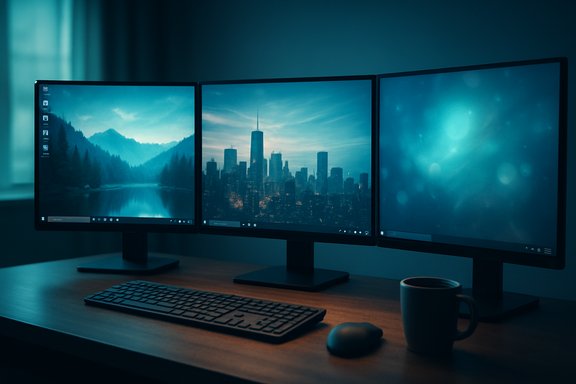
- Support multi‑monitor workflows by assigning different images per screen.
- Offer lightweight personalization on machines where heavy theming or skins are not desirable.
Tool 1 — John’s Background Switcher: simple but immensely flexible
What it does
John’s Background Switcher (JBS) is a long‑running, no‑friction app for people who want huge variety without building it themselves. It pulls images from local folders and a wide collection of online sources — Flickr, Unsplash, Instagram, Pixabay, and many more — and supports montages, collages, and conventional single‑image modes. It also supports multiple monitors and offering different images per display or a single stretched image across all screens. JBS’ interval options and montage modes make it one of the most configurable simple rotators available.Verified key specs
- Change intervals: configurable from very fast (seconds) to days; many builds advertise ranges like 10 seconds to 7 days.
- Sources: integrates with Flickr, Unsplash, Instagram, Pixabay, SmugMug, OneDrive, Dropbox and Media RSS feeds, among others.
- Multi‑monitor: supports per‑monitor images, spanning, and montage styles.
Strengths
- Huge content reach — you can combine local files and dozens of online sources.
- Custom montage modes — thumbnail mosaics, polaroid piles, and multi‑image montages provide distinctive looks.
- Very light footprint — JBS runs quietly in the background and is designed to be low‑impact.
Risks and caveats
- Third‑party integrations depend on the external service APIs; when providers change or deprecate APIs, features may be affected (developers occasionally remove integrations). For example, Google Photos integration was discontinued in a recent update.
- Because JBS can pull from public online sources, review privacy and licensing for images you use in shared or commercial systems.
Who should use it
Users who want maximum variety from both local and online image libraries without paying for animated wallpapers. JBS is ideal for multi‑monitor setups that want distinct images per display without complex scripting.Tool 2 — Wallpaper Engine: the enthusiast’s live wallpaper studio
What it does
Wallpaper Engine is the dominant paid solution for live and interactive desktop backgrounds on Windows. It supports realtime 2D/3D scenes, video and WebGL content, user interactivity, and a massive community workshop where creators share wallpapers. Wallpaper Engine also offers an Android companion app that can receive transferred wallpapers from the desktop app. The engine focuses on both expressive visuals and performance tuning: wallpapers can pause or reduce quality automatically when you’re gaming or on battery power.Verified key specs
- Platform: Windows 10 and 11 (desktop); companion Android app requires Android 8.1+.
- Pause behavior: wallpapers can pause when fullscreen apps (including games) run to preserve performance.
- Content sharing: deep Steam Workshop integration — millions of user‑created wallpapers available.
Strengths
- Highest creative potential — run interactive scenes, WebGL visualizers, or video loops with audio reactivity.
- Huge community & editor — you can create, share, and modify wallpapers with a built‑in editor.
- Performance controls — per‑wallpaper quality settings and automatic pause rules minimize impact during gaming or heavy work.
Risks and caveats
- Resource use — animated or web‑rendered wallpapers can use GPU/CPU resources; older laptops may see measurable battery or performance cost.
- Paid product — Wallpaper Engine is a one‑time paid title (price varies by store/region); check the Steam listing or official site for the current cost rather than assuming a fixed dollar amount.
- Workshop content safety — while most Workshop items are harmless, any user‑created content executed locally can potentially include scripts or third‑party assets; prefer well‑rated creators and inspect workshop pages when in doubt.
Who should use it
Gamers, designers, or anyone who wants animated, interactive desktops and is comfortable trading a small amount of system resources for expressive visuals.Tool 3 — DeskScapes: polished motion backgrounds with effects
What it does
DeskScapes (by Stardock) focuses on animated and video wallpapers with a strong emphasis on user‑friendly effects and preview workflows. DeskScapes lets you apply motion to images or use video backgrounds, and then apply a wide range of filters and effects (grayscale, snow, motion blur, and many more). It includes a creation tool (DreamMaker) for building and sharing “Dreams.” DeskScapes is sold by Stardock, and its marketing emphasizes ease‑of‑use for consumers who want motion backgrounds without building them from scratch.Verified key specs
- Effects: marketed as offering over 60 special effects and filters that apply to images and video backgrounds.
- Platform: Windows 10 and Windows 11; includes DreamMaker Pro for creating animations.
Strengths
- Visual polish — extensive, easy‑to‑apply effects make even simple wallpapers feel “designed.”
- Video + image support — apply effects to both static images and looped videos for flexible looks.
- Preview & apply workflow — the UI focuses on letting non‑technical users preview effects before committing.
Risks and caveats
- Paid/closed — DeskScapes is a commercial product and is part of Stardock’s wider Object Desktop suite; licensing and upgrade costs may apply.
- Performance trade‑offs — as with any animated background, the full video/animation experience uses GPU resources; DeskScapes attempts to minimize CPU load by offloading to the GPU where possible, but testing on representative hardware is recommended.
Who should use it
Users who want motion wallpapers and film‑grade effects but prefer a polished, guided experience rather than building content from an editor or importing web‑based scenes.Tool 4 — Bing Wallpaper: daily curated photography without fuss
What it does
Bing Wallpaper is Microsoft’s lightweight app that sets your desktop to Bing’s daily image (the same high‑quality photography shown on Bing.com). It’s a minimal, no‑configuration solution: install the small app and get a new high‑resolution desktop image each day, with captions and info about the photograph and location available from the tray. This is ideal if you want a steady stream of curated imagery with no setup.Verified key specs
- Official Microsoft app downloadable from the Bing Wallpaper page; supported on Windows 7 and later per the official page.
Strengths
- Zero setup — one‑click install, daily updates from an editorially curated image set.
- Lightweight — minimal resource footprint compared with animated engines.
- Contextual info — many images include location and photographer credits.
Risks and caveats
- Privacy and UX changes: recent updates to Bing Wallpaper have introduced behavioral options (for example, a desktop click action that opens Bing searches) that some users find intrusive; verify the app’s default settings and disable any unwanted behaviors in the app’s options. Independent reporting highlights this as a UX change users should be aware of. Treat such changes as configurable and check the app after installing.
Who should use it
Users who want daily, high‑quality photos without complexity. Great for low‑maintenance personalization on both desktops and workstations.Tool 5 — Splashy: Unsplash‑powered, cross‑platform daily wallpapers
What it does
Splashy is a free, cross‑platform wallpaper app that pulls curated photographs from Unsplash and sets them automatically as your desktop background. It’s small, straightforward, and offers frequency controls (from one minute up to one day) and category filters (nature, architecture, minimalism, etc.. Multiple tech sites and user reviews report that Splashy is available for Windows, macOS, and Linux, and it’s popular for its simple “beautiful photos from Unsplash” approach.Verified key specs
- Sources: Unsplash image library and curated categories; image credits and links back to the Unsplash posting are typically available from the app’s UI.
- Platforms: community reporting and app pages indicate builds for Windows, macOS, and Debian‑based Linux distributions.
Strengths
- High‑quality photography via Unsplash’s generous, high‑resolution content.
- Cross‑platform availability — useful for users who work across macOS, Windows, and Linux.
- Simple controls — change frequency, categories, and whether the app launches at login.
Risks and caveats
- Less advanced than a full engine — no reactive animations or complex multi‑monitor features; it focuses on photographic rotation.
- Third‑party maintenance — splashy is a smaller project than large vendors; verify current compatibility and updates before depending on it in production environments. Status and uptime trackers generally show it operational, but projects of this type can go dormant.
Who should use it
Users who want a steady stream of Unsplash photos without complexity, or those who use multiple operating systems and want the same source across devices.Multi‑monitor and power‑user alternatives
If you run a complex multi‑monitor workstation and need advanced automation, DisplayFusion is a frequently recommended alternative that combines wallpaper management with window, monitor profile, and automation features. DisplayFusion supports per‑monitor images, wallpaper profiles, triggers/automation, and a mobile remote control for changing wallpaper remotely. The vendor documents detailed wallpaper profile and trigger features that are useful for power users. Note that some of DisplayFusion’s advanced functions are part of a Pro edition.Performance, privacy, and security considerations
When choosing an auto‑wallpaper solution, consider these practical points:- Performance: Animated wallpapers and web‑rendered content can use GPU/CPU cycles. Use apps’ built‑in pause‑on‑fullscreen or battery‑saving options during gaming or on laptops. Wallpaper Engine and Lively explicitly offer pause rules to reduce resource use.
- Battery life: Laptop users should prefer solutions that pause on battery or allow lower refresh/quality settings. Desktop users with dedicated GPUs will feel the impact less but should still watch temps on sustained high‑framerate visualizers.
- Network/privacy: Apps that pull images from online sources will make regular network requests. Confirm whether images (or usage telemetry) are processed locally or sent to vendor servers, and check the app privacy settings before enabling automatic uploads or sync.
- Content safety: Only download apps from official stores or vendor pages and be cautious with community content for engines that execute code or HTML as wallpapers (inspect Workshop pages and prefer trusted creators). Wallpaper Engine’s Workshop is popular and vast, but user content is user content—exercise the same caution as you would for any downloaded executable content.
- Enterprise policies: Corporate or managed machines may have Group Policy restrictions that block wallpaper changes, or may forbid non‑store installs. When in doubt, check with IT and use approved or signed packages.
Quick selection checklist: which to pick?
- Want editorial, no‑fuss photos daily: choose Bing Wallpaper.
- Want the richest animated/interactive options: choose Wallpaper Engine (paid, but feature‑rich).
- Want user‑friendly animated effects and video loops: choose DeskScapes.
- Want massive online image variety with montage options: choose John’s Background Switcher.
- Want Unsplash‑curated, cross‑platform daily photos: choose Splashy.
How to get started quickly on Windows 11 (practical steps)
- Decide the style: static slideshow, daily curated images, or live animated wallpaper.
- For a single click, install Bing Wallpaper and let Microsoft handle daily images. Then review its settings and disable any desktop‑click behavior you don’t want.
- For animated or interactive wallpapers, buy and install Wallpaper Engine on Steam; toggle the “pause on fullscreen” option for gaming sessions.
- For simple Unsplash rotations, download Splashy and set your preferred category and interval.
- For maximum per‑monitor control, install DisplayFusion (free tier available; Pro unlocks triggers and remote features) and create wallpaper profiles per monitor or monitor profile.
Practical tips and troubleshooting
- Match image resolution to your monitor (4K images for 4K displays) to avoid blurring. Many apps and guides stress using appropriately sized images.
- Pause animated wallpapers during presentations, meetings, or when battery levels are low.
- If wallpapers stop updating after a Windows update, check background app permissions, or whether a Group Policy was applied (common on managed devices). Windows Spotlight and Bing Wallpaper can be affected by system policies.
- For multi‑monitor stretching/cropping issues, use an app that exposes per‑monitor scaling options (DisplayFusion and Wallpaper Engine both do).
Critical analysis: strengths, gaps and long‑term considerations
- Strengths across the ecosystem: variety of choices has matured — light, editorial tools (Bing, Splashy), classic rotators (John’s Background Switcher), polished commercial motion tools (DeskScapes), and deep creative engines (Wallpaper Engine). This diversity means almost any preference is covered. The Windows personalization stack itself also supports slideshows and Spotlight, giving users choices without third‑party installs.
- Gaps and friction points: animated wallpapers remain a trade‑off between aesthetics and system cost. Mobile and laptop users should be cautious about battery drain; older machines may see noticeable CPU/GPU usage. Additionally, smaller projects (Splashy, some indie engines) can become unmaintained; choose apps with recent updates or active communities for long‑term reliability.
- Privacy and UX risk: Microsoft’s Bing Wallpaper introduced a desktop‑click behavior that some users considered intrusive; vendor changes can alter default behaviors after installation. Always inspect default settings after installing and update privacy/telemetry preferences to match your tolerance.
- Enterprise concerns: organizations should audit wallpaper apps for background services, network access, and installer origins. Use signed/Store versions where corporate policy requires it and test on representative hardware before broad deployment.
Final thoughts
Auto‑changing wallpaper tools have evolved from simple slideshow utilities into a full personalization ecosystem offering curated photography, animated motion backgrounds, interactive scenes, and enterprise‑grade multi‑monitor controls. For users who prefer a low‑maintenance approach, Bing Wallpaper and Splashy deliver daily curated images with minimal fuss. For creative control or immersive desktops, Wallpaper Engine remains unmatched, and DeskScapes strikes a balance between motion and polish. For sheer flexibility with online sources and collage styles, John’s Background Switcher remains an excellent lightweight option. If your needs center on multi‑monitor power features and automation, consider DisplayFusion as a companion or alternative.When choosing, balance aesthetics with performance and privacy: test settings that pause on fullscreen and on battery, prefer official downloads, and keep an eye on app updates that may change behavior. With a little setup, your desktop can become a small, daily delight—scenic, dynamic, or quietly changing—without stealing attention from the work that matters.
Source: Windows Report Auto Change Wallpaper on Your Desktop: 5 Tools to Try Today
