

Chrome’s ubiquity on Android has long masked a simple truth: the preinstalled browser is convenient, not always best-in-class — and for many power users the mobile browsing experience can be markedly improved by alternatives that offer richer tab management, built‑in privacy tools, desktop‑grade extensions, and practical productivity integrations.
Android ships with Google Chrome on most devices, giving Chrome enormous distribution advantages, a sprawling extension ecosystem (on desktop), and deep integration with Google services. That scale is both a strength and a weakness: it fosters compatibility and convenience, but it also breeds a tendency toward feature bloat and slow iteration on niche capabilities that dedicated browsers prioritize.
Over the last several years the browser landscape has evolved beyond raw rendering speed. Modern Android browsers now compete on tab management ergonomics, privacy-by-default behavior, built‑in networking tools (VPNs, compression), and AI-assisted utilities. Some Chromium-based rivals and a couple of non‑Chromium projects have deliberately built tools and workflows that target mobile power users — and on Android those differences can be immediately meaningful.
At the same time, the browser war has entered a new phase that mixes AI, privacy, and platform integration. Microsoft has pushed Copilot into Edge; Brave and others emphasize anti‑tracking and fingerprint defense; Opera bundles privacy and convenience tools like a built‑in VPN; and Vivaldi attempts to reproduce a desktop‑class environment on mobile. These make switching away from Chrome not just feasible but often preferable, depending on how you use your phone.
Key mobile features that give Vivaldi an edge over Chrome on Android:
Standout mobile features
Notable features
Top features
Standout features
That said, switching is not cost‑free. Verify DRM, extension availability, and update cadence before committing. Be mindful of AI data flows and VPN logging policies, and keep Chrome as a fallback until your new browser covers all critical workflows. For IT professionals, treat browser change as a managed policy decision; pilot any AI or extension changes, and ensure update and patching processes are in place.
A better mobile browsing experience is within reach. Whether your priority is privacy, productivity, or desktop parity on a phone, one of these five browsers will likely deliver a markedly improved day‑to‑day experience compared with accepting Chrome as the default. The practical step is straightforward: pick the browser that matches your top two priorities, test it for a week against the critical sites and workflows you rely on, then decide whether to make the change permanent — a small investment of time for a potentially major upgrade in mobile browsing quality.
Source: MakeUseOf 5 Android browsers that are flat-out better than Chrome
 Background
Android ships with Google Chrome on most devices, giving Chrome enormous distribution advantages, a sprawling extension ecosystem (on desktop), and deep integration with Google services. That scale is both a strength and a weakness: it fosters compatibility and convenience, but it also breeds a tendency toward feature bloat and slow iteration on niche capabilities that dedicated browsers prioritize.Over the last several years the browser landscape has evolved beyond raw rendering speed. Modern Android browsers now compete on tab management ergonomics, privacy-by-default behavior, built‑in networking tools (VPNs, compression), and AI-assisted utilities. Some Chromium-based rivals and a couple of non‑Chromium projects have deliberately built tools and workflows that target mobile power users — and on Android those differences can be immediately meaningful.
Why Chrome on Android Feels Limited
Chrome’s mobile UI leans heavily on simplified interactions and a single‑row tab interface that prioritizes minimalism. That design is great for casual browsing but becomes cumbersome for research, long reading sessions, or heavy tab workflows. Chrome’s mobile integration of advanced features such as AI assistants and desktop‑grade extension support remains a work in progress, leaving gaps filled by more focused browsers.At the same time, the browser war has entered a new phase that mixes AI, privacy, and platform integration. Microsoft has pushed Copilot into Edge; Brave and others emphasize anti‑tracking and fingerprint defense; Opera bundles privacy and convenience tools like a built‑in VPN; and Vivaldi attempts to reproduce a desktop‑class environment on mobile. These make switching away from Chrome not just feasible but often preferable, depending on how you use your phone.
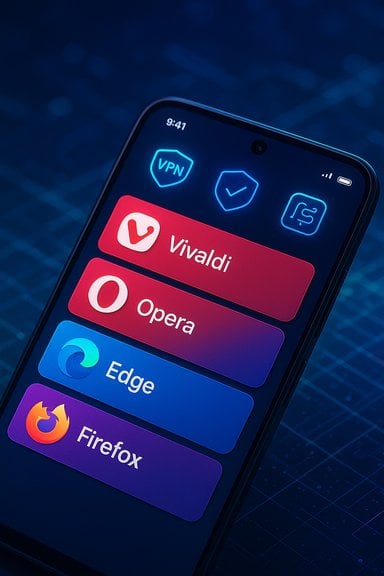
The Five Android Browsers That Outperform Chrome (and Why)
Vivaldi — Desktop-class interface and tab management
Vivaldi takes a power‑user-first approach on Android: tabs are treated like a desktop workspace rather than an endless scroll of cards. Its signature two-level tab stacks let you group related tabs into stacks and present them as two distinct rows — a small but transformative change for anyone juggling research, shopping, and reference material on a phone. This approach intentionally reproduces desktop tab ergonomics to reduce cognitive load while switching contexts.Key mobile features that give Vivaldi an edge over Chrome on Android:
- Two‑row tab stacks and robust tab grouping for organized workflows.
- Built‑in Notes panel with cross‑device sync, letting you clip text and save it without leaving the browser.
- Full‑page screen capture (no need for a third‑party app) and deep UI customization, including rearranging controls and gestures.
- Exceptional for research, long sessions, and users who want desktop behavior on a phone.
- Encrypted sync across devices reduces friction for multi‑device workflows.
- Being feature‑dense increases the attack surface and can use more memory than minimalist browsers; test it on your device before making it daily. Security and privacy tradeoffs for heavy feature sets are discussed in recent overviews of alternative browsers.
- Power users, researchers, and anyone who wants a desktop‑style session manager on Android.
Opera — Built‑in VPN, My Flow, and data‑saving convenience
Opera has for years carved out a practical niche: pack useful networking and productivity tools directly into the browser so users don’t need extra apps. On Android that means a genuinely usable built‑in VPN for casual geo‑workarounds and safer browsing on public Wi‑Fi, plus My Flow — a chat‑style device bridge for sending files, links, and notes between your phone and desktop without email or third‑party cloud.Standout mobile features
- Free built‑in VPN and native ad blocking to improve privacy and reduce data usage.
- My Flow or similar cross‑device clipboard/transfer service for quick file and link sharing.
- Aggressive data‑saving/compression modes that help on limited mobile data plans.
- Utility features that would otherwise require separate apps: VPN, snapshot tools, and integrated messengers.
- Good for users who value convenience and a single‑app approach to multiple browsing needs.
- Built‑in VPNs are convenient, but trust and logging policies vary; for high‑security needs use a vetted third‑party VPN. Also, free integrated VPNs sometimes proxy only browser traffic and not whole-device traffic — verify exactly what is covered. These tradeoffs are a recurring theme in browser comparisons.
- Travelers, users on metered connections, and people who want integrated cross‑device file sync without extra accounts.
Microsoft Edge — Productivity powerhouse with Copilot and deep OS integration
Edge has shaken off its legacy and become a serious mobile productivity tool. The headline differentiator is Copilot (Microsoft’s AI assistant) integrated into the browser, enabling quick summarization of long pages and document content, instant PDF summarization, and on‑device AI features that meaningfully speed up information consumption. Edge’s mobile reading tools — including Read Aloud with natural TTS voices — turn long articles into listening sessions better than stock Chrome on Android.Notable features
- Copilot / GPT‑4 integration for summarization, content generation, and intelligent page actions.
- Read Aloud with neural voices for converting articles and PDFs into audio.
- Drop side panel for frictionless file transfer between phone and PC once signed into the same Microsoft account.
- Deep integration with Windows and Microsoft 365 makes it ideal for people who toggle between phone and desktop productivity tasks.
- AI features are surfaced as practical tools (summaries, Q&A, convert-to‑audio) rather than gimmicks.
- AI assistants require careful data governance — users should understand what browsing context is sent to cloud models. Enterprises should pilot AI features before broad enablement and set policies accordingly.
- Microsoft ecosystem users, knowledge workers, and those who use PDFs and long articles frequently on mobile.
Mozilla Firefox — PC‑grade extensions and privacy customization
Firefox matters on Android chiefly because it supports a curated collection of powerful extensions that change how you browse — extensions like Dark Reader bring desktop‑level usability to mobile by forcing reliable dark themes when site CSS fails. Firefox’s privacy protections and extension model make it the best choice when you need add‑ons that meaningfully alter browsing behavior rather than cosmetic tweaks.Top features
- Support for desktop‑grade add‑ons (select, curated) that expand functionality beyond Chrome’s mobile limitations.
- Strong tracking protection and a privacy‑focused default posture.
- Robust extension support that can make mobile browsing truly customizable.
- Trust model steered by Mozilla’s privacy‑first mission, which resonates with users concerned about data collection.
- Extension availability on mobile remains more limited than desktop; testing is essential if you rely on a particular add‑on. Also, some add‑ons can introduce security or stability issues if poorly maintained.
- Users who rely on specific extensions (e.g., Dark Reader) and privacy‑minded individuals who want to tune their browsing behavior.
Brave — Privacy, anti‑fingerprinting, and background media playback
Brave’s value proposition is immediate: strong default blocking (ads, trackers, popups), anti‑fingerprinting measures to make your device’s digital fingerprint less trackable, and thoughtful extras like background play that keep audio/video playing even when the app is minimized or the screen is locked — a big convenience gap left open by Chrome on Android.Standout features
- Brave Shields: aggressive, default ad and tracker blocking that speeds page loads and reduces data use.
- Anti‑fingerprinting: Brave actively attempts to randomize or standardize device signals to complicate cross‑site tracking.
- Background playback for audio/video without needing a separate app.
- Immediate privacy gains with no setup, and excellent media consumption features for lightweight phones.
- Anti‑fingerprinting techniques are an arms race; savvy trackers may still succeed depending on implementation and site behavior. Also, Brave’s integrated monetization (optional rewards) and default settings may not align with every user’s preferences.
- Privacy‑first users, media consumers on mobile, and people who prefer a strong privacy posture out of the box.
Cross‑check: Verifying Key Claims
To avoid relying on marketing language, these claims were cross‑checked with multiple recent examinations of browser features and privacy tradeoffs:- Vivaldi’s two‑level tab stacks and built‑in Notes/capture features are documented as core differentiators in recent browser roundups comparing desktop‑grade features for mobile power users.
- Opera’s built‑in VPN and My Flow cross‑device transfer are long‑standing, user‑facing features highlighted in multiple reviews as convenience and privacy tools that compete with Chrome’s default toolset.
- Edge’s integration of Copilot / GPT‑class models and practical features like Read Aloud and Drop are covered in product notes and analyses describing the browser’s push toward AI‑assisted productivity on both desktop and mobile.
- Firefox’s mobile extension support, including popular add‑ons like Dark Reader, is consistently reported as a decisive advantage for users wanting desktop‑grade customization on phones.
- Brave’s default blocking and anti‑fingerprinting measures are repeatedly cited in privacy‑focused browser comparisons as effective first‑line defenses that reduce tracking surface area.
Comparative Analysis: Performance, Privacy, Extensions, and AI
Performance and resource use
Benchmarks still favor Chrome and other Chromium engines in raw JavaScript throughput, but real‑world differences are often minor on modern hardware. The real performance differentiator on Android is perceived speed: aggressive ad/tracker blocking (Brave), data compression (Opera), and sleeping/tiling strategies (Edge, Vivaldi) can make browsing feel snappier than raw benchmark numbers suggest.Privacy & networking
- Built‑in VPNs (Opera) and integrated privacy shields (Brave) reduce the need for extra tooling, but VPN trust policies vary — do not assume all in‑app VPNs offer the same protections as commercial, audited VPNs.
- Anti‑fingerprinting is powerful when combined with tracker blocking, but it is not foolproof; browser fingerprinting remains an arms race.
Extensions and compatibility
- Firefox remains the leader when you want mobile extension parity with desktop behavior; Chromium‑based mobile browsers have limited extension support compared to desktop. If you depend on a specific add‑on, test it on your phone.
AI and productivity
- Edge leads in practical mobile AI tooling (Copilot), focusing on summarization and document workflows on both Android and Windows; Chromes’ AI features and Gemini integrations remain evolving and are unevenly exposed on mobile. Enterprises should pilot AI use to validate privacy and security fits before broad deployment.
Practical Risks and What to Watch For
- Security patch cadence: Chromium forks (Vivaldi, Opera, Brave) must ingest upstream Chromium security fixes in a timely manner; users should monitor update frequency and apply updates promptly. Microsoft publishes guidance on mapping Chromium fixes to Edge versions for enterprises — a pattern mirrored across vendors.
- DRM and streaming compatibility: Some privacy‑hardened browsers disable or have limited support for proprietary codecs or Widevine DRM, which can break streaming services. If you rely on subscription video platforms, verify DRM playback before switching permanently. This tradeoff is well‑documented in privacy‑centric browser comparisons.
- VPN trust and scope: Integrated VPNs in browsers sometimes proxy only browser traffic and may have logging policies that differ from paid VPNs — for sensitive workflows prefer independently audited VPNs.
- AI data governance: Copilot and other in‑browser AI features may send page content to cloud models. Users should understand whether content is used to train models and what controls exist to opt out. Enterprises should define policies and monitor usage.
- Extension security: Browser extensions can be a vector for compromise; keep extension counts minimal, prefer well‑maintained projects, and audit permissions regularly. This is a recurring operational recommendation across browser security advisories.
How to Switch Safely from Chrome on Android (Step‑by‑Step)
- Install the candidate browser from the Play Store (or vendor store) and keep Chrome installed as a fallback for testing.
- Use the built‑in import tools to move bookmarks and saved passwords, but confirm that saved credentials sync properly to the new browser before deleting Chrome.
- Test critical sites: banking, subscriptions, DRM streaming (Netflix, Prime, Disney+), and any corporate web apps you use. Note any breakage or DRM prompts.
- Check extension or add‑on availability (especially if you rely on Dark Reader or other productivity extensions). If missing, evaluate whether a browser with extension support (Firefox, desktop Vivaldi) is required.
- Review privacy and update settings: enable auto‑update, review telemetry toggles, and confirm whether built‑in VPNs cover the traffic you expect.
- Keep an eye on vendor release notes for security patches and AI integration changes — mobile rollouts may lag desktop. Monitor official channels for security advisories and apply updates promptly.
Quick Recommendations — Which Browser for Which User
- Choose Vivaldi if you want desktop‑style tab management and heavy customization.
- Choose Opera if you want an integrated VPN and hassle‑free cross‑device file transfer.
- Choose Edge if you rely on Microsoft 365 and want practical AI tools (Copilot) and deep Windows integration.
- Choose Firefox if you depend on specific extensions and a privacy‑centered, customizable experience.
- Choose Brave if you want aggressive, no‑config privacy protections and background media playback.
Final Analysis: Strengths, Trade‑offs, and a Practical Stance
The modern browser landscape on Android is no longer a one‑size‑fits‑all proposition. Browsers that lean into specific strengths — desktop ergonomics (Vivaldi), built‑in privacy/networking tools (Opera, Brave), extension power (Firefox), or productivity AI (Edge) — consistently outcompete Chrome in their chosen niches. For users who care about productivity, privacy, or media consumption, alternatives deliver concrete, measurable benefits that go beyond aesthetic differences.That said, switching is not cost‑free. Verify DRM, extension availability, and update cadence before committing. Be mindful of AI data flows and VPN logging policies, and keep Chrome as a fallback until your new browser covers all critical workflows. For IT professionals, treat browser change as a managed policy decision; pilot any AI or extension changes, and ensure update and patching processes are in place.
A better mobile browsing experience is within reach. Whether your priority is privacy, productivity, or desktop parity on a phone, one of these five browsers will likely deliver a markedly improved day‑to‑day experience compared with accepting Chrome as the default. The practical step is straightforward: pick the browser that matches your top two priorities, test it for a week against the critical sites and workflows you rely on, then decide whether to make the change permanent — a small investment of time for a potentially major upgrade in mobile browsing quality.
Source: MakeUseOf 5 Android browsers that are flat-out better than Chrome
