

Microsoft’s Windows 10 support deadline on October 14, 2025 helped push a fresh wave of PC buyers toward replacement machines, and a TechPP guide published May 8, 2026 argues that some of those Windows veterans will land on Macs needing a starter kit of familiar utilities. The list is ostensibly about apps, but the larger story is about muscle memory. Apple may sell the Mac as a polished appliance, yet the first week after switching from Windows is often a negotiation with everything macOS chooses not to do.
That tension matters because this is not the old “Mac versus PC” culture war dressed up in a new hoodie. The switching audience in 2026 includes practical users who were perfectly happy on Windows 10 until support timelines, Windows 11 hardware requirements, enterprise refresh cycles, and laptop economics forced a decision. For them, macOS is not a lifestyle conversion. It is a productivity migration.
The end of Windows 10 support did not instantly make everyone a Mac user, and it would be silly to pretend otherwise. Most replacement buyers stayed in the Windows ecosystem, especially in business fleets where management tools, application compatibility, and procurement habits still point toward Dell, Lenovo, HP, and Microsoft’s own platform assumptions. But the deadline did change the psychology of the market.
For years, Windows users could defer the question. A five-year-old laptop that still ran Windows 10 well did not feel obsolete in daily use. Then support calendars turned that machine into a security and compliance liability. Some users upgraded to Windows 11, some bought new Windows PCs, some enrolled in extended support where available, and some looked at Apple Silicon Macs and decided the battery life, build quality, and resale value made the jump worth considering.
That is why TechPP’s app list lands at the right moment. The interesting thing is not that macOS lacks a few Windows features. The interesting thing is that a mature operating system with decades of design confidence still needs an aftermarket of small utilities to make switchers feel productive.
Apple’s software philosophy has long prized consistency, restraint, and a certain refusal to expose every knob. Windows, for all its historical clutter, often lets users get to the control they want without asking whether they should want it. When a Windows user arrives on macOS, the friction is not merely aesthetic. It is ergonomic, procedural, and sometimes ideological.
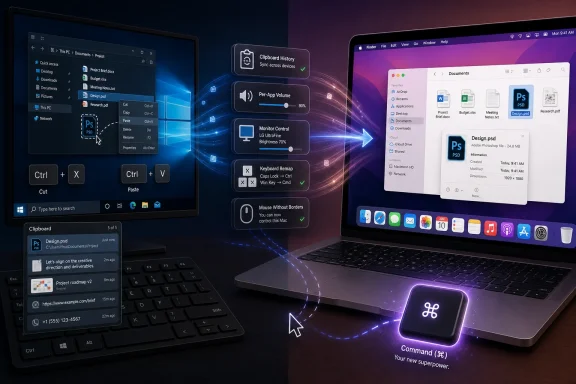
On Windows, Ctrl+X followed by Ctrl+V is ordinary. On macOS, Finder expects users to copy with Command+C and then move with Option+Command+V. Apple’s version is defensible if you grew up inside the Mac model, but it is alien if your fingers have spent twenty years treating “cut” as a basic file operation.
That is why Command X is not just a tiny convenience app. It is a peace treaty between two operating-system dialects. By restoring the familiar Command+X behavior for cutting and pasting files, it removes one of the earliest and most repeated moments of switcher irritation.
Finder brings its own complications. It is not File Explorer with a different coat of paint. Its path handling, window behavior, sidebar assumptions, and preview model all come from a different tradition. Some of its choices are elegant, but elegance does not help much when a user is trying to move a folder quickly and cannot understand why the obvious shortcut does nothing.
This is the hidden cost of switching platforms. The hard part is not learning a new feature. It is discovering that an old reflex has become unreliable.
Windows users expect window previews, predictable grouping, quick closure, and a clear distinction between running windows and pinned applications. macOS gives them icons, dots, and a windowing model that often feels as though it is organized around applications rather than tasks. That distinction is philosophically consistent, but it can be maddening in a busy workday.
DockDoor, as described in the TechPP list, is the kind of utility that exists because Apple’s default answer is not enough for everyone. Live Dock previews, Alt-Tab-like switching, middle-click closing, Aero Shake behavior, and richer window controls all point to a simple fact: many users do not want to learn Apple’s window model from scratch. They want macOS hardware and Unix-adjacent underpinnings without giving up the operational habits that made them fast on Windows.
uBar attacks the same problem from a different angle by recreating a taskbar-like experience on macOS. That is a more radical move because it does not merely patch a missing feature; it changes the spatial grammar of the desktop. For some Mac purists, that will feel like bolting a Windows dashboard onto a sports car. For switchers, it may be the difference between tolerating macOS and actually getting work done.
The lesson for Apple is uncomfortable but familiar. A clean default interface is valuable, but a clean default cannot anticipate every professional workflow. Power users do not always want fewer controls. Sometimes they want the controls to be where ten thousand hours of practice told their hands they should be.
There are good reasons for this. macOS treats applications and windows as related but distinct entities, and that distinction can be useful for apps that spawn multiple documents, panels, or background services. But the design also creates a daily paper cut for users trained by Windows.
SwiftQuit solves the problem by making macOS behave more like Windows: close the last window, and the app quits. It is a small intervention with a large psychological payoff. It tells the switcher that the machine will stop violating a basic expectation.
This is where the usual platform debates become unhelpful. Mac veterans may insist that Command+Q is easy. They are right. Windows users may respond that a close button should close the thing. They are also right. Interface conventions are not moral truths; they are learned contracts.
The existence of SwiftQuit is a reminder that macOS’ elegance often depends on users accepting Apple’s definitions. Switchers are not wrong when they resist. They are bringing a competing model that worked well enough to become automatic.
Then they plug in a third-party mouse.
This is where macOS can suddenly feel much less refined. Pointer acceleration, scroll direction, and per-device behavior can clash with expectations formed on Windows. The issue is not that Apple has no mouse support. It is that macOS appears to treat external mice as guests in a house designed around trackpads and Magic Mouse assumptions.
LinearMouse matters because it restores per-device sanity. A user can keep natural scrolling on the trackpad while reversing the external mouse, disable pointer acceleration, and tune behavior in a way that feels closer to Windows. Mos, mentioned as an alternative in TechPP’s guide, occupies similar territory with an emphasis on smoother scrolling.
MiddleClick is another example of macOS’ odd relationship with conventional mouse and trackpad behaviors. Middle-clicking is a routine action for browser tabs, CAD navigation, terminal workflows, and power-user habits. If macOS does not offer the gesture in the way a user expects, a utility steps in.
Apple’s input story is therefore split. On its own hardware terms, it is excellent. The moment a user brings an external mouse, mechanical keyboard, or Windows-trained hand position, the polish becomes conditional.
Windows’ built-in clipboard history, summoned with Windows+V, has become one of those features that many users do not appreciate until they lose it. It is not glamorous. It is not an AI assistant. It simply saves time dozens of times a week.
macOS still lacks an equivalent built into the operating system. That absence is increasingly conspicuous in a productivity environment where users move between chat apps, terminals, browsers, documentation, password managers, ticketing systems, and spreadsheets all day. A single-item clipboard feels antique.
ClipboardManager and Maccy fill the gap. They store copied text, links, rich text, and images, and they let users search or reuse recent items. This is not merely a Windows nostalgia feature. It is modern desktop plumbing.
The broader point is that Apple sometimes underestimates how much productivity comes from boring features. A beautifully animated desktop does not compensate for forcing users to recopy something they copied two minutes ago. The most valuable utilities are often the ones that make the computer feel less forgetful.
macOS does not offer the same native granularity. For a platform heavily used by creators, podcasters, developers, remote workers, musicians, and students, that omission remains strange. Apple has invested deeply in audio frameworks, spatial audio, AirPods integration, and media production workflows, yet the basic desktop-level mixer remains missing.
FineTune, as TechPP presents it, does more than clone Windows’ mixer. It offers per-app volume control, audio routing, boosting, equalization, and device-specific behavior. That makes it attractive not just for switchers but for anyone juggling speakers, headphones, meeting apps, and media players.
The practical example is obvious. A user wants a meeting in AirPods while music plays from speakers, or wants a browser muted without muting the whole machine. This should not require a third-party app in 2026, but on macOS it does.
That is the recurring pattern. Many of these apps are not exotic power tools. They are replacement organs for functions Windows users reasonably assumed every desktop OS would include.
But a Windows switcher may also be an Android user. In that case, the Mac can feel oddly hostile. Android phones that behave predictably when connected to Windows do not simply mount as friendly storage devices in Finder. The user has crossed not only an operating-system boundary but an ecosystem boundary.
MacDroid exists for this reason. It makes Android file transfer workable through Finder, with wired and wireless options depending on version and setup. For users with Android phones, GoPros, VR headsets, Garmin devices, or other MTP-compatible hardware, that matters.
The larger issue is that Apple’s best experience is often reserved for users who buy fully into Apple. That is not surprising; every ecosystem vendor behaves this way to some degree. But for Windows migrants, especially those coming from a more hardware-agnostic world, the Mac can feel less like a personal computer and more like a gated terminal.
Utilities such as MacDroid lower the wall. They do not demolish it.
macOS has basic modifier-key remapping, but Karabiner-Elements goes much further. It can remap keys per device, create complex combinations, define app-specific behavior, and turn otherwise wasted keys into powerful shortcuts. For users bringing mechanical keyboards, ergonomic boards, or enterprise-standard peripherals to a Mac, this is not optional tinkering. It is rehabilitation.
The app also illustrates a subtle divide between consumer simplicity and professional configurability. Apple gives users enough settings to avoid scaring casual buyers. Karabiner gives power users enough control to make the machine fit them instead of the other way around.
That distinction is central to the Windows-to-Mac migration. Windows users are often accustomed to a messier, more configurable environment. macOS can feel calmer, but also less willing to bend. The best switcher utilities restore bend without recreating all the clutter.
Itsycal fixes a different kind of mismatch. Windows users expect clicking the clock or date area to reveal a useful calendar. macOS’ menu bar behavior can feel indirect by comparison, especially if all a user wants is a quick date check or event glance. Itsycal adds the compact utility Apple could have shipped itself.
Pika is aimed more at designers and developers, echoing the color picker utility in Microsoft PowerToys. Its presence on the list is telling because PowerToys has become a kind of official admission that Windows power users need small, focused enhancements. macOS has no exact equivalent sanctioned by Apple. Instead, the Mac utility ecosystem plays that role.
These apps are not all equally essential. A writer may never need Pika. A designer may use it daily. A sysadmin may care more about The Unarchiver and clipboard history. The point is that switchers do not need one magic app; they need a kit shaped around their habits.
Apple already has battery health management and optimized charging, but it is intentionally opaque. The system learns patterns and intervenes when it thinks it should. That approach suits many users, but not everyone wants the machine to infer their intentions.
AlDente lets users set charge limits, discharge behavior, calibration options, temperature-aware rules, and temporary overrides depending on version. It appeals to the user who treats a laptop battery as a component to manage, not a mystery to trust.
There is a risk here, too. Battery utilities can encourage over-optimization, and most users should not turn power management into a hobby. But the desire behind AlDente is legitimate: people who buy expensive laptops want control over longevity.
This again exposes a difference between Apple’s default posture and the Windows hardware world. Many Windows laptops arrive with vendor utilities that expose battery conservation modes, fan profiles, display modes, and firmware toggles. Apple hides more of that complexity. Switchers may appreciate the simplicity, but some will go looking for the knobs.
MonitorControl is a good example of a utility that should not feel as magical as it does. It lets users adjust brightness, volume, and contrast on supported external displays through macOS-like controls and keyboard shortcuts. For anyone who has fumbled with monitor buttons under a bezel, that is a meaningful upgrade.
Windows does not solve every external monitor problem elegantly either, but Mac users often run into a particular disconnect: the laptop’s beautiful integrated controls stop feeling universal once third-party displays enter the setup. The keyboard brightness keys do not necessarily govern the monitor in front of them. The volume keys may not behave as expected. The desk setup becomes a collection of exceptions.
That matters because many switchers are not buying Macs as coffee-shop typewriters. They are docking them into workstations. If Apple wants the Mac to keep absorbing Windows refugees, especially professional ones, the desktop-peripheral experience deserves as much attention as the trackpad.
There are genuine Mac advantages waiting on the other side of the awkward first week. Apple Silicon battery life is still a major differentiator. Sleep and wake behavior remains excellent. The trackpad is superb. The Unix foundation appeals to many developers. The hardware lineup, while less varied than the Windows world, is easier to understand and often better integrated.
But users do not experience those strengths in isolation. They experience them while failing to cut and paste a file, while wondering why an app is still running, while losing a copied snippet, while fighting a mouse wheel, or while trying to lower one app’s volume without muting everything.
That is why the switcher utility ecosystem is so important. It acts as a translation layer. It lets Windows-trained users remain themselves while gradually learning macOS on their own terms.
The best outcome is not a Mac that behaves exactly like Windows. It is a Mac that stops punishing users for having learned Windows first.
Apple does not need to adopt every Windows convention. Some differences are part of what makes macOS coherent. But the most persistent switcher pain points are not matters of taste alone. Clipboard history, per-app volume, richer window previews, external monitor controls, and better mouse configuration are practical features with broad appeal.
Microsoft learned a similar lesson with PowerToys. Instead of pretending that power users did not need extra tools, it created a semi-official playground for the things Windows should maybe have included but could not always justify placing in the core OS. Apple has historically relied on third-party developers to fill that space. The model works, but it also means the first-run Mac experience can feel incomplete for users arriving from Windows.
There is also a security and trust dimension. Many of these utilities require accessibility permissions, input monitoring, file access, or background privileges. Experienced users may understand the tradeoff. Less technical switchers may simply click through prompts because a guide told them to install the app. The more Apple leaves basic productivity gaps to third parties, the more users must hand sensitive permissions to small developers.
That does not make these apps bad. Many are open source, well regarded, and carefully scoped. But it does make the “just install a utility” answer less clean than it appears.
The Windows-to-Mac switch in 2026 is less about choosing a side than surviving a translation. Apple has won new consideration because Windows 10’s deadline forced millions of users to reassess old hardware, but keeping those users happy requires more than fast chips and premium aluminum. The real migration happens in shortcuts, scroll wheels, clipboard entries, window previews, file transfers, and charging habits. If Apple is wise, it will treat these third-party utilities not as edge-case tinkering but as a roadmap for the next version of macOS: powerful by default, configurable where it counts, and welcoming to users who did not grow up speaking Mac.
Source: TechPP Switching from Windows to Mac? Here Are 15 Apps You Need First - TechPP
That tension matters because this is not the old “Mac versus PC” culture war dressed up in a new hoodie. The switching audience in 2026 includes practical users who were perfectly happy on Windows 10 until support timelines, Windows 11 hardware requirements, enterprise refresh cycles, and laptop economics forced a decision. For them, macOS is not a lifestyle conversion. It is a productivity migration.
 The Windows 10 Deadline Turned the Mac Into a Migration Target
The end of Windows 10 support did not instantly make everyone a Mac user, and it would be silly to pretend otherwise. Most replacement buyers stayed in the Windows ecosystem, especially in business fleets where management tools, application compatibility, and procurement habits still point toward Dell, Lenovo, HP, and Microsoft’s own platform assumptions. But the deadline did change the psychology of the market.For years, Windows users could defer the question. A five-year-old laptop that still ran Windows 10 well did not feel obsolete in daily use. Then support calendars turned that machine into a security and compliance liability. Some users upgraded to Windows 11, some bought new Windows PCs, some enrolled in extended support where available, and some looked at Apple Silicon Macs and decided the battery life, build quality, and resale value made the jump worth considering.
That is why TechPP’s app list lands at the right moment. The interesting thing is not that macOS lacks a few Windows features. The interesting thing is that a mature operating system with decades of design confidence still needs an aftermarket of small utilities to make switchers feel productive.
Apple’s software philosophy has long prized consistency, restraint, and a certain refusal to expose every knob. Windows, for all its historical clutter, often lets users get to the control they want without asking whether they should want it. When a Windows user arrives on macOS, the friction is not merely aesthetic. It is ergonomic, procedural, and sometimes ideological.
macOS Is Polished Until It Meets Someone Else’s Habits
The first shock for a Windows migrant is the keyboard. The Command key replaces Control for most shortcuts, Option takes over much of what Alt used to mean, and the Windows key disappears into a different conceptual universe. Copy and paste are easy enough to relearn; file movement is where the trouble starts.On Windows, Ctrl+X followed by Ctrl+V is ordinary. On macOS, Finder expects users to copy with Command+C and then move with Option+Command+V. Apple’s version is defensible if you grew up inside the Mac model, but it is alien if your fingers have spent twenty years treating “cut” as a basic file operation.
That is why Command X is not just a tiny convenience app. It is a peace treaty between two operating-system dialects. By restoring the familiar Command+X behavior for cutting and pasting files, it removes one of the earliest and most repeated moments of switcher irritation.
Finder brings its own complications. It is not File Explorer with a different coat of paint. Its path handling, window behavior, sidebar assumptions, and preview model all come from a different tradition. Some of its choices are elegant, but elegance does not help much when a user is trying to move a folder quickly and cannot understand why the obvious shortcut does nothing.
This is the hidden cost of switching platforms. The hard part is not learning a new feature. It is discovering that an old reflex has become unreliable.
The Dock Is Not a Taskbar, and That Is the Point
No single macOS element exposes the Windows switcher gap quite like the Dock. Apple’s Dock is a launcher, app switcher, status strip, and visual anchor. The Windows taskbar is a command center. They overlap, but they are not trying to be the same thing.Windows users expect window previews, predictable grouping, quick closure, and a clear distinction between running windows and pinned applications. macOS gives them icons, dots, and a windowing model that often feels as though it is organized around applications rather than tasks. That distinction is philosophically consistent, but it can be maddening in a busy workday.
DockDoor, as described in the TechPP list, is the kind of utility that exists because Apple’s default answer is not enough for everyone. Live Dock previews, Alt-Tab-like switching, middle-click closing, Aero Shake behavior, and richer window controls all point to a simple fact: many users do not want to learn Apple’s window model from scratch. They want macOS hardware and Unix-adjacent underpinnings without giving up the operational habits that made them fast on Windows.
uBar attacks the same problem from a different angle by recreating a taskbar-like experience on macOS. That is a more radical move because it does not merely patch a missing feature; it changes the spatial grammar of the desktop. For some Mac purists, that will feel like bolting a Windows dashboard onto a sports car. For switchers, it may be the difference between tolerating macOS and actually getting work done.
The lesson for Apple is uncomfortable but familiar. A clean default interface is valuable, but a clean default cannot anticipate every professional workflow. Power users do not always want fewer controls. Sometimes they want the controls to be where ten thousand hours of practice told their hands they should be.
Closing a Window Should Not Be a Philosophy Seminar
One of macOS’ most famous switcher traps is the red close button. On Windows, closing the last window generally exits the app. On macOS, it usually closes the window while leaving the application running. The little dot under the Dock icon becomes a clue that something is still alive.There are good reasons for this. macOS treats applications and windows as related but distinct entities, and that distinction can be useful for apps that spawn multiple documents, panels, or background services. But the design also creates a daily paper cut for users trained by Windows.
SwiftQuit solves the problem by making macOS behave more like Windows: close the last window, and the app quits. It is a small intervention with a large psychological payoff. It tells the switcher that the machine will stop violating a basic expectation.
This is where the usual platform debates become unhelpful. Mac veterans may insist that Command+Q is easy. They are right. Windows users may respond that a close button should close the thing. They are also right. Interface conventions are not moral truths; they are learned contracts.
The existence of SwiftQuit is a reminder that macOS’ elegance often depends on users accepting Apple’s definitions. Switchers are not wrong when they resist. They are bringing a competing model that worked well enough to become automatic.
Apple’s Trackpad Is Superb, but the Mouse Story Still Feels Neglected
The MacBook trackpad remains one of Apple’s strongest arguments. Gestures are smooth, palm rejection is excellent, scrolling feels natural, and the hardware-software integration is still better than most of the Windows laptop market. A new Mac user can spend ten minutes in Trackpad settings and understand why Apple has obsessed over this input surface for years.Then they plug in a third-party mouse.
This is where macOS can suddenly feel much less refined. Pointer acceleration, scroll direction, and per-device behavior can clash with expectations formed on Windows. The issue is not that Apple has no mouse support. It is that macOS appears to treat external mice as guests in a house designed around trackpads and Magic Mouse assumptions.
LinearMouse matters because it restores per-device sanity. A user can keep natural scrolling on the trackpad while reversing the external mouse, disable pointer acceleration, and tune behavior in a way that feels closer to Windows. Mos, mentioned as an alternative in TechPP’s guide, occupies similar territory with an emphasis on smoother scrolling.
MiddleClick is another example of macOS’ odd relationship with conventional mouse and trackpad behaviors. Middle-clicking is a routine action for browser tabs, CAD navigation, terminal workflows, and power-user habits. If macOS does not offer the gesture in the way a user expects, a utility steps in.
Apple’s input story is therefore split. On its own hardware terms, it is excellent. The moment a user brings an external mouse, mechanical keyboard, or Windows-trained hand position, the polish becomes conditional.
The Missing Clipboard History Is Harder to Defend
Some macOS omissions are philosophical. Clipboard history is harder to explain away.Windows’ built-in clipboard history, summoned with Windows+V, has become one of those features that many users do not appreciate until they lose it. It is not glamorous. It is not an AI assistant. It simply saves time dozens of times a week.
macOS still lacks an equivalent built into the operating system. That absence is increasingly conspicuous in a productivity environment where users move between chat apps, terminals, browsers, documentation, password managers, ticketing systems, and spreadsheets all day. A single-item clipboard feels antique.
ClipboardManager and Maccy fill the gap. They store copied text, links, rich text, and images, and they let users search or reuse recent items. This is not merely a Windows nostalgia feature. It is modern desktop plumbing.
The broader point is that Apple sometimes underestimates how much productivity comes from boring features. A beautifully animated desktop does not compensate for forcing users to recopy something they copied two minutes ago. The most valuable utilities are often the ones that make the computer feel less forgetful.
The Audio Mixer Is Another Windows Feature macOS Should Have Copied Years Ago
Per-app volume control is one of those Windows features that feels mundane until it is gone. A user may want Spotify low, a Zoom call loud, system alerts muted, and a browser tab somewhere in between. Windows handles that expectation with a built-in volume mixer.macOS does not offer the same native granularity. For a platform heavily used by creators, podcasters, developers, remote workers, musicians, and students, that omission remains strange. Apple has invested deeply in audio frameworks, spatial audio, AirPods integration, and media production workflows, yet the basic desktop-level mixer remains missing.
FineTune, as TechPP presents it, does more than clone Windows’ mixer. It offers per-app volume control, audio routing, boosting, equalization, and device-specific behavior. That makes it attractive not just for switchers but for anyone juggling speakers, headphones, meeting apps, and media players.
The practical example is obvious. A user wants a meeting in AirPods while music plays from speakers, or wants a browser muted without muting the whole machine. This should not require a third-party app in 2026, but on macOS it does.
That is the recurring pattern. Many of these apps are not exotic power tools. They are replacement organs for functions Windows users reasonably assumed every desktop OS would include.
Android Users Discover the Ecosystem Wall
Apple’s ecosystem works best when the user brings an iPhone, iPad, Apple Watch, AirPods, and iCloud account along for the ride. That integration can be genuinely impressive. Messages, AirDrop, Continuity Camera, Universal Clipboard, and Handoff create a cohesive environment that Windows has struggled to match cleanly across phone and PC.But a Windows switcher may also be an Android user. In that case, the Mac can feel oddly hostile. Android phones that behave predictably when connected to Windows do not simply mount as friendly storage devices in Finder. The user has crossed not only an operating-system boundary but an ecosystem boundary.
MacDroid exists for this reason. It makes Android file transfer workable through Finder, with wired and wireless options depending on version and setup. For users with Android phones, GoPros, VR headsets, Garmin devices, or other MTP-compatible hardware, that matters.
The larger issue is that Apple’s best experience is often reserved for users who buy fully into Apple. That is not surprising; every ecosystem vendor behaves this way to some degree. But for Windows migrants, especially those coming from a more hardware-agnostic world, the Mac can feel less like a personal computer and more like a gated terminal.
Utilities such as MacDroid lower the wall. They do not demolish it.
Keyboard Remapping Is the Quiet Foundation of a Successful Switch
Karabiner-Elements may be the least flashy app in the list and one of the most important. Keyboard layout is muscle memory at the nervous-system level. If a user has spent years on a Windows keyboard, the wrong modifier key in the wrong place can make even simple actions feel clumsy.macOS has basic modifier-key remapping, but Karabiner-Elements goes much further. It can remap keys per device, create complex combinations, define app-specific behavior, and turn otherwise wasted keys into powerful shortcuts. For users bringing mechanical keyboards, ergonomic boards, or enterprise-standard peripherals to a Mac, this is not optional tinkering. It is rehabilitation.
The app also illustrates a subtle divide between consumer simplicity and professional configurability. Apple gives users enough settings to avoid scaring casual buyers. Karabiner gives power users enough control to make the machine fit them instead of the other way around.
That distinction is central to the Windows-to-Mac migration. Windows users are often accustomed to a messier, more configurable environment. macOS can feel calmer, but also less willing to bend. The best switcher utilities restore bend without recreating all the clutter.
Archives, Calendars, and Color Pickers Reveal the Same Pattern
The Unarchiver addresses a boring but real limitation: macOS’ default archive handling is fine for common ZIP files but less satisfying for RAR, 7z, and other formats users still encounter. Windows users are hardly strangers to third-party archive tools, but the expectation in a switcher guide is clear. The Mac should be ready for the messy file formats of the real world.Itsycal fixes a different kind of mismatch. Windows users expect clicking the clock or date area to reveal a useful calendar. macOS’ menu bar behavior can feel indirect by comparison, especially if all a user wants is a quick date check or event glance. Itsycal adds the compact utility Apple could have shipped itself.
Pika is aimed more at designers and developers, echoing the color picker utility in Microsoft PowerToys. Its presence on the list is telling because PowerToys has become a kind of official admission that Windows power users need small, focused enhancements. macOS has no exact equivalent sanctioned by Apple. Instead, the Mac utility ecosystem plays that role.
These apps are not all equally essential. A writer may never need Pika. A designer may use it daily. A sysadmin may care more about The Unarchiver and clipboard history. The point is that switchers do not need one magic app; they need a kit shaped around their habits.
Battery Management Shows Where Mac Switchers May Want More Control Than Apple Offers
AlDente is a slightly different case because it is not primarily about making macOS feel like Windows. It is about giving MacBook users more explicit control over battery charging behavior. Some Windows laptop vendors have long offered charge limits to preserve battery health, particularly for machines that spend most of their lives plugged in.Apple already has battery health management and optimized charging, but it is intentionally opaque. The system learns patterns and intervenes when it thinks it should. That approach suits many users, but not everyone wants the machine to infer their intentions.
AlDente lets users set charge limits, discharge behavior, calibration options, temperature-aware rules, and temporary overrides depending on version. It appeals to the user who treats a laptop battery as a component to manage, not a mystery to trust.
There is a risk here, too. Battery utilities can encourage over-optimization, and most users should not turn power management into a hobby. But the desire behind AlDente is legitimate: people who buy expensive laptops want control over longevity.
This again exposes a difference between Apple’s default posture and the Windows hardware world. Many Windows laptops arrive with vendor utilities that expose battery conservation modes, fan profiles, display modes, and firmware toggles. Apple hides more of that complexity. Switchers may appreciate the simplicity, but some will go looking for the knobs.
External Monitors Remain a Mac Pain Point for Desk Workers
For mobile users, the MacBook experience can be superb. For desk workers with external monitors, speakers, docks, keyboards, and mice, the story becomes more complicated. macOS has improved multi-display behavior over the years, but external monitor control remains a place where users often hit unnecessary friction.MonitorControl is a good example of a utility that should not feel as magical as it does. It lets users adjust brightness, volume, and contrast on supported external displays through macOS-like controls and keyboard shortcuts. For anyone who has fumbled with monitor buttons under a bezel, that is a meaningful upgrade.
Windows does not solve every external monitor problem elegantly either, but Mac users often run into a particular disconnect: the laptop’s beautiful integrated controls stop feeling universal once third-party displays enter the setup. The keyboard brightness keys do not necessarily govern the monitor in front of them. The volume keys may not behave as expected. The desk setup becomes a collection of exceptions.
That matters because many switchers are not buying Macs as coffee-shop typewriters. They are docking them into workstations. If Apple wants the Mac to keep absorbing Windows refugees, especially professional ones, the desktop-peripheral experience deserves as much attention as the trackpad.
The Best Switcher Apps Are Not Mac Rejections
It would be easy to read a list like TechPP’s as a complaint that macOS should simply become Windows. That would miss the point. Most switchers are not trying to erase the Mac. They are trying to keep themselves productive long enough to appreciate what the Mac does well.There are genuine Mac advantages waiting on the other side of the awkward first week. Apple Silicon battery life is still a major differentiator. Sleep and wake behavior remains excellent. The trackpad is superb. The Unix foundation appeals to many developers. The hardware lineup, while less varied than the Windows world, is easier to understand and often better integrated.
But users do not experience those strengths in isolation. They experience them while failing to cut and paste a file, while wondering why an app is still running, while losing a copied snippet, while fighting a mouse wheel, or while trying to lower one app’s volume without muting everything.
That is why the switcher utility ecosystem is so important. It acts as a translation layer. It lets Windows-trained users remain themselves while gradually learning macOS on their own terms.
The best outcome is not a Mac that behaves exactly like Windows. It is a Mac that stops punishing users for having learned Windows first.
The Apps Tell Apple Where the Friction Still Lives
The TechPP list is useful as a shopping guide, but it is more valuable as product feedback. When multiple third-party utilities cluster around the same missing behaviors, they are not random hacks. They are signals.Apple does not need to adopt every Windows convention. Some differences are part of what makes macOS coherent. But the most persistent switcher pain points are not matters of taste alone. Clipboard history, per-app volume, richer window previews, external monitor controls, and better mouse configuration are practical features with broad appeal.
Microsoft learned a similar lesson with PowerToys. Instead of pretending that power users did not need extra tools, it created a semi-official playground for the things Windows should maybe have included but could not always justify placing in the core OS. Apple has historically relied on third-party developers to fill that space. The model works, but it also means the first-run Mac experience can feel incomplete for users arriving from Windows.
There is also a security and trust dimension. Many of these utilities require accessibility permissions, input monitoring, file access, or background privileges. Experienced users may understand the tradeoff. Less technical switchers may simply click through prompts because a guide told them to install the app. The more Apple leaves basic productivity gaps to third parties, the more users must hand sensitive permissions to small developers.
That does not make these apps bad. Many are open source, well regarded, and carefully scoped. But it does make the “just install a utility” answer less clean than it appears.
The First Install List Is Really a Map of Lost Muscle Memory
A sensible Windows-to-Mac starter kit should not be judged by how many apps it includes. It should be judged by how quickly it removes the behaviors that make a user feel slow. The TechPP selection is strongest when it focuses on daily friction rather than novelty.- Command X is the most direct fix for the file-cutting shortcut that trips up Windows users almost immediately.
- DockDoor, uBar, and SwiftQuit address the deeper mismatch between the Windows taskbar model and macOS’ app-first window behavior.
- ClipboardManager and FineTune restore two productivity features that macOS should arguably include natively by now.
- LinearMouse, MiddleClick, Karabiner-Elements, and MonitorControl make the Mac more tolerant of non-Apple peripherals and Windows-trained input habits.
- MacDroid is essential for switchers who bring Android phones and MTP devices into an ecosystem that works best with iPhones.
- AlDente, Itsycal, The Unarchiver, and Pika are not universal necessities, but they point to the kinds of small utilities that make a Mac feel owned rather than merely operated.
The Windows-to-Mac switch in 2026 is less about choosing a side than surviving a translation. Apple has won new consideration because Windows 10’s deadline forced millions of users to reassess old hardware, but keeping those users happy requires more than fast chips and premium aluminum. The real migration happens in shortcuts, scroll wheels, clipboard entries, window previews, file transfers, and charging habits. If Apple is wise, it will treat these third-party utilities not as edge-case tinkering but as a roadmap for the next version of macOS: powerful by default, configurable where it counts, and welcoming to users who did not grow up speaking Mac.
Source: TechPP Switching from Windows to Mac? Here Are 15 Apps You Need First - TechPP
