

The market for webcams and webcam recording tools has never been more crowded — and more confusing — for Windows users: whether you’re trying to keep an older system (Windows 7 64‑bit) working with a modern USB camera or picking the best webcam recording software for a Windows 10 PC, you need a clear checklist, realistic expectations, and a few reliable recommendations to avoid wasted money or privacy headaches. rview
Windows remains split across generations in the field: many users still run Windows 7 x64 for legacy applications and hardware compatibility, while creators and office workers commonly use Windows 10 for recording, streaming, and conferencing. That split shapes both hardware and software choices because driver support, vendor utilities, and advanced features are often targeted at newer OS versions. The practical upshot is simple: assume basic video will work, but expect advanced features (firmware updates, AI background removal, vendor tuners) to require newer Windows versions or vendor software that may not support Windows 7.
Vendors continue to ship webcams thaVideo Class (UVC)** standard so they’ll work as plug‑and‑play devices on modern Windows installs. UVC support increases the odds a webcam will function with built‑in Windows drivers on both Windows 7 and Windows 10, but it does not guarantee access to every advanced feature the manufacturer advertises. Confirm UVC compatibility on the vendor spec sheet before buying if you rely on legacy OS support.
Source: Born2Invest https://born2invest.com/?b=style-247653912/
Windows remains split across generations in the field: many users still run Windows 7 x64 for legacy applications and hardware compatibility, while creators and office workers commonly use Windows 10 for recording, streaming, and conferencing. That split shapes both hardware and software choices because driver support, vendor utilities, and advanced features are often targeted at newer OS versions. The practical upshot is simple: assume basic video will work, but expect advanced features (firmware updates, AI background removal, vendor tuners) to require newer Windows versions or vendor software that may not support Windows 7.
Vendors continue to ship webcams thaVideo Class (UVC)** standard so they’ll work as plug‑and‑play devices on modern Windows installs. UVC support increases the odds a webcam will function with built‑in Windows drivers on both Windows 7 and Windows 10, but it does not guarantee access to every advanced feature the manufacturer advertises. Confirm UVC compatibility on the vendor spec sheet before buying if you rely on legacy OS support.
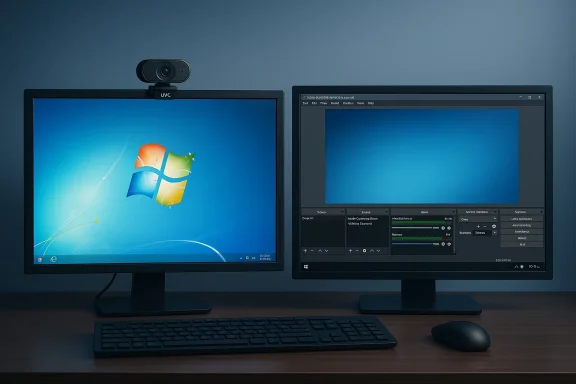 Top webcam choices for Windows 7 (64‑bit): what works and what to expect
Why Windows 7 is special (and problematic)
Windows 7 was designed before the modern wave of AI features, high‑frame‑rate streaming, and cloud‑centric vendor tooling. While Windows 7 includes in‑box UVC drivers for most USB webcams, vendor applications, firmware utilities, and new drivers are less likely to support W7. This means you can usually get basic video and audio, but not vendor‑exclusive features without workarounds. Sony’s support documentation and many community guides emphasize manual Device Manager fixes and re‑installing in‑box drivers as common steps for older systems.Practical picks that are most likely to work on Windows 7 x64
The following cameras are repeatedly recommended in vendor docs and independent roundups as reliable plug‑and‑play options for Windows environments — including older systems — because they expose standard UVC streams and have long histories of driver stability.- Logitech C920 family (C920 / C920e / C920S) — the long‑running 1080p workhorse: consistent exposure control, stereo mic, and wide app compatibility. Expect 1080p @30fps capture for local recording and plug‑and‑play with Windows in most cases. Logitech’s support pages and community testing show the C920 as the safe, well‑supported choice for legacy Windows installs.
- Budget 1080p models (NexiGo N60 and similar) — low cost, privacy shutter, and basic 1080p at 30fps. These are usable for video calls and lightweight recording but sacrifice sensor quality and low‑light rendering. Validate the manufacturer s 1080p@30fps claims rather than relying on marketplace titles.
- Anker PowerConf series (C200/C300) — midrange cameras with better mic arrays and firmware tools; reported to work in plug‑and‑play scenarios while offering useful management software for Windows 10 (checent tools are compatible with Windows 7).
- OBSBOT Tiny / Tiny SE (tracking cams) — if you move during presentations, these provide motorized framing and AI tracking. Basic UVC video will work, but motorized/AI features may rely on vendor softer Windows versions.
Buying checklist for Windows 7 compatibility
- Confirm UVC (USB Video Class) support on the product page. That’s your strongest guarantee of basic plug‑and‑play.
- Look for explicit vendor mention of Windows 7 support — some product pages still list W7 compatibility for older models like the C920.
- Prefer physical privacy shutters if you keep a camera on older OS installations to reduce risk from unpatched software.
- If the camera requires vendor software for advanced features, verify whether that software supports Windows 7 — and if it doesn’t, plan to rely on in‑app settings (Zoom, Skype, OBS) or accept reduced feature sets.
Troubleshooting tips for Windows 7 installs
- Use Device Manager to uninstall and then “Scan for hardware changes” to force in‑box driver reinstallation. Sony’s support guide shows this workflow for older laptops with built‑in cameras.
- Switch to the generic/in‑box UVC driver if vendor drivers cause crashes or instability (Logitech community guidance covers this for multi‑camera setups).
- Avoid USB hubs on older machines — use a direct motherboard port to reduce bandwidth and power issues. Community posts highlight USB root hub saturation as a common cause of dropped frames.
Security, privacy, and vendor software risks
The cookie/privacy boieal — and relevant
Commercial product pages often include cookie‑consent language about analytics and tracking; that legal text does not change camera specs but should remind buyers to review permissions, telemetry options, and the privacy practices of companion software. Vendor apps that require deep system access (signed kernel drivers or background services) increase attack surface and should be scrutinized before installation.Practical privacy mitigations
- Use a physical cover or shutter whenever the camera isn’t needed. It’s the simplest and most reliable defense.
- Audit camera permissions in Windows privacy settings and remove access for unused apps. This is particularly important on Windows 10 machines where many apps can request camera access.
- Prefer vendor software with a clear code signature and a public changelog. Avoid driver installers from untrusted third‑party sites — those packages have historically been flagged as risky by community reviewers.
10 Best webcam recording software for Windows 10 — tested, compared, and recommended
Below is a practical, use‑case oriented list that blends community findings with vendor claims and independent testing. For each entry I list the best use case, the core strengths, and the main caveats.1) OBS Studio — best for streamers and power users
- Best for: live streaming, scene composition, multi‑source production, advanced recording workflows.
- Strengths: free and open‑source, powerful scene system, plugin ecosystem, per‑source audio filters and high performance capture.
- Caveats: steep learning curve for casual users; plugin and version compatibility require occasional troubleshooting.
2) CyberLink YouCam (YouCam 10) — best for polished meetings and presenters
- Best for: business users who want filters, AR effects, PowerPoint integration, and professional meeting features.
- Strengths: AI lighting, background blur/removal, presentation tools; integrates with Zoom and Teams.
- Caveats: Windows‑only; many advanced features behind paywall.
3) ManyCam — best for educators and multi‑camera setups
- Best for: educators, live classes, small production studios that switch between cameras and media.
- Strengths: virtual camera, multiple sources, NDI support, cross‑platform streaming helpers; works well as a virtual webcam for conferencing apps.
- Caveats: subscription or annual license for full feature set; pricing varies by tier.
4) Bandicam — best for high‑quality local recordings and gaming clips
- Best for: local screen + webcam captures with lightweight encoder overhead.
- Strengths: efficient H.264/H.265 encoding, high bitrate capture, webcam overlay.
- Caveats: free version watermarks; single‑license model and some features geared to gamers.
5) MiniTool Screen Recorder — best for quick annotated tutorials (noted newcomer)
- Best for: teachers, product teams, and creators who want simple PiP webcam capture plus live annotation and a whiteboard overlay.
- Strengths: lightweight single‑screen interface, PiP webcam overlay, live drawing and whiteboard annotation, free tier that claims no watermark and no time limits. This tool is compelling for quick how‑tos and classroom content.
- Caveats & safety checks: vendor statements about “no ads, no bundles” and offline installs should be independently verified. Historical antivirus flags on other MiniTool installers mean you should check the digital signature and run a scan on the installer before mass deployment. Also, 4K/50fps capture is hardware demanding; test on your system before committing to high resolutions.
6) Debut Video Capture (NCH) — best for simple recordings and device compatibility
- Best for: users who need a straightforward recorder with basic webcam and screen capture features.
- Strengths: easy UI, webcam + screen capture combos.
- Caveats: lower advancedS.
7) Camtasia — best for polished tutorials with integrated editing
- Best for: creators who want high quality recording plus an accessible timeline editor and polished post‑production in one app.
- Strengths: integrated editor, callouts, transitions, and captions.
- Caveats: expensive relative to pure recorders; aimed at professionals and educators.
8) Xbox Game Bar (built into Windows 10) — best for casual game clips and quick recordings
- Best for: gamers and quick app or window recording without installing extra software.
- Strengths: preinstalled, quick to use.
- Caveats: limited PiP and annotation features; not a substitute for OBS or dedicated recorders for production workflows.
9) ShareX — best for power capture and quick sharing (with scripting)
- Best for: tech‑savvy users who need customizable capture workflows, hotkeys, and automation.
- Strengths: free, powerful, and highly configurable.
- Caveats: limited native webcam PiP; better paired with a webcam utility or OBS for facecam overlays.
10) Screencast‑O‑Matic / ScreenRec — best for cloud‑centric quick sharing
- Best for: teachers and teams who want cloud uploads and quick share links.
- Strengths: instant upload and sharing; easy for non‑technical users.
- Caveats: free tiers often limit length or include watermarks; cloud management raises privacy considerations for sensitive content.
How to pick software for your needs (practical decision flow)
- Do you need live streaming or multi‑scene switching? Choose OBS Studio.
- Do you want integrated editing after capture? Choose Camtasia (or pair a recorder with a separate editor).
- Are you an educator who needs PiP + live annotation? Consider MiniTool Screen Recorder or ManyCam, but verify installer safety and feature access for your environment.
- Do you need a lightweight, built‑in option for casual clips? Use Xbox Game Bar or ShareX.
Cross‑verification, technical checks and things to validate before you install
- Verify device driver support and UVC compatibility on the vendor product page before ordering a webcam. The vendor manual is the authoritative source for frame rates and optional features. If the vendor lists Windows 7 explicitly for older models (e.g., certain Logitech C920 revisions), that’s a good sign.
- For recording software, confirm the *system requiremene and test with a short recording. High resolutions (4K) and high frame rates (50–60 FPS) require modern multi‑core CPUs, a discrete GPU, 16GB+ RAM and fast NVMe storage* to avoid dropped frames. The MiniTool product notes and community guidance repeatedly call this out.
- Check whether vendor software is signed and whether the installer is offered from an official domain or verified distribution channel. Run a multi‑engine malware scan on installers for peace of mind before installing on production machines. Community reports indicate some vendor packages or third‑party driver sites have previously been flagged.
- If you plan to use multiple webcams simultaneously (conference rooms, multi‑camera content), prefer software known to handle multiple UVC sources (OBS, ManyCam) and avoid vendor drivers that monopolize camera control unless explicitly designed for multi‑camera setups. Logitech’s community advice shows switching to generic drivers can help in these scenarios.
Critical analysis: strengths, real risks, and trade‑offs
Strengths across the ecosystem
- Mature hardware base: devices like the Logitech C920 family still provide reliable 1080p capture with excellent cross‑app compatibility, making them the “safe” buy for many Windows users.
- Diverse software choices: from free, extensible OBS Studio to polished paid tools like Camtasia and YouCam, there is a solution for nearly every workflow and budget.
- Simple upgrades available: phone‑as‑webcam and budget 1080p models offer inexpensive and fast quality improvements over degraded built‑in laptop cameras.
Key risks and tradeoffs
- Legacy OS limits: Windows 7 users should accept that basic video is probable, but advanced vendor features and firmware utilities may not be available or safe to install. If you need advanced features, plan to upgrade the OS or accept a reduced feature set.
- Installer/driver provenance: Downloading driver packages from third‑party aggregators can expose systems to unnecessary risk. Always prefer the vendor’s official support page and check digital signatures. Community guidance repeatedly warns against “driver updater” bundles.
- Performance vs. promise: Marketing slogans like “4K at 50fps” may be technically true in lab conditions but require a capable PC. Expect to test and tune capture settings to balance quality and system load. MiniTool’s own documentation and independent checks emphasize the performance caveats of high‑resolution capture.
- Privacy surface area: Companion apps that run background services or require elevated permissions expand your privacy surface. Use a privacy cover, audit permissions, and limit vendor app installs to what you truly need.
Practical setup checklist (quick start for each scenario)
For a Windows 7 desktop that needs occasional recordings
- Buy a UVC‑compatible webcam (Logitech C920 family recommended).
- Plug directly into a motherboard USB port, not a hub.
- If the camera isn’t recognized, uninstall the device in Device Manager and scan for hardware changes; swap to the in‑box driver if vendor drivers fail.
- Use lightweight recording tools (OBS basic scene) or the app you already know, and keep vendor utilities optional.
For a Windows 10 creator who records tutorials or streams
- Choose the software that matches your workflow: OBS for streaming, Camtasia for integrated editing, ManyCam or MiniTool for annotations and PiP.
- Test a 30–60 second clip at your target resolution and frame rate; check for dropped frames and audio sync.
- Keep separate mics for better audio quality and record system audio separately if you plan to edit.
Conclusion
Whether you are rescuing an older machine running Windows 7 x64 or building a Windows 10 desktop for polished video production, the rules are the same: prioritize UVC‑compliant hardware, verify vendor software compatibility, and validate performance with short test recordings before committing to production settings. The Logitech C920 family remains the conservative, reliable choice for broad compatibility, while a mix of software options — from OBS Studio for advanced producers to MiniTool Screen Recorder and ManyCam for quick PiP and annotation workflows — covers most use cases. But never skip the security steps: check installer signatures, scan downloads, and use a physical shutter when practical. Those three practices — verify, test, and secure — will save you time and reduce risk whether you’re running legacy Windows 7 or a modern Windows 10 setup.Source: Born2Invest https://born2invest.com/?b=style-247653912/
