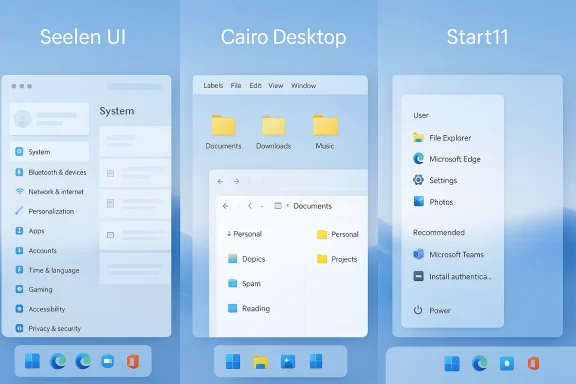
Windows 11 doesn’t have to look like every other Windows 11 install on the planet. If you’re tired of Microsoft’s rounded corners, centered taskbar, and predictable Start menu, a new generation of alternative shells can give your desktop a fresh personality — from a near–macOS aesthetic to efficient, productivity‑focused layouts that echo classic Linux desktops. Three options stand out right now: Seelen‑UI, Cairo Desktop, and Start11. Each takes a different approach, from full visual and workflow overhaul to subtle, targeted polish. Below I summarize what each delivers, evaluate strengths and risks, and provide step‑by‑step guidance for safe experimentation so you can pick the one that fits your needs without turning your PC into a headache.
Alternative shells replace or sit on top of Windows’ default shell (Explorer.exe) to change how you interact with files, apps, and system chrome. Historically, shells were popular with power users who wanted tiling, more keyboard-driven workflows, or simply a different polish. Today’s alternatives are a mix of open‑source and commercial efforts that focus on customization, performance, and compatibility with modern Windows features.
Why use a shell? Common motivations include:
Key considerations:
A disciplined approach ensures the best experience:
Conclusion
Custom shells are more than a cosmetic novelty: they reshape how you work, organize, and launch the things you use every day. Whether you want the sweeping freedom of Seelen‑UI, the practical re‑imagining of Cairo Desktop, or the conservative polish of Start11, there’s a path to make Windows 11 feel new. Protect your system with backups, proceed in measured steps, and choose the option that matches the level of change you’re ready for. The result can be a Windows desktop that’s not only more exciting — it can be genuinely more productive.
Source: ZDNET Hate your Windows 11 UI? Try a MacOS or Linux-like shell: My 3 picks
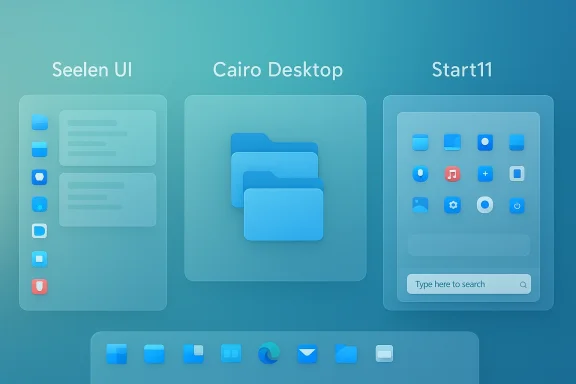 Background / Overview
Alternative shells replace or sit on top of Windows’ default shell (Explorer.exe) to change how you interact with files, apps, and system chrome. Historically, shells were popular with power users who wanted tiling, more keyboard-driven workflows, or simply a different polish. Today’s alternatives are a mix of open‑source and commercial efforts that focus on customization, performance, and compatibility with modern Windows features.Why use a shell? Common motivations include:
- Personalization: mimic another OS (macOS or various Linux desktops) or create a unique look.
- Productivity: faster access to files and apps, improved window management, and curated menus.
- Lightweight workflows: some shells reduce visual clutter and surface the things you use most.
- Nostalgia or aesthetic preference: bring back classic start menus or a retro windowing style.
Seelen‑UI: Radical customization, modern polish
What it is
Seelen‑UI aims to be a full alternative desktop shell for Windows 11 that prioritizes customization and aesthetic flexibility. It’s designed to let you reposition panels, tweak transparencies, alter menus, and apply themes that can make Windows look and behave like macOS, GNOME, KDE, or a bespoke design.Key features
- Highly granular theme and layout controls.
- Panel and widget placement that’s not tied to Windows’ default layout.
- Integrated media module and plugin support.
- Optional tiling window features for keyboard-driven workflows.
- A library of themes, icon packs, and layout presets.
Why it’s compelling
Seelen‑UI’s power is its flexibility. If you like to tinker and want an almost limitless set of visual and interaction changes, it’s the easiest route to dramatically change Windows’ look. It’s also designed with a focus on modern sensibilities (transparency, rounded elements, and smooth animations) while supporting productivity features like tiling and custom hotkeys.Practical use cases
- Designers and creators who want a macOS‑like dock and aesthetics while keeping Windows apps.
- Power users who prefer tiled or hybrid window layouts.
- Anyone who wants themed, magazine‑worthy desktops for screenshots or demos.
Risks and caveats
- Deep customization sometimes touches system hooks that can conflict with Windows updates or other utilities. Expect occasional tidying after major Windows cumulative updates.
- Depending on how aggressively you theme the shell, some Windows UI elements (dialog boxes, UAC prompts, in‑app menus) may retain native styling, producing visual inconsistencies.
- Performance: while modern shells are generally lightweight, extensive transparency, blur, or animated widgets can add GPU/CPU overhead on lower‑end machines.
- Support and longevity: full replacement shells depend on their maintainers to keep pace with Windows changes; verify update cadence before committing.
Installation and rollback (safe approach)
- Create a system restore point and a recent image backup (Disk Image or Windows’ built‑in backup).
- Install a trial or the stable Seelen‑UI package. If offered, choose a non‑system partition or VM first.
- Explore a default theme before applying heavy customizations. Note which settings you change.
- If you encounter instability, use the shell’s uninstall or fallback option; if unavailable, boot to Safe Mode and uninstall, or restore from the restore point.
Cairo Desktop: A different model — a desktop that behaves like a file browser
What it is
Cairo Desktop takes a functional, productivity‑focused approach: it turns the desktop into an interactive file and workspace launcher. Rather than focusing purely on cosmetics, Cairo restructures how you access folders and apps, giving you a dynamic overlay and an improved Programs menu.Key features
- Interactive file navigation from the desktop: double‑click folders to browse without launching a separate file manager.
- Folder stacks and quick‑access locations on the menu bar.
- Customizable Start/Programs menu with category management.
- Dynamic overlays and menus for quick context switching.
- A focus on minimizing interruptions while working.
Why it stands out
Cairo is less about making Windows look like something else and more about making Windows work differently. If your priority is to navigate deeply nested folders or frequently jump to specific work locations without context‑switching, Cairo’s interactive desktop is a productivity multiplier.Practical use cases
- Professionals who keep project folders on the desktop or need fast, contextual navigation.
- Users who want a more organized Programs menu without hunting through nested Start tiles.
- People who prefer a more keyboard-driven or menu-driven workflow.
Strengths
- Efficiency gains: fewer clicks and windows when moving between folders and apps.
- Cleaner workflow: stacks and menu categories provide structure to often‑cluttered desktops.
- Stability: because Cairo focuses on overlays and menus, it tends to be less invasive than full shell replacements.
Risks and caveats
- Learning curve: the interactive desktop approach differs from typical Finder/Explorer expectations; it takes some getting used to.
- Compatibility: certain Win32 apps that assume typical Explorer behavior may behave oddly in menu interactions.
- Backup and recovery: as with any shell, make a restore point before large changes.
Installation and best practices
- Back up important work and make a restore point.
- Try Cairo in a limited configuration: enable the dynamic Programs menu but keep native Explorer as your file manager.
- Move to the interactive desktop once you’re comfortable. Keep a desktop folder organization scheme to avoid surprises.
Start11: The targeted polish — modernize the Start menu and taskbar
What it is
Start11 is a focused customization tool for Windows that modifies the Start menu and taskbar rather than replacing the entire shell. It’s ideal if you like much of Windows 11 but want classic start menu styles or more control over how your taskbar behaves.Key features
- Multiple Start menu styles (classic Windows 7/10, modern, and hybrid variants).
- Taskbar tweaks and panel adjustments.
- Customization of pinned items, search behavior, and menu organization.
- Trial available, with commercial licensing (trial → paid options).
Why use Start11
Start11 is the least invasive option of the three. It lets you regain a familiar Start menu layout or polish the taskbar without changing how Windows works beneath the surface. For many users, this strikes the right balance between familiarity and modernization.Practical use cases
- Users who miss the classic Start menu and prefer a list‑based launcher.
- Environments where minimal disruption is required (workstations, shared machines).
- People who want a clean, fast way to restore productivity without retraining.
Strengths
- Low risk: because it’s targeted, wide‑scale incompatibility is uncommon.
- Ease of use: quick, straightforward options for restoring classic Start layouts.
- Commercial support: paid tools often include support channels and frequent updates.
Risks and caveats
- Cost: unlike the other two options (one of which may be free), Start11 is commercial after trial; check current pricing before buying.
- Partial change: if you want a complete visual overhaul, Start11 won’t deliver it.
- Dependency: some enterprise policies or security suites may restrict shell or Start menu replacement tools.
Installation tips
- Use the 30‑day trial before committing to a purchase.
- Once installed, test Start11 with your everyday apps for a week to ensure no hidden workflow regressions.
- Keep the vendor’s uninstaller or rollback tool handy.
Security, compatibility, and stability: what to watch for
Installing an alternative shell can be highly rewarding, but you’re also introducing changes at an architectural level. Treat shell replacements and deep UI customizers like core system modifications.Key considerations:
- System updates: major Windows feature updates (like a new Windows 11 feature update) can break integrations. After each major update, verify the shell’s compatibility and check for vendor or community updates.
- UAC and secure dialogs: shells should not modify secure desktop areas (UAC prompts). If you see altered behavior during elevation prompts, treat it as a red flag.
- Malware risk: only download installers from reputable sources and verify signatures where possible. Theming packs or third‑party widgets are especially risky — treat them like any third‑party binary.
- Performance tradeoffs: transparency, blur, and live widgets increase GPU usage. On machines with integrated graphics, this may reduce battery life or slow heavy workloads.
- Enterprise policies: corporate environments often enforce Group Policy or MDM policies that prevent shell changes. Always check with IT before installing anything on managed hardware.
- File associations and context menus: shells that deeply integrate file browse features can change default file manager behaviors — test opening files from various desktops, browsers, and productivity apps.
Recovery and safety checklist (before you customize)
Do these five things first:- Create a System Restore point.
- Make a full disk image (external drive or network share).
- Export any shell settings or preferences you want to reapply.
- Have an alternative admin account available (in case your main profile becomes unstable).
- Know how to boot to Safe Mode or use Windows Recovery Environment to uninstall or roll back changes.
- Boot to Safe Mode, then uninstall the shell software.
- If uninstallation fails, restore from the System Restore point or disk image.
- Use the Safe Mode shell or command prompt to remove startup entries if necessary.
Practical tips for customization without the headaches
- Start small: apply a theme or change the Start menu style first. Big layout swaps are harder to undo mentally, even if you can technically roll back.
- Keep native Explorer as a fallback: many shells let you run side‑by‑side with Explorer. This hybrid approach allows you to dip a toe in without cutting the cord.
- Use a VM or secondary machine: trialing a shell in a virtual machine is the safest way to evaluate long‑term stability and performance.
- Test with real work: don’t evaluate a shell solely on screenshots. Spend a full workday with your common apps to uncover friction points.
- Keep a changelog: note what customizations you apply and their exact settings. This accelerates recovery if you must revert.
Which shell should you choose?
No single answer fits everyone. Use the following guide to match the shell to your goals.- For radical visual and workflow change: choose Seelen‑UI.
- You’ll get the most flexibility and can fashion a macOS or Linux‑style desktop while adding tiling and plugin support.
- Ideal for tinkerers, creatives, and power users who enjoy deep customization.
- For productivity and a different navigation paradigm: choose Cairo Desktop.
- If you want an interactive desktop that surfaces your folders and workflows without opening multiple explorer windows, Cairo excels.
- Great for people who work with large folder trees or keep many projects active.
- For minimal, reliable polish: choose Start11.
- If you want a classic Start menu or a smarter taskbar without changing the rest of the system, Start11 gives you the familiar layout and a clean revert path.
- Best for professional or managed environments where disruption must be minimal.
Realities you shouldn’t ignore
- Visual consistency: any shell that dramatically changes chrome will occasionally clash with legacy apps and system dialogs. Accept that perfect consistency may be impossible.
- Update maintenance: plan to check for shell updates after Windows patches. A broken shell isn’t just unsightly — it can interfere with how you launch apps, manage windows, and save work.
- Community matters: open‑source or community projects often have active forums where issues get fixed quickly. Commercial products may offer official support but could lag on niche feature requests. Evaluate the health of the project or vendor before depending on it.
- Cost vs. value: a paid Start11 license is cheap compared with wasted time if you’re more productive. Conversely, a free shell is attractive but demands more hands‑on troubleshooting and community reliance.
Final verdict and recommended workflow
If you’re curious and comfortable with moderate technical risk, start with a targeted change: try Start11 to regain a preferred Start menu, or enable Cairo’s menu features to test the interactive desktop concept. If you love tinkering, allocate time to Seelen‑UI in a VM or a secondary machine and craft a layout that truly matches your needs, but keep an eye on compatibility after Windows updates.A disciplined approach ensures the best experience:
- Back up before any change.
- Trial in a safe environment.
- Apply incremental changes.
- Keep a fallback plan.
Conclusion
Custom shells are more than a cosmetic novelty: they reshape how you work, organize, and launch the things you use every day. Whether you want the sweeping freedom of Seelen‑UI, the practical re‑imagining of Cairo Desktop, or the conservative polish of Start11, there’s a path to make Windows 11 feel new. Protect your system with backups, proceed in measured steps, and choose the option that matches the level of change you’re ready for. The result can be a Windows desktop that’s not only more exciting — it can be genuinely more productive.
Source: ZDNET Hate your Windows 11 UI? Try a MacOS or Linux-like shell: My 3 picks