

If your PC shows a Bluetooth adapter in Device Manager but refuses to pair or connect, the problem is rarely mysterious hardware failure — more often it’s a configuration, driver, service, or peripheral-side issue that can be resolved with a methodical checklist. Windows provides built‑in troubleshooters and obvious first‑aid steps (toggle the radio, re‑pair the device, check battery and range), but meaningful fixes frequently require checking drivers, service state, and power management settings. This guide consolidates Microsoft’s official steps, community best practices, and deeper technical checks into a single, practical workflow for fixing “Bluetooth not connecting” on modern Windows PCs while calling out the risks and gotchas to avoid.
Bluetooth is the short‑range wireless backbone for headphones, speakers, keyboards, mice, game controllers and device‑to‑device transfers. On Windows 11 the Bluetooth experience has evolved — features like Swift Pair and Bluetooth LE Audio (LE Audio) add capability but also add more moving parts (OS support, chipset firmware, vendor drivers, and peripheral firmware) that must align for a reliable connection. When pairing or connections fail, the root cause typically falls into one of a few buckets: the peripheral isn’t discoverable or charged, the radio is off or blocked, a Windows service isn’t running, power management is suspending the adapter, or the drivers/firmware are mismatched. Microsoft’s own troubleshooting guidance follows this exact progression: basics first, then the built‑in troubleshooters, then driver and service checks, and finally reinstall or driver rollback when needed.
If you follow the stepwise checklist above you will fix the majority of “Bluetooth not connecting” cases on Windows 11. For stubborn cases, collect the adapter name and Hardware IDs from Device Manager, note any recent Windows updates, and gather Event Viewer entries around the time of failure — those details materially speed vendor support and community troubleshooting. When troubleshooting audio issues, expect a mixture of OS, driver and firmware work: LE Audio promises to simplify the experience, but until the full ecosystem supports it broadly, practical workarounds (disable HFP, use wired or alternate mic) remain necessary.
Appendix: Quick commands and locations (copy/paste)
Source: Microsoft Support Troubleshoot Bluetooth not connecting in Windows - Microsoft Support
 Background / Overview
Bluetooth is the short‑range wireless backbone for headphones, speakers, keyboards, mice, game controllers and device‑to‑device transfers. On Windows 11 the Bluetooth experience has evolved — features like Swift Pair and Bluetooth LE Audio (LE Audio) add capability but also add more moving parts (OS support, chipset firmware, vendor drivers, and peripheral firmware) that must align for a reliable connection. When pairing or connections fail, the root cause typically falls into one of a few buckets: the peripheral isn’t discoverable or charged, the radio is off or blocked, a Windows service isn’t running, power management is suspending the adapter, or the drivers/firmware are mismatched. Microsoft’s own troubleshooting guidance follows this exact progression: basics first, then the built‑in troubleshooters, then driver and service checks, and finally reinstall or driver rollback when needed. Quick triage (minutes)
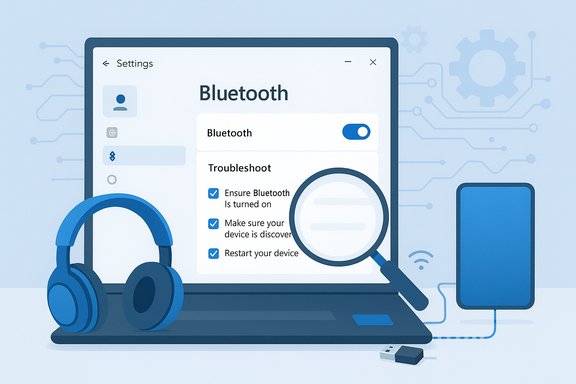
Start here — these are fast, reversible steps that fix the majority of connectivity problems.- Make sure Bluetooth is turned on: Settings > Bluetooth & devices — enable the Bluetooth toggle or use Quick Settings (Win + A). If the toggle is missing, don’t skip down to power or driver checks; a missing toggle commonly indicates a driver or hardware absence.
- Put the accessory into pairing/discoverable mode and keep it within line‑of‑sight (typical reliable range ~10 m / 30 ft; walls and metal reduce range). Low battery often prevents pairing — charge the device fully.
- Remove stale pairings on both the PC and other hosts (phones, other PCs). On Windows: Settings > Bluetooth & devices > locate the device > More options (…) > Remove device, then Add device again.
- Toggle Bluetooth off and on: Settings > Bluetooth & devices — turn it off, wait ~10 seconds, then turn back on. This clears transient radio/stack state.
- Run the Bluetooth troubleshooter (built into Windows): Settings > System > Troubleshoot > Other troubleshooters > Bluetooth > Run. On some machines Microsoft routes legacy MSDT troubleshooters through the Get Help app — either path runs automated diagnostics that can restart services and apply quick fixes.
Stepwise troubleshooting (ordered, low → higher effort)
1) Confirm the device side
- Verify the accessory is truly in pairing mode (LED blink / voice prompt) and charged.
- Test that accessory with another host (phone, tablet, another PC). If it fails on multiple hosts, the peripheral likely needs a reset or vendor firmware update.
- For multi‑point headsets, temporarily disable multipoint or remove the device from other hosts — some headsets will refuse new pairings while already connected elsewhere.
2) Check Windows updates and the built‑in troubleshooter
- Install all available Windows Updates before deeper driver surgery — Windows Update often supplies or recommends vendor driver packages. Settings > Windows Update > Check for updates.
- Run the Bluetooth troubleshooter (again, if you ran it earlier) — it is safe and often resolves adapter/service issues quickly.
3) Verify services and power settings
- Ensure Bluetooth Support Service (bthserv) and related Bluetooth user services are running. Open services.msc, find Bluetooth Support Service, and restart it if stopped. If necessary set Startup type to Manual, Automatic, or Trigger Start depending on guidance. Stopping this service can make discovery and pairing fail.
- In Device Manager, open your Bluetooth adapter → Properties → Power Management tab → uncheck Allow the computer to turn off this device to save power. Also check HID and headset device entries. Aggressive power management is a common cause of intermittent disconnects.
4) Device Manager — update, roll back, uninstall
Drivers and stacks are the most frequent root cause on Windows.- Open Device Manager (Win + X → Device Manager) and expand Bluetooth.
- If you see a yellow warning icon, right‑click the adapter → Properties → Details → Hardware Ids — note the VID/PID and driver version.
- Try Update driver → Search automatically. If Windows doesn’t find a driver, visit the OEM or chipset vendor site (Intel, Qualcomm, Realtek) to download the manufacturer driver. OEM drivers often enable advanced features not exposed by the generic Microsoft driver.
- If the problem started after a driver or Windows update, use Roll Back Driver (Driver tab) where available — safer than immediately uninstalling.
- If rollback isn’t available or fails, Uninstall device (don’t select “delete driver software” on the first attempt), reboot, and let Windows reinstall. If it won’t reinstall, use Device Manager → Action → Scan for hardware changes.
5) Audio‑specific checks (headphones / earbuds)
Bluetooth audio can connect but produce no sound or collapse to mono when the mic activates. This is due to legacy profile tradeoffs:- A2DP = stereo media (high quality)
- HFP = telephony/voice (low sample rate)
Advanced diagnostics and fixes
When stepwise checks don’t resolve the problem, escalate carefully.Show hidden devices and remove ghost entries
Open Device Manager → View → Show hidden devices, expand Bluetooth and related categories, and uninstall greyed‑out or stale entries. Ghost devices can break the pairing UI and block new connections. After cleanup, reboot and re‑pair.Repair corrupted system components
If driver operations don’t help, run these from an elevated Command Prompt:- DISM /Online /Cleanup-Image /RestoreHealth
- sfc /scannow
Try a known‑good USB Bluetooth dongle
If the internal adapter appears unreliable, a reputable USB dongle is a pragmatic test and sometimes a permanent workaround. If a dongle works while the internal adapter doesn’t, suspect internal radio/firmware or BIOS dependencies and contact the OEM.Reinstall and purge drivers (aggressive)
If normal uninstall/reinstall fails:- Uninstall the Bluetooth adapter in Device Manager and check “Delete the driver software for this device.”
- Reboot and plug the adapter (or let the system rediscover the internal radio).
- If Windows can’t find a driver, install the OEM package downloaded earlier.
LE Audio and modern Bluetooth audio: what to expect
Windows 11 now supports Bluetooth LE Audio and features such as super wideband stereo that allow stereo media and high‑quality microphone use simultaneously — but LE Audio support is ecosystem dependent:- The PC must be running a supported Windows 11 version (certain features require 22H2 or newer; stereo micro‑use improvements and some shared audio capabilities are tied to 24H2 builds and later).
- The Bluetooth chipset and firmware must expose LE Audio/ISO channel support.
- The PC vendor must supply driver packages that enable LE Audio, and the headset must implement LE Audio/LC3 firmware.
Security, privacy and operational risks (what to avoid)
- Don’t use third‑party driver updaters: they commonly install incorrect Bluetooth stacks and complicate recovery. Prefer OEM or chipset‑vendor drivers (Intel Driver & Support Assistant, vendor portals).
- Avoid disabling services or uninstalling drivers on managed/corporate machines without IT approval — MDM policies or inventory agents may re‑configure the device or block driver changes. Document any changes you make so IT can reverse them if needed.
- Be cautious with driver rollbacks and uninstalling recent cumulative updates — uninstalling an LCU can resolve a regression but may leave the system exposed to other issues; pause updates temporarily only after careful assessment.
- Bluetooth pairing opens a brief discoverable window — pair in a controlled environment and remove unused pairings to limit the attack surface. Remove stale devices from Windows once they’re no longer used.
Complete checklist (copyable: quick to advanced)
- Ensure the Bluetooth device is charged, powered on, in pairing mode and within range.
- Toggle Bluetooth off → on (Quick Settings or Settings > Bluetooth & devices).
- Remove and re‑pair the device (Settings > Bluetooth & devices > Remove device → Add device).
- Run the Bluetooth troubleshooter: Settings > System > Troubleshoot > Other troubleshooters > Bluetooth > Run (or use the Get Help app troubleshooter).
- Restart Bluetooth Support Service (services.msc) and set appropriate startup type if needed.
- In Device Manager update the Bluetooth driver; prefer OEM/chipset vendor drivers over the generic Microsoft driver.
- If a recent update broke Bluetooth, use Roll Back Driver or System Restore; only uninstall Windows updates after weighing risks.
- Show hidden devices in Device Manager and remove ghost entries; uninstall the adapter and reboot to force reinstall if necessary.
- Run DISM /Online /Cleanup-Image /RestoreHealth and sfc /scannow if driver reinstallation fails.
- Test the accessory on another host and, if needed, test the PC with a known‑good USB Bluetooth dongle.
When to call vendor support or escalate
- The adapter is absent from Device Manager entirely after updates or BIOS changes — suspect a firmware/BIOS OEM dependency; contact your PC vendor.
- Internal radio works intermittently while a USB dongle is reliable — likely an internal radio or antenna hardware issue; OEM repair may be required.
- LE Audio features are expected but missing or misbehaving — check the vendor driver notes and OEM advisory; LE Audio depends on specific drivers and firmware and is frequently vendor‑gated. If you rely on LE Audio for accessibility (hearing devices), prioritize vendor support paths.
Practical examples and real‑world notes from community practice
- Many users resolve intermittent disconnects by simply disabling the Bluetooth adapter’s power management “Allow the computer to turn off this device to save power” checkbox — a low‑risk, high‑value tweak on laptops.
- If the Settings app Add device UI fails or does nothing, community troubleshooting often finds corrupted per‑user settings or a stuck background Bluetooth user service; trying Add device in another local account or restarting Settings/Explorer can expose whether the issue is per‑user vs system‑wide. If UI remains broken, collecting Event Viewer logs for Bluetooth‑related Service Control Manager or DCOM errors helps vendor triage.
- For audio users: if stereo collapses to mono when the mic activates, this behavior is a legacy profile limitation unless LE Audio is supported end‑to‑end. Until LE Audio is fully available, disabling Hands‑Free Telephony on the headset is an effective (if imperfect) workaround for music listening sessions.
Final assessment — strengths and risks of Microsoft’s guidance
Microsoft’s official troubleshooting sequence is strong because it follows a sensible, low‑risk escalation: basics → automated troubleshooting → service/power checks → driver operations → system repair. The built‑in Bluetooth troubleshooter and the move to the Get Help app centralize diagnostics and reduce user friction for common fixes. These automated tools often restart services and reinitialize devices in a safe way, resolving many transient problems quickly. However, two risks merit emphasis:- Driver and firmware fragmentation: modern Bluetooth capabilities (LE Audio, shared audio) depend on coordinated vendor drivers and firmware. A Windows update alone is not sufficient — vendor drivers and sometimes BIOS updates are required. That hardware gating creates a complex troubleshooting surface and increases the chance of regression after updates. Always keep OEM driver packages on hand and verify vendor release notes before large scale updates.
- Aggressive fixes can be disruptive: uninstalling drivers, deleting driver packages, or disabling services can break dependent features or violate enterprise policies. These steps are appropriate as last resorts, and only with backups and an understanding of rollback procedures. When in doubt, escalate to IT or the OEM support channel.
If you follow the stepwise checklist above you will fix the majority of “Bluetooth not connecting” cases on Windows 11. For stubborn cases, collect the adapter name and Hardware IDs from Device Manager, note any recent Windows updates, and gather Event Viewer entries around the time of failure — those details materially speed vendor support and community troubleshooting. When troubleshooting audio issues, expect a mixture of OS, driver and firmware work: LE Audio promises to simplify the experience, but until the full ecosystem supports it broadly, practical workarounds (disable HFP, use wired or alternate mic) remain necessary.
Appendix: Quick commands and locations (copy/paste)
- Settings → Bluetooth & devices (turn on Bluetooth; Remove device; Add device).
- Troubleshooters: Settings → System → Troubleshoot → Other troubleshooters → Bluetooth → Run (or use the Get Help app’s Bluetooth troubleshooter).
- Restart Bluetooth services: Windows + R → services.msc → Bluetooth Support Service → Restart.
- Device Manager: Win + X → Device Manager → expand Bluetooth → Update driver / Roll Back Driver / Uninstall device.
- System file checks (elevated command prompt): DISM /Online /Cleanup-Image /RestoreHealth ; sfc /scannow.
Source: Microsoft Support Troubleshoot Bluetooth not connecting in Windows - Microsoft Support
