

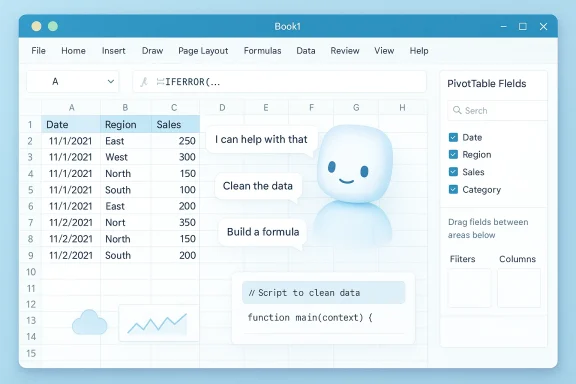
Microsoft Excel can stop feeling like a grind — if you hand the repetitive, error-prone work to an assistant that understands plain English and lives inside your spreadsheets. Copilot for Excel is designed for exactly that: cleaning tables, generating formulas, building summaries, and scaffolding small automations so you spend time on decisions instead of busywork.
Excel has always been both indispensable and exhausting: it scales from quick one-off budgets to massive datasets that demand repeatable, auditable processing. Historically, automation meant learning formulas, Power Query, Office Scripts, or VBA — steep learning curves that block many users from shipping reliable, repeatable workflows. The promise of an assistant like Copilot is to lower that barrier by letting you describe what you want and having the tool implement the steps for you.
This isn't about AI writing creative content; it's about an assistant reliably performing the kinds of deterministic, rule-based tasks humans hate: deduplicating, normalizing, reformatting, and generating the correct formula or script. In practice, Copilot shifts the effort from remembering syntax to validating results — a smaller, more manageable burden when done right.
What Copilot will do:
What Copilot will do:
What Copilot will do:
Conclusion
Copilot in Excel is not a magic wand that eliminates the need for data literacy, governance, or testing. It is, however, a pragmatic assistant that can take the tedium out of everyday spreadsheet work — provided you apply sensible safeguards and treat AI outputs as first drafts that require verification. Start with small, high-value tasks: cleaning, formula generation, and one-off summaries. Prove the workflow on copies, capture the logic as reusable scripts, and only then promote those automations to production. Do that, and you’ll reclaim hours of attention previously lost to repetitive clicks and syntax searches — time you can spend doing the work Excel was meant to support.
Source: How-To Geek Stop wasting time on repetitive Excel tasks: Let Copilot do the work
 Background
Excel has always been both indispensable and exhausting: it scales from quick one-off budgets to massive datasets that demand repeatable, auditable processing. Historically, automation meant learning formulas, Power Query, Office Scripts, or VBA — steep learning curves that block many users from shipping reliable, repeatable workflows. The promise of an assistant like Copilot is to lower that barrier by letting you describe what you want and having the tool implement the steps for you.This isn't about AI writing creative content; it's about an assistant reliably performing the kinds of deterministic, rule-based tasks humans hate: deduplicating, normalizing, reformatting, and generating the correct formula or script. In practice, Copilot shifts the effort from remembering syntax to validating results — a smaller, more manageable burden when done right.
How Copilot fits into Excel: an overview
Copilot in Excel acts as a contextual assistant that observes your workbook and can modify it on command. Key capabilities include:- Natural-language commands — tell Copilot what to do (e.g., “Remove duplicate rows by Customer ID and Date”) and it executes.
- Data cleaning — normalize text casing, trim whitespace, standardize date formats, and detect duplicates.
- Formula generation and explanation — produce formulas from plain English and explain how they work.
- Quick reporting — create summary tables, pivot tables, and basic dashboards on a new sheet.
- Script and macro scaffolding — generate Office Scripts or suggest macro logic you can refine (with limits on complex multi-step VBA).
- Integration with cloud workspaces — relies on OneDrive or SharePoint for live collaboration, AutoSave, and version history.
Getting started: workspace, permissions, and practical setup
Before asking Copilot to transform your files, set up a clean, safe workspace so results are predictable and reversible.- Save your workbook to the cloud. Use OneDrive or SharePoint and make sure AutoSave is enabled.
- Work on a copy when building new automations. Use the workbook’s version history or duplicate the file before running broad changes.
- Structure data as tables when possible. Copilot handles unstructured data, but structured Excel tables give clearer column references and make transformations more reliable.
- Confirm licensing and admin settings. Copilot features may require specific Microsoft 365 entitlements or tenant policies; check your account’s Copilot availability before relying on it for production workflows.
- Set permissions and access control. Restrict who can edit automations and scripts, and use role-based access where sensitive data is involved.
Practical workflows: what to automate first
If you want maximum payoff with minimal risk, prioritize the low-hanging fruit. Start small, iterate, and reuse proven shortcuts.High-impact, low-effort tasks
- Data cleaning — unify date formats, trim leading/trailing spaces, remove duplicate rows, and standardize text case across a column.
- Simple calculations — add a column for percent changes, running totals, or conditional flags (e.g., mark rows where expense > budget).
- Extraction and parsing — pull numbers or tokens from messy strings, split full names into first/last, or extract domain names from email addresses.
- Summaries and pivot building — create a pivot table or summary sheet that aggregates key metrics for reporting.
- Formatting and conditional rules — apply conditional formatting to highlight exceptions, outliers, or missed deadlines.
Example prompts you can use right away
- “Find and remove duplicate invoices based on Invoice Number and Date; keep the most recent.”
- “Standardize the 'Order Date' column to the format YYYY-MM-DD and convert any text dates.”
- “Create a new column that shows percentage difference between 'Current' and 'Previous' values and explain the formula.”
- “Make a summary sheet that shows total sales by Region and Product Category in a pivot table.”
Deep dive: data cleaning recipes you can use
Data cleaning is the single biggest time-sink for many spreadsheet users. Below are repeatable patterns Copilot can help you implement — with suggested plain-English prompts and what to validate after execution.Remove duplicates and reconcile records
Prompt: “Remove duplicate rows where CustomerID and TransactionDate are the same; keep the row with the largest TransactionAmount.”What Copilot will do:
- Identify duplicate clusters by the two fields.
- Determine the highest TransactionAmount per cluster.
- Remove other rows or mark them in a helper column.
- Spot-check a few clusters to confirm the right row was kept.
- Use conditional formatting to highlight any remaining duplicates.
- Save version before and after for easy rollback.
Normalize dates and text
Prompt: “Convert the 'Date' column to ISO dates (YYYY-MM-DD) and turn text like 'Jan 5 2024' into real dates.”What Copilot will do:
- Parse mixed date formats and convert to Excel date serials.
- Apply consistent formatting or produce a new date column.
- Check for parsing failures (text left unchanged).
- Confirm locale-specific ambiguities (e.g., day/month vs month/day) were interpreted correctly.
Trim, clean, and standardize text fields
Prompt: “Trim leading/trailing spaces, replace multiple spaces with a single one in the 'Name' column, and make all names Proper Case.”What Copilot will do:
- Apply TRIM-like operations.
- Normalize whitespace.
- Convert to Proper Case, with caveats for all-caps acronyms (validate these).
- Ensure acronyms or brand names are preserved as intended.
- Review first/last name edge cases (mononyms, multi-part surnames).
Generating formulas and explaining logic
One of Copilot’s most useful roles is formula generation. Instead of hunting for the right syntax, you explain the calculation and ask Copilot to insert it.Common formula examples (what to ask and what you’ll get)
- Ask: “Add a column that shows percentage change from 'LastMonth' to 'ThisMonth'.”
- Typical formula inserted: =(ThisMonth - LastMonth) / ABS(LastMonth)
- What to verify: behavior when LastMonth is zero; consider wrapping in IFERROR or conditional logic.
- Ask: “Extract domain from email addresses in column A.”
- Common approach: use TEXTAFTER(A2, "@") or a combination of FIND/MID for older Excel versions.
- What to verify: handle malformed emails or multiple @ characters.
- Ask: “Create a flag column where Status='Open' AND DueDate < Today.”
- Copilot will often use TODAY() and logical expressions, e.g., =AND([Status]="Open", [DueDate]<TODAY()).
- What to verify: ensure dates are real date serials, not text.
Ask Copilot to explain — and then test
Always get Copilot to "explain the formula" in plain English and request edge-case handling (divisions by zero, blanks, or text values). Then test on sample rows and use Excel’s Evaluate Formula tool to step through calculations if needed.Building automations: Office Scripts, macros, and shortcuts
Copilot can scaffold small scripts and macros, but complex multi-branch automations still require human oversight.Office Scripts vs VBA vs Power Automate
- Office Scripts (TypeScript-based): Modern, web-friendly, and accessible in Excel for the web. Good for repeatable, single-workbook tasks that run in the cloud or on demand.
- VBA (Visual Basic for Applications): Powerful for desktop Excel and fine-grained control over UI and legacy features. Copilot may help draft simple VBA but complex flows still need manual tuning.
- Power Automate: Best for cross-app workflows (Excel -> SharePoint -> Teams -> Outlook). Use when automations must trigger across services.
- “Create an Office Script that trims whitespace in the 'Customer' column and saves a copy with _cleaned appended to the filename.”
- “Generate a macro to export rows where 'Status' = 'Approved' to a new CSV and email it to Finance.”
- Test scripts on copies and log every change.
- Use descriptive names and comments in generated code.
- Restrict execution permissions and keep a change log.
Limitations and common failure modes
Copilot is powerful but imperfect. Know these pitfalls so you can catch and correct them.- Hallucinations and incorrect web lookups — when asked to fetch external data, Copilot's web searches can return outdated or misattributed figures. Always validate external facts with authoritative sources before using them in reports.
- Complex VBA generation — Copilot can suggest VBA snippets but may struggle with robust, multi-step desktop macros that require intricate error handling and UI automation.
- Ambiguous prompts — vague requests lead to surprising outputs. Be specific about which columns, rows, and constraints to avoid unintended modifications.
- Permission and compliance gaps — automations that touch sensitive personal data may violate governance rules; confirm compliance requirements before automating.
- Overreliance — use Copilot to accelerate routine tasks, but don’t skip essential validation steps. Human review remains critical for financial, legal, or compliance-sensitive spreadsheets.
Security, privacy, and governance: what to watch
Handing data to an AI assistant inside enterprise tools raises real policy questions. Follow these practical controls:- Data residency and policies — ensure your organization’s Copilot setup respects data residency and tenant-level policies.
- Least privilege — limit who can create and run scripts; separate duties between creators and approvers.
- Audit trails — enable version history and maintain a changelog for scripts and large edits.
- Testing environments — maintain a dedicated sandbox workbook or environment for building and validating automations.
- Sensitive data handling — avoid running Copilot on PII, PHI, or regulated data unless allowed by legal and security teams.
- Review generated code — treat AI-generated VBA or Office Scripts as draft code that must pass the same review process as hand-coded automation.
Best practices: prompts, validation, and reusability
To get consistent, dependable results from Copilot, adopt a disciplined process.- Be explicit in prompts. Name exact columns, desired output types, and how to treat edge cases.
- Use short iterative runs. Ask Copilot to preview changes before applying them to the workbook.
- Require explanations. Have Copilot describe what it changed and why; save that description as part of the sheet notes.
- Build modular scripts. Create small, composable scripts that do one task well rather than a single monolith that tries to do everything.
- Store and share reusable shortcuts. Keep a library of validated Office Scripts and small macros for common tasks so teams don’t re-invent the wheel.
- Automate testing. Add small validation sheets or checks that run after scripts to confirm data integrity (row counts, sums, checksum tests).
Troubleshooting: common issues and how to fix them
- Problem: Copilot changed many rows unexpectedly.
- Fix: Undo immediately. Inspect the change preview. Re-run on a copy and add stricter filter conditions in the prompt.
- Problem: A generated formula returns #VALUE! or #DIV/0!.
- Fix: Ask Copilot to wrap the formula in error handling, e.g., IFERROR or conditional tests for zero or non-numeric input.
- Problem: Dates parsed incorrectly (day/month swapped).
- Fix: Convert the source column to text and explicitly parse with DATEVALUE using known formats, or instruct Copilot to interpret the column using a specific locale.
- Problem: Macro/script failed with permission errors.
- Fix: Check macro security settings, script runtime permissions, and whether the file is opened from a trusted location.
Alternatives and complementary tools
Copilot is a force-multiplier but not the only automation option. Combine tools for best results:- Power Query — excellent for repeatable, auditable ETL (extract-transform-load) tasks; complements Copilot’s ad-hoc transformations.
- Power Automate — orchestrates cross-app workflows and scheduled runs.
- Office Scripts — light-weight programmatic automation for Excel on the web, often easier to maintain than ad-hoc VBA.
- Built-in Excel features — Data Validation, Flash Fill, and Advanced Filter remain extremely useful and often faster for simple tasks.
- Third-party add-ins — specialized cleaning or reporting tools can solve domain-specific problems faster than a generic assistant.
The human factor: trust, productivity, and job design
AI assistants shift the nature of spreadsheet work. Instead of memorizing syntax, professionals become validators, auditors, and workflow designers. That transition brings benefits and responsibilities:- Productivity gains — spend more time interpreting insights and less time on clerical transformations.
- Skill shifts — prioritize domain knowledge, data literacy, and validation practices over rote formula memorization.
- Risk of complacency — routine automation may cause teams to trust outputs without sufficient checks; build manual validation steps into every automation.
- Change management — train users on prompt design, script review, and governance to avoid fragile, opaque processes.
Future outlook and risks to watch
Copilot makes repetitive Excel work faster, but there are strategic considerations that organizations should monitor:- Vendor lock-in — heavy reliance on a single vendor’s assistant increases migration costs and governance complexity.
- Consolidation of workflows — teams may centralize automation around Copilot-generated scripts, making robust backup and ownership procedures critical.
- Regulatory scrutiny — as AI-assisted workflows proliferate, expect auditors and regulators to ask for explainability and provenance.
- Model drift and updates — assistant behavior can change as providers update models and features; maintain automated tests and baselines to detect regressions.
Closing recommendations: a starter checklist
- Save workbooks to OneDrive or SharePoint and enable AutoSave.
- Prototype on a copy and use version history liberally.
- Structure data as Excel tables where possible.
- Use Copilot for data cleaning, formula generation, and quick summaries first.
- Validate every AI-generated change with spot checks and automated sanity tests.
- Prefer Office Scripts or Power Query for productionized, repeatable flows.
- Lock down permissions, keep audit trails, and follow your org’s data governance policies.
Conclusion
Copilot in Excel is not a magic wand that eliminates the need for data literacy, governance, or testing. It is, however, a pragmatic assistant that can take the tedium out of everyday spreadsheet work — provided you apply sensible safeguards and treat AI outputs as first drafts that require verification. Start with small, high-value tasks: cleaning, formula generation, and one-off summaries. Prove the workflow on copies, capture the logic as reusable scripts, and only then promote those automations to production. Do that, and you’ll reclaim hours of attention previously lost to repetitive clicks and syntax searches — time you can spend doing the work Excel was meant to support.
Source: How-To Geek Stop wasting time on repetitive Excel tasks: Let Copilot do the work
