

Linux desktop users have long argued that the platform's real advantage isn’t a single headline feature but a toolbox of small, interoperable ideas — dynamic virtual desktops, tiling window managers, deep extensibility, portable live-boot environments, and distro specialization — that, when combined, produce workflows many power users find measurably more productive than the default experiences on Windows or macOS.
Linux desktops are not a single product but a family of user interfaces and compositors built on the same kernel and Unix heritage. That diversity is the point: instead of a single, sanctioned desktop, Linux gives you choices — and choices make it possible to shape the OS around how you work, rather than forcing you to adapt your workflow to the OS. This article explains five core areas where Linux frequently delivers greater day-to-day productivity for technical users, knowledge workers, and power multitaskers, explains the practical trade-offs, and gives concrete steps and caveats to test them safely.
Windows 11 and macOS have copied or narrowed some of these gaps (Snap Layouts, virtual desktops, macOS Spaces), but important differences remain: Linux often exposes more configurability, a stronger keyboard-first ethos, and system-level facilities (package managers, snapshots) that change maintenance and recovery workflows. Those differences are not mere cosmetics — they reshape task switching, error recovery, and how quickly you can get back to productive work after a hiccup.
The sensible path is iterative: use a live USB, test key apps and devices, try a tiling workflow in a VM, enable snapshots, and evaluate how these changes affect your daily tasks. If you value predictability, quick recovery from breakages, and a keyboard-first interaction model, Linux delivers distinct, practical productivity advantages — with documented workarounds for the usual trade-offs.
In practice, the benefits described here are as much about workflow design as they are about technology. Linux gives you the raw materials and the plumbing — virtual desktops that are first-class citizens, tilers that reclaim the screen, widgets and scripts that automate repetitive actions, portable live environments that travel, and curated distros that match your goals. Those materials change what is easy and what is hard; when they match your workflow, the result is a measurable productivity uplift that many users say makes their daily work quieter, faster, and more predictable.
Source: How-To Geek 5 features that make Linux more productive than Windows or Mac
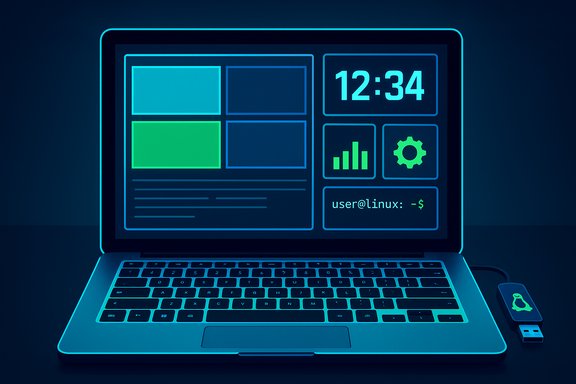 Background / Overview
Linux desktops are not a single product but a family of user interfaces and compositors built on the same kernel and Unix heritage. That diversity is the point: instead of a single, sanctioned desktop, Linux gives you choices — and choices make it possible to shape the OS around how you work, rather than forcing you to adapt your workflow to the OS. This article explains five core areas where Linux frequently delivers greater day-to-day productivity for technical users, knowledge workers, and power multitaskers, explains the practical trade-offs, and gives concrete steps and caveats to test them safely.Windows 11 and macOS have copied or narrowed some of these gaps (Snap Layouts, virtual desktops, macOS Spaces), but important differences remain: Linux often exposes more configurability, a stronger keyboard-first ethos, and system-level facilities (package managers, snapshots) that change maintenance and recovery workflows. Those differences are not mere cosmetics — they reshape task switching, error recovery, and how quickly you can get back to productive work after a hiccup.
Virtual desktops you'll actually want to use
What makes Linux virtual desktops different
Virtual desktops exist on all three major platforms, but many Linux desktops implement them in a way that encourages daily use and automation. GNOME and KDE expose settings to create multiple, even dynamically generated workspaces, and desktop shells often let you drag apps to a specific workspace from a dock or panel. KDE’s Activities push the idea further by bundling wallpapers, widgets, and pinned applications per activity, effectively delivering isolated, context-specific environments with a single switch. These models let you create a reliable, reproducible workspace for work, meetings, study, or entertainment and toggle between them with keyboard hotkeys.Productivity gains and practical uses
- Reduce context switching and visual clutter by dedicating desktops to projects (e.g., one for email+notes, another for coding+terminal).
- Rapidly launch a saved set of apps onto a target desktop (some desktop environments and extensions support per-desktop app launching).
- Use per-desktop wallpapers and widgets as quick visual cues to avoid accidental window sharing during meetings.
Caveats and replication on Windows/macOS
Windows 11 and macOS support virtual desktops and have made meaningful improvements, but Linux implementations commonly integrate workspaces with granular panel/dock behaviors and extensions that streamline workspace switching more aggressively than the default Windows shell. Power users on Windows can approximate some behaviors with PowerToys Workspaces and FancyZones, but those add-ons are peripheral rather than core shell features.Tiling window managers: reclaim your screen and your hands
What a tiling window manager (TWM) does
A tiling window manager automatically arranges windows so they fill the screen without overlapping, with predictable layouts and keyboard-driven controls. Open one window and it fills the space; open two and they split the screen; open three and the tiler reflows the layout according to rules you set. Popular Wayland compositors and tilers (Hyprland, i3, Sway, bspwm) emphasize keyboard hotkeys and composability, enabling near-mouse-free workflows once shortcuts become muscle memory.Why tiling improves productivity
- Faster window management: resize, move, and focus windows with keys instead of repeated mouse drags.
- Predictable layouts: nothing gets hidden behind other windows, lowering the time you spend hunting for a lost window.
- Scriptability: tilers accept per-app rules, restoreable layouts, and automation scripts to set up a project-specific environment.
How to try a tiler without committing
- Boot a live session or VM and install a tiling WM flavor (e.g., Manjaro i3, Fedora i3 spin), or add an auto-tiling extension/compositor to an existing desktop (Forge, Komorebi ports and derivatives exist).
- Learn six to eight core shortcuts (focus, swap, split orientation, close, promote) until they become muscle memory.
- Combine tiling with virtual desktops or KDE Activities to build project-based workspaces.
Where tiling might not fit
Tiling forces a mental model shift. Designers working on pixel-perfect layouts and some creative apps that assume overlapping floating windows may feel constrained, and some complex applications (games, GPU-accelerated editors) may behave oddly under nonstandard compositors. Plan a staged trial rather than flipping the switch on your primary machine overnight.Widgets, extensions, and scripts: morph the desktop into a tool, not a constraint
Deep customization as a productivity lever
Linux desktop environments — especially GNOME with extensions and KDE Plasma with native widgets — let users rapidly add small, focused on-screen tools: resource monitors, quick note takers, workspace indicators, app launchers, and panel-powered utilities. This is not just cosmetic; it puts the right actions and status information directly in your environment, shaving seconds off common tasks and eliminating repetitive mouse trips.- Use panel extensions to expose system metrics or workspace switches without opening a separate overlay.
- Add scriptable widgets to trigger routine tasks (start a group of apps, switch a VPN profile, toggle Do Not Disturb).
- Compose tiny automation scripts that run from a panel button or a hotkey for repetitive sequences.
Practical examples
- Workspace Indicator / Pager widgets to switch desktops from the panel.
- Persistent quick-note widget plus clipboard manager to reduce context switching between browser and note app.
- A single-click “launch my project” script that starts a terminal, editor, browser profile, and local server in the correct tiling layout.
The portable live-boot environment and persistence: carry your workstation on a USB key
Live USBs are standard, portable, and testable
Most Linux distributions ship ISO images with live capability — boot straight from a USB and run a complete desktop without touching the internal disk. Tools like Ventoy let you carry multiple ISOs on one stick and add persistence layers where supported, so settings and files survive reboots. This is an enormous productivity and recovery tool: test hardware, perform rescue operations, or simply run your familiar environment on another computer.Why this matters for real workflows
- Instant access: carry a trusted, preconfigured environment that you can boot anywhere.
- Safe testing: verify drivers, Wi‑Fi, and printers using a live session before committing to an install.
- Rescue and forensic use: a recovery USB with tools and your environment can save a dead machine with minimal fuss.
Practical limitations and solutions
- Performance: USB-booted systems are slower than SSD installs. Invest in high-quality USB 3.1 or NVMe-based USB drives for better responsiveness.
- Persistence wear: repeated writes can wear low-quality flash drives quickly. Use high-end USB or persistent partitions on external SSDs if you plan heavy use.
A distro for every need — pick an environment tuned for your workflow
Why distro diversity is a feature, not a problem
There are hundreds of Linux distributions because each bundles different software, defaults, and philosophies. That means you can pick a starting point that closely matches your use case rather than shoehorning your workflow into a generalized OS. Examples:- Ubuntu / Fedora: broad hardware support and polished desktop defaults for general-purpose use.
- Garuda, Pop!_OS variants: gaming-focused kernels, Proton/Steam tweaking out of the box.
- Kali: pre-bundled security tools for penetration testing and forensics.
- Lightweight distros (antiX, Puppy, Lubuntu): engineered for sub‑2 GB RAM machines, reviving old hardware.
Package managers and software distribution
Centralized package managers (APT, Pacman, DNF, etc. are part of the distro model and bring reproducibility and security benefits: single-command installs, system-wide updates, and signed repositories reduce the risk of installer-based malware and leftover cruft. These tools fundamentally change maintenance: updating an entire system (OS and applications) is often one command away. Windows has closed some of the gap with WinGet and Chocolatey, but Linux package ecosystems remain deeper and more standardized for many workloads.Extra productivity tools: snapshots, process control, and predictability
Timeshift and snapshot-based recovery
Linux users often layer snapshot tools (Timeshift, btrfs snapshots) on top of package-managed updates. The pattern is simple and powerful: create a snapshot before major updates and roll back quickly if something breaks. This changes the update math — instead of fearing a forced, disruptive update, you can upgrade with confidence because recovery is fast and reliable.Fast, scriptable process control
Simple commands like killall and pkill let you terminate misbehaving applications by name rather than hunting PIDs in a GUI. For scripted or repeated interventions, that ergonomics difference is significant: a single terminal command can kill and restart groups of services or apps as part of a recovery script. This approach is faster and more scriptable than many default GUI methods.Migration checklist — practical steps to test Linux productivity safely
- Boot a live USB of a friendly distro (Ubuntu, Linux Mint, or a lightweight spin) and verify Wi‑Fi, audio, and printers in the “Try” session.
- Try a tiling workflow in a VM or live session (i3, Sway, Hyprland) and learn the six core shortcuts to feel the speed gains.
- Install Timeshift and test taking and restoring a snapshot before installing large updates.
- Test package manager installs and removals for your essential apps (sudo apt install firefox or sudo pacman -S firefox) and note dependency handling.
- If you need portability, create a persistent live USB (or use a fast external SSD) and test restore speed and I/O performance.
Risks, limits, and realistic expectations
Linux productivity gains come with real trade-offs. These are the common blockers and how to mitigate them:- Application compatibility: Professional tools (certain Adobe CC features, industry‑specific engineering suites) still rely on Windows or Mac. Virtual machines, cloud-hosted Windows, Wine/Proton, or hybrid workflows are realistic mitigations; test before you commit.
- Anti-cheat and gaming: Some competitive games rely on Windows-only kernel anti-cheat systems, which makes native play on Linux impractical for some titles. Always verify game compatibility ahead of a migration if gaming is important.
- Hardware edge cases: New Wi‑Fi chips, vendor fingerprint readers, or proprietary peripherals may lack drivers initially. Live-USB testing is essential to surface driver gaps early.
- Learning curve and maintenance responsibility: Greater control means more choices; plan scheduled updates, learn basic CLI tools, and adopt snapshot-based rollback discipline. For non-technical users, distro choice (Linux Mint, Zorin, Ubuntu LTS) and community support mitigate the curve.
- Persistence wear and performance: Persistent live USB setups help portability but are slower and can wear flash memory. Use quality flash drives or external SSDs for heavy use.
Final assessment: when Linux makes sense as a productivity play
Linux is not a universal upgrade for every user, but for people who value control, deterministic recovery, keyboard-driven workflows, and deep customization, it unlocks a different productivity paradigm. The five areas covered here — virtual desktops, tiling WMs, extensible desktops, live-boot portability, and distro specialization with robust package management and snapshots — are not gimmicks. Together they shift everyday friction out of your way and replace it with repeatable, scriptable patterns that amplify focus and reduce time spent on recovery or window management.The sensible path is iterative: use a live USB, test key apps and devices, try a tiling workflow in a VM, enable snapshots, and evaluate how these changes affect your daily tasks. If you value predictability, quick recovery from breakages, and a keyboard-first interaction model, Linux delivers distinct, practical productivity advantages — with documented workarounds for the usual trade-offs.
In practice, the benefits described here are as much about workflow design as they are about technology. Linux gives you the raw materials and the plumbing — virtual desktops that are first-class citizens, tilers that reclaim the screen, widgets and scripts that automate repetitive actions, portable live environments that travel, and curated distros that match your goals. Those materials change what is easy and what is hard; when they match your workflow, the result is a measurable productivity uplift that many users say makes their daily work quieter, faster, and more predictable.
Source: How-To Geek 5 features that make Linux more productive than Windows or Mac
