

Windows Virtual Desktops are a built-in Windows 10 and Windows 11 feature that lets users create separate workspaces for different groups of apps, and a recent How-To Geek essay argues they become indispensable once paired with Task View, keyboard shortcuts, and Snap Layouts. The piece is less about a hidden trick than a familiar Windows pattern: Microsoft ships a useful productivity idea, many users ignore it for years, and only workflow pressure reveals what it was for. Virtual Desktops are not a substitute for monitors; they are a way to put borders around attention. In an era when a “workday” can mean Slack, Teams, Edge profiles, admin portals, personal email, AI tools, and three half-finished documents, that border is no longer cosmetic.
Virtual Desktops have always suffered from sounding more abstract than they are. “Multiple desktops” evokes Linux power users, tiling-window enthusiasts, or people who believe every interaction can be reduced to a hotkey. For mainstream Windows users, the feature has often felt like a solution to someone else’s problem.
That is exactly why the How-To Geek piece lands. The author describes ignoring Virtual Desktops for years because a multi-monitor setup already seemed to solve the obvious problem: not enough space. But the breakthrough came when contracting across several clients turned the desktop into a heap of unrelated obligations. The issue was no longer pixels. It was context.
That distinction matters. A second or third monitor lets you see more things at once, but it does not tell Windows which things belong together. A 34-inch ultrawide can still become a junk drawer. Virtual Desktops give the operating system a primitive but useful sense of activity: this is the writing space, this is the client space, this is the personal space, and this is the place where you can open a dozen research tabs without poisoning everything else.
Microsoft’s own support language now frames multiple desktops in similar terms: separate workspaces for different activities, projects, or parts of life. That is a quiet but important shift from “look, more desktops” to “look, fewer collisions.” The feature is not trying to make Windows bigger. It is trying to make Windows less mentally expensive.
This is the same dynamic that made Alt+Tab a basic literacy skill. If switching windows required a trip through a visual menu every time, fewer people would use it reflexively. Once the action is muscle memory, the interface recedes and the behavior becomes normal.
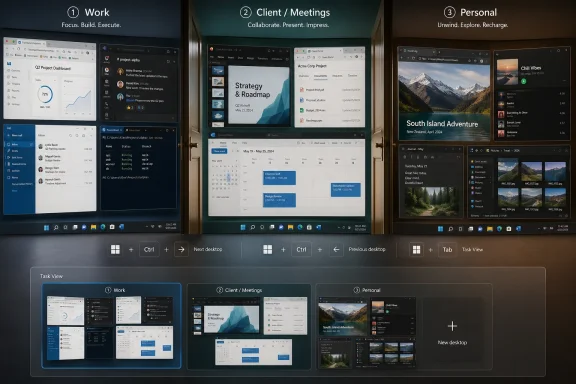
Microsoft’s default shortcuts are straightforward: Windows key + Tab opens Task View, Windows key + Ctrl + D creates a new desktop, Windows key + Ctrl + Left or Right Arrow switches between desktops, and Windows key + Ctrl + F4 closes the current desktop. None of this is exotic. The problem is that Windows has never been especially good at teaching users when these shortcuts are worth learning.
That is why many people encounter Virtual Desktops backward. They click Task View, see thumbnails, create a desktop, move a window, and conclude that the whole exercise is just another management chore. But the feature only becomes persuasive when switching is fast enough to preserve focus. The interface is the training wheels; the shortcut is the bicycle.
Monitors are spatial. Desktops are contextual. A monitor asks, “Where should this window sit?” A desktop asks, “Does this window belong to what I am doing right now?” Those are not interchangeable questions.
A sysadmin with two displays might keep a ticket queue on one screen and a remote session on another. That works until the same machine also has a browser profile for Azure, a personal inbox, a documentation draft, a password manager, PowerShell, Teams, and a vendor portal competing for attention. More screen real estate can make that mess visible, but visibility is not the same as order.
Virtual Desktops impose a kind of lightweight zoning. The admin desktop can hold monitoring, tickets, PowerShell, and documentation. A meeting desktop can hold Teams, agenda notes, and the one browser window safe to share. A personal desktop can keep banking, messages, and unrelated browsing away from the work surface. The win is not that each desktop is pristine. The win is that each mess is smaller and more coherent.
That makes Snap Layouts a natural partner for Virtual Desktops, but not a replacement. Snap decides how windows share a screen. Virtual Desktops decide which windows deserve to share a workflow.
The distinction is easiest to see in a writing setup. On one desktop, a browser, CMS, notes app, and chat window can be snapped into a stable arrangement. On another, personal email and finance tabs can use a different layout. On a third, a side project can have an IDE, terminal, documentation, and preview window arranged for a different rhythm. Each desktop becomes not just a pile of apps but a repeatable scene.
This is where Windows 11’s multitasking story is stronger than its marketing sometimes suggests. Snap Layouts are visual and easy to demo, so they get the spotlight. Virtual Desktops are quieter and harder to sell in a screenshot, but they give Snap somewhere to live. Together, they turn window management from constant improvisation into something closer to choreography.
Virtual Desktops reduce that randomness. They do not eliminate switching, but they narrow the switch set. If Alt+Tab only cycles through the windows relevant to the current desktop, it becomes useful again instead of punitive.
This is especially valuable for people who work in browsers. Modern work has moved so heavily into tabs that the browser itself has become a second operating system. Separate browser profiles can help with identity and cookies, but they do not solve the whole problem. A desktop dedicated to one client or project can keep the right browser profile, chat thread, documents, and tools grouped together without requiring every app to understand the project boundary.
That boundary also helps at the end of the day. Closing a laptop rarely closes the mind. A separate work desktop gives users a small ritual: switch away from the work surface, leave the client tabs behind, and let personal tasks exist without sitting beside the unfinished article, ticket, or expense report.
Microsoft has improved the feature over time. Windows 11 lets users rename desktops and assign different picture backgrounds, making workspaces easier to distinguish. Settings also allow users to control whether the taskbar and Alt+Tab show windows from all desktops or only the current one. Those details matter because they decide whether multiple desktops feel like clean separation or just another layer of confusion.
The weakness is that Windows rarely asks what kind of work the user does. It does not say, “You seem to have three clusters of windows open; would you like to separate them?” It does not make project-based organization feel like a first-run productivity path. Instead, the feature waits for users to have a bad enough day to go looking.
That is very Microsoft. The company often builds capable subsystems and then trusts users, OEMs, IT departments, or tech writers to turn them into habits. Virtual Desktops are not obscure, but they are culturally under-adopted. They need less documentation and more invitation.
That does not make Virtual Desktops a security control. They do not isolate processes, protect data, or replace browser profiles, containers, virtual machines, or proper access management. A window moved to another desktop is still running in the same user session. The boundary is cognitive and presentational, not cryptographic.
But cognitive boundaries are not trivial. Many operational mistakes begin as attention failures: pasting into the wrong chat, editing the wrong client document, sharing the wrong browser window, or acting in the wrong admin portal. Virtual Desktops can reduce the surface area for those mistakes by making “wrong context” more visually obvious.
The feature also scales down nicely. A power user can maintain desktops for clients, environments, or roles. A less technical user can keep one desktop for meetings and one for everything else. The best productivity features do not require everyone to become a workflow architect. They offer a benefit at one layer and reward deeper use at the next.
No subscription is required. No third-party window manager has to hook into the shell. No company needs to approve a new app just so employees can separate personal tasks from work-in-progress documents. The feature is already sitting inside Windows, waiting for the user to create a second surface.
That low friction matters in 2026 because the Windows desktop is already crowded with productivity promises. Copilot, widgets, Teams integrations, cloud sync, browser sidebars, AI assistants, and notification systems all compete to be the next layer of work. Virtual Desktops go in the opposite direction. They do not add content. They remove adjacency.
That is why the How-To Geek author’s experience feels broadly applicable. The feature became useful not when it became more advanced, but when the user stopped treating it as screen expansion and started treating it as mental separation. Sometimes the best Windows feature is the one that simply gives your clutter walls.
The trick is to make the boundary obvious. Rename desktops. Use different picture backgrounds if that helps. Decide whether Alt+Tab should show only current-desktop windows. Learn the switching shortcut before judging the feature. Pair each desktop with Snap Layouts so the inside of the workspace is as intentional as the boundary around it.
The most useful version of Virtual Desktops is not elaborate. It is repeatable.
Source: How-To Geek I ignored Windows Virtual Desktops for years, now I can't work without them
 Microsoft’s Most Underestimated Productivity Feature Was Hiding in Plain Sight
Virtual Desktops have always suffered from sounding more abstract than they are. “Multiple desktops” evokes Linux power users, tiling-window enthusiasts, or people who believe every interaction can be reduced to a hotkey. For mainstream Windows users, the feature has often felt like a solution to someone else’s problem.That is exactly why the How-To Geek piece lands. The author describes ignoring Virtual Desktops for years because a multi-monitor setup already seemed to solve the obvious problem: not enough space. But the breakthrough came when contracting across several clients turned the desktop into a heap of unrelated obligations. The issue was no longer pixels. It was context.
That distinction matters. A second or third monitor lets you see more things at once, but it does not tell Windows which things belong together. A 34-inch ultrawide can still become a junk drawer. Virtual Desktops give the operating system a primitive but useful sense of activity: this is the writing space, this is the client space, this is the personal space, and this is the place where you can open a dozen research tabs without poisoning everything else.
Microsoft’s own support language now frames multiple desktops in similar terms: separate workspaces for different activities, projects, or parts of life. That is a quiet but important shift from “look, more desktops” to “look, fewer collisions.” The feature is not trying to make Windows bigger. It is trying to make Windows less mentally expensive.
The Shortcut Is the Product
The author’s real conversion moment was not discovering the Task View button. It was learning that Windows key + Ctrl + Left or Right Arrow can move instantly between desktops. That small keyboard shortcut changes Virtual Desktops from a place you visit into a layer of the operating system you inhabit.This is the same dynamic that made Alt+Tab a basic literacy skill. If switching windows required a trip through a visual menu every time, fewer people would use it reflexively. Once the action is muscle memory, the interface recedes and the behavior becomes normal.
Microsoft’s default shortcuts are straightforward: Windows key + Tab opens Task View, Windows key + Ctrl + D creates a new desktop, Windows key + Ctrl + Left or Right Arrow switches between desktops, and Windows key + Ctrl + F4 closes the current desktop. None of this is exotic. The problem is that Windows has never been especially good at teaching users when these shortcuts are worth learning.
That is why many people encounter Virtual Desktops backward. They click Task View, see thumbnails, create a desktop, move a window, and conclude that the whole exercise is just another management chore. But the feature only becomes persuasive when switching is fast enough to preserve focus. The interface is the training wheels; the shortcut is the bicycle.
More Monitors Made the Problem Harder to See
The most common argument against Virtual Desktops is also the weakest: “I already have multiple monitors.” It sounds sensible because both features are about window management. In practice, they solve different problems.Monitors are spatial. Desktops are contextual. A monitor asks, “Where should this window sit?” A desktop asks, “Does this window belong to what I am doing right now?” Those are not interchangeable questions.
A sysadmin with two displays might keep a ticket queue on one screen and a remote session on another. That works until the same machine also has a browser profile for Azure, a personal inbox, a documentation draft, a password manager, PowerShell, Teams, and a vendor portal competing for attention. More screen real estate can make that mess visible, but visibility is not the same as order.
Virtual Desktops impose a kind of lightweight zoning. The admin desktop can hold monitoring, tickets, PowerShell, and documentation. A meeting desktop can hold Teams, agenda notes, and the one browser window safe to share. A personal desktop can keep banking, messages, and unrelated browsing away from the work surface. The win is not that each desktop is pristine. The win is that each mess is smaller and more coherent.
Snap Layouts Fix the Room, Desktops Fix the Building
Windows 11 made Snap Layouts one of the operating system’s signature productivity features. Hover over the maximize button or press Windows key + Z, and Windows offers predefined arrangements for the current screen. Snap Assist can then help fill the remaining zones, while Snap Groups can preserve a set of snapped windows as a unit in Task View, Alt+Tab, and the taskbar.That makes Snap Layouts a natural partner for Virtual Desktops, but not a replacement. Snap decides how windows share a screen. Virtual Desktops decide which windows deserve to share a workflow.
The distinction is easiest to see in a writing setup. On one desktop, a browser, CMS, notes app, and chat window can be snapped into a stable arrangement. On another, personal email and finance tabs can use a different layout. On a third, a side project can have an IDE, terminal, documentation, and preview window arranged for a different rhythm. Each desktop becomes not just a pile of apps but a repeatable scene.
This is where Windows 11’s multitasking story is stronger than its marketing sometimes suggests. Snap Layouts are visual and easy to demo, so they get the spotlight. Virtual Desktops are quieter and harder to sell in a screenshot, but they give Snap somewhere to live. Together, they turn window management from constant improvisation into something closer to choreography.
The Real Enemy Is Alt+Tab Sprawl
Alt+Tab is one of Windows’ great inventions, but it becomes hostile when every open window belongs to a different mental track. A dozen windows are manageable if they are part of one job. A dozen windows across five unrelated jobs become a slot machine.Virtual Desktops reduce that randomness. They do not eliminate switching, but they narrow the switch set. If Alt+Tab only cycles through the windows relevant to the current desktop, it becomes useful again instead of punitive.
This is especially valuable for people who work in browsers. Modern work has moved so heavily into tabs that the browser itself has become a second operating system. Separate browser profiles can help with identity and cookies, but they do not solve the whole problem. A desktop dedicated to one client or project can keep the right browser profile, chat thread, documents, and tools grouped together without requiring every app to understand the project boundary.
That boundary also helps at the end of the day. Closing a laptop rarely closes the mind. A separate work desktop gives users a small ritual: switch away from the work surface, leave the client tabs behind, and let personal tasks exist without sitting beside the unfinished article, ticket, or expense report.
Windows Still Makes Users Do Too Much of the Discovery Work
For all their usefulness, Virtual Desktops remain underexplained. Windows exposes Task View on the taskbar, but a button is not the same as a concept. Many users click it once, see a view that resembles Alt+Tab with extras, and never build a habit around it.Microsoft has improved the feature over time. Windows 11 lets users rename desktops and assign different picture backgrounds, making workspaces easier to distinguish. Settings also allow users to control whether the taskbar and Alt+Tab show windows from all desktops or only the current one. Those details matter because they decide whether multiple desktops feel like clean separation or just another layer of confusion.
The weakness is that Windows rarely asks what kind of work the user does. It does not say, “You seem to have three clusters of windows open; would you like to separate them?” It does not make project-based organization feel like a first-run productivity path. Instead, the feature waits for users to have a bad enough day to go looking.
That is very Microsoft. The company often builds capable subsystems and then trusts users, OEMs, IT departments, or tech writers to turn them into habits. Virtual Desktops are not obscure, but they are culturally under-adopted. They need less documentation and more invitation.
Enterprise IT Should Care About the Boundary, Not the Novelty
For IT pros, the appeal is not that Virtual Desktops are fun. It is that they provide a native, no-cost way to reduce context switching and accidental exposure. Anyone who has shared a screen in a meeting knows the risk of the wrong window appearing at the wrong time. A dedicated presentation or meeting desktop is a simple defense.That does not make Virtual Desktops a security control. They do not isolate processes, protect data, or replace browser profiles, containers, virtual machines, or proper access management. A window moved to another desktop is still running in the same user session. The boundary is cognitive and presentational, not cryptographic.
But cognitive boundaries are not trivial. Many operational mistakes begin as attention failures: pasting into the wrong chat, editing the wrong client document, sharing the wrong browser window, or acting in the wrong admin portal. Virtual Desktops can reduce the surface area for those mistakes by making “wrong context” more visually obvious.
The feature also scales down nicely. A power user can maintain desktops for clients, environments, or roles. A less technical user can keep one desktop for meetings and one for everything else. The best productivity features do not require everyone to become a workflow architect. They offer a benefit at one layer and reward deeper use at the next.
The Feature Works Because It Is Boring
There is a temptation to oversell Virtual Desktops as a productivity revolution. That misses the point. Their strength is that they are boring, built in, and easy to abandon if they do not fit.No subscription is required. No third-party window manager has to hook into the shell. No company needs to approve a new app just so employees can separate personal tasks from work-in-progress documents. The feature is already sitting inside Windows, waiting for the user to create a second surface.
That low friction matters in 2026 because the Windows desktop is already crowded with productivity promises. Copilot, widgets, Teams integrations, cloud sync, browser sidebars, AI assistants, and notification systems all compete to be the next layer of work. Virtual Desktops go in the opposite direction. They do not add content. They remove adjacency.
That is why the How-To Geek author’s experience feels broadly applicable. The feature became useful not when it became more advanced, but when the user stopped treating it as screen expansion and started treating it as mental separation. Sometimes the best Windows feature is the one that simply gives your clutter walls.
The Windows Desktop Finally Gets a Door
The practical lesson is not that every user needs seven desktops. Most people should start with two or three. One for focused work, one for communications or admin, and one for personal or off-hours tasks is enough to feel the difference.The trick is to make the boundary obvious. Rename desktops. Use different picture backgrounds if that helps. Decide whether Alt+Tab should show only current-desktop windows. Learn the switching shortcut before judging the feature. Pair each desktop with Snap Layouts so the inside of the workspace is as intentional as the boundary around it.
The most useful version of Virtual Desktops is not elaborate. It is repeatable.
- Windows key + Tab opens Task View, which is the control center for creating, renaming, switching, and moving windows between desktops.
- Windows key + Ctrl + Left or Right Arrow is the shortcut that makes the feature fast enough to become habit.
- Virtual Desktops are best understood as context separators, not replacements for external monitors.
- Snap Layouts organize windows inside a desktop, while Virtual Desktops organize the workflows those windows belong to.
- Separate desktops can reduce meeting mishaps, client mix-ups, and the everyday drag of switching between unrelated tasks.
- The feature is built into Windows 10 and Windows 11, but Windows 11’s Snap improvements and desktop personalization make the workflow feel more polished.
Source: How-To Geek I ignored Windows Virtual Desktops for years, now I can't work without them
