

Windows 11 already gives you the ability to create multiple, persistent workspaces — virtual desktops — and using them well can be one of the fastest, least obvious productivity upgrades on any PC, if you know the shortcuts and a few simple habits.
Virtual desktops are a lightweight organization layer above the normal Windows desktop: each virtual desktop holds a set of open windows and apps that you can switch between instantly without rearranging or minimizing everything. They are not virtual machines — they share user profile, processes, and system resources — but they act like separate work surfaces so you can keep unrelated tasks isolated and accessible. Microsoft documents how to create, switch, rename, and remove desktops through Task View and the Settings multitasking options.
This is not new to modern operating systems. macOS has long pushed Spaces as a productivity pattern; Linux window managers have offered virtual desktops for decades. Windows added an official native virtual-desktop feature in Windows 10 and refined it in Windows 11 — and yet adoption remains surprisingly low among everyday Windows users. Multiple independent writeups and community research note that many people never get past a single desktop and that the feature is under‑advertised by Microsoft.
Why it matters: when you treat each virtual desktop as a distinct task zone (for example: “work”, “communication”, “research”, “personal”), context switching becomes intentional instead of chaotic. Instead of juggling dozens of windows on one surface, you flip to a desktop that already contains the apps and layout that match what you’re trying to do. The result is faster context re‑entry, fewer micro‑interruptions, and, in many workflows, measurable time saved.
Long‑term adopters report that initial overhead (setting wallpapers, learning shortcuts) pays dividends within a day or two of practice. That same observation is reflected in practical guides and long‑form testing pieces: the feature consistently delivers a better user experience for people who spend a lot of time switching between different types of tasks.
Windows 11 ships with a deceptively powerful productivity tool that, once learned, rewrites how you navigate your day. It’s lightweight, low risk, and reversible — you can try it in minutes and stop anytime. If you habitually lose work context to tab sprawl or window clutter, take the one‑week challenge: create three desktops, give them recognizable wallpapers, and use only keyboard shortcuts to move. If you come back after seven days and say “I can’t believe I didn’t do this sooner,” you’ll have joined the small but growing group of Windows users who turned a hidden OS feature into a daily advantage.
Source: How-To Geek Windows 11's best productivity feature is the one nobody uses
 Background: what virtual desktops are and why they matter
Virtual desktops are a lightweight organization layer above the normal Windows desktop: each virtual desktop holds a set of open windows and apps that you can switch between instantly without rearranging or minimizing everything. They are not virtual machines — they share user profile, processes, and system resources — but they act like separate work surfaces so you can keep unrelated tasks isolated and accessible. Microsoft documents how to create, switch, rename, and remove desktops through Task View and the Settings multitasking options. This is not new to modern operating systems. macOS has long pushed Spaces as a productivity pattern; Linux window managers have offered virtual desktops for decades. Windows added an official native virtual-desktop feature in Windows 10 and refined it in Windows 11 — and yet adoption remains surprisingly low among everyday Windows users. Multiple independent writeups and community research note that many people never get past a single desktop and that the feature is under‑advertised by Microsoft.
Why it matters: when you treat each virtual desktop as a distinct task zone (for example: “work”, “communication”, “research”, “personal”), context switching becomes intentional instead of chaotic. Instead of juggling dozens of windows on one surface, you flip to a desktop that already contains the apps and layout that match what you’re trying to do. The result is faster context re‑entry, fewer micro‑interruptions, and, in many workflows, measurable time saved.
What changed in Windows 11 (and why it’s better than it sounds)
Windows 11 polished the experience in several pragmatic ways that remove friction and make virtual desktops genuinely usable for everyday work.- Keyboard-first navigation and new shortcuts. Windows 11 keeps and documents the key shortcuts for virtual desktops: Win + Ctrl + D to create a new desktop, Win + Ctrl + Left/Right Arrow to switch between desktops, Win + Ctrl + F4 to close the current desktop, and Win + Tab to open Task View. These built-in shortcuts are the fastest way to adopt the feature. Microsoft’s keyboard shortcuts list and consolidated documentation make these explicit.
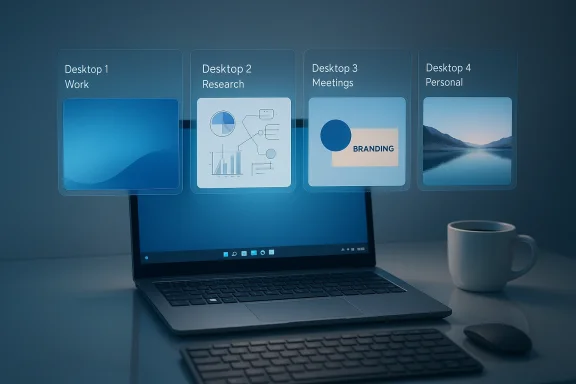
- Per‑desktop backgrounds. One small but powerful change: you can assign a different wallpaper to each desktop so your brain can instantly identify which desktop you’re on. Microsoft’s settings and the Windows 11 Task View support selecting a distinct picture for each desktop. This visual cue reduces mental friction when you have several desktops in active rotation.
- Better app movement and responsiveness. Windows 11’s Task View makes moving apps between desktops faster, and the OS generally handles switching and window assignments more smoothly than earlier Windows builds. Third‑party reporting and hands‑on guides have noted these refinements and practical behaviors (for example, closing a desktop simply shifts its apps to another desktop instead of terminating them).
- Ecosystem signals. Microsoft and coverage outlets continue to iterate on personalization features (new wallpaper options, animated/video wallpapers in Insider builds) that improve desktop recognizability, which will further encourage desktop‑specific workflows for some users. Expect more customization coming to Windows 11 in preview channels.
The reality: most people don’t use virtual desktops — and that’s why
A striking pattern emerges across forums, how‑to guides, and community surveys: while many power users and macOS adopters rely on virtual desktops religiously, mainstream Windows users rarely do. The observation appears both in user reports and tech coverage: the feature is present, useful, and under-adopted. There are several reasons:- Discovery friction. Virtual desktops are tucked behind Task View and keyboard shortcuts; many users never discover them or never see a compelling demonstration of how they change workflows. Microsoft’s promotional focus often targets cloud features and store apps, not workflow ergonomics, so discovery remains organic through articles and power‑user evangelism.
- Habit and muscle memory. People learn one way of working with windows and menus; changing an ingrained habit requires deliberate practice and short, repeatable wins. Without a clear “aha” moment, a user will simply fall back to single‑desktop clutter.
- Perceived complexity. Some users think virtual desktops will multiply resource use or complicate window management; in practice, the pattern is simple once you adopt keyboard shortcuts and a naming/visual scheme. We’ll show how below.
- Occasional platform quirks. There are hardware, driver, and third‑party app conflicts that can interfere with certain keyboard shortcuts or animations — these are fixable but can scare non‑technical users away. Microsoft Community threads document common conflicts and diagnostic steps.
How virtual desktops actually behave: resources and limits
It’s common to ask whether virtual desktops are “heavy” — do they duplicate memory or slow your PC? The short, verified answers:- Virtual desktops are a user‑interface layer, not isolated VMs. They share the same kernel, process list, and user profile. Open apps remain single processes that may be shown on one desktop or another; closing a desktop moves those app windows to a remaining desktop rather than killing them. That means memory and CPU usage are not multiplied per desktop the way they would be for separate virtual machines.
- That said, having many active apps (regardless of how they are distributed across desktops) consumes RAM and CPU. Windows 11’s memory manager will prioritize active foreground tasks and can trim background apps when resources are constrained, but the fundamental cost of an app remains. If your workflow opens many heavy apps (VMware/Hyper-V, big Adobe projects, large local databases), you should monitor resource usage and scale accordingly. Microsoft documentation and third‑party reviews recommend real hardware testing for heavy workloads.
- Practical ceiling: Windows can handle dozens of desktops, but UI edges and bugs can surface at extreme counts (reports exist of issues opening or rendering Task View when extremely many desktops are active). For most users, 3–6 task‑oriented desktops is a reasonable sweet spot.
Quick wins: keyboard shortcuts and minimal setup (execute in 60 seconds)
If you want to try this now, here’s a short, keyboard‑first onboarding that gets you into a habit quickly.- Press Win + Ctrl + D to create a new virtual desktop. (Repeat to make as many as you want.)
- Press Win + Ctrl + Left/Right Arrow to flip between desktops. Practice until it’s muscle memory.
- Press Win + Tab to open Task View, then right‑click a desktop thumbnail > Choose background to give each desktop a different wallpaper. Use distinct images (one busy, one minimal, one branded) so your brain recognizes the workspace at a glance.
- When a desktop is no longer needed, press Win + Ctrl + F4 to close it; apps will migrate to the nearest desktop instead of being closed. This is the safe way to reorganize without losing state.
Practical desktop layouts and workflows that actually save time
Below are real configurations I use and have seen work across teams and solo creatives. Pick one to start and iterate.- Two‑desktop split: Work / Personal
- Desktop 1: Office suite, e‑mail, calendar, Slack/Teams.
- Desktop 2: Browser for research, social apps, media.
- Benefit: fast switch when a meeting ends or you need to check a non‑work tab.
- Three‑desktop split: Focus / Reference / Admin
- Desktop 1: Primary active task (editor, IDE, design app).
- Desktop 2: Reference (browser tabs, documentation, research).
- Desktop 3: Admin (e‑mail, task manager, calendar).
- Benefit: context‑based focus — when you switch to Desktop 1, you know you’re in deep work mode.
- Project boards: One desktop per project
- Use 1 desktop per concurrent project when you juggle multiple short‑term deliverables.
- Combine with per‑desktop wallpapers and named desktops (Task View lets you rename) so switching is instant and unambiguous.
- Presentation mode
- Create a “presentation” desktop that contains only the app you’ll present (PowerPoint, Teams window) and use Win + D or Win + Tab to clear distractions before sharing your screen.
Advanced tips: automation, persistence, and cross‑device habits
- Create a startup desktop template. If you always want certain apps in particular desktops, you can create a template session and then manually re‑open apps on the correct desktops. Windows doesn’t natively persist full desktop state across sign‑ins for every app, but many apps will re‑open in their previous state if you enable “Restart apps” in Settings > Accounts. Test it for your most important apps.
- Use distinct wallpapers strategically. Pick wallpapers that provide semantic cues: plain blue = focus; a photo = casual; company branding = meetings. This visual vocabulary accelerates recognition. Microsoft’s per‑desktop background support makes this trivial.
- Train muscle memory with a one‑week challenge. For seven consecutive workdays, force a rule: open a specific app only on Desktop X. That small restriction trains your brain, and after a few days you’ll find switching faster than hunting windows.
- Combine with clipboard and capture features. Use Win + V (clipboard history) and Snipping Tool OCR to avoid tab‑sprawl when moving snippets between desktops; these OS features are complementary and reduce the habit of keeping dozens of windows open as scratch space.
- PowerToys and FancyZones. If you’re a window‑layout obsessive, use FancyZones to snap complex grid templates and then make those grids part of a desktop workflow (for example, a three‑app editor/terminal/browser grid on “Dev” desktop). FancyZones gives deterministic behavior beyond built‑in Snap Layouts.
Troubleshooting: common snags and fixes
- Shortcuts don’t work. If Win + Ctrl + arrow or Win + Ctrl + F4 aren’t behaving, check for software that intercepts hotkeys (graphics drivers, vendor desktop managers), update drivers, and confirm your keyboard layout. Microsoft Community and support threads list diagnostic steps (update Windows, test a different keyboard, check for conflicting vendor utilities).
- Wallpapers not applying consistently across monitors/desktops. Windows’ wallpaper logic differs between multi‑monitor setups and virtual desktops. Per‑desktop wallpapers are supported, but slideshow and certain slideshow positions aren’t compatible across virtual desktops. If you need complex multi‑monitor wallpapers that persist across desktops, use a controlled setup: set your multi‑monitor images before creating additional desktops, or use the classic background control panel; community guides detail reliable sequences.
- Task View or Win+Tab crashes with many desktops. There are community reports that very large numbers of desktops can cause Task View crashes; if you see that, close excess desktops (Win + Ctrl + F4) and consolidate. For normal use (~3–6 desktops) this is not an issue.
- App behavior differs by program. Some apps—especially older or GPU‑heavy apps—may behave oddly across virtual desktops (sometimes forcing focus back to the original desktop). Test mission‑critical apps to ensure they behave acceptably within your chosen workflow. If an app misbehaves, you can either pin it to all desktops (Task View context menu) or keep it on a single desktop where it belongs.
Security, accessibility, and enterprise considerations
- Security and isolation. Remember that virtual desktops are a UI convenience, not a security boundary. Do not assume switching desktops prevents applications from accessing shared resources; sensitive tasks should use proper sandboxing or VMs where isolation is required.
- Accessibility. Virtual desktops can be a boon for users with attention or cognitive needs — separating tasks visually and functionally reduces overload. Combine desktops with Focus Sessions and Accessibility settings to reduce notifications while in a given desktop. Many Windows features (Narrator, Magnifier) remain available across desktops.
- Enterprise deployment. For organizations rolling out guidance, a small set of documented workflows plus keyboard‑shortcut training is more effective than a broad policy. Consider adding a 15‑minute onboarding for new hires to learn the four core shortcuts and the recommended desktop template.
Why you’ll (probably) never go back once it clicks
When virtual desktops are used as an intentional organizational pattern rather than a toy feature, they remove dozens of small interruptions: hunting for that one tab, minimizing windows to find a screenshot, accidentally sharing the wrong screen in a meeting. The brain can hold a few active contexts better than a cluttered on‑screen space, so the cognitive load falls when you compartmentalize.Long‑term adopters report that initial overhead (setting wallpapers, learning shortcuts) pays dividends within a day or two of practice. That same observation is reflected in practical guides and long‑form testing pieces: the feature consistently delivers a better user experience for people who spend a lot of time switching between different types of tasks.
What to watch next: features and caveats
- Microsoft continues to evolve personalization and the desktop experience; Insider builds have shown native video wallpaper support and other cosmetic features that will change how desktops are visually distinguished. If you rely on high‑customization workflows, keep an eye on preview channels. Performance and battery implications for animated backgrounds remain to be fully measured in mainstream builds.
- If Microsoft changes Task View behavior, keyboard shortcuts, or the personalization logic in future updates, workflows may require small tweaks. As with any productivity habit, confirm behavior after major feature updates.
- Finally, while documentation and how‑to guides show the core capabilities clearly, YOU must test the feature on your specific hardware and apps to confirm it fits your workload — that’s the only way to be sure you’re getting the promised gains without hidden side effects. Microsoft’s support pages, community Q&A, and independent guides are good verification points.
Getting started checklist (copy this into your notes)
- Enable a clear naming/visual system: choose 3–4 desktops and pick distinct wallpapers for each.
- Learn the four core shortcuts: Win + Ctrl + D, Win + Ctrl + Left/Right, Win + Ctrl + F4, Win + Tab. Practice until reflexive.
- Recreate one real workflow (e.g., Work / Research / Meetings) and commit to using it for one week.
- Add Snap Layouts or FancyZones templates for deterministic window placement per desktop.
- If a shortcut conflicts, check vendor utilities and update graphics/keyboard drivers; consult Microsoft Community Q&A for fixes.
Windows 11 ships with a deceptively powerful productivity tool that, once learned, rewrites how you navigate your day. It’s lightweight, low risk, and reversible — you can try it in minutes and stop anytime. If you habitually lose work context to tab sprawl or window clutter, take the one‑week challenge: create three desktops, give them recognizable wallpapers, and use only keyboard shortcuts to move. If you come back after seven days and say “I can’t believe I didn’t do this sooner,” you’ll have joined the small but growing group of Windows users who turned a hidden OS feature into a daily advantage.
Source: How-To Geek Windows 11's best productivity feature is the one nobody uses
