

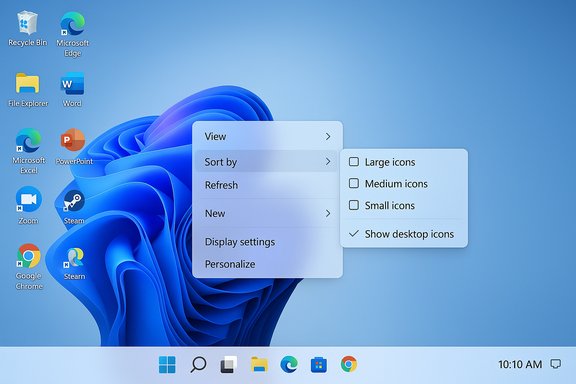
I cleared my Windows 11 desktop of every icon with a single right‑click—and it changed how I work for the rest of the afternoon. The small tweak is simple: right‑click any blank area on the desktop, choose View → uncheck Show desktop icons, and your entire icon grid disappears without deleting anything. The icons remain accessible in File Explorer and can be restored by repeating the same action, making this a quick, reversible way to reduce visual distraction and regain focus during a crunch.
That said, it’s not a universal remedy. If your desktop is an essential staging area, consider alternatives such as a single “In Progress” folder, taskbar shortcuts, or a specialist tool like Stardock Fences to get the same visual calm without losing quick access to files. Be mindful of security: hiding icons does not hide the data.
Make the change: right‑click → View → uncheck Show desktop icons—and see whether a cleaner screen helps you close that task list faster.
Source: Pocket-lint Make this Windows 11 change now if you're behind on work
 Background
Why this tiny change matters right now
Desktop clutter is a surprisingly potent source of distraction. A wallpaper peppered with dozens of shortcuts, screenshots, and installer leftovers constantly competes for attention, creating micro-decisions about what to click next. For knowledge workers and anyone racing a deadline, hiding desktop icons is one of the lowest‑friction ways to reduce that noise: it doesn’t reorder or delete files, it’s instant, and it’s fully reversible. The simple context‑menu toggle exists in Windows 11 because Microsoft still treats desktop contents as user data rather than a fixed UI element.What the official guidance says
Microsoft documents the behavior and explains how to customize desktop icons (show/hide system icons, add desktop shortcuts, etc. in Settings → Personalization → Themes → Desktop icon settings. To hide all desktop icons temporarily you can right‑click the desktop, choose View, and uncheck Show desktop icons—the icons are not deleted, only hidden from view. That means desktop-based projects remain intact and accessible through File Explorer.What the tweak actually does (technical explanation)
The UI mechanics
- When you toggle Show desktop icons off, Windows stops painting the shell view that renders the desktop’s icon list (the desktop is still the Desktop folder; it’s simply not displayed on screen).
- Files and shortcuts remain on disk in the Desktop folder and are fully accessible from File Explorer or via search.
- The setting is user‑level and reversible; no system files are changed and no data is moved or deleted.
What it does not do
- It does not secure or encrypt the files; hidden icons are not a substitute for proper file permissions or encryption if you need confidentiality.
- It does not change startup behavior, sync settings, or Folder redirection—those remain governed by your account and policy settings.
- There is no built‑in single keystroke to toggle the Show desktop icons option directly (the well‑known Win + D shortcut shows the desktop by minimizing windows, but it doesn’t flip the icon‑visibility flag). If you need a keyboard toggle, it requires a short script or third‑party tool.
How to hide desktop icons: step‑by‑step (fast guide)
- Right‑click any blank area of the desktop.
- Hover over View.
- Click Show desktop icons to toggle it off (the checkmark disappears).
- To restore icons, repeat the same steps and re‑enable Show desktop icons.
Alternatives and complementary approaches
Use virtual desktops for project separation
Windows 11 supports multiple virtual desktops—create a dedicated work desktop and another for personal tasks to avoid context bleed. Press Win + Tab and choose New Desktop, or use Win + Ctrl + Left/Right to switch quickly. This keeps a clean work surface while retaining access to personal shortcuts on another desktop.Focus Sessions and Do Not Disturb
Windows 11 includes Focus Sessions (Clock app) and the Do Not Disturb feature to mute notifications, reduce app badges, and block interruptions during timed work sessions. Combined with a clean desktop, these features limit both visual and auditory distractions.Pin essentials to Taskbar and Start
Pin frequently used apps to the taskbar or Start menu so you don’t rely on desktop shortcuts. It’s faster and more robust across multiple displays and high‑DPI setups. Taskbar pinning avoids a cluttered wallpaper while keeping your workflow one click away.Third‑party tools: more control and automation
If you want more than a manual toggle, consider third‑party desktop organizers such as Stardock Fences. Fences lets you group icons into “fences,” roll them up, create multiple desktop pages, and quick‑hide with a double‑click or hotkey—giving fine‑grained control over what remains visible. For users who switch contexts often, these tools permit automated organization rules and keyboard-driven show/hide behaviors that Windows doesn’t provide natively.Advanced methods (when the context‑menu trick isn’t enough)
Group Policy (enterprise or multi‑user environment)
Admins can enforce desktop visibility via Group Policy on Windows 11 Pro/Enterprise:- Run gpedit.msc → User Configuration → Administrative Templates → Desktop.
- Configure the policy Hide and disable all items on the desktop to prevent users from seeing or interacting with desktop icons.
Registry edits (power user path — risky)
Power users have toggled related desktop behaviors via registry keys in the past, but editing the registry is potentially destructive. Back up the registry before making changes and prefer the UI or Group Policy for managed devices. If a scriptable toggle is required, use automation tools (AutoHotkey, PowerShell) that call safe shell APIs rather than dropping raw registry values. Community scripts exist to show/hide desktop icons programmatically, but they should be reviewed and tested carefully.Real‑world productivity analysis: strengths, measurable benefits, and limitations
Strengths — why this works for many people
- Near‑zero friction: One click hides everything. No files are moved or altered.
- Reversible: Restore the original state instantly when you need to access something.
- Visual calm: A clean background reduces competing stimuli and decision points.
- Presentation and sharing: Hiding icons creates a more professional shared screen during meetings.
Limitations and realistic expectations
- Subjective effect: The productivity gain is personal and variable—what clears one person’s workflow might strip another’s quick access to active project files. Treat the tweak as a tool, not a magic fix.
- No security or privacy: Hidden icons are not protected. Anyone with access to your account or File Explorer can see and open the files.
- Workflow interruption risk: If you rely on the desktop as an active workspace (drag‑and‑drop staging, temporary screenshots), hiding icons can interrupt an established workflow.
- No built‑in hotkey: The lack of a native keyboard shortcut to toggle icon visibility means the manual method may not be fast enough for users who frequently switch between cluttered and clean desktops. You can script a toggle, but that adds complexity.
How to incorporate this tweak into a productivity routine (practical checklist)
- Create a small, repeatable habit: hide icons at the start of your focused sprint, restore them when you need to access staged items.
- Combine with Focus Sessions (Clock app) to pair a visual reduction in clutter with a timer and blocked notifications.
- If you keep active project files on the desktop, move them into a named folder on the Desktop (e.g., "In Progress") and pin that folder to Quick Access in File Explorer—this preserves ease of access while letting you hide other icons.
- Consider a third‑party organizer (Fences) if you want one‑click hide/unhide with exclusions.
- For teams: standardize a policy about where active project files are kept (Desktop vs Documents vs a cloud folder), so everyone can benefit from a clean desktop without losing quick access.
Enterprise considerations and rollout guidance
For IT managers
- Use Group Policy sparingly to enforce desktop policies. Blanket enforcement may disrupt power users; prefer guidelines and optional tools.
- Document where collaborative files should live (OneDrive, Teams SharePoint, designated network share), and set up shortcuts in File Explorer or the taskbar for consistency.
- If you recommend third‑party tools like Fences, vet them against corporate security policies and deploy via managed installers and licensing.
End‑user training
- Teach users the difference between hiding icons and deleting files.
- Demonstrate quick recovery via File Explorer → Desktop to show where files live when icons are hidden.
- Share simple AutoHotkey scripts or shortcuts if users request a keyboard toggle—include a caution about scripts and ask users to run only approved scripts.
Practical tips, hacks, and scripts
- Quick presentation trick: hide desktop icons before a screen share to avoid accidental reveals. Restore them afterward if you need to continue working.
- Create a “Show Desktop” shortcut and assign a keyboard shortcut to it (via shortcut properties) for quicker access to desktop content—this is not the same as toggling the Show desktop icons flag, but it speeds access to the Desktop folder.
- AutoHotkey toggle: community examples exist to show/hide the desktop icons programmatically; these rely on toggling WorkerW or SysListView321 windows. Use only vetted scripts and test them in a safe environment.
- If you want selective visibility, use Stardock Fences to exclude specific icons from quick‑hide so a small set of items remains visible while the rest vanish.
Risks, caveats, and verifiable claims
- Verified: The Show desktop icons toggle hides desktop icons without deleting them. This is documented by Microsoft and widely covered in Windows help guides.
- Verified: There is no single built‑in keyboard shortcut that toggles the Show desktop icons setting; Win + D shows the desktop but does not change icon visibility. Community solutions and scripts exist for custom toggles.
- Unverifiable (flagged): Any claim that hiding icons will definitively increase productivity for all users is subjective. The effect depends on personal workflows, habits, and whether the desktop is used as a temporary workspace. The productivity benefits reported are anecdotal and should be treated as user‑level observations rather than universal outcomes.
Quick FAQs
- Will hiding desktop icons delete my files?
- No. The files remain in the Desktop folder and can be accessed via File Explorer or search. The toggle only stops rendering the desktop icon view.
- Can I automate show/hide with a shortcut?
- Not natively; Win + D reveals the desktop but doesn’t change the Show desktop icons state. You can script a toggle using AutoHotkey or create a shortcut with a shell command and bind a keyboard shortcut, but test scripts before broad use.
- Is hiding icons a security measure?
- No. Hidden icons are not encrypted or protected; they’re simply not displayed. Use proper file permissions, encryption, or cloud sharing controls for sensitive files.
- What if icons disappear unexpectedly?
- Check View → Show desktop icons is enabled, restart Explorer (task manager → End task explorer.exe → Run explorer.exe), and scan for system updates or Group Policy settings that might be controlling the desktop. Microsoft has troubleshooting articles for missing desktop icons.
Conclusion
The single‑click toggle to hide desktop icons in Windows 11 is a practical, immediate change you can make today when you’re behind on work. It’s small, reversible, and low risk—yet for many users it produces a meaningful reduction in cognitive clutter. Pairing this tweak with Focus Sessions, virtual desktops, and thoughtful taskbar pinning converts a cosmetic cleanup into a tangible productivity habit.That said, it’s not a universal remedy. If your desktop is an essential staging area, consider alternatives such as a single “In Progress” folder, taskbar shortcuts, or a specialist tool like Stardock Fences to get the same visual calm without losing quick access to files. Be mindful of security: hiding icons does not hide the data.
Make the change: right‑click → View → uncheck Show desktop icons—and see whether a cleaner screen helps you close that task list faster.
Source: Pocket-lint Make this Windows 11 change now if you're behind on work
