

The desktop icon debate is more than a matter of personal taste; it reflects two very different ways of using Windows. One camp treats the desktop as a launchpad, while the other treats it like a workspace that should stay clear and visually quiet. If you fall into the second group, hiding desktop icons can make Windows feel faster, calmer, and more intentional.
For decades, the Windows desktop has served as the default landing zone for apps, files, and shortcuts. That habit made sense when the desktop was the easiest place to find everything, and when mouse-driven workflows were the norm. Even today, many installers still assume you want a desktop shortcut, which is why icon clutter remains a stubborn part of the Windows experience.
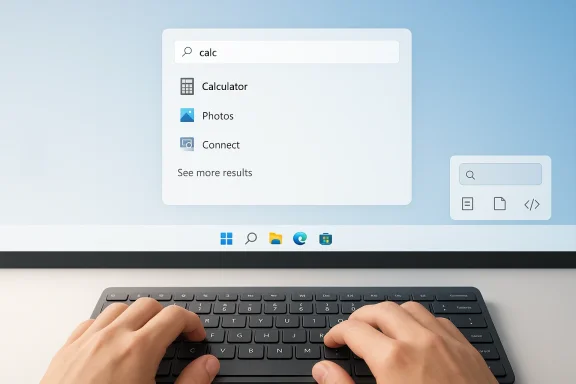
But Windows itself has changed. The Start menu now functions as both launcher and search hub, and Microsoft’s own guidance emphasizes using Start to find apps, files, and settings quickly. Microsoft also documents a keyboard-first route: press the Windows key, start typing, and open what you need without hunting across the screen.
That shift matters because the desktop is no longer the only fast path into the operating system. Microsoft’s PowerToys Command Palette is a more modern example of the same idea: a single launcher that can open apps, search files, run commands, and even perform calculations. Microsoft describes it as a quick launcher for power users and the successor to PowerToys Run.
This is why the “no desktop icons” argument is not just aesthetic. It is a workflow argument. If your primary interaction with Windows happens through search, hotkeys, and taskbar tools, then a desktop full of shortcuts becomes more of a relic than a productivity aid. Microsoft even documents how to hide all desktop icons through the desktop View menu, showing that a clean desktop is an officially supported option rather than some hack.
The visual problem is only part of it. Once you already know which app you want, scanning icons is a slower path than using search or a keyboard shortcut. In practice, the desktop often becomes a place where people go looking for things they already know how to launch another way. That makes the icons feel redundant rather than useful.
Microsoft’s own materials reinforce this point indirectly. The company highlights search-driven access in Start, and it documents that File Explorer can open the Desktop folder directly if you need access to desktop content without exposing icons. That means the desktop can still exist as a storage location while remaining visually empty.
This is especially effective when you know the app name, the file name, or even the general function you want. The keyboard becomes the shortest path between intention and action. For many users, the reduction in mouse movement alone is enough to justify the switch.
The same logic applies to files. Instead of looking for a folder shortcut on the desktop, you can search from Start or open File Explorer directly. Microsoft documents File Explorer access through the taskbar and the Windows key + E shortcut, which makes the desktop unnecessary for most routine file tasks.
That breadth matters because it turns the launcher into a control center rather than just a search box. Instead of opening one app, then another, then a settings pane, you can route several tasks through the same interface. Microsoft also says Command Palette can be extended with custom commands and extension pages built in .NET, which makes it especially attractive for enthusiasts and administrators.
For desktop icon skeptics, this is the real argument: once your launcher is powerful enough, the desktop stops being a necessary surface. The more a user leans on search, commands, and shortcuts, the less a static row of icons contributes. In that sense, desktop icons are not just clutter; they are a sign that the workflow has not fully modernized.
What has changed is the desktop’s core identity. It no longer needs to be the main launch interface for most users. In Windows 11 especially, the taskbar and Start menu already concentrate the tools people need most often, and keyboard shortcuts reduce the need to touch the desktop at all.
That creates a useful split: keep the desktop as a workspace, not a dashboard. The desktop can remain a file surface without being turned into a billboard of shortcuts. That is a subtle but important distinction, and it is where many productivity-focused users land.
This approach is better than mass deletion because it preserves your existing shortcuts. If you decide next week that you miss the desktop, you can bring everything back with one click. It is a reversible change, which is exactly what you want when you are experimenting with a new workflow.
If you need a system-level icon such as Recycle Bin, Microsoft also documents the path through Settings > Personalization > Themes > Desktop icon settings. That makes it easy to keep only the icons you truly depend on while hiding the rest.
The consumer case also gets stronger as personal computers become more multi-purpose. When a machine is used by multiple people or for multiple roles, desktop icons tend to multiply in confusing ways. Search-based workflows scale more cleanly because they do not depend on where someone last dropped a shortcut.
There is also a presentation factor. Microsoft notes that hiding icons can be useful when sharing your screen or presenting, because it creates a cleaner appearance. That is an underrated consumer benefit in an era where casual screen-sharing is routine.
Enterprise IT also benefits from predictable launch patterns. If employees use Start search, pinned apps, and managed launchers instead of ad hoc desktop clutter, administrators have fewer support tickets tied to missing icons or accidental deletions. Microsoft’s own documentation around Start, taskbar customization, and Windows Search supports the idea that core navigation should come from built-in interfaces rather than desktop sprawl.
For managed fleets, there is a subtle policy advantage too. A cleaner desktop can reduce confusion after profile migrations, OneDrive folder redirection, or workspace changes. When icons are not part of the primary workflow, the desktop becomes less fragile and less tied to a user’s exact machine state. That makes support and training marginally easier.
Some workflows are also naturally visual. A designer, researcher, or technician may want a handful of temporary shortcuts during a project, especially if the desktop functions as a staging area. In those cases, the issue is not having icons at all; it is having too many icons for too long.
The healthiest compromise is selective use. Keep only what earns its place, and hide the rest when the desktop becomes more decorative than functional. Microsoft’s icon settings and hide/show controls make that kind of middle ground easy.
That suggests the long-term future of the Windows desktop is not as a launcher grid, but as a clean workspace that appears when needed and disappears when it is not. If Microsoft continues to expand keyboard-first tools and launcher extensibility, the pressure to keep desktop icons around will only weaken further. A generation of users may eventually treat them the way many people now treat toolbars in browsers: useful for a few, unnecessary for most.
Source: How-To Geek I stopped using desktop icons on Windows, and you should too
 Background
For decades, the Windows desktop has served as the default landing zone for apps, files, and shortcuts. That habit made sense when the desktop was the easiest place to find everything, and when mouse-driven workflows were the norm. Even today, many installers still assume you want a desktop shortcut, which is why icon clutter remains a stubborn part of the Windows experience.But Windows itself has changed. The Start menu now functions as both launcher and search hub, and Microsoft’s own guidance emphasizes using Start to find apps, files, and settings quickly. Microsoft also documents a keyboard-first route: press the Windows key, start typing, and open what you need without hunting across the screen.
That shift matters because the desktop is no longer the only fast path into the operating system. Microsoft’s PowerToys Command Palette is a more modern example of the same idea: a single launcher that can open apps, search files, run commands, and even perform calculations. Microsoft describes it as a quick launcher for power users and the successor to PowerToys Run.
This is why the “no desktop icons” argument is not just aesthetic. It is a workflow argument. If your primary interaction with Windows happens through search, hotkeys, and taskbar tools, then a desktop full of shortcuts becomes more of a relic than a productivity aid. Microsoft even documents how to hide all desktop icons through the desktop View menu, showing that a clean desktop is an officially supported option rather than some hack.
Why the desktop became cluttered
The desktop became messy partly because software installers made it easy to add icons by default. That convenience accumulated over time, and what began as a simple shortcut often turned into a sprawling collection of mismatched launchers. The result is a screen that many people stop noticing, even though it quietly adds friction to daily use.Why the idea feels controversial
Some users genuinely like desktop icons because they provide a visual map of frequently used apps and documents. Others see them as an interruption, especially when they cover a wallpaper chosen for its design or calmness. The dispute is less about function than about which kind of function matters more: visible reminders or cleaner flow.Why Desktop Icons Create More Noise Than Value
Desktop icons seem harmless because they are small, familiar, and easy to ignore. Yet they occupy cognitive space even when nobody is clicking them. A screen filled with shortcuts creates constant micro-decisions, and those tiny moments add up over a workday.The visual problem is only part of it. Once you already know which app you want, scanning icons is a slower path than using search or a keyboard shortcut. In practice, the desktop often becomes a place where people go looking for things they already know how to launch another way. That makes the icons feel redundant rather than useful.
Microsoft’s own materials reinforce this point indirectly. The company highlights search-driven access in Start, and it documents that File Explorer can open the Desktop folder directly if you need access to desktop content without exposing icons. That means the desktop can still exist as a storage location while remaining visually empty.
The clutter effect is real
A crowded desktop can create the impression that your PC is always mid-task. That visual busyness can be distracting, especially on large monitors where icons spread across a wide field of view. A clean screen, by contrast, gives you one fewer place to process noise.Hidden cost of shortcuts
Shortcuts feel free because they require no setup beyond accepting a default installer choice. But every additional shortcut adds maintenance later, whether that means deleting duplicates, moving items around, or trying to remember which icon points to what. The desktop can become a junk drawer with better branding.- Less visual distraction
- Fewer duplicate launch points
- Less time spent organizing
- Cleaner wallpaper visibility
- More deliberate app access
- Better focus during screen sharing
Start Menu Search Is Faster Than Hunting Icons
The biggest reason to abandon desktop icons is that Windows already gives you a faster way to get where you are going. Open the Start menu, type a few letters, and press Enter. Microsoft explicitly notes that the Start menu search box is there to help you find apps and perform actions quickly.This is especially effective when you know the app name, the file name, or even the general function you want. The keyboard becomes the shortest path between intention and action. For many users, the reduction in mouse movement alone is enough to justify the switch.
The same logic applies to files. Instead of looking for a folder shortcut on the desktop, you can search from Start or open File Explorer directly. Microsoft documents File Explorer access through the taskbar and the Windows key + E shortcut, which makes the desktop unnecessary for most routine file tasks.
Search beats memory
Desktop icons depend on visual memory. Start search depends on naming memory. For many people, remembering that an app is called Firefox is easier than remembering where they placed its icon. That makes search more scalable as your app list grows.Speed matters most for repeat tasks
The more often you launch an app, the more each extra second matters. A desktop icon can be fast when it is easy to spot, but it can be slow when your desktop is crowded or you use multiple monitors. Search is stable because it does not depend on icon placement, window state, or how many shortcuts you forgot to delete.- Type to launch instead of scanning
- No need to arrange icons manually
- Works even when the desktop is obscured
- Better for users with large app libraries
- Reduces dependence on mouse precision
Command Palette Pushes Windows Toward a Keyboard-First Future
If Start search is good, Command Palette is better for users who want a more advanced launcher. Microsoft describes it as a customizable and extensible tool for power users, and it supports launching apps, searching files and folders, running commands, opening Terminal profiles, and even doing calculations.That breadth matters because it turns the launcher into a control center rather than just a search box. Instead of opening one app, then another, then a settings pane, you can route several tasks through the same interface. Microsoft also says Command Palette can be extended with custom commands and extension pages built in .NET, which makes it especially attractive for enthusiasts and administrators.
For desktop icon skeptics, this is the real argument: once your launcher is powerful enough, the desktop stops being a necessary surface. The more a user leans on search, commands, and shortcuts, the less a static row of icons contributes. In that sense, desktop icons are not just clutter; they are a sign that the workflow has not fully modernized.
Why power users notice the difference
Power users tend to value repeatable actions. A launcher that responds to a hotkey and accepts typed commands can be faster than any visual interface, especially when the same action is performed dozens of times per day. That is why Command Palette feels like a meaningful evolution rather than a gimmick.Extensibility is the key feature
The most important part of Command Palette may be its extensibility. Microsoft’s documentation shows that users can build custom extensions, sample projects, and additional command pages. That means the launcher can grow with your workflow instead of forcing you to go back to the desktop for exceptions.- Launch apps from one place
- Search files and folders
- Run shell commands
- Perform quick calculations
- Open Terminal profiles
- Support custom extensions
The Desktop Still Has a Role, But It Is Narrower Now
None of this means the desktop is obsolete. It still serves as a convenient parking space for temporary files, screenshots, meeting notes, and quick drag-and-drop work. Microsoft even notes that if desktop icons are hidden, you can still access the Desktop folder in File Explorer, which preserves the file system view while removing the visual clutter.What has changed is the desktop’s core identity. It no longer needs to be the main launch interface for most users. In Windows 11 especially, the taskbar and Start menu already concentrate the tools people need most often, and keyboard shortcuts reduce the need to touch the desktop at all.
That creates a useful split: keep the desktop as a workspace, not a dashboard. The desktop can remain a file surface without being turned into a billboard of shortcuts. That is a subtle but important distinction, and it is where many productivity-focused users land.
Desktop as workspace, not launcher
A desktop can be useful when you are staging files for a task, comparing documents, or moving assets into an app. It is less useful as a permanent menu when the operating system already offers stronger launcher options. That is why hiding icons often feels like removing wallpaper from a bulletin board rather than deleting a feature.Visual access is not the same as operational access
People sometimes confuse visible icons with accessibility. But a hidden desktop can still be reached through File Explorer, search, and keyboard shortcuts. The icons may disappear from sight, yet the desktop remains available when you actually need it.How to Hide Desktop Icons Without Losing Anything
The safest way to stop using desktop icons is not to delete everything. Microsoft’s own support instructions recommend right-clicking the desktop, opening View, and unchecking Show desktop icons. That hides the icons instantly and lets you restore them later if needed.This approach is better than mass deletion because it preserves your existing shortcuts. If you decide next week that you miss the desktop, you can bring everything back with one click. It is a reversible change, which is exactly what you want when you are experimenting with a new workflow.
If you need a system-level icon such as Recycle Bin, Microsoft also documents the path through Settings > Personalization > Themes > Desktop icon settings. That makes it easy to keep only the icons you truly depend on while hiding the rest.
A practical migration plan
- Stop adding new desktop shortcuts during software installs.
- Hide the current icons instead of deleting them.
- Pin the apps you truly need to Start or the taskbar.
- Use Start search for app launches.
- Add PowerToys Command Palette if you want a faster launcher.
- Restore only the desktop icons you miss after a week or two.
Why hiding is better than purging
A clean transition matters because habits are sticky. If you delete everything immediately, you may spend time recovering shortcuts you actually use. Hiding the icons lets you test a cleaner desktop without burning the bridge back. That makes the change feel less like a gamble and more like an experiment.- Right-click desktop
- Select View
- Uncheck Show desktop icons
- Restore later if needed
- Keep only essential system icons if desired
Consumer Impact: Cleaner, Simpler, Less Distracting
For home users, the biggest win is often psychological rather than technical. A blank desktop makes Windows feel less chaotic, especially for people who work on the same machine for gaming, browsing, schoolwork, and light productivity. It creates the impression of order even before you open an app.The consumer case also gets stronger as personal computers become more multi-purpose. When a machine is used by multiple people or for multiple roles, desktop icons tend to multiply in confusing ways. Search-based workflows scale more cleanly because they do not depend on where someone last dropped a shortcut.
There is also a presentation factor. Microsoft notes that hiding icons can be useful when sharing your screen or presenting, because it creates a cleaner appearance. That is an underrated consumer benefit in an era where casual screen-sharing is routine.
Everyday convenience still matters
A clean desktop does not mean a complicated one. On the contrary, it often means fewer steps and less visual friction. If opening an app becomes a habit of pressing one key and typing a few letters, the experience feels simpler, not more advanced.Better fit for modern hardware
Large monitors and ultrawide displays amplify icon clutter. What once seemed like a manageable handful of shortcuts can become a scattered landscape across high-resolution screens. Hiding the icons restores a sense of proportion to the workspace.- Less screen clutter
- Better wallpaper visibility
- Cleaner screen sharing
- More consistent daily workflow
- Less temptation to keep random shortcuts
Enterprise Impact: Standardization, Support, and Focus
In business environments, desktop icons can create inconsistency. Different teams accumulate different shortcuts, and support staff end up explaining where things live instead of standardizing how people get to them. A search-first workflow reduces that variation and makes onboarding easier.Enterprise IT also benefits from predictable launch patterns. If employees use Start search, pinned apps, and managed launchers instead of ad hoc desktop clutter, administrators have fewer support tickets tied to missing icons or accidental deletions. Microsoft’s own documentation around Start, taskbar customization, and Windows Search supports the idea that core navigation should come from built-in interfaces rather than desktop sprawl.
For managed fleets, there is a subtle policy advantage too. A cleaner desktop can reduce confusion after profile migrations, OneDrive folder redirection, or workspace changes. When icons are not part of the primary workflow, the desktop becomes less fragile and less tied to a user’s exact machine state. That makes support and training marginally easier.
Why help desks should care
The help desk gets involved when users cannot find shortcuts, lose pinned items, or confuse local and cloud-backed Desktop folders. If users instead rely on Start search or a launcher like Command Palette, the number of “where did my icon go?” problems drops. That is not glamorous, but it is very real operational value.Standard workflows beat personal icon collections
Enterprise environments are strongest when people use common entry points. A shared workflow is easier to document, easier to support, and easier to secure. Desktop icons are personal by nature, which is exactly why they are often a poor fit for organized fleets.- Fewer support calls
- Simpler onboarding
- More consistent navigation
- Less dependence on local shortcuts
- Easier profile migrations
Where Desktop Icons Still Make Sense
There are still legitimate cases for desktop icons, and pretending otherwise would be dishonest. Users with very specific accessibility needs may prefer large, visible targets on the screen. Others may keep a few files on the desktop because they work from them constantly throughout the day.Some workflows are also naturally visual. A designer, researcher, or technician may want a handful of temporary shortcuts during a project, especially if the desktop functions as a staging area. In those cases, the issue is not having icons at all; it is having too many icons for too long.
The healthiest compromise is selective use. Keep only what earns its place, and hide the rest when the desktop becomes more decorative than functional. Microsoft’s icon settings and hide/show controls make that kind of middle ground easy.
The case for minimal exceptions
A minimal desktop can still include a few carefully chosen items. The key is to make those icons intentional rather than habitual. If every new install gets a shortcut by default, the desktop is doing too much of the system’s work.Accessibility should guide the choice
For some users, visible icons are genuinely easier than search. That is a valid preference. The better argument is not that everyone must hide icons, but that most people should consider whether their current icon habit is serving them or just lingering by default.Strengths and Opportunities
A no-icon desktop aligns well with how Windows has evolved, and it can make the system feel more direct, modern, and manageable. It also pairs naturally with Microsoft’s own push toward search, Start menu efficiency, and PowerToys-driven power tools. When used well, it creates a more polished and less distracting PC experience.- Cleaner visual environment
- Faster app launching through search
- Better use of keyboard shortcuts
- Less maintenance of shortcuts and folders
- Stronger fit with Windows 11 workflows
- Improved presentation and screen-sharing aesthetics
- Easy reversal if the user changes their mind
Risks and Concerns
The biggest risk is overcorrecting and making the desktop feel inaccessible to users who genuinely rely on it. Another concern is that a hidden desktop may hide bad organizational habits rather than fixing them, especially if files are still dumped there without a plan. The goal should be a better workflow, not just an empty wallpaper.- Possible accessibility drawbacks
- Loss of quick visual reminders
- Hidden clutter may move elsewhere
- Users may resist changing habits
- Temporary friction during transition
- Overreliance on search if naming is inconsistent
- Potential confusion between Desktop folder and desktop surface
Looking Ahead
Windows is clearly moving toward a model where search, launchers, and taskbar-centric navigation matter more than the old icon-covered desktop. Microsoft’s own documentation around Start, File Explorer, and PowerToys Command Palette points in that direction, even if the company has not declared the desktop obsolete.That suggests the long-term future of the Windows desktop is not as a launcher grid, but as a clean workspace that appears when needed and disappears when it is not. If Microsoft continues to expand keyboard-first tools and launcher extensibility, the pressure to keep desktop icons around will only weaken further. A generation of users may eventually treat them the way many people now treat toolbars in browsers: useful for a few, unnecessary for most.
What to watch next
- More PowerToys integration
- Further Start menu refinement
- Broader adoption of Command Palette
- Deeper file and command search capabilities
- More guidance for cleaner desktop workflows
Source: How-To Geek I stopped using desktop icons on Windows, and you should too
Last edited:
