

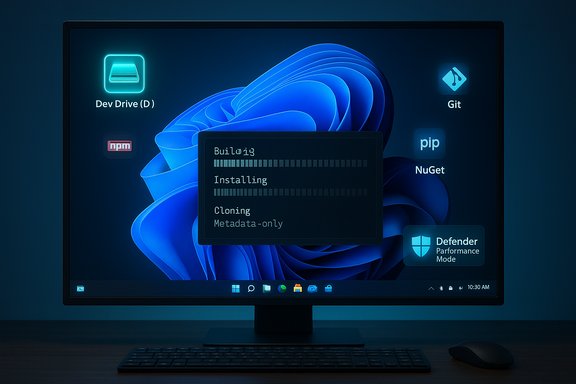
Windows 11’s Dev Drive is one of those low-profile features that can deliver real, repeatable productivity gains—if you put the right things on it; move these three folders to a properly configured Dev Drive and you’ll see smoother builds, snappier package restores, and faster game installs without touching your OS volume.
Background / Overview
Dev Drive is a purpose-built Windows 11 storage volume that uses the Resilient File System (ReFS) with filesystem-level optimizations and Defender’s performance mode (asynchronous on-open scanning) to reduce blocking I/O during developer-style workloads. It’s not a generic replacement for NTFS; it’s a specialized workspace designed for heavy small-file churn, package caches, build outputs, and other I/O-intensive inner-loop operations. Microsoft’s documentation specifies a minimum 50 GB size and recommends modern Windows builds and system memory for best results. Why this matters: many development workflows and certain games are bottlenecked by filesystem metadata operations and repeated open/read/write cycles. ReFS’s allocation-on-write, block-cloning (copy-on-write) capabilities, and Defender’s asynchronous scan behavior for trusted Dev Drives reduce per-file latency and duplicate-copy costs. Microsoft and its engineering blog have published measured improvements in targeted scenarios, although the gains vary by workload, hardware, and build system design.How Dev Drive changes the storage story
ReFS tuned for developer patterns
ReFS was originally built for resiliency and scale, but in the Dev Drive context Microsoft has tuned ReFS metadata handling and block-cloning to favor the developer I/O pattern: many small files, high churn directories, and frequent copies. The result: lower metadata bottlenecks and dramatically cheaper file duplicates when block cloning applies. That’s why copy-heavy operations (e.g., duplicating large package blobs or restoring caches) can drop from seconds to fractions of a second on Dev Drive in real-world tests.Defender Performance Mode (asynchronous scanning)
Dev Drives are trusted volumes by default, which causes Microsoft Defender to run file-open scans asynchronously on that volume. In practice this turns “open → scan → proceed” into “open → proceed → scan completes in background,” removing the per-open wait that can accumulate during builds or repository operations. That reduces CPU and I/O spikes caused by synchronous scanning, but it is an intentional trade-off: asynchronous scans widen the window between file creation and when Defender has inspected the content. Use discipline—keep only trusted artifacts on a Dev Drive.Block cloning / copy-on-write benefits
Block cloning allows multiple files to share the same physical clusters until a write modifies them. Build tasks and package managers that perform many logical copies suddenly benefit: copies become metadata-only operations until data diverges. Microsoft engineering posts and tests show very large improvements in copy-heavy tasks when block cloning is available on Dev Drive.The three folders you should move (and why)
Not every directory belongs on a Dev Drive. The trick is precision—relocate high-churn, trusted folders that benefit from faster metadata and deferred scanning, and leave system, sync, or rarely modified data on NTFS.1) Source code repositories, build outputs, and intermediate folders
Why move them- Builds create and delete thousands of small files and directories; ReFS reduces metadata contention.
- Build outputs and intermediate files are frequently read/written during incremental builds, making them perfect candidates for ReFS optimizations and Deferred Defender scanning.
- Git operations (clone, checkout, branch switch) that spawn many file operations often become noticeably smoother on a Dev Drive. Community tests have reported multi‑digit percentage improvements for certain repository operations, though results vary with repo shape and CPU vs I/O bottlenecks.
- Create a Dev Drive using Settings → System → Storage → Advanced storage settings → Disks & volumes → Create Dev Drive (or use PowerShell: Format-Volume -DriveLetter D -DevDrive). Minimum recommended size is 50 GB.
- Move your active repository clones and project folders to D:\src (or similar) on the Dev Drive. Use Git’s local paths or your IDE’s clone options.
- Configure your build system/IDE to point build outputs and intermediate directories to the Dev Drive (MSBuild / Visual Studio supports changed output directories). Visual Studio recognizes Dev Drives when creating projects.
- Keep Visual Studio and large IDE installs on C: (NTFS). Don’t move the system or core application folders.
- If your build is CPU-bound (heavy compilation), Dev Drive helps less—test before committing everything.
- Keep source repos on the Dev Drive only if you trust the code base; unvetted third‑party downloads should stay on NTFS until scanned.
2) Package caches and toolchains (npm, pip, NuGet, Maven, Node/NuGet caches)
Why move them- Package managers generate a huge number of small files and frequent reads/writes during restores and installs; blocking Defender scans on NTFS can slow these operations. Moving caches to a Dev Drive reduces scan interference and speeds up repeated installations. The practical payoff becomes larger with monorepos and multi-project workflows where package restoration is frequent.
- npm: Create a cache folder on Dev Drive (for example D:\packages\npm) and set a global environment variable: setx /M npm_config_cache D:\packages\npm. Alternatively use npm config set cache "D:\packages\npm" --global. Move existing cache contents to the new location.
- Python/pip: Use virtual environments located on the Dev Drive, or set pip cache dir to the Dev Drive by exporting PIP_CACHE_DIR or updating pip config files.
- NuGet: Update NuGet.config to point globalPackagesFolder to a path on the Dev Drive, or set NUGET_PACKAGES environment variable.
- Maven: Edit settings.xml to point localRepository to the Dev Drive path.
- After moving caches, restart shells and IDEs to pick up environment variable changes.
- Keep a periodic manual or scheduled full Defender scan of critical caches if you accept the asynchronous open-time model.
- If a package install fails, verify Defender hasn’t quarantined files and inspect Defender’s logs.
3) Game libraries and asset folders (for specific titles and heavy mod setups)
Why move them- Games with massive asset catalogs, shader caches, or heavy modded installations (open-world or flight sims) do many small reads/writes during load. On slower SATA SSDs or drives with metadata bottlenecks, Dev Drive’s ReFS + asynchronous scanning can produce visible load-time improvements and fewer stutters during asset streaming. Practical community guidance suggests trying one title, measuring load and patch times, then expanding if gains justify the trade-off.
- Use the game launcher’s native multi-library support (Steam Library Folders, Epic, GOG, Xbox app) to install or move a game to the Dev Drive, rather than manually copying files.
- Test anti-cheat and online connectivity immediately—some anti-cheat systems or game tools expect NTFS semantics and may fail on ReFS. If issues appear, move the title back to NTFS.
- Avoid moving multiplayer titles with strict anti-cheat enforcement until you confirm compatibility.
- Don’t place random third-party mods or unknown binaries on a trusted Dev Drive without scanning them first.
What you must never move to Dev Drive
- Core Windows system files or the system (C
 drive—Dev Drive cannot be the system drive and system features depend on NTFS semantics.
 - OneDrive core folders and certain AppData locations—these integrate tightly with Windows services and may break sync or app behavior when moved to ReFS.
- Files that require NTFS-specific features such as EFS (per-file encryption) or NTFS compression—ReFS omits some consumer NTFS features.
How to create a Dev Drive — step-by-step (practical)
- Verify prerequisites:
- Windows 11 build supporting Dev Drive (the Windows docs list a baseline build and updates). Recommended 16 GB RAM (8 GB minimum) and at least 50 GB free space.
- Create via Settings:
- Settings → System → Storage → Advanced storage settings → Disks & volumes → Create Dev Drive. Choose VHD/VHDX (VHDX recommended) or format free space. Pick dynamic VHDX if you want a flexible portable file.
- Or create via PowerShell / command line:
- Format-Volume -DriveLetter D -DevDrive (requires Admin) or Format D: /DevDrv /Q from an elevated CMD.
- Check Defender Performance Mode:
- Open Windows Security → Virus & threat protection → Manage settings → See volumes; confirm performance mode is enabled for the Dev Drive (enabled by default for trusted Dev Drives). Defender’s docs list the antimalware platform and security intelligence version prerequisites for performance mode.
- Move targeted folders and reconfigure environment and package manager settings as needed (examples provided above).
Best practices, safety checklist, and troubleshooting
- Start small and measure. Make a dynamic 50–100 GB VHDX Dev Drive and move one repo, package cache, or game. Compare clone, build, load, and install times before and after. If results are meaningful, expand usage.
- Use VHDX for portability and backup, but don’t assume a copied VHDX will behave identically on another host without re-creating trust settings—Microsoft warns against treating a moved Dev Drive VHD as a drop-in trusted volume on another machine. Back up the VHDX file itself as you would any critical image.
- Keep the system drive and IDE installs on NTFS. Visual Studio and SDKs typically work better when installed on the OS volume. Only point project folders and caches to Dev Drive.
- If anti-cheat or publisher tools fail, move the title back to NTFS and report the issue to the vendor—don’t assume Dev Drive is always the cause, but test systematically.
- If you maintain an enterprise fleet, work with security admins: Group Policy and Intune can enforce or disable Dev Drive creation and Defender Performance Mode. Dev Drive may be temporarily disabled in some managed update scenarios until policy alignment occurs.
- If security is a concern, keep a manual or scheduled full Defender scan of Dev Drive artifacts from time to time, and scan external downloads before moving them onto the Dev Drive. Treat asynchronous scanning as a performance optimization, not a security bypass.
Quantifying the gains — realistic expectations
- Expect variability. Microsoft’s engineering tests and community benchmarks show a range: minor gains on CPU-bound builds, double-digit improvements for I/O-bound tasks, and dramatic wins for block-cloning heavy copy scenarios. Some measured examples cite up to ~30% improvement for builds in certain workloads and orders-of-magnitude reductions on large file copies when block cloning applies—but these are conditional on the workload shape and hardware. Test with your projects.
- On NVMe systems the baseline is already fast, so absolute improvements may be smaller than on SATA SSDs; the biggest wins come where metadata and small-file operations are the bottleneck.
Quick reference: recommended move list (one-paragraph cheat-sheet)
Move to Dev Drive: (1) active source code repositories and their build output / intermediate directories, (2) package caches and toolchain caches (npm, NuGet, pip virtualenvs when appropriate), (3) selected large game libraries with heavy asset streaming or modded setups that you trust and have tested. Don’t move C:, OneDrive sync roots, AppData system components, or anything that depends on NTFS-only features. Create a dedicated Dev Drive (50–100 GB to start), mark it trusted (the Settings wizard does this), and measure before and after.Final verdict: where Dev Drive fits in your Windows 11 toolbox
Dev Drive is a pragmatic performance lever—not a universal filesystem revolution. Used strategically, it reduces inner-loop friction: faster repository operations, smoother package restores, lower build latency, and improved asset load behavior for some games. The combination of ReFS tuning, block-cloning, and Defender’s performance mode provides a real performance sandbox for trusted workloads. But the model requires discipline: trust only vetted artifacts on Dev Drive, back up VHDX files, and test anti‑cheat and tooling compatibility before full adoption. When you follow those rules, Dev Drive can reclaim minutes (or tens of minutes) from your daily workflow—time that adds up fast when you iterate on code or manage many project builds.Conclusion
Dev Drive is an underused but powerful productivity hack in Windows 11: create a dedicated ReFS Dev Drive, move your source code and build outputs, relocate package caches and toolchains, and selectively test game library moves for heavy-asset titles. Keep system-critical and sync-integrated folders on NTFS, respect Defender’s trust model, and measure your own workloads. The wins won’t be universal, but when they arrive they’re tangible—and they compound across every clone, restore, and build you run.
Source: MakeUseOf You’re not using Windows 11’s Dev Drive properly unless you move these 3 folders
