

Windows 11’s quietly powerful Dev Drive feature is one of those under‑the‑radar tools that can materially shorten build times and repository operations by changing where — and how — your project files live on disk, and it’s worth a hard look if you do any software development, frequent large-file copies, or heavy package‑cache activity on Windows.
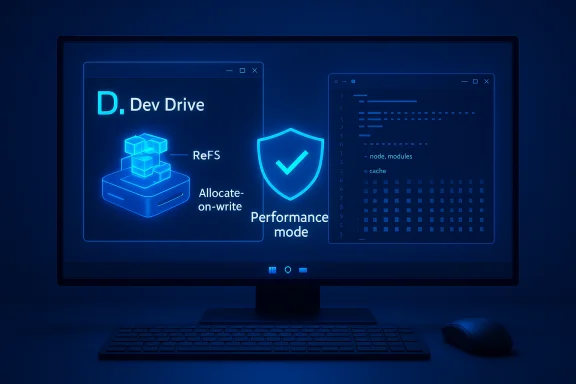
Dev Drives were introduced to Windows 11 as a purpose‑built storage volume for developer workflows. They’re not a new physical device — they’re special volumes formatted with the Resilient File System (ReFS) and created either as a partition or a virtual hard disk (VHD/VHDX). Dev Drives are optimized for the “many small files, lots of churn” patterns common in source control, package caches, and build intermediates. The feature also ties into a new Microsoft Defender “performance mode” so Defender can reduce synchronous, on‑open scanning for trusted Dev Drive volumes — that trade‑off is the primary source of the feature’s performance gains. In short: Dev Drives are a Windows‑level optimization that combines a filesystem tuned for developer IO (ReFS features like block cloning and allocation‑on‑write) with a Defender policy that prioritizes throughput for trusted volumes. That combination is why some published tests show significant speed wins in specific workflows.
Source: XDA Windows Dev Drives are the speed upgrade you're not using
 Background / Overview
Dev Drives were introduced to Windows 11 as a purpose‑built storage volume for developer workflows. They’re not a new physical device — they’re special volumes formatted with the Resilient File System (ReFS) and created either as a partition or a virtual hard disk (VHD/VHDX). Dev Drives are optimized for the “many small files, lots of churn” patterns common in source control, package caches, and build intermediates. The feature also ties into a new Microsoft Defender “performance mode” so Defender can reduce synchronous, on‑open scanning for trusted Dev Drive volumes — that trade‑off is the primary source of the feature’s performance gains. In short: Dev Drives are a Windows‑level optimization that combines a filesystem tuned for developer IO (ReFS features like block cloning and allocation‑on‑write) with a Defender policy that prioritizes throughput for trusted volumes. That combination is why some published tests show significant speed wins in specific workflows. What a Dev Drive actually is
Not a magic stick — a tuned volume
- A Dev Drive is a volume you create via Settings, Disk Management, or command line and format as ReFS with special Dev Drive metadata and policies attached at format time. You can create it on unallocated space as a partition or store it as a VHD/VHDX file.
- VHD/VHDX Dev Drives are portable (a single file you can copy) and can be dynamic or fixed‑size; partitions usually give slightly better raw performance because they avoid the virtual‑disk layer.
Key differences vs. a normal NTFS drive
- Uses ReFS, not NTFS, enabling features like block cloning and allocation‑on‑write that can turn expensive copies into cheap metadata operations. That reduces IO for duplicate writes and many copy operations.
- Dev Drives are designated for developer workflows and are treated differently by the OS and Defender; newly created Dev Drives are trusted by default and can run under Defender’s performance mode, which reduces synchronous scanning overhead for files on that volume. This behavior is central to the observed speed improvements.
- Important restrictions: a Dev Drive cannot be the system/boot (C
 drive, cannot be created on removable/hot‑pluggable disks, and a previously formatted volume cannot be converted in place to a Dev Drive — it must be created anew.
How Dev Drives speed up real work (the tech, explained)
ReFS: performance features that matter to developers
ReFS brings several behaviors that benefit dev workflows:- Block cloning (a ReFS capability) allows copies to be performed by remapping clusters rather than physically reading and re‑writing bytes. That can turn large file clones from expensive IO operations into very fast metadata updates.
- Allocate‑on‑write / copy‑on‑write semantics mean that shared regions are only duplicated when written, which reduces write amplification for clones and snapshots.
- ReFS also offers variable cluster sizes and metadata optimizations that reduce per‑file overhead when creating and deleting many small files — a common pattern in builds and package managers.
Defender performance mode: the pragmatic trade
- Microsoft Defender’s normal real‑time protection inspects files at open and can add latency to repeated opens/writes on a high‑churn folder (like a repo during a build). Defender’s performance mode for Dev Drives defers or reduces on‑open scanning in controlled ways so the OS doesn’t pay that cost during development operations. Real‑time protection remains active for the rest of the system.
- This is not “turn Defender off.” It’s a specialized mode intended for trusted development volumes; it reduces synchronous blocking that hurts interactive workflows. The performance improvements you’ll see are therefore a mix of ReFS filesystem gains and lower Defender scan overhead.
Real‑world performance: what to expect (benchmarks and caveats)
Published and vendor tests show meaningful but variable gains:- Microsoft’s own documentation and engineering posts — and subsequent community tests — report ranges from modest double‑digit percentage gains on some builds to much larger improvements on IO‑bound tasks. Numbers cited include up to roughly 30% improvements in some engineering summaries and specific higher numbers (low 40% range) for a small set of targeted operations like large git clones on particular hardware. Those figures are workload‑dependent; CPU‑bound builds will see smaller changes, while IO‑bound, many‑small‑file operations benefit most.
- Example: a large repo clone or package restore (many files, deep trees) can be dramatically faster because ReFS reduces metadata cost and Defender avoids synchronous scanning on every file open. In some community tests a single git clone showed ~41% faster behavior; other builds (for example a dotnet build) recorded smaller but still meaningful time savings in the low‑20% range on Microsoft’s test rigs. These results are illustrative, not guaranteed.
- Baseline hardware matters: modern NVMe drives are already very fast; on an NVMe system absolute time savings may be smaller than on older SATA SSDs. The biggest relative wins often appear where metadata and small‑file operations are the bottleneck, not raw sequential bandwidth.
- Portability costs: VHD‑backed Dev Drives are convenient but add a layer that can slightly reduce throughput versus a partition. If absolute, lowest latency is critical, a partitioned Dev Drive on the physical disk usually performs better.
- Numbers vary; treat vendor or single‑system percentages as guidance and measure with your own projects before committing to a new workflow.
How to set up a Dev Drive — practical step‑by‑step
Prerequisites to check first:- Windows 11 build supporting Dev Drive (for example Build 10.0.22621.2338 or later) and current Defender/antimalware platform versions for performance mode. Recommended: 16 GB RAM (8 GB minimum) and at least 50 GB free space for your first Dev Drive. Local administrator rights are required.
- Open Settings → System → Storage → Advanced storage settings → Disks & volumes.
- Select Create dev drive and choose one of three options: Create new VHD, Resize an existing volume, or Use unallocated space.
- If using Create new VHD, pick a name, a path, the virtual disk size (minimum 50 GB), format (VHDX recommended), and a disk type (fixed vs dynamic). Click Format to create the Dev Drive.
- Format via CMD: Format D: /DevDrv /Q
- PowerShell: Format-Volume -DriveLetter D -DevDrive
(Replace D: with your chosen drive letter; run as Administrator.
- Use PowerShell/CMD as admin: fsutil devdrv trust D:
- Verify trust: fsutil devdrv query D:
Trust is applied at format/attach time; moving a Dev Drive VHD to another machine makes it untrusted until trust is set on the destination.
- Move only trusted development assets (source repos, package caches, build output) onto the Dev Drive.
- Do not install your IDE or system tools onto the Dev Drive — Visual Studio, the .NET SDK, and similar system components should remain on the OS (C volume.
Use cases and recommended files to place on a Dev Drive
Best candidates:- Active source code repositories and intermediate build output (obj/, bin/, incremental outputs).
- Package caches and local registries (npm, NuGet, pip caches), where repeated reads/writes add up.
- Large game or asset libraries used for development with high file‑system churn and trusted contents.
- Files downloaded from the web, email attachments, or any untrusted binaries — the Defender changes make storing such content riskier than keeping it on a normal volume.
Security trade‑offs and mitigations (don’t be cavalier)
Why there’s risk- Dev Drive performance improvements rely in part on deferred or reduced synchronous scanning for trusted Dev Drives. That increases the window from file creation to when Defender inspects the file, which is acceptable for trusted developer artifacts but dangerous for arbitrary downloads.
- Keep only known/trusted build artifacts on the Dev Drive. Treat it as an isolated developer workspace, not a general downloads or application install volume.
- Manual / scheduled scans: Periodically run a full Defender scan of your Dev Drive or set scheduled scans to run at low‑impact times. You can also instruct Defender to use a lower CPU budget for background scans via Set‑MpPreference to avoid scan spikes. For example, enabling low‑priority scans and capping the scan CPU budget can be done with PowerShell commands like Set‑MpPreference -EnableLowCpuPriority $true and Set‑MpPreference -ScanAvgCPULoadFactor 30; test settings conservatively.
- If you need absolute security assurances (for example in enterprise managed devices), work with your security team: Group Policy and Intune can control Dev Drive creation and Defender performance mode behavior. In managed environments Dev Drive may be disabled or restricted by policy until administrators have configured safe settings.
- Some published percentages (for example a single reported 41% improvement on a particular git clone) come from controlled vendor tests and community reports and will not necessarily replicate on every machine. Treat single‑test claims as illustrative rather than universal — measure against your own projects before changing your main workflow.
Enterprise and management considerations
- Enterprises should plan Dev Drive adoption deliberately: IT and security policies may need to allow Dev Drives, specify allowed filters, and decide whether Defender performance mode is permitted. Microsoft provides fsutil and Group Policy options to configure allowed filters and performance mode at scale.
- For managed fleets, Dev Drives may be governed centrally so that only specific filters or scanning policies are allowed. Administrators can use fsutil devdrv setfiltersallowed and related commands to control what attaches to Dev Drives.
- Backups: VHDX‑based Dev Drives are portable, but copying a VHDX and re‑using it on another machine will produce an untrusted volume until trust is explicitly set. Always back up Dev Drive content like any important data; VHDX files are just large single files and should be included in your backup strategy.
Troubleshooting and common gotchas
- Can’t find Dev Drive creation option? Verify Windows Update is current and your build meets the Dev Drive prerequisites (build numbers and Defender platform/definition versions). A reboot after major updates may be required before the option appears.
- Dev Drive breaks after a system rollback: Insider channel rollbacks across certain builds previously triggered issues; keep systems updated and follow rollback guidance on Insider channels. If you rely on Dev Drives in a testing workflow, prefer stable builds.
- Performance not as expected:
- Confirm the Dev Drive is actually formatted as ReFS and trusted (fsutil devdrv query).
- If using a VHD, test the same workload on a partitioned Dev Drive to compare overhead.
- Check for other bottlenecks (CPU, RAM, or NVMe controller limits) — Dev Drive helps filesystem/IO patterns, not CPU‑bound compilation steps.
- Anti‑cheat and publisher issues: Some games or DRM/anti‑cheat tooling expect NTFS or a normal Defender profile. If you move game files to a Dev Drive and encounter problems, move them back to an NTFS volume and report the issue to the publisher. Dev Drives are targeted tooling, not a universal replacement for NTFS.
Practical checklist — how to adopt Dev Drives safely and effectively
- Verify prerequisites (Windows build, Defender platform, recommended RAM).
- Create a small Dev Drive (50–100 GB) as a VHDX to test portability and safety.
- Move one active repo + package cache to the Dev Drive and repeat a standard workflow (clone, build, restore) to measure delta.
- If improvements are meaningful, expand to more projects; if not, measure again on a partitioned Dev Drive to confirm VHD overhead.
- Maintain security hygiene: do not store untrusted downloads on the Dev Drive, schedule periodic scans, and limit who can create Dev Drives in managed environments.
Conclusion
Dev Drives are a practical, well‑engineered way to get more productivity out of Windows 11 for developer workloads that are I/O‑heavy and metadata‑sensitive. By combining ReFS innovations (block cloning, allocate‑on‑write) with Defender’s performance mode for trusted volumes, Microsoft has created a feature that — when used correctly — can shave minutes off repetitive tasks like cloning large repos, restoring caches, or running incremental builds. But the speed comes with responsibility: Dev Drives are intended for trusted developer assets, not as a catch‑all speed hack for general files, and enterprises must treat them as a policy decision. For developers who spend a lot of time waiting on builds, package restores, or repository operations, Dev Drives deserve to be part of the performance toolbox — start small, measure on your actual projects, and adopt the security mitigations above to keep performance and safety in balance.Source: XDA Windows Dev Drives are the speed upgrade you're not using
