

If your Windowiths 11 desktop feels like a thousand tiny interruptions instead of a workstation, a handful of small, free utilities can change that — fast. This piece examines three lightweight tools that turn a mouse-first, chaotic workflow into a fast, keyboard-first routine: an automatic tiling manager (GlazeWM), a no‑friction text expander (Beeftext), and a modern command palette/launcher (Raycast). Each addresses a specific, repeatable productivity problem — window chaos, repetitive typing, and slow discovery/actions — and together they produce a measurable, sustainable reduction in friction for intensive Windows users. The idea is simple: remove tiny, frequent interruptions until the system feels like it’s actively helping you work, not getting in the way. The practical examples and cautions below are grounded in official project documentation and current vendor notes, so you can deploy them with confidence. : why “keyboard-first” matters on Windows 11
Muscle memory and momentum are the hidden currencies of productivity. Every extra mouse travel, window shuffle, or repeated sentence costs time and concentration. Windows 11 has improved multitasking (Snap Layouts, FancyZones) but many power users still find themselves clicking, dragging, and retyping more than they want.
A keyboard-first workflow reduces these micro-interruptions. Instead of hunting for a dragged window or pasting the same signature from a clipboard file, you use predictable hotkeys, deterministic layouts, and snippet triggers. For users who live inside editors, terminals, documentation apps, or design tools, the payoff is immediate: fewer context switches, fewer lost clips, and less emotional fatigue. The three tools below are aimed at that payoff — not flashy customization, but practical gains you can reproduce across machines.
If you’re willing to invest a few hours in setup and remapping, you’ll likely recover that time within days through reduced context switching and fewer micro-frustrations. For safe adoption:
If you want concise step-by-step install commands, default keybinding suggestions, or an example GlazeWM config and Beeftext combo set tuned for writers or developers, those can be provided as ready-to-run snippets so you can get productive on day one.
Source: How-To Geek Stop fighting with Windows 11: 3 free tools for a "keyboard-first" workflow
Muscle memory and momentum are the hidden currencies of productivity. Every extra mouse travel, window shuffle, or repeated sentence costs time and concentration. Windows 11 has improved multitasking (Snap Layouts, FancyZones) but many power users still find themselves clicking, dragging, and retyping more than they want.
A keyboard-first workflow reduces these micro-interruptions. Instead of hunting for a dragged window or pasting the same signature from a clipboard file, you use predictable hotkeys, deterministic layouts, and snippet triggers. For users who live inside editors, terminals, documentation apps, or design tools, the payoff is immediate: fewer context switches, fewer lost clips, and less emotional fatigue. The three tools below are aimed at that payoff — not flashy customization, but practical gains you can reproduce across machines.
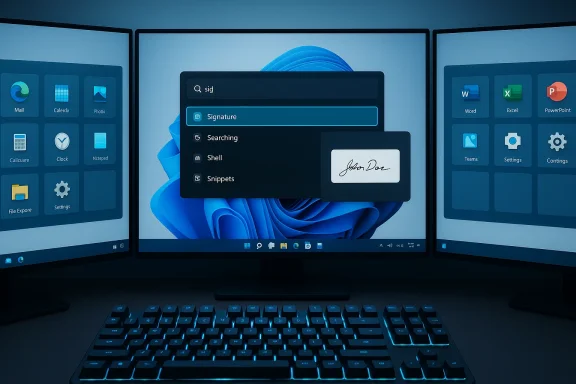 Overview of the three apps
- GlazeWM — an automatic, keyboard-driven tiling window manager that brings an i3-like, deterministic layout to Windows. It intercepts window creation and places apps where you expect them, enabling rapid focus movement and multi-monitor discipline.
- Beeftext — a simple, local text-expander that replaces typed triggers with full snippets system-wide, saving repeated typing without cloud-sync complexity. The project is well‑established and now maintained in a low‑churn mode.
- Raycast — a command-palette-style launcher that consolidates app/file launch, an extended clipboard, snippets, quick actions, and AI tools under one hotkey-driven surface for Windows. The Windows build has matured rapidly and now includes a “Run” replacement for the classic Win+R dialog. Raycast ships freemium with core features in the free tier and paid Pro features for extended retention and cloud sync.
GlazeWM: automatic tiling for Windows power users
What GlazeWM does and why it matters
GlazeWM is a lightweight tiling window manager that runs alongside Explorer and enforces automatic tiling behavior: new windows are placed in predictable tiles, workspaces are keyboard-addressable, and keyboard-driven commands control focus, moving, and resizing. For people who use multiple monitors, or who regularly juggle three or more app windows, GlazeWM removes the “where did that window go?” problem and reduces repeated manual resizing. Official project pages and the GitHub repository document the YAML configuration, workspace model, and multi‑monitor support.Key features (at a glance)
- Automatic tiling and reflow when new windows open.
- Keyboard-first keybindings for focus, movement, and workspace switching.
- YAML configuration for rules, gaps, and keybinds (config is generated at %USERPROFILE%.glzr\glazewm\config.yaml by default).
- Per-window rules to float or ignore apps that don’t behave well with tiling.
- Optional lightweight status bar (Zebar) to show workspaces and focus.
Strengths
- Predictability: windows open where you expect them, across monitors.
- Speed: keyboard commands replace repeated mouse resizes and dragging.
- Portability: the YAML config can be version-controlled and copied between machines.
- Community and active releases: official releases and package manifests (winget, scoop, chocolatey) make installation repeatable.
Risks and trade‑offs
- Edge-case windows: Because GlazeWM manipulates the Windows API to position windows, some UWP apps, DRM-protected windows, or game overlays may require exceptions or explicit rules to avoid incorrect behavior.
- Hotkey conflicts: Global shortcuts must be managed carefully — GlazeWM takes keyboard control and you’ll need to remap if you use other global hotkeys.
- Learning curve: If you’re used to constant mouse adjustments, the tiling mindset requires an initial investment of time to create usable keybindings and rules.
- Enterprise policy: On managed machines, installers or apps that hook window events may need IT approval; treat deployment like any other third‑party runtime.
Practical first‑day setup (quick checklist)
- Back up your existing desktop profile or create a restore point.
- Install via the official release or winget (check the publisher string).
- Allow GlazeWM to generate the default config and save a copy.
- Reduce gaps or tweak focus border color for visibility on your displays.
- Add window_rules for problem windows (e.g., certain tool palettes or overlays) and test with the apps you rely on most.
- Remap any conflicting hotkeys that collide with your launcher or terminal.
Beeftext: kill repetitive typing without the cloud
What Beeftext is good at
Beeftext is a minimal, local text expander for Windows: define a short trigger (for example, :sig) and Beeftext replaces it with a longer snippet (your full email signature) anywhere you type. It runs system-wide across most text fields and is deliberately simple: local storage, no cloud sync, and low resource usage. The project has a long history and the official GitHub repository is the canonical source for downloads and docs.Why pick Beeftext over other expanders
- It’s free and portable.
- Runs locally with no mandatory cloud component (privacy-friendly).
- Easy grouping and export/import of combos, which is great for transferring settings between machines.
- Simple mental model: trigger → expansion, with options for injection delays and case rules.
Maintenance status and stability
Beeftext’s author has placed the project in maintenance mode — it works, and the maintainer will provide fixes against major Windows breakages, but no new feature-driven roadmap is promised. For most users that’s an advantage: a mature, stable tool that does one thing well without frequent breaking changes. If you need cloud sync, team sharing, or advanced templating, Beeftext will feel intentionally limited; explore paid or cross‑platform alternatives for those needs.Practical tips
- Choose triggers you won’t accidentally type in normal text (prefix them with : or ;
 .
. - Use Beeftext for signatures, canned replies, long commands, and often‑used markdown or code snippets.
- If a combo misfires in particular apps (for example, protected fields), add an exception or pause Beeftext temporarily.
- Keep a backup of your .json combos for migration.
Raycast: replace slow search with a command pallet that does things
What Raycast brings to Windows 11
Raycast is a modern command palette and productivity hub that bundles launching, file search, clipboard history, snippets, quick actions, and an extension ecosystem under one hotkey. It aims to replace the slow, mixed-results Windows search with a keyboard-first surface that lets you “search and act” in one place. Raycast’s Windows beta has matured quickly and added important features like a built-in Run replacement and the Fast File Scanner for indexing. The vendor’s manual and changelog document these capabilities.Core features that matter to keyboard-first workflows
- Instant app and file launch via fuzzy search.
- Clipboard history with image support and searchable previews.
- Snippets (text expansion) with injection delay configuration to avoid false triggers.
- Quicklinks and actions to run scripts or integrate with third-party services.
- Extensible store and user-created extensions to fold more of your daily tasks into one surface.
Pricing and limits (important for adoption)
Raycast uses a freemium model: the free tier includes core features such as clipboard history (with a finite retention window), snippets, and the extension store. Pro tiers unlock unlimited clipboard retention, cloud sync, and advanced AI models. For many individual users, the free tier provides immediate benefit; large teams and heavy AI usage should evaluate the paid options. Always validate the retention and cloud behavior before relying on Raycast for sensitive data.Strengths and caveats
Strengths:- Consolidates many micro-tools into one fast interface — less context switching.
- Extensible via community extensions, which lets you automate frequent tasks from the same prompt.
- Built-in clipboard and snippets reduce the need for separate clipboard managers or expanders.
- Background indexing and extension activity can consume CPU on large drives or with many extensions; check settings if you notice resource spikes.
- The Windows build, while rapidly improving, arrived later than macOS and is still evolving; occasional parity gaps exist compared with the macOS product.
- For organizations that require strict data controls, confirm cloud sync and AI provider settings before adoption.
How these three tools work together in a daily workflow
Start the day with a predictable desktop: GlazeWM places your editor, browser, and terminal exactly where you expect them. Use Raycast to open the file you need or paste from your searchable clipboard. When you must send a routine update or paste a code block, Beeftext expands your trigger into the finished snippet without leaving the keyboard. The combination produces these compounding benefits:- Reduced hand travel and fewer mouse trips (tiling + launcher).
- Fewer lost clips and faster retrieval of previous copies (Raycast clipboard).
- Fewer repeated keystrokes for boilerplate (Beeftext).
- Faster context switching between workspaces with consistent layouts (GlazeWM).
- Press your Raycast hotkey, type the file name, press Enter.
- GlazeWM ensures the new window occupies its scheduled tile and focus is ready.
- Type a snippet trigger (Beeftext) to insert a prepared reply or boilerplate.
- Switch workspaces with a single GlazeWM hotkey and repeat.
Migration: moving from DisplayFusion or FancyZones to a keyboard-first setup
Many long-time multi-monitor users rely on DisplayFusion for mouse-driven per-monitor configurations, taskbars, and triggers. DisplayFusion is a mature, feature-rich commercial app with powerful functions and scripting for mouse-first users. If your workflow depends on DisplayFusion’s unique features, consider a hybrid approach:- Keep DisplayFusion for monitor profiles, taskbars, and specific mouse workflows.
- Use GlazeWM for automatic tiling and keyboard-first window discipline, but create rules to let DisplayFusion-managed windows remain unmanaged by the tiler.
- Test common apps (video conferencing, IDEs, browser devtools) and add GlazeWM window_rules to float or ignore windows that conflict.
Security, privacy, and enterprise considerations
- Hooking window events and indexing local files introduces additional attack surface. Only install these tools from official sources (GitHub releases, vendor sites, winget manifests) and verify publisher metadata for package manager installs.
- Beeftext stores snippets locally; do not store secrets or passwords in plain text. Use a dedicated password manager for secrets and disable snippet expansion in secure fields where possible.
- Raycast’s clipboard history and cloud sync features must be audited when used in regulated environments. Confirm retention settings and whether cloud sync is enabled before deployment. The Pro plan adds unlimited retention and sync capabilities — useful for power users but possibly restricted in corporate settings.
- For managed systems, get IT sign-off before installing components that intercept input or index files. Provide a rollback plan and test with representative enterprise apps. GlazeWM’s window rules system helps mitigate application conflicts but needs testing for mission-critical software.
When these tools are not the right fit
- If you need official vendor support, enterprise-grade SLAs, or centralized deployment and control, these consumer‑focused tools may require extra governance or alternative vendor products with enterprise features.
- If your main bottleneck is collaboration, cloud storage, or team-based content sharing, a text expander with built-in team sync (paid offerings) might be more appropriate than Beeftext.
- If you prefer GUI-heavy workflows and rely heavily on mouse gestures or monitor-splitting features specific to DisplayFusioo tiling may feel limiting.
Final verdict and rollout advice
These three free (or freemium) tools are incremental but impactful: they reduce dozens of tiny interruptions that add up to lost productivity across a workday. GlazeWM enforces deterministic window placement for multi-monitor power users. Beeftext eliminates repetitive typing with a small, reliable footprint. Raycast replaces slow system search with an action-oriented, keyboard-driven command palette that consolidates clipboard, snippets, and quick actions.If you’re willing to invest a few hours in setup and remapping, you’ll likely recover that time within days through reduced context switching and fewer micro-frustrations. For safe adoption:
- Start on one machine with non-critical tasks.
- Keep your previous setup backed up and snapshot your system before making changes.
- Configure one tool at a time and let muscle memory form (tiling first, then snippets, finally the launcher).
- Document any hotkey overlaps and harmonize shortcuts across tools.
If you want concise step-by-step install commands, default keybinding suggestions, or an example GlazeWM config and Beeftext combo set tuned for writers or developers, those can be provided as ready-to-run snippets so you can get productive on day one.
Source: How-To Geek Stop fighting with Windows 11: 3 free tools for a "keyboard-first" workflow
