

Windows hides a surprising number of usability options behind the Settings app that, when enabled, remove daily friction and make Windows 11 far more pleasant to use without installing any third‑party tools.
Many users accept Windows’ out‑of‑the‑box behavior—single‑slot clipboard, small cursor, and default window behavior—because those defaults are what they see first. That’s a missed opportunity: Windows exposes several low‑risk, reversible settings that materially improve productivity and comfort, from turning the clipboard into a small memory system to making frozen apps easier to kill from the taskbar. These are not cosmetic tweaks alone; they alter common interaction paths and remove repetitive micro‑tasks that add up every day. Multiple community summaries and hands‑on guides confirm the same set of practical options, and they consistently report immediate, measurable improvements in day‑to‑day workflows when these features are enabled.
This feature walks through the most useful of those hidden and under‑used settings, explains how they work, gives precise steps to enable them, examines the practical benefits, and flags compatibility, privacy, and deployment considerations for individuals and IT professionals.
A recommended approach: enable one or two settings, use them for a few days, and observe whether they reduce friction. If they help, gradually enable the others. For organizations, pilot these changes with a small group, document results, and then roll out via MDM or Group Policy with clear undo instructions for users who prefer defaults.
These tweaks are not dramatic system overhauls; they’re practical, human‑centered adjustments that help Windows work for you instead of the other way around.
Source: MakeUseOf You aren’t using these Windows settings, but they make your PC easier to use
 Background / Overview
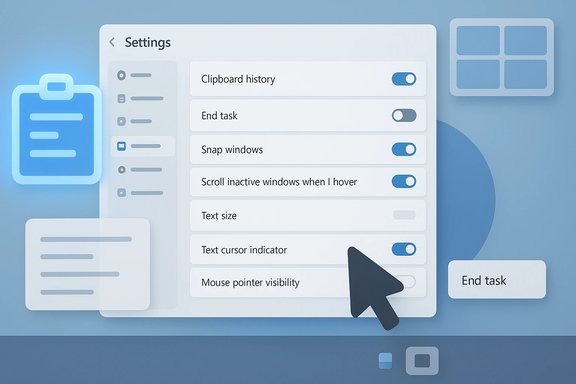
Many users accept Windows’ out‑of‑the‑box behavior—single‑slot clipboard, small cursor, and default window behavior—because those defaults are what they see first. That’s a missed opportunity: Windows exposes several low‑risk, reversible settings that materially improve productivity and comfort, from turning the clipboard into a small memory system to making frozen apps easier to kill from the taskbar. These are not cosmetic tweaks alone; they alter common interaction paths and remove repetitive micro‑tasks that add up every day. Multiple community summaries and hands‑on guides confirm the same set of practical options, and they consistently report immediate, measurable improvements in day‑to‑day workflows when these features are enabled.This feature walks through the most useful of those hidden and under‑used settings, explains how they work, gives precise steps to enable them, examines the practical benefits, and flags compatibility, privacy, and deployment considerations for individuals and IT professionals.
Clipboard history — turn copy/paste into a memory system
Windows’ built‑in Clipboard history converts the traditional single‑slot clipboard into a small, usable history you can open with a shortcut and paste from any time.What it does and why it matters
- Stores multiple items (text, images, HTML snippets) so you no longer lose earlier copied content when you copy something new.
- Pins frequently used snippets so they survive restarts and long sessions.
- (Optional) Syncs across your Microsoft‑signed devices, providing cross‑device transfer of text snippets.
This moves clipboard behavior from “single ephemeral slot” to a reliable, small‑scale clipboard manager without external tools.
How to enable (step‑by‑step)
- Open Settings (Windows + I).
- Go to System > Clipboard.
- Toggle Clipboard history to On.
- Use Windows + V to open the clipboard panel and select the item you want to paste. Pin items you want to keep accessible.
Practical tips and privacy notes
- Pin important snippets (passwords and private keys should never be pinned nor synced). Syncing sends clipboard contents to the cloud when enabled; use manual sync or disable sync for sensitive workflows.
- Clipboard history keeps a finite number of recent items; pinning protects items you reuse. Implement a quick habit of pinning recurring bits (email signatures, common URLs).
Caveats and unverifiable details
Some published numbers about per‑item size limits and exact history depth vary between sources and Windows builds; historically reported per‑item caps and history counts differ by build and may change. Treat any specific size or count as build‑dependent and verify in your Settings pane if those limits matter to you.End task from the taskbar — kill frozen apps faster
Task Manager works, but it’s slow when you need to kill an unresponsive app. Windows exposes an End task option directly from the taskbar context menu that lets you force‑close frozen apps with fewer clicks.How to enable and use it
- Open Settings (Windows + I).
- Go to System > Advanced.
- Toggle End task to On.
- Right‑click an app’s taskbar icon and choose End task to force‑close it.
Why this helps
- Saves time when an app becomes unresponsive.
- Avoids opening Task Manager and searching for the process.
- Useful for single‑app hangs where killing the process is acceptable cleanup.
Risks and considerations
Force‑closing processes can lead to unsaved work loss; prefer app‑level save/exit when possible. In managed environments, document the setting and provide an undo guide for users unfamiliar with force‑closing behavior.Snap layouts and Snap groups — finish multitasking with a single click
Windows’ Snap layouts are visible to many; Snap groups, which remember multi‑app layouts and expose them on the taskbar, are less widely used but highly effective.How Snap groups change the workflow
- When you arrange multiple apps using Snap layouts, Windows can remember that combination as a Snap group.
- Hovering over the taskbar entry for a snapped app shows the group and lets you restore the entire layout with one click. This dramatically reduces the time required to reassemble a working workspace after switching contexts.
How to enable and use it
- Open Settings (Windows + I).
- Go to System > Multitasking.
- Toggle Snap windows to On.
- Use hover or Win + Z on a window’s maximize button to choose a layout. Once arranged, hover the taskbar icons of snapped apps to restore the group.
Benefits and limits
- Great for repeatable work layouts (research + editor, chat + doc, dev tools + browser).
- Snap groups are tied to the apps and their window states; certain UWP or sandboxed apps may behave differently across builds. Test critical workflows to confirm reliability before depending on them.
Scroll inactive windows when hovering — reduce needless clicks
This one small toggle saves a surprising number of clicks. When enabled, you can scroll an inactive window just by hovering over it—no focus change required.Why it’s useful
- Keeps your current focus while you skim another window (e.g., reference document or chat).
- Eliminates repeated clicking to make a window active just to scroll, saving time across a workday.
How to enable
- Open Settings (Windows + I).
- Go to Bluetooth & devices > Mouse.
- Toggle Scroll inactive windows when I hover over them to On.
Notes and caveats
Some users find accidental scrolling in background windows surprising; if you use precision workflows (e.g., drawing apps), test for unwanted side effects and consider enabling only for test users initially.Text size (separate from display scaling) — larger type without layout breakage
Many users raise display scaling to increase readability, but that can alter the entire interface layout. Windows provides a Text size control that scales text independently from UI scaling.What it does
- Increases only system text size (menus, UI text), avoiding scaled elements and layout breakage.
- Useful for reading‑heavy tasks and laptops with high‑DPI displays where full scaling would reduce usable workspace.
Enable it
- Open Settings (Windows + I).
- Go to Accessibility > Text size.
- Use the slider to increase text size, then Apply.
Practical advice
Use the slider incrementally to preserve intended layout. If an app renders poorly with increased text size, try per‑app compatibility settings or revert and try the standard Display scaling with careful choices.Text cursor indicator and mouse pointer visibility — stop losing where you’re typing and pointing
Small, persistent visibility issues—losing the caret in a long document or misplacing the cursor on a dense desktop—produce micro‑hesitations that add up. Windows includes Text cursor indicator and pointer customization options that eliminate this friction.Text cursor indicator
- Adds a visible highlight to the text caret so you instantly see where input focus is.
- Enable: Settings > Accessibility > Text cursor → Toggle Text cursor indicator on and choose color/size.
Mouse pointer visibility
- Increase pointer size, pick a high‑contrast color, or use Inverted mode so the pointer adapts visually to any background.
- Enable: Settings > Accessibility > Mouse pointer and touch → use Size slider and pointer style options.
Why this matters
- Reduces interruptions while editing large documents or during presentations.
- Particularly useful on high‑DPI screens where default pointers can be tiny and easily lost.
Quick‑use checklist: enable these in under five minutes
- Settings → System → Clipboard → Toggle Clipboard history On.
- Settings → System → Advanced → Toggle End task On.
- Settings → System → Multitasking → Toggle Snap windows On.
- Settings → Bluetooth & devices → Mouse → Toggle Scroll inactive windows when I hover on.
- Settings → Accessibility → Text size → Use slider to increase text.
- Settings → Accessibility → Text cursor → Enable Text cursor indicator.
- Settings → Accessibility → Mouse pointer and touch → Increase size / choose Custom color.
Critical analysis — strengths, trade‑offs and risks
Strengths
- Low cost, reversible, and supported: These are official Windows settings; they require no elevation and are reversible. That makes them safe first‑line improvements for individuals and admins.
- High ROI on micro‑productivity: Removing repetitive clicks (Win + V access to multiple clips, hover scrolling, restoring Snap groups) yields real time savings that compound across a week’s work. Community testing and multiple walkthroughs report immediate subjective improvements after enabling these toggles.
- Accessibility benefits are universal: Features designed for accessibility (cursor visibility, text‑cursor indicator, text size) benefit a broad population—reducing strain and improving speed for everyone, not just those with disabilities.
Trade‑offs and risks
- Privacy with clipboard sync: Clipboard syncing transmits clipboard content to the cloud when enabled. Sensitive data should never be copied with automatic sync turned on. Use manual sync or keep the feature local if privacy is a concern.
- Behavioral surprises: Activating options like scroll‑on‑hover or pointer snap features can cause surprise for users unfamiliar with them; expect a brief adjustment period and provide simple undo instructions if rolling out to others.
- Build and device differences: Settings names, locations, and behavior vary slightly across Windows builds and device configurations (OEM drivers, touch devices, or enterprise images). Scripts or automation that rely on fixed Settings paths may break across builds. Test before wide automation.
- Possible app compatibility quirks: Some web‑based or sandboxed apps may not play perfectly with Snap groups or pointer style changes; test critical applications like remote desktop, creative tools, and virtual machines.
Enterprise and deployment considerations
For IT teams, these settings are generally safe to roll out, but a few pragmatic steps minimize support churn:- Use MDM/Intune or Group Policy to enforce or recommend settings for managed fleets; create pilot groups first. Document the registry keys or configuration profiles used, and include rollback instructions.
- Provide a short “undo” one‑page guide for help desk staff and end users, covering where to toggle each option back off. Expect an initial bump in queries as users adapt to behavior changes (cursor movement, hover activation).
- When automating, prefer declarative and reversible methods (PowerShell profiles, MDM policies, winget scripts for optional feature deployment) instead of low‑level registry hacks that are hard to undo. Community guidance strongly favors reversible configuration management.
Practical examples and workflow patterns
- Research + writing: Pin research windows into a Snap group (browser + notes app), hover the taskbar to re‑open the group, and use Scroll‑on‑hover to scan sources without shifting focus. Use Clipboard history to hold multiple citations and code snippets.
- Virtual meeting host: Increase pointer size and enable the text‑cursor indicator so you can point and type during screen‑share without losing the audience’s attention. Disable automatic clipboard sync to avoid accidental paste of private content.
- Power user multitasking: Create persistent Snap groups for dev, testing, and communication setups to switch contexts quickly. Assign apps to specific displays and restore entire layouts from the taskbar.
Final thoughts and next steps
Windows hides a surprisingly effective set of usability improvements in plain sight. The features described here—Clipboard history, taskbar End task, Snap groups, scroll inactive windows, text size, text cursor indicator, and pointer visibility—deliver outsized value because they remove routine interruptions and accelerate common tasks. They are low risk, reversible, and supported, making them excellent first changes for anyone who wants a smoother, less fatiguing Windows experience.A recommended approach: enable one or two settings, use them for a few days, and observe whether they reduce friction. If they help, gradually enable the others. For organizations, pilot these changes with a small group, document results, and then roll out via MDM or Group Policy with clear undo instructions for users who prefer defaults.
These tweaks are not dramatic system overhauls; they’re practical, human‑centered adjustments that help Windows work for you instead of the other way around.
Source: MakeUseOf You aren’t using these Windows settings, but they make your PC easier to use
