

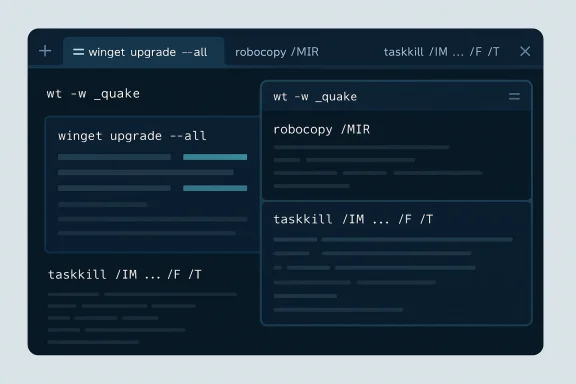
Windows Terminal has quietly become one of the most useful productivity tools on modern Windows, and the biggest surprise is how much everyday work it can replace once you learn a few core commands. In the MakeUseOf piece, the author argues that instead of treating Terminal as a niche escape hatch, Windows users should see it as a faster control center for updates, file transfers, process management, and custom multi-pane workflows. That claim largely holds up: Microsoft’s own documentation confirms that WinGet, Robocopy, Taskkill, and Windows Terminal’s
The article’s core thesis is simple: a handful of command-line shortcuts can save far more time than most people expect. That is especially true on Windows, where many users still rely on layered GUI tools for tasks that the shell can do more directly. Microsoft’s documentation shows that Windows Terminal is not just a prettier console window; it is a modern host for PowerShell, Command Prompt, and WSL, with support for tabs, panes, and launch-time layouts.
That makes the article timely even if none of the commands are brand new. WinGet, Robocopy, and Taskkill have all existed in some form for years, but the way they fit together has changed as Windows 11 and Windows Terminal have matured. The result is a more coherent workflow: use WinGet for apps, Robocopy for bulk file movement, Taskkill for stubborn processes, and
There’s also a bigger cultural shift behind the piece. Microsoft has steadily normalized Terminal use by shipping Terminal in Windows 11 and making it available on Windows 10 through the Store and other distribution methods. Microsoft’s install guidance notes that Windows Terminal is available in all versions of Windows 11 and Windows 10 22H2 after the May 23, 2023 update, which reinforces the idea that these tools are no longer specialist utilities.
The article’s advice is practical rather than theoretical, which is why it lands. It doesn’t ask readers to learn obscure scripting; it focuses on high-leverage commands that solve common headaches. That’s the right approach for most Windows users, because the value of the shell is not that it is clever, but that it reduces friction. That distinction matters more than it first appears.
The real significance here is the separation between application updates and operating system updates. The article correctly notes that WinGet does not replace Windows Update; it complements it. Microsoft’s documentation reinforces this distinction by positioning WinGet at the application layer, while Windows Update continues to handle the OS and Microsoft components. That separation is useful because it gives users a cleaner mental model for maintenance: one command for apps, one system for the platform itself.
There are a few caveats worth understanding. Microsoft notes that pinned packages are not upgraded by
A major upside, though, is that WinGet helps normalize package management on Windows in a way that Mac and Linux users have had for years. That alone is a strategic shift. The more users trust command-line package management, the less they depend on adware-like download pages, vendor updaters, or awkward background services.
The most important switch here is
Robocopy is where command-line habits start to feel genuinely professional. A GUI copy window is fine for a few files, but it becomes brittle when you need resumable transfers, logging, or recurring backups. Microsoft’s examples even show
There is also a broader workflow advantage. Robocopy can help users create simple, reliable backup tasks without third-party software, and its behavior is much easier to script than a drag-and-drop copy. That makes it attractive for both personal archiving and enterprise operations, especially in environments where administrators need a lightweight transfer utility that survives interruptions.
The important distinction is that Task Manager’s “End Task” button and Taskkill do not always behave the same way. A stubborn app may look dead in the interface while child processes keep running in the background, and that is where
There’s a subtle but important enterprise angle here too. In managed environments, administrators often need a deterministic way to kill processes remotely or in scripts, and Taskkill is much better suited to that than a manual UI action. The command is not glamorous, but reliability often looks unglamorous. That is the whole point.
A useful workflow is to combine Taskkill with Tasklist, which Microsoft references as the way to find a PID before terminating a process. That gives the command chain a bit more precision, reducing the chance of killing the wrong app. For users who often work with hung software, this one command can feel like a small emergency exit hidden in plain sight.
That matters because it lets users precompose an environment instead of building one by hand every time. A developer, sysadmin, or power user can open PowerShell, Command Prompt, and WSL in one shot, each in the right place and with the right layout. Microsoft’s command-line arguments page explicitly documents
The PowerShell semicolon issue mentioned in the article is also real. Microsoft’s docs specifically call out that PowerShell uses
For enterprise users, this is where Windows Terminal starts to resemble a lightweight operational console. A pre-built set of panes can be aligned to monitoring, logs, remote shells, and file navigation, cutting down on repetitive setup time every day. For consumers, the benefit is simpler but still real: one shortcut can recreate the exact working environment you prefer.
What makes Quake mode interesting is not just the animation, but the reduced context switch. Instead of switching apps or opening a full terminal window, you get immediate shell access in a dedicated overlay. Microsoft’s docs say the window enters focus mode, hides from the taskbar and Alt+Tab when minimized, and can be triggered either by command line or by binding the quakeMode action.
There is a caution here, though, and Microsoft calls it out too. If users minimize Quake mode without binding the relevant action, they may need Task Manager to close the terminal. That is the sort of edge case that makes features feel clever for enthusiasts and slightly awkward for everyone else. The payoff is real, but so is the learning curve.
Still, Quake mode is a strong example of Microsoft learning from developer culture and game culture at the same time. It is utility with a little theater, and that combination helps adoption more than pure function sometimes does.
The difference between the shell and the host is not academic. PowerShell, Command Prompt, and WSL each solve different problems, but Terminal gives them a single, coherent surface. That is especially valuable for users who bounce between legacy Windows commands and newer cross-platform tooling. The article understands that the real win is not one shell over another; it is the ability to switch instantly between them.
The article’s style is effective because it translates technical capability into working habits. It is not saying “learn command lines because command lines are cool”; it is saying these five commands cut time and friction. That is a much better case for mainstream adoption. Pragmatism beats mystique.
There is also a market implication here. As more people learn basic command-line routines, Microsoft strengthens the argument for Windows as a productivity platform that can serve both casual and advanced users. That matters in competition with macOS and Linux, where terminal workflows have traditionally had a stronger reputation among technical users.
This is also where the consumer and enterprise stories diverge. For consumers, the gain is time, convenience, and a sense of control. For enterprises, the gain is reproducibility, automation, and reduced dependence on ad hoc manual steps that vary from user to user. Those are different benefits, but they come from the same shift in behavior.
The article also implies a subtle but important design lesson: the best terminal commands are not the most powerful ones, but the ones that replace annoying, repeated GUI work. That is why these five resonate. They are not exotic; they are useful in the boring middle of the day, which is where most productivity gains live.
If anything, the article is a reminder that productivity gains on Windows often come from small habits rather than dramatic overhauls. Learning a few reliable commands can reshape how you maintain a PC, and once those commands become muscle memory, the GUI starts to feel like the slower option. That is the real lesson here.
Source: MakeUseOf 5 Windows Terminal commands I wish I'd known years ago
wt launcher are all built to do exactly the kinds of jobs the article highlights.
 Overview
The article’s core thesis is simple: a handful of command-line shortcuts can save far more time than most people expect. That is especially true on Windows, where many users still rely on layered GUI tools for tasks that the shell can do more directly. Microsoft’s documentation shows that Windows Terminal is not just a prettier console window; it is a modern host for PowerShell, Command Prompt, and WSL, with support for tabs, panes, and launch-time layouts.That makes the article timely even if none of the commands are brand new. WinGet, Robocopy, and Taskkill have all existed in some form for years, but the way they fit together has changed as Windows 11 and Windows Terminal have matured. The result is a more coherent workflow: use WinGet for apps, Robocopy for bulk file movement, Taskkill for stubborn processes, and
wt for orchestrating it all in one workspace.There’s also a bigger cultural shift behind the piece. Microsoft has steadily normalized Terminal use by shipping Terminal in Windows 11 and making it available on Windows 10 through the Store and other distribution methods. Microsoft’s install guidance notes that Windows Terminal is available in all versions of Windows 11 and Windows 10 22H2 after the May 23, 2023 update, which reinforces the idea that these tools are no longer specialist utilities.
The article’s advice is practical rather than theoretical, which is why it lands. It doesn’t ask readers to learn obscure scripting; it focuses on high-leverage commands that solve common headaches. That’s the right approach for most Windows users, because the value of the shell is not that it is clever, but that it reduces friction. That distinction matters more than it first appears.
WinGet as the New Patch Tuesday Shortcut
The strongest command in the article iswinget upgrade --all, and it earns that top billing. Microsoft’s WinGet docs describe the tool as a command-line way to discover, install, upgrade, remove, and configure applications, and the upgrade page explicitly states that winget upgrade --all looks for all apps with updates available and attempts to install them. That means the article is right to frame it as a one-line replacement for a tedious app-by-app update routine.The real significance here is the separation between application updates and operating system updates. The article correctly notes that WinGet does not replace Windows Update; it complements it. Microsoft’s documentation reinforces this distinction by positioning WinGet at the application layer, while Windows Update continues to handle the OS and Microsoft components. That separation is useful because it gives users a cleaner mental model for maintenance: one command for apps, one system for the platform itself.
Why It Matters
For consumers, the gain is convenience. Instead of waiting for separate update prompts inside each app, a user can batch the work and move on. For power users and IT admins, the gain is consistency, because WinGet offers a repeatable package-management flow that is much easier to automate than clicking through installer UIs.There are a few caveats worth understanding. Microsoft notes that pinned packages are not upgraded by
--all unless --include-pinned is used, and packages without version information may require --include-unknown. Those are exactly the kinds of details that make WinGet powerful but also slightly more nuanced than “update everything” sounds. That nuance is important, because blind automation can be convenient until a pinned app or special installer behavior changes the outcome.A major upside, though, is that WinGet helps normalize package management on Windows in a way that Mac and Linux users have had for years. That alone is a strategic shift. The more users trust command-line package management, the less they depend on adware-like download pages, vendor updaters, or awkward background services.
- Best use case: updating lots of third-party apps at once.
- Safety step: run
winget upgradefirst to preview changes. - Power-user option: add
--include-pinnedonly when you mean it. - Enterprise value: easier scripting and standardization.
- Consumer value: fewer manual update checks.
Robocopy Is the File Transfer Tool Windows Forgot to Teach
The article’s second command, Robocopy, is arguably the most underrated. Microsoft describes Robocopy as a tool that copies file data from one location to another, with support for mirroring, retries, logging, and multithreaded transfers. The article is right to call it a built-in power tool, because it does far more than the basic copy dialog in File Explorer.The most important switch here is
/MIR, which mirrors a directory tree. Microsoft documents it as equivalent to /E plus /PURGE, meaning it copies subdirectories and also removes files from the destination that no longer exist at the source. That makes it ideal for backups, but it also means users need to be careful: mirroring is not the same thing as a harmless copy.Understanding the Flags
The article’s emphasis on/E, /Z, and /MIR is well chosen. Microsoft’s docs confirm that /E copies subdirectories including empty ones, /Z enables restartable mode, and /MT can speed up large jobs by using multiple threads. The article also correctly points readers to /L, which performs a dry run without making changes, a small but very valuable safeguard.Robocopy is where command-line habits start to feel genuinely professional. A GUI copy window is fine for a few files, but it becomes brittle when you need resumable transfers, logging, or recurring backups. Microsoft’s examples even show
/LOG: and /LOG+:, which let you create or append logs for auditability and troubleshooting. That logging layer is a huge deal if you care about verifying that a transfer actually completed as expected.There is also a broader workflow advantage. Robocopy can help users create simple, reliable backup tasks without third-party software, and its behavior is much easier to script than a drag-and-drop copy. That makes it attractive for both personal archiving and enterprise operations, especially in environments where administrators need a lightweight transfer utility that survives interruptions.
- Use
/Ewhen you want all subfolders, including empty ones. - Use
/Zfor restartable transfers. - Use
/MIRonly when you truly want destination files deleted to match source. - Use
/Lbefore a real run to preview actions. - Use
/LOGor/LOG+to keep a trail of what happened. - Use
/MTfor higher throughput on larger jobs.
Taskkill as the Faster Exit Strategy
The article’s third command,taskkill /IM [process] /F /T, targets a pain point everyone has experienced: the frozen app that refuses to die. Microsoft documents Taskkill as a command that ends processes by image name or PID, with /F for forced termination and /T for terminating the full process tree. That makes the article’s recommendation technically sound and genuinely useful.The important distinction is that Task Manager’s “End Task” button and Taskkill do not always behave the same way. A stubborn app may look dead in the interface while child processes keep running in the background, and that is where
/T matters. In practical terms, Taskkill can clear out the parent process and its spawned children, which is often exactly what you want with browsers, launchers, and other multi-process apps.When Force Beats Waiting
The article is right that this is not a tool to use casually, but it is a good tool to know. If an app is genuinely frozen, or if a runaway background process is eating CPU or memory and won’t respond, the command line gives you a faster exit route than repeated clicking. Microsoft’s docs also note that Taskkill can act on a PID, which is useful when image names are ambiguous or multiple copies are open.There’s a subtle but important enterprise angle here too. In managed environments, administrators often need a deterministic way to kill processes remotely or in scripts, and Taskkill is much better suited to that than a manual UI action. The command is not glamorous, but reliability often looks unglamorous. That is the whole point.
A useful workflow is to combine Taskkill with Tasklist, which Microsoft references as the way to find a PID before terminating a process. That gives the command chain a bit more precision, reducing the chance of killing the wrong app. For users who often work with hung software, this one command can feel like a small emergency exit hidden in plain sight.
/IMtargets the process by name./PIDtargets a specific process ID./Fforces termination./Tkills child processes too.tasklisthelps identify the right PID first.
WT Command-Line Launches Turn Terminal Into a Workspace
The article’s fourth command family,wt command-line arguments, is where Windows Terminal stops being just a console window and becomes a workspace manager. Microsoft’s docs explain that wt.exe can launch a new instance with custom tabs, panes, profiles, directories, and focus placement. The example in Microsoft’s Terminal overview uses exactly the kind of multi-pane layout the article celebrates.That matters because it lets users precompose an environment instead of building one by hand every time. A developer, sysadmin, or power user can open PowerShell, Command Prompt, and WSL in one shot, each in the right place and with the right layout. Microsoft’s command-line arguments page explicitly documents
new-tab and split-pane behavior, while the Windows Terminal overview shows how to launch a three-pane layout from a single command.Launching a Repeatable Layout
This is where the article is especially smart: it translates a feature into a habit. A Windows Terminal workspace is not just a convenience; it is a repeatable setup you can launch on demand or place in startup. Microsoft’s docs also note that Windows Terminal supports custom actions and keybindings, so the same layout can be invoked from settings, shortcut, or command line.The PowerShell semicolon issue mentioned in the article is also real. Microsoft’s docs specifically call out that PowerShell uses
; as a command separator too, and they show workarounds such as escaping semicolons or using --%. That is one of those little details that separates a command that looks good in an article from one that actually survives first contact with a shell prompt.For enterprise users, this is where Windows Terminal starts to resemble a lightweight operational console. A pre-built set of panes can be aligned to monitoring, logs, remote shells, and file navigation, cutting down on repetitive setup time every day. For consumers, the benefit is simpler but still real: one shortcut can recreate the exact working environment you prefer.
wtopens a new Terminal instance.new-tabcreates tabs.split-panecreates panes horizontally or vertically.-dsets the starting directory.--titlesets the tab label.- PowerShell users may need to escape semicolons.
Quake Mode Makes the Terminal Feel Instant
The fifth command,wt -w _quake, is the most playful and perhaps the most memorable. Microsoft documents Quake mode as a special terminal window state that docks to the top half of the monitor and can be opened via wt -w _quake. The article’s “drop-down console” description is accurate, and the comparison to classic game consoles is more than nostalgia; it captures why the feature feels fast.What makes Quake mode interesting is not just the animation, but the reduced context switch. Instead of switching apps or opening a full terminal window, you get immediate shell access in a dedicated overlay. Microsoft’s docs say the window enters focus mode, hides from the taskbar and Alt+Tab when minimized, and can be triggered either by command line or by binding the quakeMode action.
The Speed Argument
That behavior changes how users approach tiny tasks. A quick ping check, a network query, a one-line WSL command, or a fast PowerShell test no longer feels like “opening a tool”; it feels like briefly summoning one. The article is right that this matters for speed, especially when you only need the shell for a few seconds.There is a caution here, though, and Microsoft calls it out too. If users minimize Quake mode without binding the relevant action, they may need Task Manager to close the terminal. That is the sort of edge case that makes features feel clever for enthusiasts and slightly awkward for everyone else. The payoff is real, but so is the learning curve.
Still, Quake mode is a strong example of Microsoft learning from developer culture and game culture at the same time. It is utility with a little theater, and that combination helps adoption more than pure function sometimes does.
- Best for: quick, lightweight terminal checks.
- Activation:
Win + \`` orwt -w _quake`. - Behavior: docks to the upper half of the screen.
- Bonus: can be launched at login with a shortcut.
- Caution: minimize behavior can be confusing without an action binding.
Windows Terminal Is More Than a Pretty Frame
One of the article’s quiet strengths is that it does not treat Windows Terminal as the star of the show. Instead, it presents Terminal as a host application for tools that already matter. Microsoft’s overview says Windows Terminal supports multiple profiles, tabs, panes, Unicode and UTF-8, a GPU-accelerated text rendering engine, and customization options. That broader feature set explains why the five commands in the article are so effective together.The difference between the shell and the host is not academic. PowerShell, Command Prompt, and WSL each solve different problems, but Terminal gives them a single, coherent surface. That is especially valuable for users who bounce between legacy Windows commands and newer cross-platform tooling. The article understands that the real win is not one shell over another; it is the ability to switch instantly between them.
Why the Host Layer Matters
Because Windows Terminal can launch custom configurations, it becomes the glue between tools rather than just another app to open. Microsoft also notes that Windows Terminal can be set as the default terminal application, which deepens the integration across the OS. This helps explain why command-line literacy feels more approachable on Windows now than it did even a few years ago.The article’s style is effective because it translates technical capability into working habits. It is not saying “learn command lines because command lines are cool”; it is saying these five commands cut time and friction. That is a much better case for mainstream adoption. Pragmatism beats mystique.
There is also a market implication here. As more people learn basic command-line routines, Microsoft strengthens the argument for Windows as a productivity platform that can serve both casual and advanced users. That matters in competition with macOS and Linux, where terminal workflows have traditionally had a stronger reputation among technical users.
- Tabs help separate tasks.
- Panes let you monitor multiple contexts at once.
- Profiles bridge PowerShell, CMD, and WSL.
- Customization supports both novice and power-user workflows.
- Default-terminal integration makes the tool feel native.
The Bigger Workflow Shift Behind the Article
What the piece really captures is a shift from manual maintenance to scriptable maintenance. Updating applications, copying data, terminating processes, and launching prebuilt workspaces are all routine jobs, but they become dramatically easier when they are expressed as commands rather than click paths. That is why the article feels useful even if readers already know some of the syntax.This is also where the consumer and enterprise stories diverge. For consumers, the gain is time, convenience, and a sense of control. For enterprises, the gain is reproducibility, automation, and reduced dependence on ad hoc manual steps that vary from user to user. Those are different benefits, but they come from the same shift in behavior.
Consumer and IT Implications
For home users, the article lowers the barrier to entry by focusing on commands that feel immediately practical. No one needs to become a developer to appreciatewinget upgrade --all or taskkill /IM chrome.exe /F /T. For IT professionals, the same commands are the building blocks of scripts, scheduled tasks, and standard operating procedures.The article also implies a subtle but important design lesson: the best terminal commands are not the most powerful ones, but the ones that replace annoying, repeated GUI work. That is why these five resonate. They are not exotic; they are useful in the boring middle of the day, which is where most productivity gains live.
- Consumers benefit from speed and simplicity.
- Power users benefit from automation and repeatability.
- IT admins benefit from scriptable workflows.
- Backup tasks become safer with logs and restartable copies.
- App maintenance becomes easier with package management.
Strengths and Opportunities
The article succeeds because it focuses on commands that produce immediate value, not abstract command-line philosophy. It also pairs well with Microsoft’s current Terminal and WinGet documentation, which makes the advice feel current and actionable. The opportunity here is to help more Windows users discover that the shell can be faster, safer, and less stressful than the GUI for many common chores.- High practical value for everyday Windows maintenance.
- Good command selection with broad appeal.
- Strong workflow coverage: apps, files, processes, and layouts.
- Low barrier to entry for newer Terminal users.
- Useful bridge between casual and advanced users.
- Natural fit for scripting and automation later on.
- Encourages better habits like logging and dry runs.
Risks and Concerns
The biggest risk is that a reader may copy the commands without understanding the side effects.robocopy /MIR can delete destination files, and taskkill /F can close a process in a way that loses unsaved work. The article is helpful, but some of the commands are sharp tools, and sharp tools deserve respect./MIRcan delete files at the destination.- Forced termination may cause data loss in open apps.
- Quake mode can be confusing if minimized incorrectly.
- PowerShell semicolons can trip up copied launch commands.
- Pinned WinGet apps may not update unless explicitly included.
- Different shells can behave differently than readers expect.
- Users may overtrust automation without previewing results first.
Looking Ahead
The larger trend is clear: Windows is becoming more command-line-friendly without abandoning the graphical experience. That does not mean everyone will become a terminal expert, but it does mean more everyday tasks will be easier to script, batch, and repeat. Microsoft’s investment in Terminal, WinGet, and related command-line documentation suggests this is not a temporary trend.If anything, the article is a reminder that productivity gains on Windows often come from small habits rather than dramatic overhauls. Learning a few reliable commands can reshape how you maintain a PC, and once those commands become muscle memory, the GUI starts to feel like the slower option. That is the real lesson here.
- Expect more users to adopt WinGet for app maintenance.
- Expect Terminal layouts to become a normal part of daily workflow.
- Expect better scripting habits as people get comfortable with
robocopyandtaskkill. - Expect more integration between Windows features and shell-based workflows.
- Expect novice users to benefit from simpler, repeatable command recipes.
Source: MakeUseOf 5 Windows Terminal commands I wish I'd known years ago
