

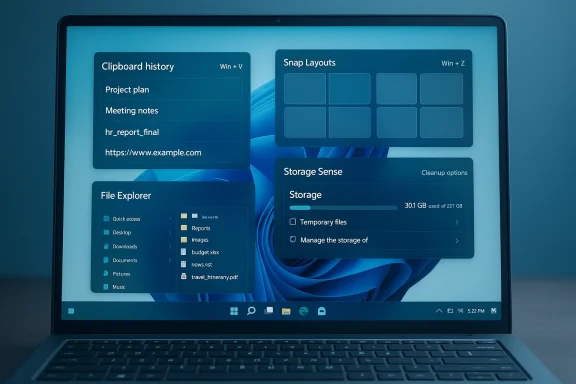
Windows ships usable, but rarely optimized, and the small switches you flip in minutes can change how productive, secure, and unintimidating your PC feels every day. In this deep-dive feature I take the four built‑in Windows features most people leave off the default checklist — Clipboard History, Snap layouts, Show file name extensions, and Storage Sense — and the convenient “God Mode” shortcut I keep on my desktop. For each I show exactly how to enable them, why they matter in real workflows, what to watch out for (privacy, security, and administrative changes), and practical tips that turn small configuration choices into meaningful time savings. The guidance here is rooted in Microsoft’s documentation and cross‑checked against community-tested practice to make sure the steps and caveats are current and reliable.
Windows is intentionally conservative out of the box: defaults favor a clean surface and minimal prompts. That’s sensible for new users, but for anyone who spends hours each week on multiple machines the default setup is friction. The features covered below are built into Windows 10 and Windows 11, require little-to-no training, and don't rely on third‑party utilities. Turning them on is not about chasing benchmarks — it’s about reducing small, repeated interruptions that add up to hours lost over weeks and months.
This article gives step‑by‑step enablement guidance, explains the productivity and security tradeoffs, and flags recent changes to Windows behavior administrators and power users need to know about. Where appropriate, I cite Microsoft’s official guidance and corroborating community sources so you can verify each claim before changing settings on production machines.
Key technical limits and behavior to know:
File extensions tell you the actual file type and make it trivial to spot suspicious files — for example a file named invoice.pdf.exe will show as invoice.pdf.exe with extensions enabled and immediately reveal the danger. For anyone who moves or renames files, tests downloads, or handles mixed content, showing extensions improves speed and safety.
 and, depending on configuration, will:
The folder’s icon will change and opening it shows a long categorized list of settings and tools. Many reputable tech sites step through the same sequence.
Turn these on, apply sensible privacy guardrails (don’t sync sensitive clipboard data), and you get an OS that feels finished instead of “factory fresh.” The changes are small, reversible, and supported by Microsoft documentation and community experience — a rare, high‑return set of switches any Windows user can flip in minutes.
In short: enable Clipboard History, embrace Snap layouts, show file name extensions, and turn on Storage Sense — and keep a God Mode folder handy for administrative tasks. These aren’t hacks; they’re underused, supported features that reduce friction across devices and save real time. Make them your default, and your next fresh Windows install will feel finished from the first login.
Source: How-To Geek 4 powerful Windows features most people never turn on
 Background
Windows is intentionally conservative out of the box: defaults favor a clean surface and minimal prompts. That’s sensible for new users, but for anyone who spends hours each week on multiple machines the default setup is friction. The features covered below are built into Windows 10 and Windows 11, require little-to-no training, and don't rely on third‑party utilities. Turning them on is not about chasing benchmarks — it’s about reducing small, repeated interruptions that add up to hours lost over weeks and months.This article gives step‑by‑step enablement guidance, explains the productivity and security tradeoffs, and flags recent changes to Windows behavior administrators and power users need to know about. Where appropriate, I cite Microsoft’s official guidance and corroborating community sources so you can verify each claim before changing settings on production machines.
Clipboard History: turn copy/paste into a real tool
Clipboard History is the difference between a one‑slot memory and a tiny, searchable notepad that follows you around the OS. Use it and you stop losing mid‑work snippets, links, code blocks, and screenshots when you copy something new.What it does and why it matters
By default Windows retains only the last item you copied. Clipboard History expands that to a session list of recent entries (text, HTML, and bitmaps), lets you pin frequently used items, and — optionally — syncs clipboard content across your Windows devices tied to the same Microsoft account. The result: fewer context switches, fewer “oh no I lost that link” moments, and faster multi‑app workflows. Microsoft documents the feature and how to use Win + V to summon it.Key technical limits and behavior to know:
- The clipboard stores up to 25 entries; older items are removed automatically unless pinned.
- Per‑item size limit is 4 MB; supported formats include text, HTML and Bitmap.
- Clipboard History is cleared on restart except for items you explicitly pin.
How to enable (two quick methods)
- Press Windows key + V and click Turn on when the clipboard pane appears.
- Or open Settings > System > Clipboard and toggle Clipboard history on.
Productivity tips
- Pin frequently used snippets (email signature, commands, file paths) to keep them after restarts.
- Use Win + V, type to search, and press Enter to paste — it’s often faster than switching back to the originating app.
- For code work, prefer plain text copies (strip formatting)rely on clipboard sync across different machines.
Privacy and security tradeoffs
Clipboard sync sends selected clipboard items to Microsoft’s cloud tied to your account. That’s convenient for moving text between devices but increases risk for sensitive content (passwords, tokens, personal data). Treat clipboard sync like a convenience tool, not a secure vault:- Never copy passwords or secrets when clipboard sync is enabled. Use password managers for that.
- If you share a Microsoft account with others or work on shared devices, turn off sync.
- You can selectively clear clipboard data or delete individual entries from the Win + V pane.
Snap layouts: structured multitasking without third‑party bloat
If you drag a window and get a half‑screen split, you’re using the simplest part of Windows’ window management. Snap layouts are the curated, keyboard-friendly grid presets that make multi‑app work predictable and repeatable.What Snap layouts add
Snap layouts present layout presets (two‑column, three‑column, quadrant grid, etc.) tailored to your screen size. Invoke them by hovering over a window’s maximize button or pressing Win + Z. Windows then walks you through filling the remaining zones using Snap Assist. This is a core Windows 11 productivity feature intended to remove fiddly resizing and positioning. Microsoft documents Snap layouts’ behavior for modern desktop apps.How to invoke and customize
- Hover the mouse pointer over the maximize button of any resizable window and click a zone to snap.
- Or press Win + Z to open the Snap layout flyout, then click or use arrow keys.
- You can adjust snapping behavior under Settings > System > Multitasking (Snap windows) to control things like show snap layouts and enable guie behaviors are consistent across most Windows 11 releases; third‑party tools still have a place for complex, multi‑monitor tiling, but Snap layouts are fast, supported, and lightweight for travel laptops and single‑monitor use.
Real‑world workflows
- Two apps side‑by‑side for writing and reference (e.g., Word + browser).
- Three columns when you’re researching, drafting, and note‑taking in parallel.
- Four‑pane grids for monitoring logs, a terminal, an editor, and documentation.
Caveats and enterprise considerations
- Snap layouts are tailored to screen size and orientation; very small laptop screens show fewer layout options.
- If you rely on extensive multi‑monitor tiling and saved preset layouts, something like PowerToys FancyZones (third‑party Microsoft tool) still offers capabilities Snap doesn’t expose natively.
Show file name extensions: clear files, fewer surprises
Seeing a file named "report" is less useful than "report.docx" or "report.pdf". Windows hides extensions by default to simplify the view for less technical users — but that convenience removes essential context and can hide dangerous file typese extensionsFile extensions tell you the actual file type and make it trivial to spot suspicious files — for example a file named invoice.pdf.exe will show as invoice.pdf.exe with extensions enabled and immediately reveal the danger. For anyone who moves or renames files, tests downloads, or handles mixed content, showing extensions improves speed and safety.
How to enable
- Open File Explorer, choose View > Show > File name extensions.
- On Windows 11 File Explorer ribbon, this is under View > Show > File name extensions; on Windows 10 similar View options exist.
Practical tips
- Combine extensions with “Show hidden items” when troubleshooting system files that use both hidden and system attributes.
- Train less experienced users in your household or team to never enable hidden extensions for known safe apps that add an extra suffix — for example installers or archives — unless they understand the implications.
Storage Sense: automated cleanup to stop storage creep
Storage Sense quietly prevents the “sudden low disk space” scramble by reclaiming temp files, culling the Recycle Bin, and optionally pruning older Downloads or cloud‑backed files. It’s not aggressive by default and is configurable — which makes it ideal for SSDs and small-system drives.What Storage Sense does
Storage Sense runs on the system drive (typically C and, depending on configuration, will:- Delete temporary files that aren’t in use.
- Empty the Recycle Bin after a set period.
- Optionally remove older files from Downloads.
- Convert unused OneDrive files to online‑only (Files On‑Demand) under certain settings.
- Storage Sense runs only on the system drive; it will not manage other physical or logical drives unless you use separate settings for them.
- On Windows 10, Storage Sense is available starting with version 1809; behavior and options have evolved across releases.
How to enable and configure
- Open Settings > System > Storage.
- Toggle Storage Sense to On.
- Click Configure Storage Sense or run it now to set schedules (during low free space, daily, weekly, or monthly), and to set the Recycle Bin and Downloads cleanup rules.
Recent administrative change to watch for
Microsoft recently introduced a security change that requires administrative rights to open Storage settings on updated Windows 11 systems. The change — rolled out as part of a February 2026 update — triggers a UAC prompt when users try to access Storage settings, tightening access to disk management tools. This affects shared machines and non‑admin users who used to toggle Storage Sense without elevated privileges; administrators should be aware of the change before advising others to enable it.Recommendations and gotchas
- If you administer family PCs or shared devices, preconfigure Storage Sense then apply a policy or local account settings so non‑admin users aren’t blocked by the new UAC requirement.
- Confirm OneDrive and Files On‑Demand settings if you rely on automatic online conversion to ensure files you need remain available locally.
- Use the “run it now” button to validate the cleanup rules on a test machine before enabling on production systems.
God Mode: a one‑folder shortcut to advanced settings
“God Mode” — the cheeky name stuck to a special folder — is simply a consolidated list of control panel items, administrative tools, and system settings in one place. It’s not a hidden escalation of privileges; it’s a convenient shortcut for power users and IT pros.How to create it
- Right‑click the desktop and choose New > Folder.
- Rename the folder exactly to:
The folder’s icon will change and opening it shows a long categorized list of settings and tools. Many reputable tech sites step through the same sequence.
Why I keep it
When I’m troubleshooting, the God Mode folder saves dozens of clicks. It aggregates .cpl control panel files and other management entry points so I can quickly jump to Device Manager, Power Options, indexing settings, or network adapter properties without hunting through layered Settings menus.Security and enterprise considerations
- God Mode does not bypass permissions. It shows links that your account can access; it doesn’t elevate privileges. Blocking users from creating or accessing it is usually an overreach — restricting local administrative rights is the appropriate control. Community administrators have also documented GPO approaches that restrict Control Panel access if you need to prevent casual access to advanced settings.
Practical checklist: what I enable and why (two‑minute setup)
If you want the same baseline I use across fresh installs, do this in order:- Enable Clipboard History (Win + V) and do not enable cloud sync if the machine will contain sensitive data.
- Turn on Snap layouts (ensure Settings > System > Multitasking > Snap windows is enabled) and practice Win + Z to internalize keyboard flow.
- Show file name extensions in File Explorer to avoid accidental execution and speed file management.
- Enable Storage Sense and configure Recycle Bin and Downloads cleanup; validate Files On‑Demand behavior with OneDrive if you use it — note admin requirement changes on some Windows 11 installs.
- Create a God Mode folder if you like single‑click access to advanced tools, and keep it pinned to the desktop or a quick‑access area.
Risks, limitations, and governance
No setting is purely beneficial; every convenience carries tradeoffs:- Clipboard sync is the single biggest privacy risk. Treat synced clipboards like any cloud service: don’t copy secrets. Microsoft documents sync behavior and limits; configure accordingly.
- Storage Sense behavior and access are evolving: the administrative UAC requirement for Storage settings on updated Windows 11 systems can disrupt non‑admin workflows. If you support users, communicate the change and preconfigure settings where feasible.
- Showing file extensions is a usability win, but some users find the change visually noisy; this is a short learning curve tradeoff where security and clarity win for power users.
- Snap layouts are most powerful on Windows 11; older Windows 10 installs have more limited native snapping and may benefit from third‑party tools for advanced tiling.
- God Mode can be disabled by strict enterprise policies that block Control Panel access; it’s never an elevation or exploit, but it aggregates controls that admins may prefer to hide from standard users.
Troubleshooting and quick fixes
- If you enable Clipboard History and Win + V shows nothing, open Settings > System > Clipboard to confirm it’s toggled on, and check for group policies that may disable clipboard features in enterprise contexts.
- Snap layouts won’t appear for legacy apps that don’t expose a standard caption bar; use keyboard shortcuts (Win + arrow keys) to manage those windows.
- If Storage Sense doesn’t free space on other drives, that’s by design; it targets the system drive only. Use dedicated cleanup tools or drive‑specific settings for secondary volumes.
- If creating the God Mode folder yields a normal folder name and no icon change, make sure the name is exact and includes the GUID in braces — typos prevent the folder from converting.
The payoff: why these small changes matter
I repeatedly see the same pattern in desktop productivity: the big wins aren’t faster hardware or exotic utilities, but fewer interruptions and more predictable behaviors. Enabling Clipboard History eliminates “lost copy” moments. Snap layouts remove repetitive window nudging. Showing extensions removes guesswork and reduces accidental execution. Storage Sense prevents the stress of sudden full‑drive warnings. God Mode bundles administrative shortcuts so troubleshooting is less clicking and more solving.Turn these on, apply sensible privacy guardrails (don’t sync sensitive clipboard data), and you get an OS that feels finished instead of “factory fresh.” The changes are small, reversible, and supported by Microsoft documentation and community experience — a rare, high‑return set of switches any Windows user can flip in minutes.
In short: enable Clipboard History, embrace Snap layouts, show file name extensions, and turn on Storage Sense — and keep a God Mode folder handy for administrative tasks. These aren’t hacks; they’re underused, supported features that reduce friction across devices and save real time. Make them your default, and your next fresh Windows install will feel finished from the first login.
Source: How-To Geek 4 powerful Windows features most people never turn on
