

Before reinstalling Windows, use Microsoft’s Media Creation Tool to create and test a blank USB installer of at least 8 GB, also save an ISO fallback, and check Windows release health before depending on that media in an emergency. The point is not that MCT is useless; it is that recovery media becomes valuable only after you have proved it works. WindowsForum users have already seen the boring failure modes that matter most: stalled downloads, creation errors such as 0x80070005-0x90018, and platform-specific breakage such as the Arm64 regression Microsoft later fixed.
The practical playbook is straightforward. Create the USB while the PC still works, create or retain an ISO as a second path, verify that the USB can boot on the target machine, and keep the ISO somewhere that will survive the reinstall. If the Media Creation Tool stalls or fails, do not keep clicking through the same broken workflow for hours; switch to the staged ISO, another known-good PC, or a previously validated USB.
The standard Media Creation Tool story usually starts with a download button and ends with a triumphant “you now have installation media” message. That is useful, but it is not the story that matters when a machine is infected, unbootable, or mid-reinstall with no working desktop left. At that point, the only question is whether the media in your hand can actually get you into Windows Setup or recovery.
Microsoft’s baseline requirement is modest: a blank USB drive with at least 8 GB of space. The tool can create USB installation media, and it can also create an ISO file that can be used later. Those two facts should shape the entire workflow, because they turn MCT from a one-shot wizard into part of a small recovery kit.
The failure reports WindowsForum users have raised over the years are not exotic. One user described the tool sitting at the download stage for two hours without progress. Another hit 0x80070005-0x90018 while trying repeatedly to create USB media. These are exactly the failures that feel minor on a healthy second PC and catastrophic when they happen on the only machine you have available.
So the first rule is to stop treating rescue media as something you create after the emergency begins. The right time to make it is when your network is stable, your account still has access, your PC can still browse for drivers and docs, and you are not trying to diagnose malware from the same Windows installation you plan to erase.
That procedure is only the beginning. Once the USB is created, restart the target PC and confirm that the firmware boot menu can see the drive. You do not need to wipe anything during this test; the goal is to prove that the machine can reach the Windows installer or recovery environment from that USB. If the PC cannot see the drive, or if it boots straight back into the existing installation, you have found the problem while there is still time to fix it.
The ISO deserves the same treatment as a serious fallback, not as an afterthought. Store it somewhere that will not be destroyed by the reinstall: an external drive, a NAS, a second PC, or another location you can reach without depending on the failing Windows installation. If your USB creation attempt later fails, the ISO gives you another route.
For WindowsForum readers, the distinction matters because many of us are not just reinstalling one family laptop. We may be supporting a home lab, a fleet of small-office machines, a parent’s PC, or a Windows-on-Arm device with fewer spare parts and fewer familiar recovery paths. A tested USB plus a retained ISO is cheap insurance against a very predictable class of failure.
A better response is to separate downloading, creating, storing, and testing. If the download stalls, you want the option to try a different network or another PC. If the USB creation step fails, you want an ISO already available or the ability to generate one instead. If the resulting media will not boot, you want to learn that before the old Windows installation is gone.
This is where enthusiasts and sysadmins should be more disciplined than the average how-to guide. Label the drive with the Windows version and creation date. Keep a note of whether it has been boot-tested on UEFI systems you actually support. If you are helping someone remotely, ask them whether they have a tested installer before you tell them to begin a destructive reset.
WindowsForum has a long memory for these little tool failures because they recur in different clothes. A stuck download, a failed USB write, a returned public tool after a pulled build, an image creation failure on a machine with plenty of disk space — the common thread is that Windows recovery often fails at the handoff between “the instructions are correct” and “the machine in front of me can actually do this.”
The regression did not turn MCT into a bad tool. It did something more subtle: it exposed the danger of assuming that “official” means “safe to trust untested on every architecture today.” Windows on Arm has become much more real for users, developers, and admins, but it still sits outside the deepest groove of decades of x86 recovery habits.
For Arm64 owners, the playbook should be stricter. Do not wait until a device is broken to discover whether your current host can run the current MCT build successfully. If you rely on Arm hardware, test the tool after major Windows servicing changes, and keep a fallback path that does not require the broken host to create its own rescue media at the last minute.
The KB5067036 fix also illustrates a broader Windows servicing reality. A tool failure can be fixed by a later update, but recovery work often happens precisely when the target machine is not in a clean, fully updated state. If the answer to your recovery problem is “install a later update first,” that answer may be useless on the day your PC will not boot.
This is especially important when you are reinstalling to solve a problem you do not fully understand. If the machine is failing because of a bad driver, a storage issue, a firmware setting, or a platform-specific Windows problem, a reinstall may not be the clean break you expect. Checking release health is a way to avoid walking directly into a known issue and mistaking it for a fresh local failure.
For IT pros, the release-health check belongs before the weekend maintenance window, not during it. If a known issue affects the Windows version you plan to deploy, you need time to decide whether to delay, use different media, or prepare a workaround. For home users, it is a five-minute sanity check that can save hours of “why is this still broken?” troubleshooting.
This is also where WindowsForum’s forum memory is useful. A single support article tells you the supported path; community reports tell you where people are actually getting stuck. Neither should be treated as perfect, but together they give you a better picture than the wizard alone.
A retained ISO gives you options. You can create new media if the flash drive is lost, damaged, or overwritten. You can use it in a virtual machine. You can keep it with documentation and drivers for the machines you support. Most importantly, you can avoid turning every reinstall into a fresh dependency on the Media Creation Tool download path.
That does not mean hoarding ancient images indefinitely. The ISO should be understood as a fallback, not a magic artifact. Pair it with a release-health check before use, and replace it when your support needs change. A stale ISO may still be useful, but only if you know what it is and why you are using it.
The best recovery kits are deliberately dull. They have a known-good USB, a known ISO, a clear label, and a short note about when they were tested. That may not feel as satisfying as a clever fix for 0x80070005-0x90018, but it is far more useful when the clock is running.
In a small business, that means making media before a machine fails, testing it on representative hardware, and keeping a fallback copy away from the endpoint being rebuilt. In a home lab, it means not assuming that the USB you made six months ago still fits the Windows version or architecture you now care about. For a family tech-support role, it means building the rescue kit before the holiday visit turns into a data-loss negotiation.
The most practical difference is psychological. If you treat MCT as an appliance, you trust the success screen. If you treat it as deployment tooling, you trust only the boot test. That one change eliminates a surprising amount of drama.
The same mindset applies to online guides, including our own. A how-to that explains how to click through MCT is useful, and WindowsForum has covered that basic path before. But the higher-value advice is to make the tool prove itself while failure is still cheap.
The late-September 2025 Arm64 regression and the October 28, 2025 KB5067036 fix should permanently change how careful Windows users think about the tool. It is not enough for MCT to be official, current, and simple. It has to work on the host you have, for the architecture you need, on the day you need it.
That is why the best Windows reinstall advice begins before the reinstall. Build the USB, keep the ISO, boot-test the media, and check release health before the maintenance window or the malware cleanup begins. The future of Windows recovery will keep getting more architecture-diverse, more cloud-entangled, and more dependent on Microsoft’s servicing cadence; the users who fare best will be the ones who rehearse the boring parts before the emergency makes them interesting.
The practical playbook is straightforward. Create the USB while the PC still works, create or retain an ISO as a second path, verify that the USB can boot on the target machine, and keep the ISO somewhere that will survive the reinstall. If the Media Creation Tool stalls or fails, do not keep clicking through the same broken workflow for hours; switch to the staged ISO, another known-good PC, or a previously validated USB.
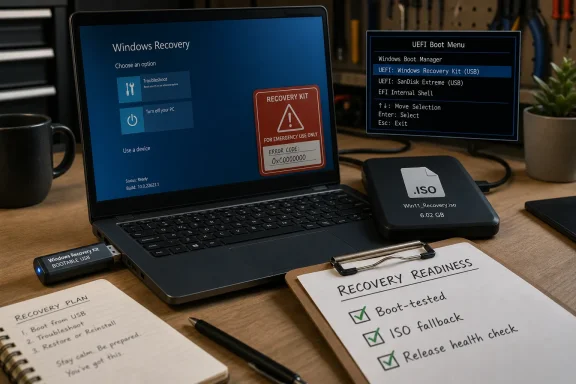 A rescue drive you have not boot-tested is just a souvenir
The standard Media Creation Tool story usually starts with a download button and ends with a triumphant “you now have installation media” message. That is useful, but it is not the story that matters when a machine is infected, unbootable, or mid-reinstall with no working desktop left. At that point, the only question is whether the media in your hand can actually get you into Windows Setup or recovery.Microsoft’s baseline requirement is modest: a blank USB drive with at least 8 GB of space. The tool can create USB installation media, and it can also create an ISO file that can be used later. Those two facts should shape the entire workflow, because they turn MCT from a one-shot wizard into part of a small recovery kit.
The failure reports WindowsForum users have raised over the years are not exotic. One user described the tool sitting at the download stage for two hours without progress. Another hit 0x80070005-0x90018 while trying repeatedly to create USB media. These are exactly the failures that feel minor on a healthy second PC and catastrophic when they happen on the only machine you have available.
So the first rule is to stop treating rescue media as something you create after the emergency begins. The right time to make it is when your network is stable, your account still has access, your PC can still browse for drivers and docs, and you are not trying to diagnose malware from the same Windows installation you plan to erase.
The minimal procedure is simple, but the validation is the real work
The basic MCT process remains the same. Use Microsoft’s Windows installation media page, download the Media Creation Tool for the Windows version you intend to install, run it on a working PC, accept the prompts, and choose the option to create installation media rather than immediately upgrade the current machine. Use a blank USB flash drive of at least 8 GB when you want bootable media, or choose the ISO path when you want a reusable image for later.That procedure is only the beginning. Once the USB is created, restart the target PC and confirm that the firmware boot menu can see the drive. You do not need to wipe anything during this test; the goal is to prove that the machine can reach the Windows installer or recovery environment from that USB. If the PC cannot see the drive, or if it boots straight back into the existing installation, you have found the problem while there is still time to fix it.
The ISO deserves the same treatment as a serious fallback, not as an afterthought. Store it somewhere that will not be destroyed by the reinstall: an external drive, a NAS, a second PC, or another location you can reach without depending on the failing Windows installation. If your USB creation attempt later fails, the ISO gives you another route.
For WindowsForum readers, the distinction matters because many of us are not just reinstalling one family laptop. We may be supporting a home lab, a fleet of small-office machines, a parent’s PC, or a Windows-on-Arm device with fewer spare parts and fewer familiar recovery paths. A tested USB plus a retained ISO is cheap insurance against a very predictable class of failure.
Error 0x80070005-0x90018 is a warning about process, not just permissions
The error code 0x80070005 is often associated with access problems, but the more important lesson for a reinstall plan is operational. If your recovery workflow depends on a tool that can fail at media creation time, the workflow has a single point of failure. Repeating the same run of MCT may eventually work, but it is not a plan.A better response is to separate downloading, creating, storing, and testing. If the download stalls, you want the option to try a different network or another PC. If the USB creation step fails, you want an ISO already available or the ability to generate one instead. If the resulting media will not boot, you want to learn that before the old Windows installation is gone.
This is where enthusiasts and sysadmins should be more disciplined than the average how-to guide. Label the drive with the Windows version and creation date. Keep a note of whether it has been boot-tested on UEFI systems you actually support. If you are helping someone remotely, ask them whether they have a tested installer before you tell them to begin a destructive reset.
WindowsForum has a long memory for these little tool failures because they recur in different clothes. A stuck download, a failed USB write, a returned public tool after a pulled build, an image creation failure on a machine with plenty of disk space — the common thread is that Windows recovery often fails at the handoff between “the instructions are correct” and “the machine in front of me can actually do this.”
The Arm64 regression proved the tool itself belongs on the risk list
The sharpest recent reminder came from Microsoft’s own documentation. Microsoft documented an Arm64-related Media Creation Tool regression in late September 2025, then said it was fixed on October 28, 2025 with KB5067036. That timeline matters because it shows that even Microsoft’s official recovery tooling can temporarily become part of the problem.The regression did not turn MCT into a bad tool. It did something more subtle: it exposed the danger of assuming that “official” means “safe to trust untested on every architecture today.” Windows on Arm has become much more real for users, developers, and admins, but it still sits outside the deepest groove of decades of x86 recovery habits.
For Arm64 owners, the playbook should be stricter. Do not wait until a device is broken to discover whether your current host can run the current MCT build successfully. If you rely on Arm hardware, test the tool after major Windows servicing changes, and keep a fallback path that does not require the broken host to create its own rescue media at the last minute.
The KB5067036 fix also illustrates a broader Windows servicing reality. A tool failure can be fixed by a later update, but recovery work often happens precisely when the target machine is not in a clean, fully updated state. If the answer to your recovery problem is “install a later update first,” that answer may be useless on the day your PC will not boot.
Release health is now part of reinstall hygiene
Microsoft recommends checking Windows release health for known issues before installing Windows 11, and that advice should move from corporate deployment checklists into enthusiast practice. A clean install feels like a reset button, but it still lands you on a living platform with known issues, compatibility holds, and recently fixed regressions. Recovery media is not timeless just because it is sitting in a drawer.This is especially important when you are reinstalling to solve a problem you do not fully understand. If the machine is failing because of a bad driver, a storage issue, a firmware setting, or a platform-specific Windows problem, a reinstall may not be the clean break you expect. Checking release health is a way to avoid walking directly into a known issue and mistaking it for a fresh local failure.
For IT pros, the release-health check belongs before the weekend maintenance window, not during it. If a known issue affects the Windows version you plan to deploy, you need time to decide whether to delay, use different media, or prepare a workaround. For home users, it is a five-minute sanity check that can save hours of “why is this still broken?” troubleshooting.
This is also where WindowsForum’s forum memory is useful. A single support article tells you the supported path; community reports tell you where people are actually getting stuck. Neither should be treated as perfect, but together they give you a better picture than the wizard alone.
The fallback ISO is the boring hero of the reinstall kit
The USB drive is convenient because it boots. The ISO is valuable because it is portable, repeatable, and less tied to one flash drive’s condition. If you only create a USB and never keep the ISO, you have made the most fragile version of the rescue kit.A retained ISO gives you options. You can create new media if the flash drive is lost, damaged, or overwritten. You can use it in a virtual machine. You can keep it with documentation and drivers for the machines you support. Most importantly, you can avoid turning every reinstall into a fresh dependency on the Media Creation Tool download path.
That does not mean hoarding ancient images indefinitely. The ISO should be understood as a fallback, not a magic artifact. Pair it with a release-health check before use, and replace it when your support needs change. A stale ISO may still be useful, but only if you know what it is and why you are using it.
The best recovery kits are deliberately dull. They have a known-good USB, a known ISO, a clear label, and a short note about when they were tested. That may not feel as satisfying as a clever fix for 0x80070005-0x90018, but it is far more useful when the clock is running.
Treat MCT like deployment tooling, not a consumer appliance
The Media Creation Tool’s friendly design is part of the trap. It looks like a consumer appliance: click, wait, insert USB, done. But the job it performs is closer to deployment tooling, and deployment tooling needs validation.In a small business, that means making media before a machine fails, testing it on representative hardware, and keeping a fallback copy away from the endpoint being rebuilt. In a home lab, it means not assuming that the USB you made six months ago still fits the Windows version or architecture you now care about. For a family tech-support role, it means building the rescue kit before the holiday visit turns into a data-loss negotiation.
The most practical difference is psychological. If you treat MCT as an appliance, you trust the success screen. If you treat it as deployment tooling, you trust only the boot test. That one change eliminates a surprising amount of drama.
The same mindset applies to online guides, including our own. A how-to that explains how to click through MCT is useful, and WindowsForum has covered that basic path before. But the higher-value advice is to make the tool prove itself while failure is still cheap.
The WindowsForum reader’s pre-reinstall checklist should be shorter and stricter
A good rescue-media playbook does not need to become a binder. It needs to force the few checks people usually skip. If you are about to reinstall Windows, the difference between “prepared” and “hoping” is whether these items are already true before you erase anything.- You have created a blank USB installer with at least 8 GB of capacity using Microsoft’s Media Creation Tool or another trusted process.
- You have boot-tested that USB on the target PC or on hardware close enough to expose obvious firmware and boot-menu problems.
- You have saved an ISO fallback somewhere outside the Windows installation you are about to remove.
- You have checked Windows release health for known Windows 11 issues before starting the install.
- You have treated repeated MCT stalls or 0x80070005-0x90018 failures as a reason to change paths, not as a reason to keep retrying indefinitely.
- You have paid special attention to Arm64 systems because Microsoft has already had to fix an MCT regression affecting that class of device.
The real upgrade is from trust to rehearsal
Microsoft’s Media Creation Tool remains the official, convenient route for many Windows reinstall and recovery scenarios. The problem is not that users are wrong to use it. The problem is that too many users discover whether it works only after the old installation is already compromised, erased, or inaccessible.The late-September 2025 Arm64 regression and the October 28, 2025 KB5067036 fix should permanently change how careful Windows users think about the tool. It is not enough for MCT to be official, current, and simple. It has to work on the host you have, for the architecture you need, on the day you need it.
That is why the best Windows reinstall advice begins before the reinstall. Build the USB, keep the ISO, boot-test the media, and check release health before the maintenance window or the malware cleanup begins. The future of Windows recovery will keep getting more architecture-diverse, more cloud-entangled, and more dependent on Microsoft’s servicing cadence; the users who fare best will be the ones who rehearse the boring parts before the emergency makes them interesting.
References
- Primary source: support.microsoft.com
Create installation media for Windows | Microsoft Support
Learn how to create installation media for installing or reinstalling Windows.support.microsoft.com - Independent coverage: microsoft.com
Download Windows 11
www.microsoft.com
